
Invoicing as Your Own Business in a Shared Clinic
When the practitioners in a clinic each run their own business, put each one's own business name, ABN and bank details on their invoices in place of the clinic's.
Invoicing as Your Own Business in a Shared Clinic
Many clinics are two or three practitioners sharing rooms, each running their own business with an ABN and a bank account of their own. In Daobook, each practitioner's invoices can carry their own business name, ABN and bank details in place of the clinic's.
Before you start
- You need to be the clinic's owner or an administrator. A practitioner can't change this for themselves, because it changes where clients are told to pay.
- The practitioner needs to be on your team already. See Adding Team Members and Setting Their Permissions.
Step 1: Open the practitioner's page
Click Settings, then the Team & Clinics tab, then Team Management. Click "Manage" on the practitioner's row.
Step 2: Choose who their invoices are from
Scroll to Invoices and click "Edit". Under Invoices are from, pick Their own business.
Step 3: Enter their business details
Fill in what should appear on their invoices:
- Business name: shown at the top of their invoices. Leave it blank to keep the clinic's name.
- ABN: their own 11-digit ABN.
- Bank Name, Account Name, BSB and Account Number: the account their clients pay into.
- PayID: optional.
Click "Save Changes".
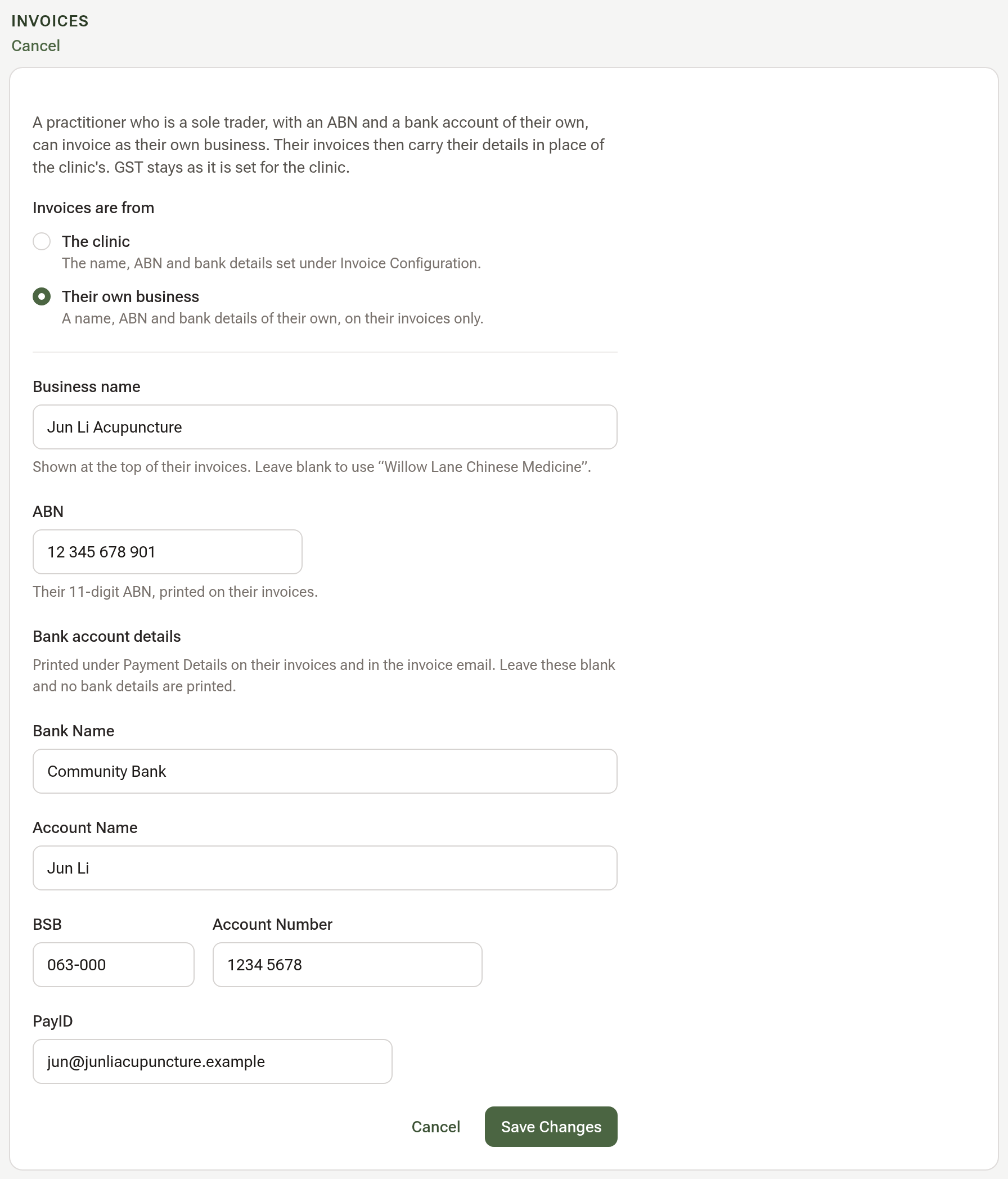
Every field is optional. If you leave the ABN or the bank details blank, their invoices show none: the clinic's ABN and bank account are never printed on another business's invoice.
Step 4: Check one of their invoices
Open an invoice that has them as its practitioner. Their business name and ABN now appear under From.
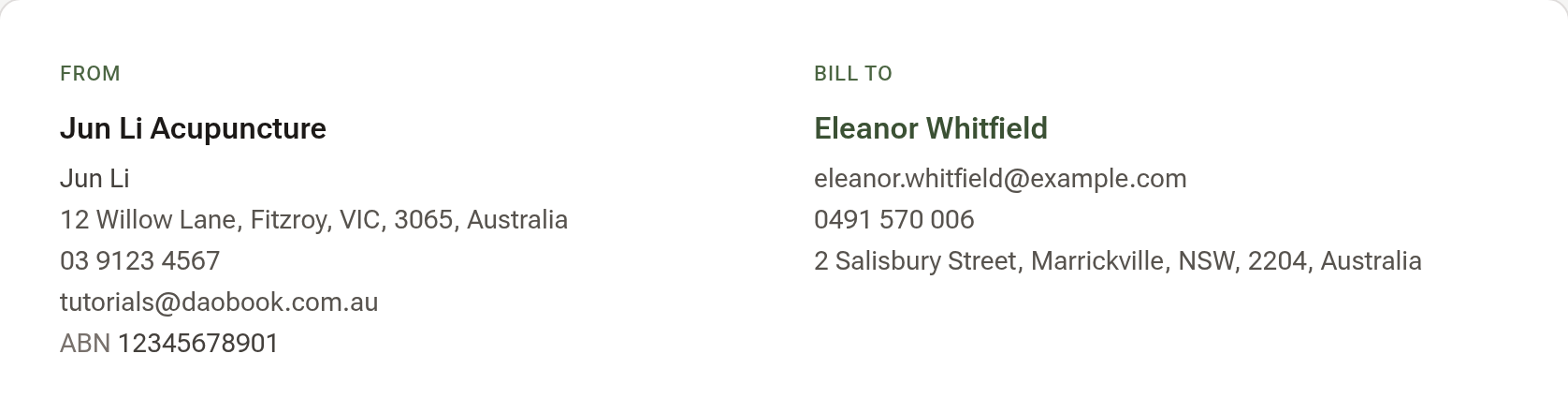
Click "Print" to see the PDF: their bank details are under Payment Details, and the same details go in the invoice email.
The account owner's own invoices
The account owner's invoices use the clinic's details, under Settings → Billing & Payments → Invoice Configuration. In a clinic of two, put the owner's business name, ABN and bank details there, and set the other practitioner to Their own business.
Tips:
- Invoices already sent or paid keep the business name and ABN they were issued with. Drafts and new invoices use the new details.
- GST settings are shared: they stay as set for the clinic, for every practitioner.
- To go back, pick The clinic and save. What you entered is kept in case you switch it on again.