
Taking Online Payments with Square or Stripe
Connect Square or Stripe on the Payments page so your clients can pay invoices online, pay a deposit when they book, and buy gift vouchers — straight into your own account.
Taking Online Payments with Square or Stripe
Connect Square or Stripe once and your clients can pay invoices online, pay a deposit when they book, and buy gift vouchers. The money goes into your own Square or Stripe account, and Daobook adds no fee of its own on top of the gateway's. Card details never touch Daobook.
You need to be a clinic admin to change payment settings, and each practice location connects its own gateway.
Step 1: Open the Payments page
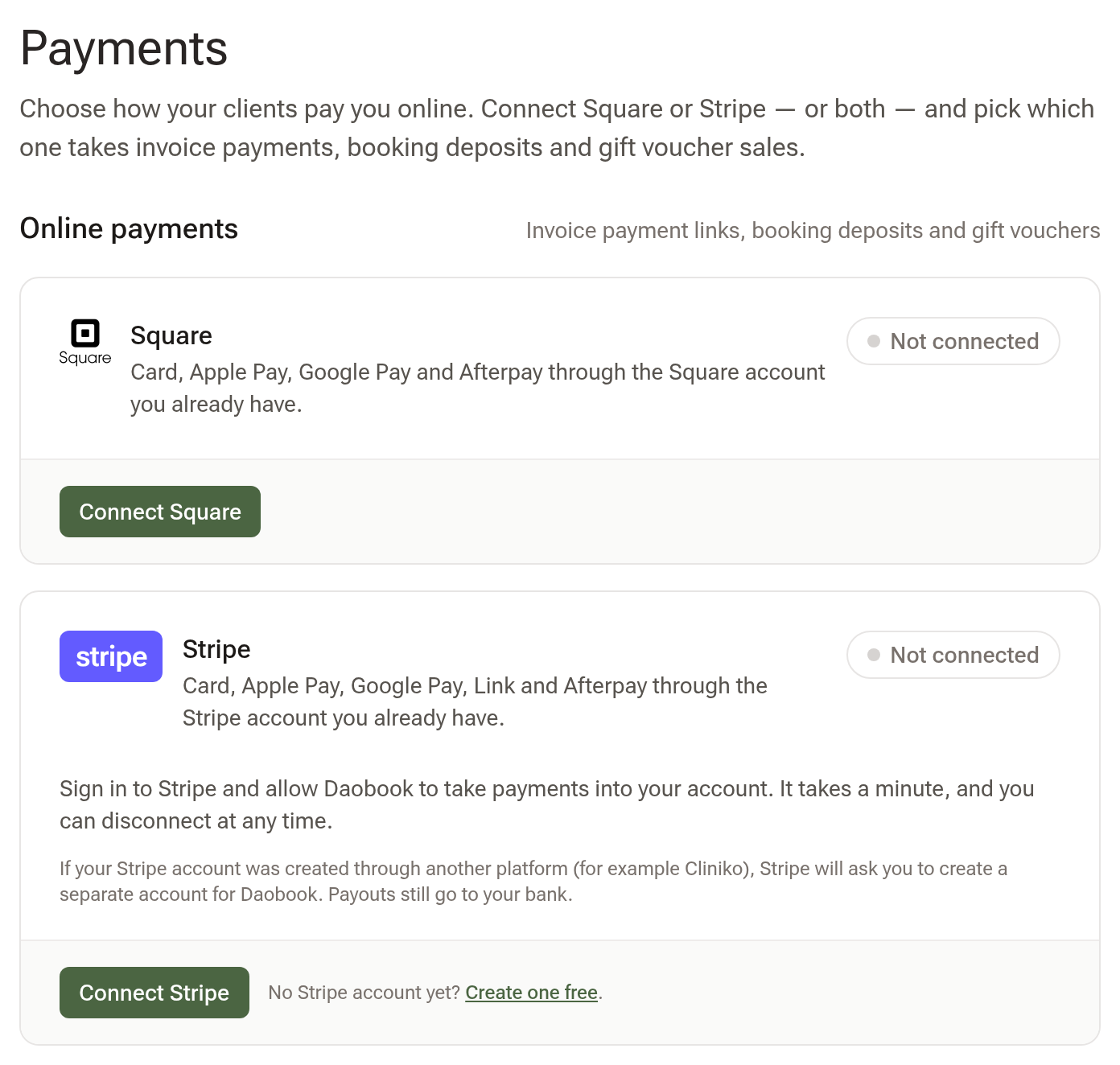
Click Settings in the sidebar, open the Billing & Payments tab and choose Payments. You'll see a card for Square and a card for Stripe, each marked Connected or Not connected at its top right, with its buttons along the foot of the card.
Step 2: Connect your gateway
Square: click Connect Square, sign in to Square and allow access. Square needs at least one active location in your Square account. Once connected, Manage Square opens the Square page where you can set the primary location, reconnect or disconnect.
Stripe: click Connect Stripe, sign in to Stripe and allow Daobook to take payments into your account. If you don't have a Stripe account yet, use the Create one free link first. Once connected, the Stripe card shows your account id and whether Stripe has finished verifying it — online card payments start as soon as it reads Ready to take card payments.
If your Stripe account was created through another platform, Stripe will ask you to create a separate account for Daobook. Payouts still go to your bank.
Step 3: If both are connected, pick one
When Square and Stripe are both connected, a Take online payments with box appears under the two cards. Choose Square or Stripe and click Save. Your clients pay through the one you pick; the other stays connected and you can switch back at any time.
Step 4: Switch on payment links for invoices
Still in Billing & Payments, open Invoice Configuration, scroll to Online Payments and tick Offer online card payment on invoices. Emailed and texted invoices now carry a Pay Now button that opens a secure checkout for your client.
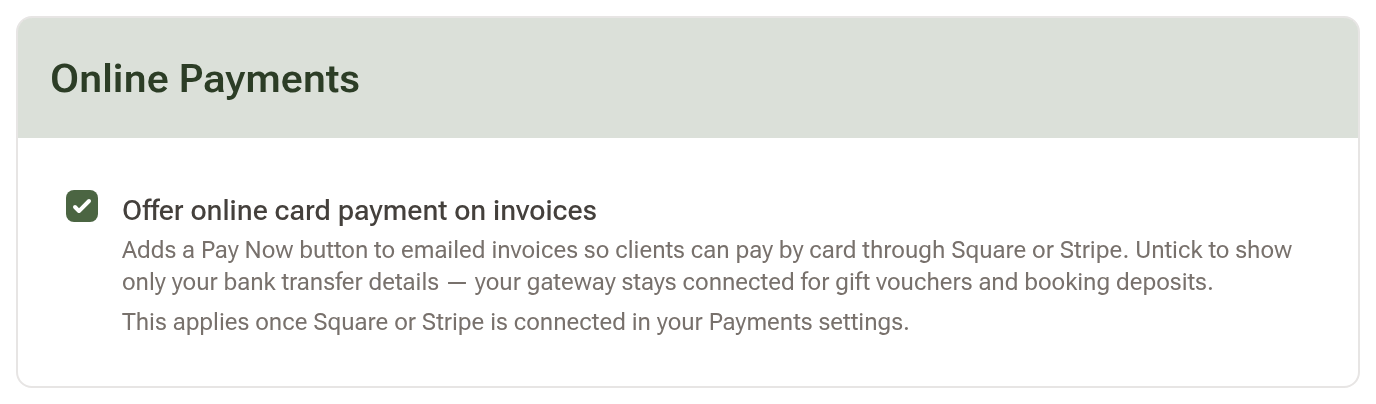
Untick it to show only your bank transfer details on invoices — your gateway stays connected for gift vouchers and booking deposits.
Step 5: Deposits and gift vouchers (optional)
- Booking deposits: in Settings → Practice Info → Online Bookings, under Deposit or Card Hold, choose Deposit and set the Amount: a fixed amount (never more than the appointment's price), a % of the appointment price or the full appointment price. Clients pay through your gateway as they book. Prefer to keep a card on file and charge only if they cancel late or don't show? Choose Card hold instead — see Card Hold at Booking.
- Gift vouchers: follow Gift Vouchers: Selling, Redeeming & Managing. Online voucher sales use the same gateway.
What happens to a deposit
A deposit is held for the appointment it was paid for. When you create the invoice from that appointment, the deposit is already on it as a Booking deposit payment, so you only take the rest. The appointment's details show the deposit too.
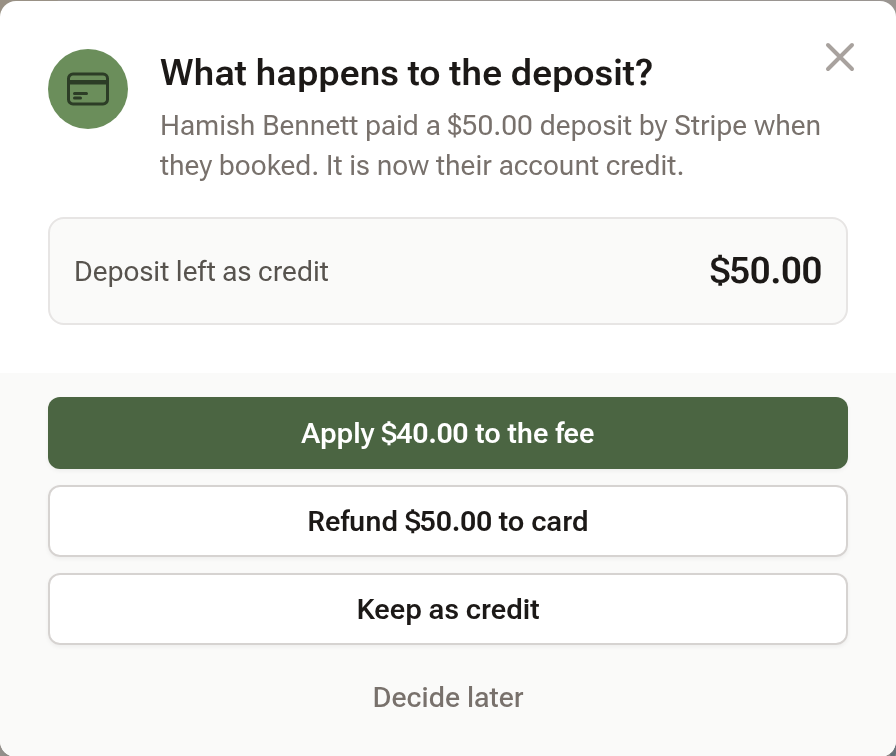
If the booking is cancelled or the client doesn't turn up, nothing happens to the money until you decide. After you mark a late cancellation or no-show, Daobook asks What happens to the deposit?
- Apply $X to the fee pays your late cancellation or no-show fee from the deposit.
- Refund $X to card sends it back to the card it was paid with.
- Keep as credit leaves it on the client's account for their next visit.
After a plain cancellation, open the appointment and click the Refund or apply… button on the right of its details.

Tips:
- Payouts, and refunds of anything other than a booking deposit, are handled in your Square or Stripe dashboard. The Stripe card has an Open Stripe dashboard button; the Square page has Open Square dashboard.
- Disconnect on the Stripe card (or Disconnect Square on the Square page) stops online payments for that location only; nothing in your gateway account is deleted.
- More than one location? Open the Payments page for each location, click Connect Stripe and choose the same Stripe account on Stripe's page. Payments from every location then arrive in that one account, and the Stripe card shows Also used by with the other location's name. You need to be an owner or admin of each location to share an account between them.