
Security settings
Set how everyone at your clinic signs in, see who opened, changed, exported and printed what, and choose when Daobook support may see your records.
Security settings
Three sections under Settings → Security are the owner's and the admins': the rules everyone at the clinic signs in by, the record of who opened what, and whether Daobook support may see your records. Other team members don't see them.
Step 1: Set the sign-in rules
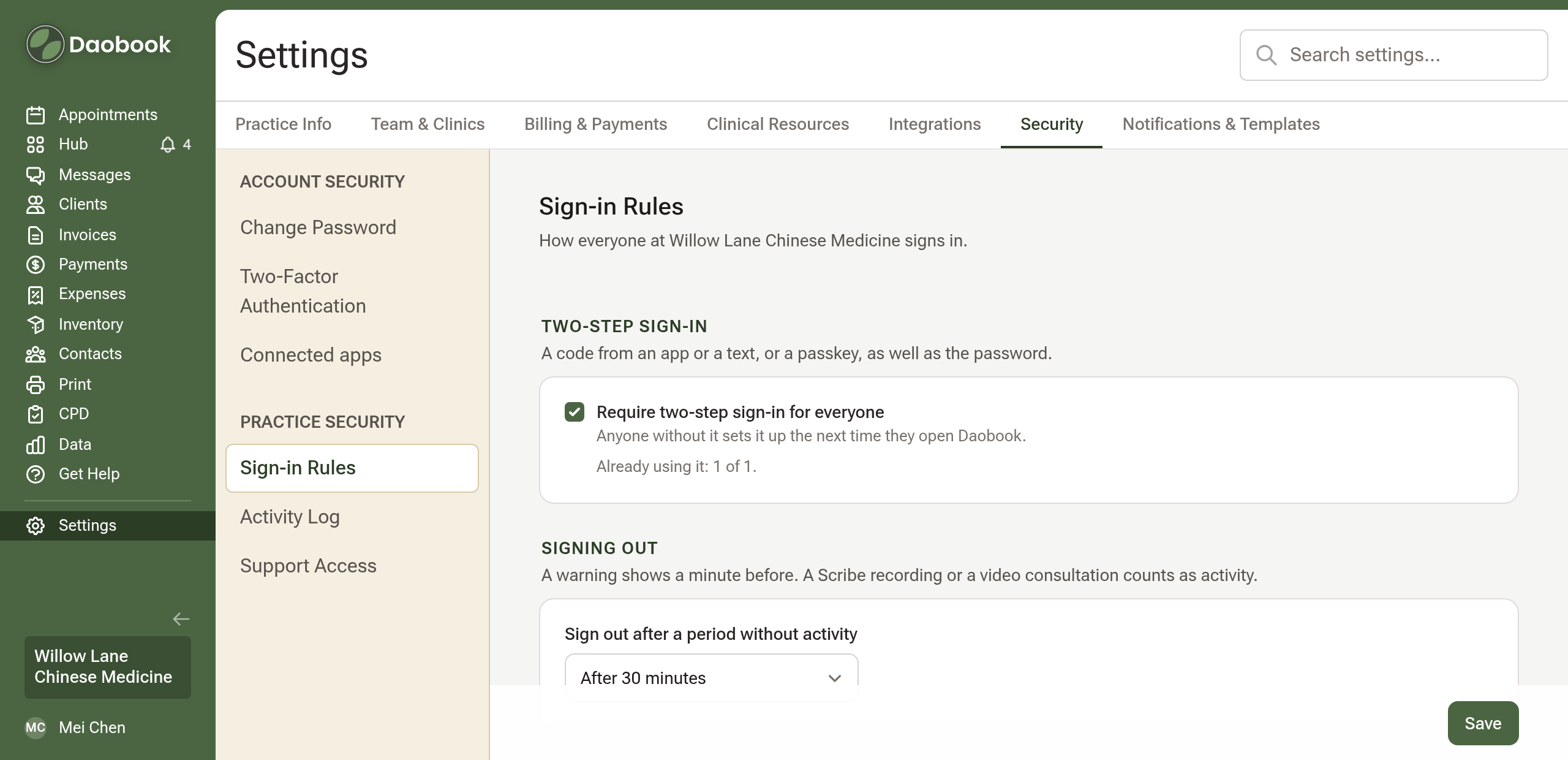
Open Settings → Security → Sign-in Rules. Tick Require two-step sign-in for everyone to have each team member add a code from an app or a text, or a passkey, to their password. Anyone without one sets it up the next time they open Daobook, under Two-Factor Authentication; the section counts who is using it already. Under Signing out, choose how long Daobook waits without activity before signing someone out: Never, or after 15, 30 or 60 minutes. Click Save.
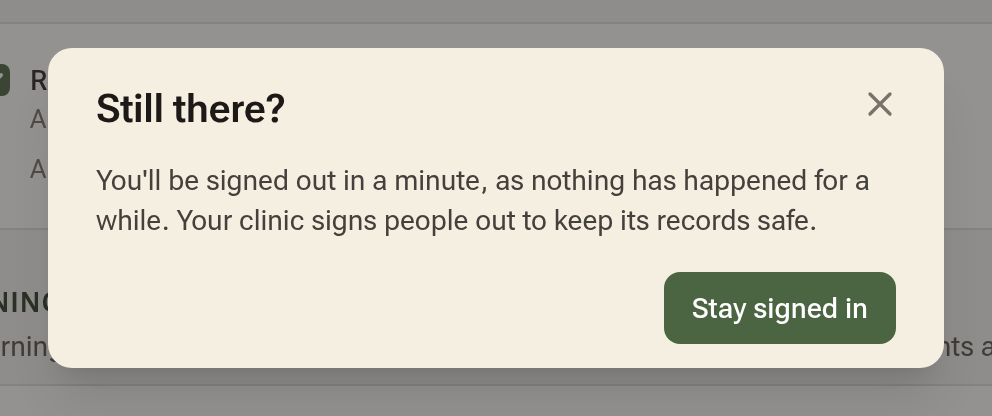
A minute before the sign-out, a Still there? window offers Stay signed in. Opening pages, saving and typing all count as activity, as do a Scribe recording and a video consultation.
Step 2: Read the Activity Log
Settings → Security → Activity Log lists who opened, changed, exported and printed what, newest first. Narrow it to a team member, a period (the last 7, 30, 90 or 365 days) or a client's name, and with the chips: Everything, Opened, Changed, Exported & printed and Support. Download as CSV takes the same lines away. The log is kept for six years.
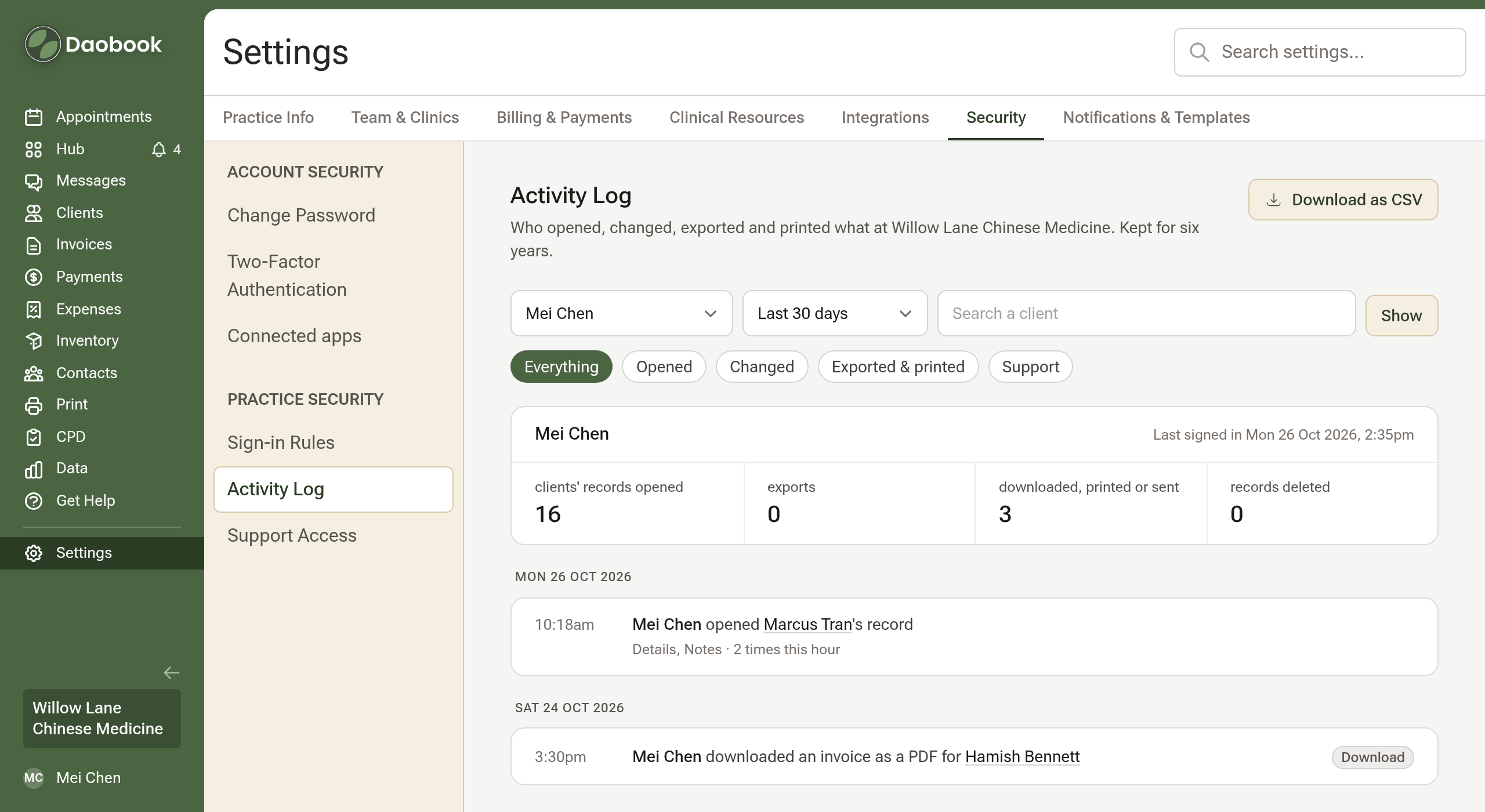
Pick a team member to see their summary for the period: clients' records opened, exports, things downloaded, printed or sent, and records deleted. This is the check to run when someone leaves the practice.

Step 3: Answer "who has seen my file?"
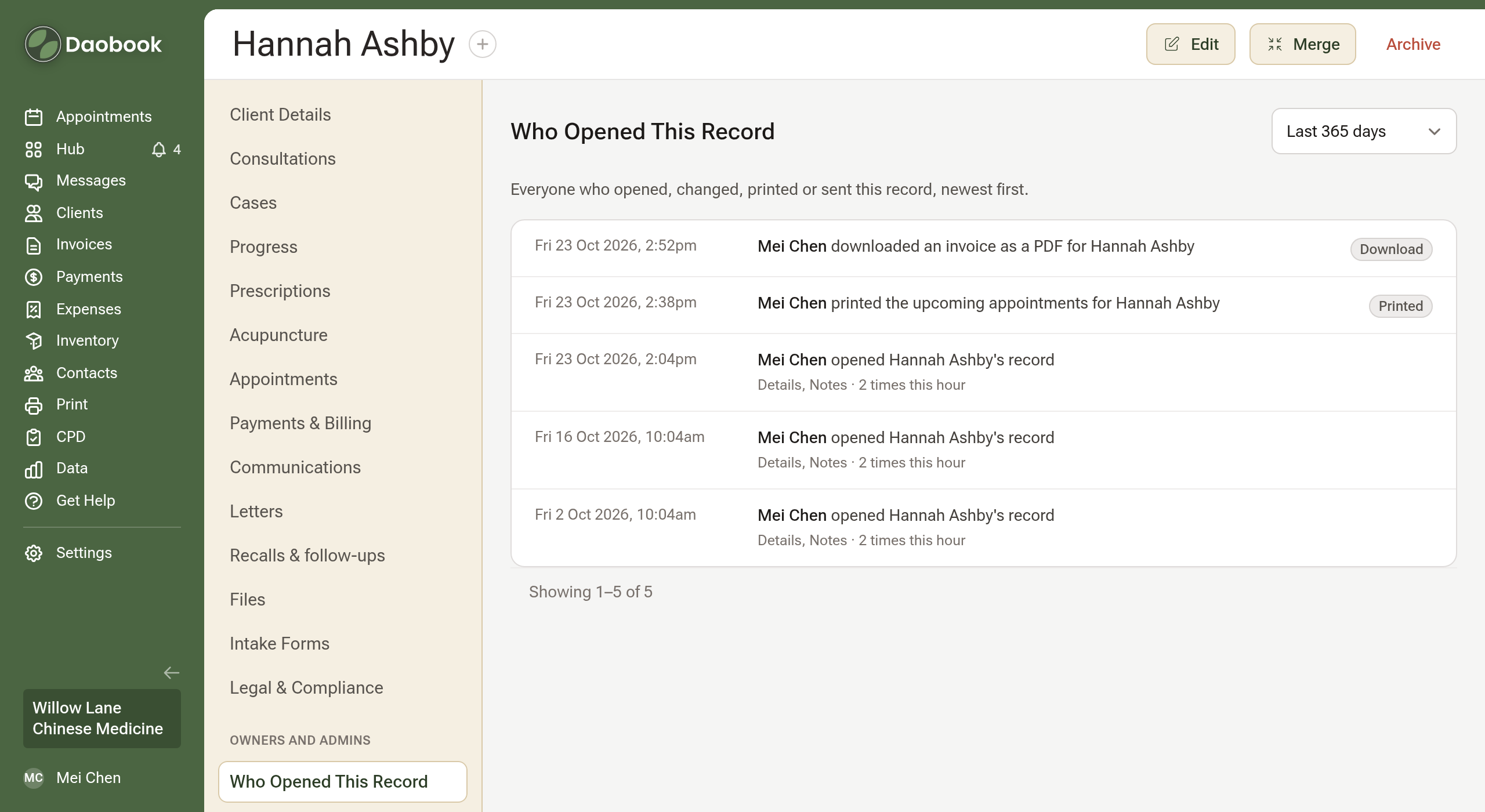
On a client's profile, Who Opened This Record sits at the foot of the side menu, under Owners and admins. It is the same log kept to that one client, over the past year.
Step 4: Let support see your records when you ask for help
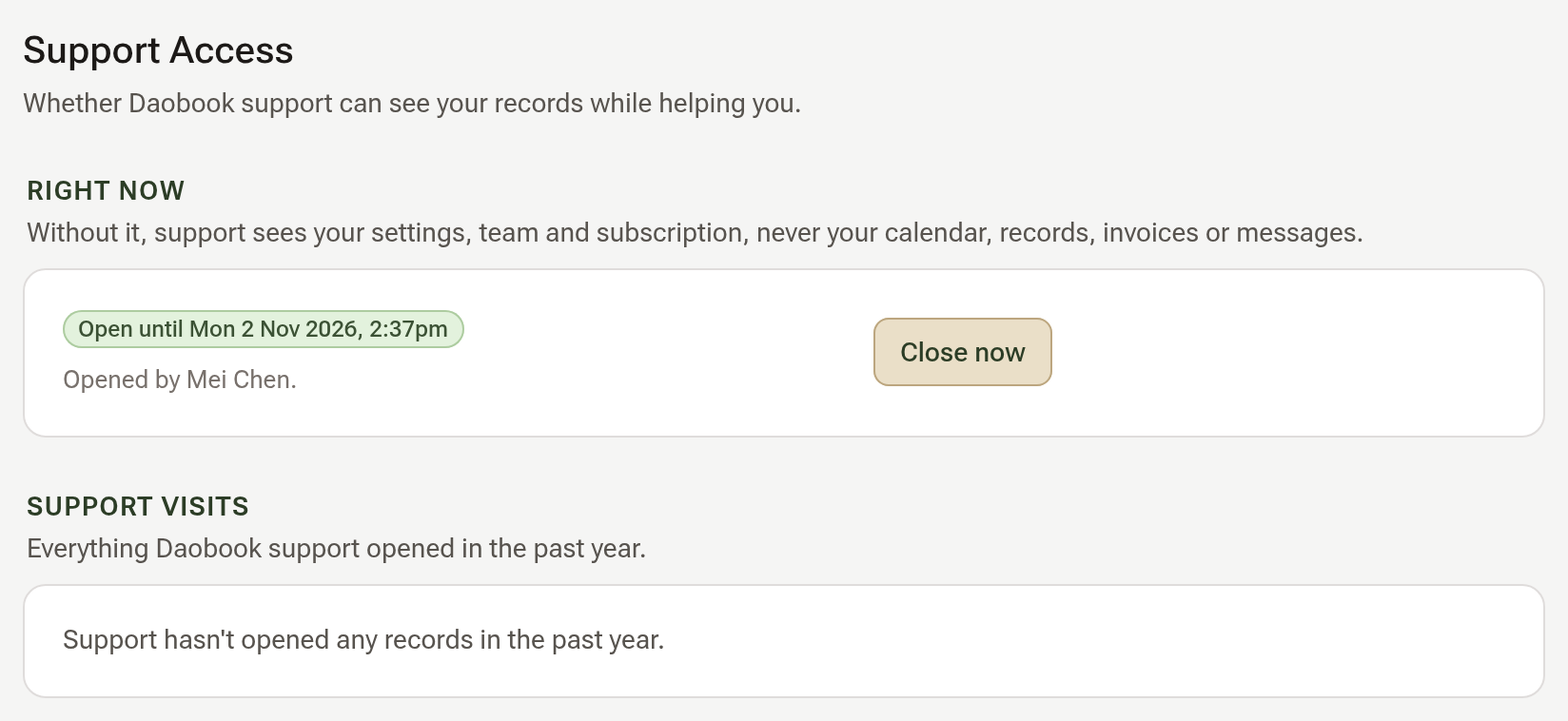
Daobook support can see your clinic's records only while support access is open. Without it, support sees your settings, team and subscription, never your calendar, records, invoices or messages. Open Settings → Security → Support Access and click Open for 7 days. It closes by itself after seven days, or sooner with Close now. Everything support opened in the past year is listed under Support visits, and in the Activity Log with a Support label.
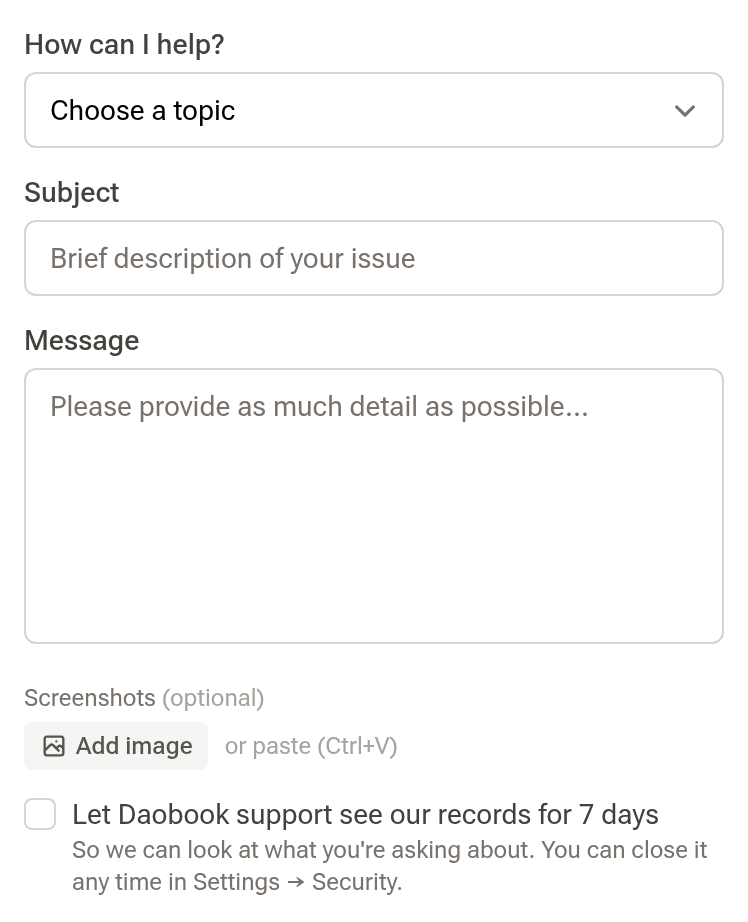
When you write to us from Get Help in the side menu, tick Let Daobook support see our records for 7 days to open it in the same step.
Tips:
- Someone who works at more than one clinic follows the strictest rules: two-step sign-in if any of their clinics requires it, and the shortest sign-out time.
- Photos and files opened straight from a record aren't in the log yet.