
SMS Messaging
Send SMS to clients from their profile or the Messages inbox, handle their replies, understand what each message costs, top up your SMS wallet, and configure automated appointment reminders — including when they send and how to word them.
SMS Messaging
Daobook sends SMS for three things — messages you send yourself from a client's profile or Messages, automated appointment reminders and confirmations, and two-way replies you can read and answer. Everything comes out of your SMS Wallet, which you top up with credit like a prepaid phone plan.
This tutorial covers the whole surface — sending, replies, notifications, costs, top-ups, automated reminders, templates, and opt-outs.
Step 1: Send an SMS to a Client
Open a client's profile. Their details open with About and Contact; if the client has a mobile number on file, it leads Contact, underlined. The number itself is the way to text them.
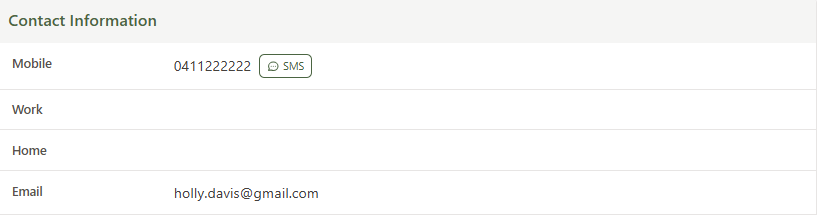
Click the mobile number. A conversation modal opens with any previous SMS history with that client and a compose box at the bottom.
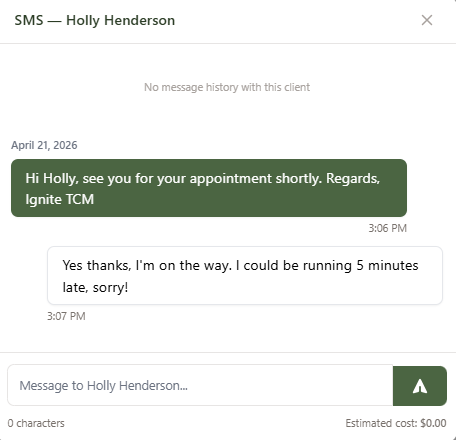
As you type, the meter below the compose box shows how many SMS the message will use, its length, and the Estimated cost. Press Enter or click the send button to fire the message — it goes out within a few seconds.
If a client doesn't have a mobile number saved, there is no number to click. Add a mobile number to their profile first. If the carrier has rejected a number — a landline, or a number that doesn't exist — a Carrier rejected badge appears beside it and the compose box won't send until the number is edited.
Step 2: Receiving Replies
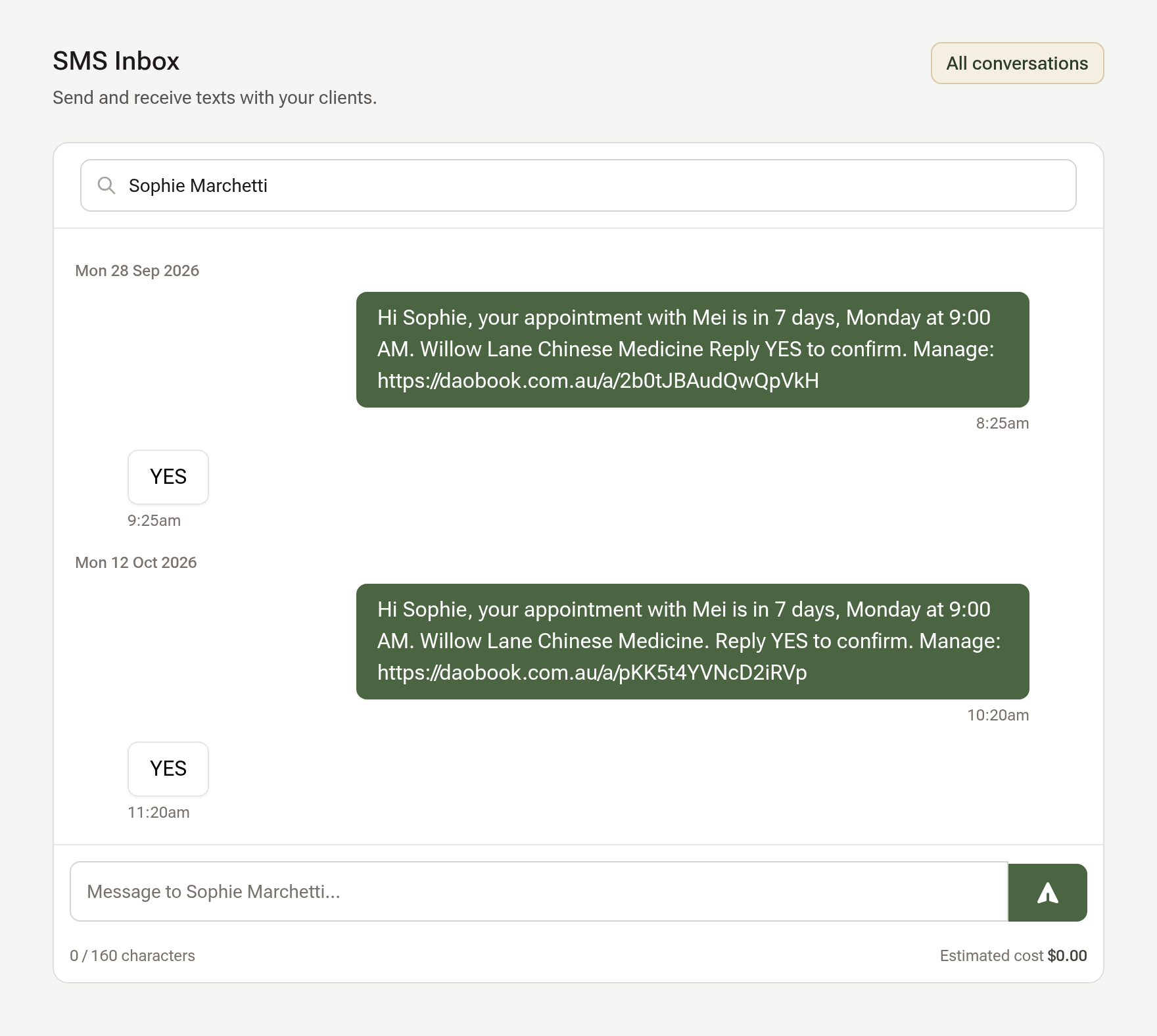
Replies land straight back in the same conversation — inbound on the left, outbound on the right. If you have the SMS modal open, it checks for new replies every few seconds and they appear without refreshing the page.
To work through replies in one place, click "Messages" in the sidebar: it opens your SMS Inbox. Search a client by name or mobile number to open their thread, read it, and reply from the box at the bottom. While replies are unread, a phone icon and a count show beside Messages in the sidebar, and the count beside Inbox.
Each reply also arrives in your notification bell as Incoming SMS replies. If you'd rather not have it there, untick it under In-app notifications in My Notifications.
A client replying YES or NO to an appointment reminder is handled for you — the appointment is confirmed or cancelled and you're told. That whole loop is covered in the Appointment Reminders, Confirmations & Cancellations tutorial.
Step 3: Get Emailed When a Client Replies
Most practitioners want to know about a reply without keeping the app open. Go to Settings → Notifications & Templates → My Notifications and find Incoming SMS replies under Personal Notifications.

It's on by default. When a client replies, you'll get an email with the message. The same reply also goes to the clinic's main email and to any receptionists who have the setting on — no one misses it. Click Save after changing it.
The email looks like this:
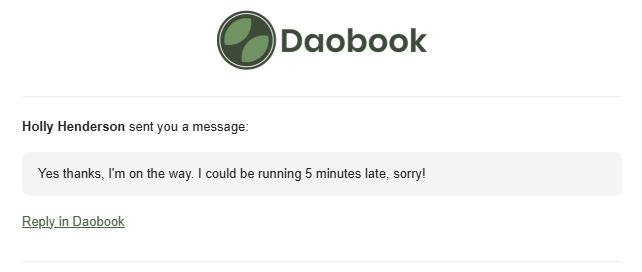
Clicking Reply in Daobook opens that client's profile with the SMS modal already on their conversation — no hunting for the client, compose box ready to go.
If the modal, the SMS Inbox and the bell are enough for you, turn the email off here.
Step 4: What an SMS Costs
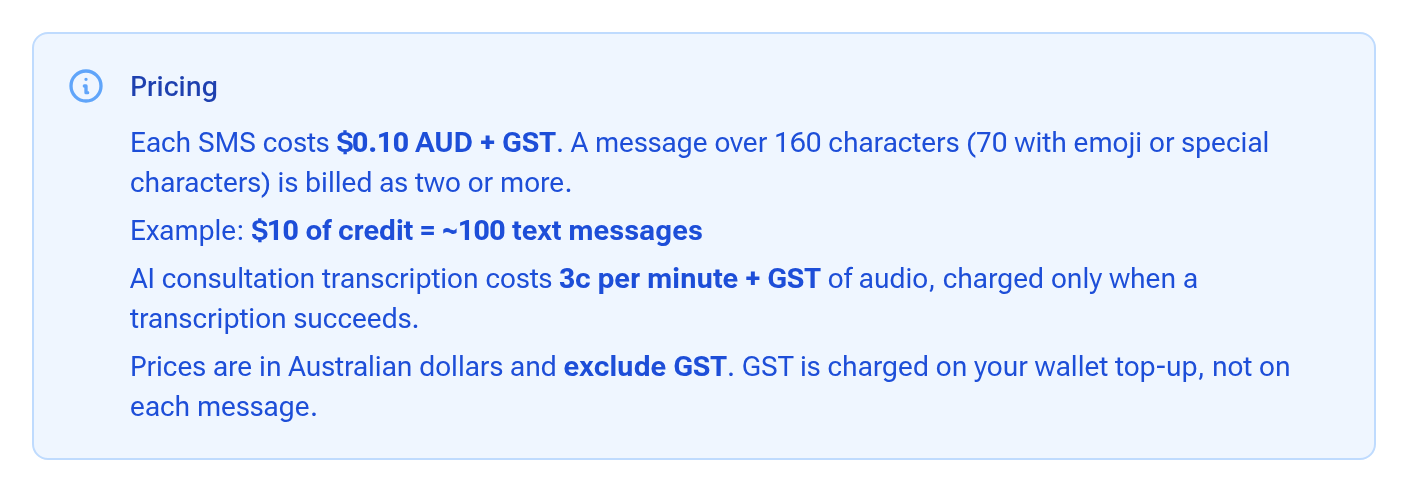
Each SMS costs $0.10 AUD + GST. That covers one standard-length message — up to 160 characters of plain text.
A few things to know:
- A message over 160 characters is split and billed as two or more. A 180-character message costs $0.20.
- Emoji and Chinese characters switch the message to a different encoding, which drops the limit to 70 characters per SMS. A single emoji in a 100-character message doubles its cost. Curly quotes and long dashes are swapped for plain ones automatically, so pasting from a word processor won't trip this.
- Replies from clients are free — you only pay for what you send.
- Rough rule: $10 of credit = about 100 standard messages.
- Prices exclude GST. GST is charged on your wallet top-up, not on each message, and the tax invoice for each top-up is the receipt icon at the end of its row in History.
The compose box and every template editor show the count live as you type, so you can see the impact before sending.
Step 5: Top Up Your SMS Wallet
Go to Settings → Billing & Payments → Wallet.
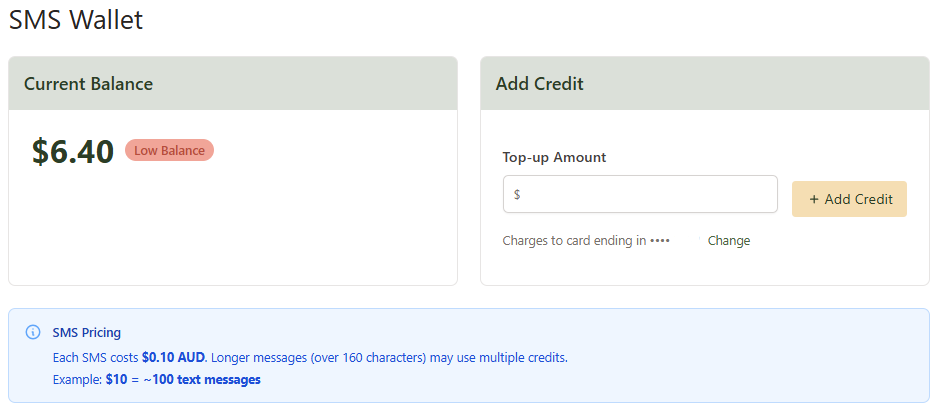
Enter an amount — minimum $10, excluding GST — in the field beside your balance and click Add credit. Under the field you'll see roughly how many messages that buys and what your card will actually be charged including GST, and you'll be asked to confirm before it goes through. The charge goes to your saved default card — the same one your Daobook subscription uses. If you haven't added a card yet, the line shows an Add a payment method link instead. A receipt is emailed to you automatically.
Your current balance is at the top of the page. Below $10 it shows a Low balance pill, and you'll get a one-off low-balance notification and email so it doesn't catch you out.
Step 6: Auto Top-Up
To avoid ever running out mid-week, switch on auto top-up further down the same page.
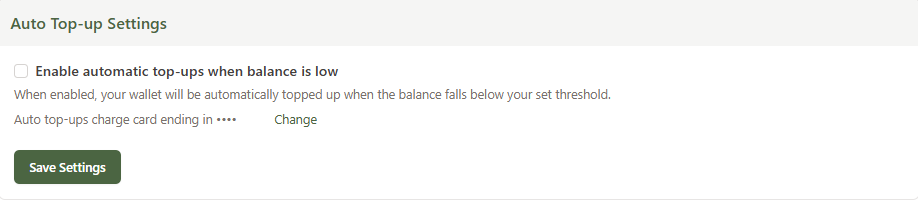
Tick Top up automatically when the balance is low, set When the balance falls below (we suggest $5 or more) and Add (at least $10), and click Save. The next time an SMS is about to go out and your balance is under the threshold, Daobook tops the wallet up first — no interruption to you or to your automated reminders. With auto top-up on, the low-balance warnings stop, since the wallet looks after itself.
Step 7: Sharing SMS Credits Across a Clinic Team
If you're the clinic owner and have other practitioners in your clinic, the wallet page also shows a Credit Sharing section with two options:
- All team members use your wallet — every SMS anyone in the clinic sends, manual or automated, comes out of your balance. Team members see a note that their usage costs are covered by the clinic instead of a wallet of their own.
- Everyone uses their own wallet — each practitioner tops up and pays for their own SMS.
Click Update Sharing Settings to apply it. Most owner-led clinics choose the first option for simplicity. If your team uses AI Scribe, who pays for transcription is a separate choice in the same section.
Step 8: Automated Appointment Reminders
This is where SMS earns its keep — reminding clients so they don't forget their appointments.
Click Messages in the sidebar, then Automatic messages, and open Reminders. Its When part sets the timing.
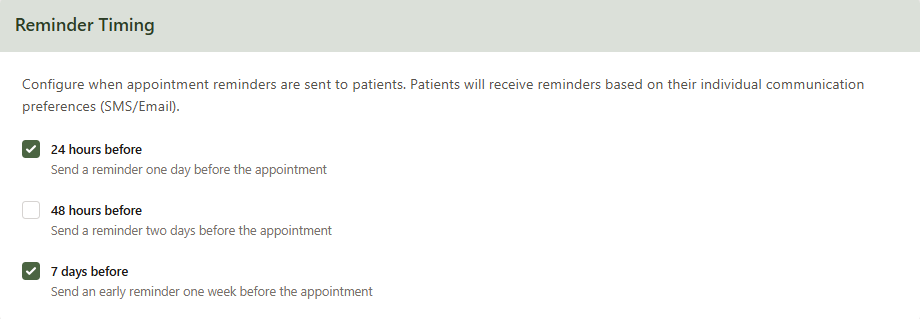
Tick any combination of A week before, Three days before, Two days before, The day before and On the morning of. Reminders go out from 9 AM in your own time zone on the day you pick, so the notice a client actually gets depends on their appointment time — each option shows the least notice it guarantees. New clinics start with Two days before.
Above it, under What they get, make sure the reminder text says On (if it says Off, click Change beside it and tick Send this text). Both the timing and the text need to be on for an SMS reminder to fire; the reminder email has its own On / Off just below.
If your SMS wallet is empty when a reminder is due, the SMS is skipped. The email reminder still goes out if email reminders are on, so your client isn't left hanging.
Step 9: Customise the Reminder SMS
On the same Reminders page, the reminder text is shown as your client gets it, with its length and how many SMS it uses. Click Change beside it to open its wording.
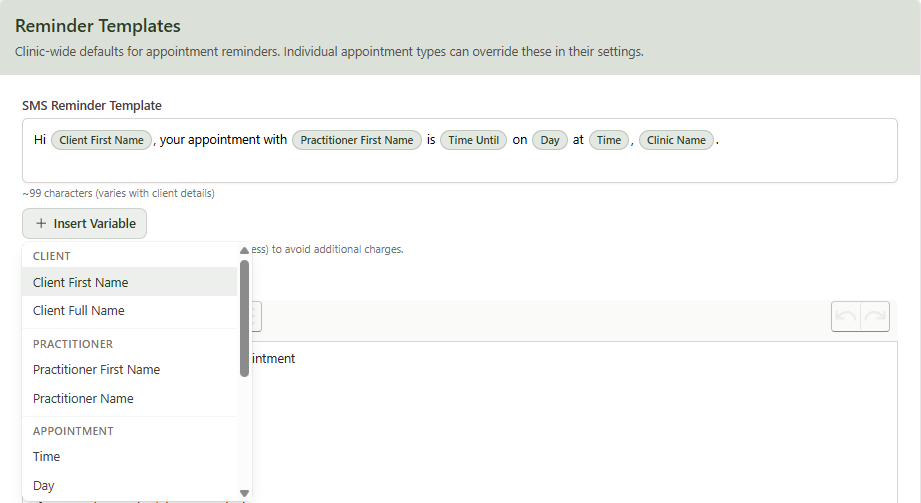
Edit the text. To add a dynamic value, click Insert Variable below the editor. The menu is grouped by:
- Client — Client First Name, Client Full Name
- Practitioner — Practitioner First Name, Practitioner Name
- Appointment — Time, Day, Date, Short Date, Time Until, Appointment Type, Add-ons
- Clinic — Clinic Name, Clinic Address, Clinic Phone, Clinic Email, Online Booking Link
Clicking one drops a green pill into the editor at your cursor. Each pill is a single placeholder — click to select it, drag it around, or delete it like a character. At send time, each pill is replaced with the live value for that appointment.
Time Until is worth highlighting — it renders as tomorrow, in 2 days and so on based on when the reminder fires, so one template reads naturally for every reminder window. Short Date ("Wed 2 Sep") is the compact way to put the date in an SMS; Date spells it out in full and suits email.
The meter under the editor shows how many SMS the reminder will use, counting the reply prompt and the manage-your-appointment link Daobook adds when it is sent. The built-in wording with the link fits one SMS for most clinic names; the pill turns amber when a reminder needs two, and trimming a few words usually brings it back to one. If you leave the built-in wording as it is (the message says Recommended), you'll automatically get any improvements we make to it; once reworded it says Your wording, and Back to recommended puts the built-in wording back. Click Done, then Save Changes at the foot of the page.
Per-appointment-type overrides. If a specific appointment type needs different wording, open that appointment type in Settings and set its own SMS Reminder Template — it takes priority over the clinic default for appointments of that type.
Click Send me a test beside the reminder to get it on your own mobile (the one in your Practitioner Details) before you trust it with a whole week of appointments.
Step 10: Opt-Outs and the STOP Keyword
Daobook honours the standard SMS opt-out keywords. If a client replies with any of these as the entire message (any capitalisation), they're unsubscribed from SMS:
STOP, STOPALL, UNSUBSCRIBE, CANCEL, END, QUIT, OPTOUT, REVOKE
When one arrives, Daobook pauses every automatic SMS to that client — reminders, booking confirmations, reschedule notices and intake form links — and replies: "You have been unsubscribed from SMS notifications. Reply START to resubscribe." Their SMS marketing consent is withdrawn at the same time.
The match is whole-message only — "I'll stop by tomorrow at 2pm" will not trigger it. And because CANCEL is on this list, the word a client texts to cancel an appointment is NO, never CANCEL.
On their profile, an amber line under About and Contact shows Replied STOP on [date] with a note that automatic SMS are paused until they reply START. The client's own switches under Communication Preferences are left as they were, so nothing needs re-ticking later.
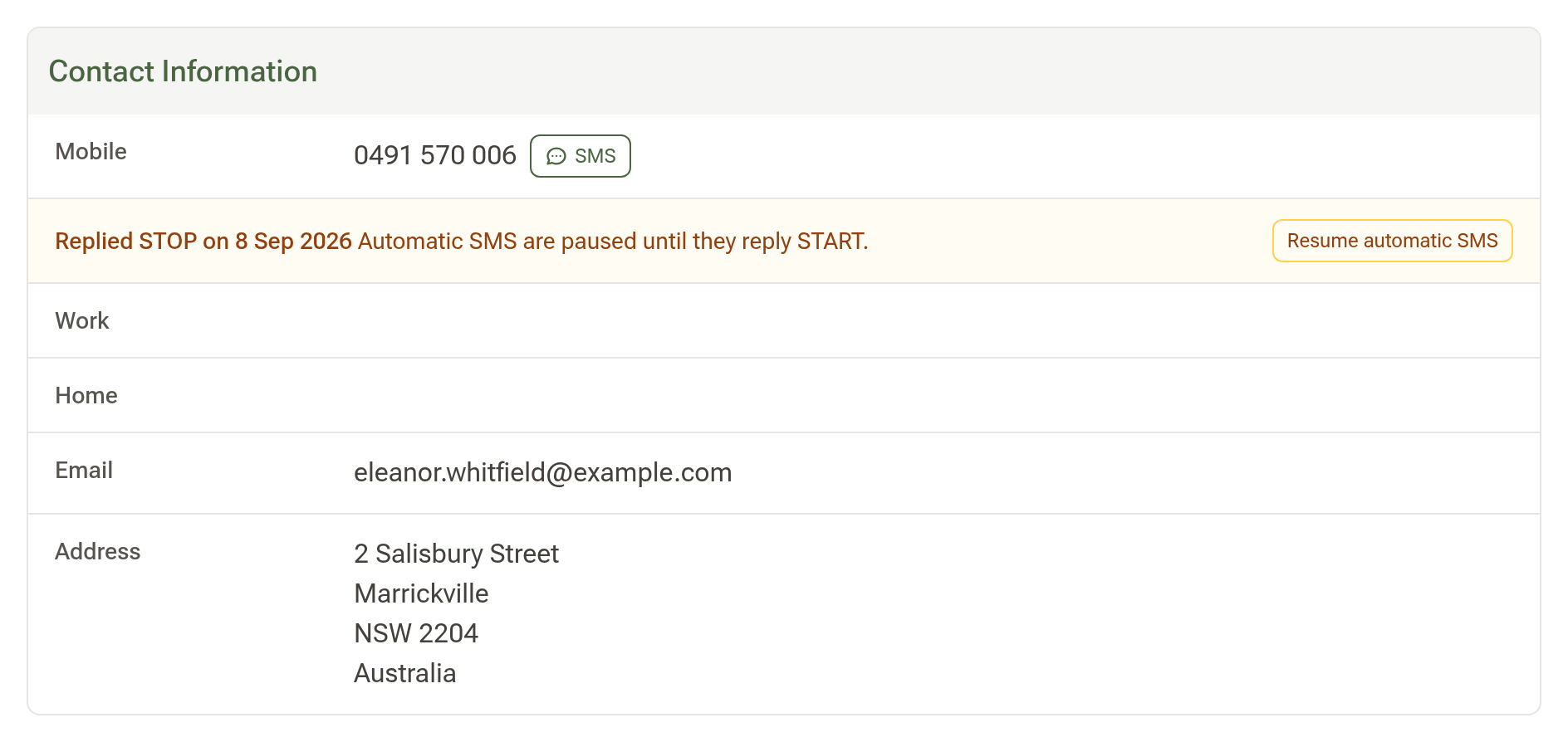
Manual SMS are paused too: the network blocks every text to an opted-out number, so the SMS modal shows the same warning above the compose box and refuses the send rather than letting it fail silently.
Re-subscribing
If a client later wants SMS again, they text START or UNSTOP as a whole message. Daobook lifts the pause, replies "You have been resubscribed to SMS notifications.", and their reminders and confirmations resume exactly as their switches are set. Marketing SMS stay off — START is not fresh marketing consent.
If the client asks you in person instead, click Resume automatic SMS on that line of their profile. Use it only when they have asked; it clears the block on the network as well as in Daobook.
When a client asks you not to text them
A client who tells you at the desk, or in writing, that they don't want texts (or emails) is recorded on their details rather than by STOP. Open their profile, click Edit on their Details, and under Communication Preferences tick Text message or Email on the first row, Asked not to be contacted by.
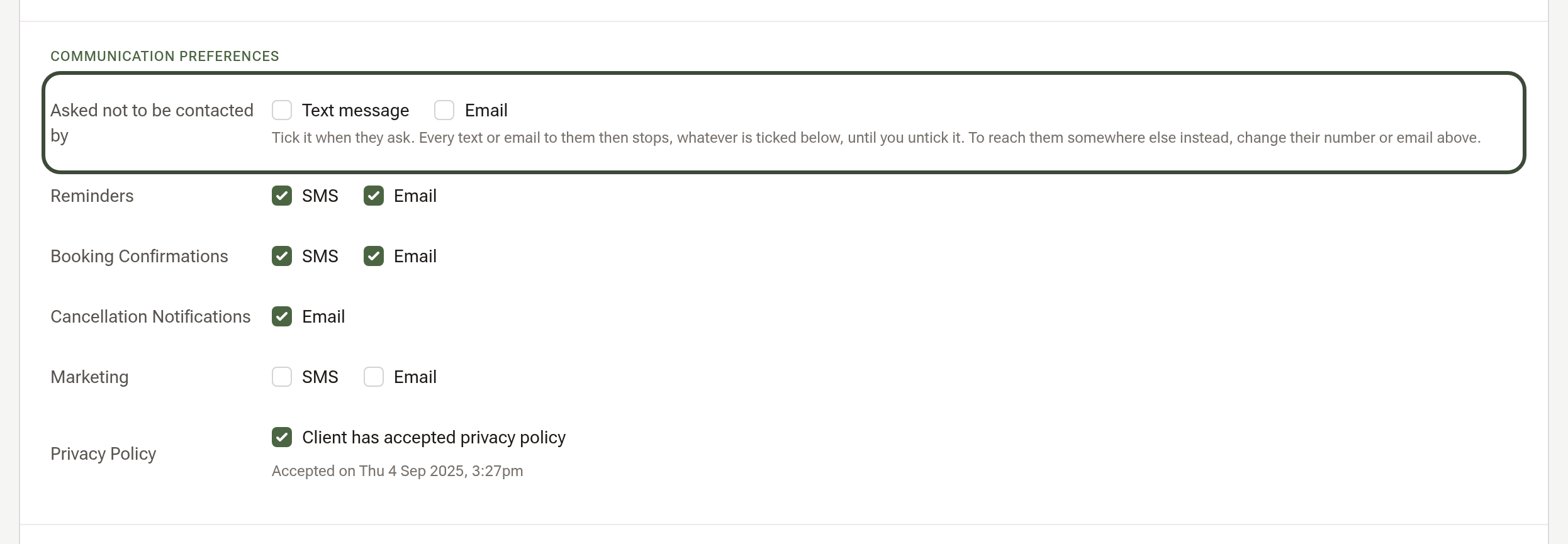
From then on nothing goes to them that way, whatever is ticked in the rows below: reminders, confirmations, intake form links, offers, invoices, letters and the texts you write yourself all stop, and a send you try is refused with the reason. Their profile shows Asked not to be texted, [date]. on the same amber line STOP uses. When they change their mind, untick it on their details.
Step 11: Delivery Status and History
Inside the SMS modal, a red badge appears next to any message that failed or wasn't delivered (wrong number, phone off for too long, carrier block). Successful messages have no badge, which keeps the conversation clean. A failure also reaches your notification bell as SMS delivery failures.
When the carrier rejects a number outright — a landline, an invalid number, not a mobile — Daobook marks it on the client's profile with the reason, pauses automatic SMS to it so reminders aren't retried into the void, and tells you once. Edit the mobile number to resume them.
For the full audit trail:
- Client's Comms tab — every SMS (and email) you've ever exchanged with that client, grouped by date.
- Wallet → Your SMS Activity — the last 30 days of messages sent from your wallet.
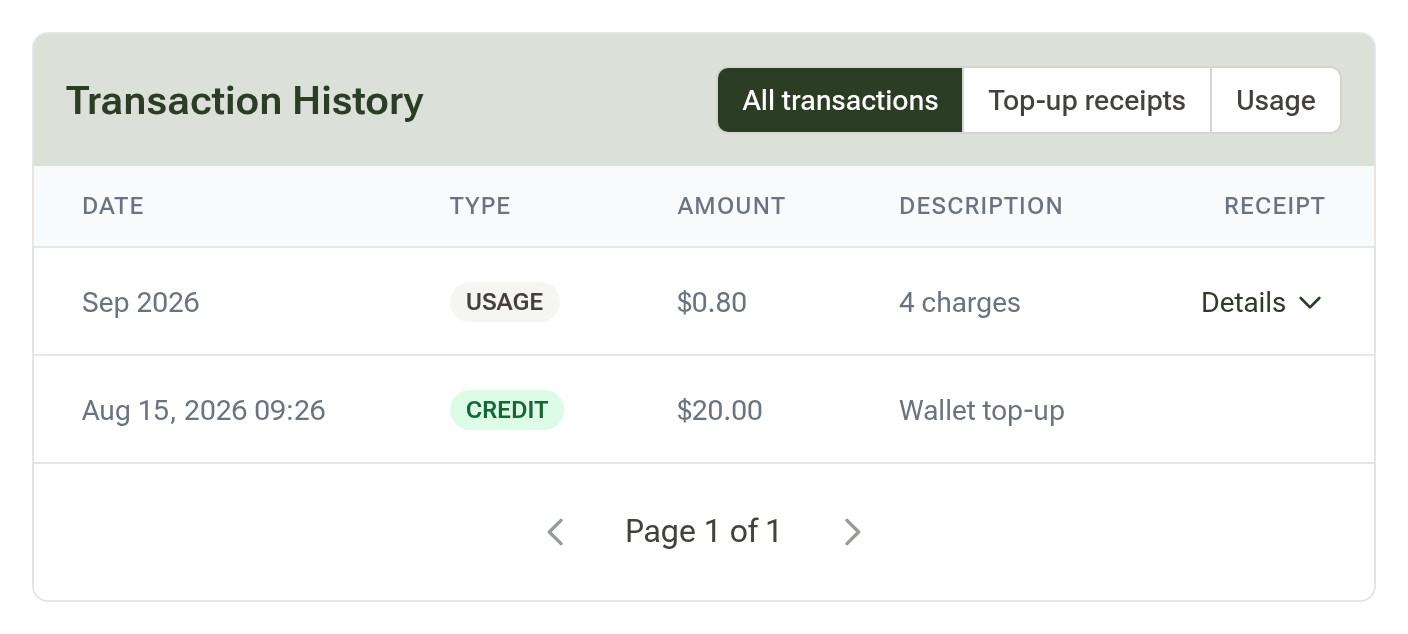
- Wallet → History — the money side. Switch between All, Top-ups and Usage; usage is summarised by month with a Details chevron for each month's charges, and each top-up has a receipt icon at the end of its row that opens its tax invoice for your accountant.
Step 12: Pausing All Automatic Messages
Beside the title of Messages → Automatic messages (owners and admins) a pill says Sending or Paused, with a Pause button next to it. Press it to freeze every automated SMS and email to clients — reminders, confirmations, cancellation notices, the lot. It saves at once, the pill turns to Paused and the button becomes Turn on. Your own alerts, and anything you send by hand, are unaffected.
New accounts start paused, so a bulk import during setup can't message anyone. Once you have bookings waiting, the Hub reminds you, and its Turn them on button turns the messages on at every location it names. The other use is a migration: turn it on while your old system is still sending reminders, and off once you're fully on Daobook.
Tips
- The 160-character limit is the one to memorise. A single accidental emoji switches the whole message to 70-character parts and can double the cost.
- Always click Send me a test after editing a message — a mistyped placeholder appears literally in the SMS.
- Replies are free. If your clients are chatty, that's fine for your bill; what matters is that you see and answer them.