
Xero Integration
Connect your Xero organisation, map your chart of accounts, and understand what Daobook syncs — invoices, payments, expenses, credits, and gift vouchers — so your books stay up to date without manual entry.
Xero Integration
The Xero integration connects your Daobook clinic to your Xero organisation so that invoices, payments, credits, and gift voucher activity flow through to Xero automatically, and expenses go across when you send them. Once set up, most of your day-to-day bookkeeping happens without lifting a finger — your accountant sees up-to-date books in Xero and you're not re-keying anything.
This tutorial walks through connecting Xero, the chart-of-accounts setup we'd recommend on the Xero side, how to map those accounts in Daobook, and what to expect day-to-day.
We'd strongly recommend chatting to your accountant before finalising account types and tax codes — they'll know what fits your chart of accounts.
What Syncs to Xero
- Invoices — flow through to Xero once you mark them sent or paid, with line items, client contacts, GST, and discounts. Drafts stay in Daobook until they're sent.
- Invoice payments — recorded against the corresponding invoice in Xero
- Standalone prepayments — posted as receive-prepayment bank transactions you can allocate to a future invoice in Xero
- Expenses — sent from the expense's own page with Sync to Xero, to the Xero account set for its category
- Account credits — comps, refunds, and balance corrections post journals or bank transactions against the client credits liability account
- Gift vouchers — voucher sales sit in a liability account; redemptions clear the liability and mark the invoice paid
- Client contacts — auto-created in Xero the first time a client's invoice syncs
What Xero Sends Back
- Invoice status changes (e.g. approve, update) flow back via webhook so Daobook stays in step if you edit an invoice directly in Xero
- Your Xero chart of accounts populates the dropdowns on the Daobook settings page
Prerequisites
- An active Xero subscription for your practice
- Clinic admin role in Daobook
- An accountant on hand to confirm account types and tax codes
Step 1: Connect Your Xero Organisation
In Daobook, go to Settings → Integrations → Xero Accounting.
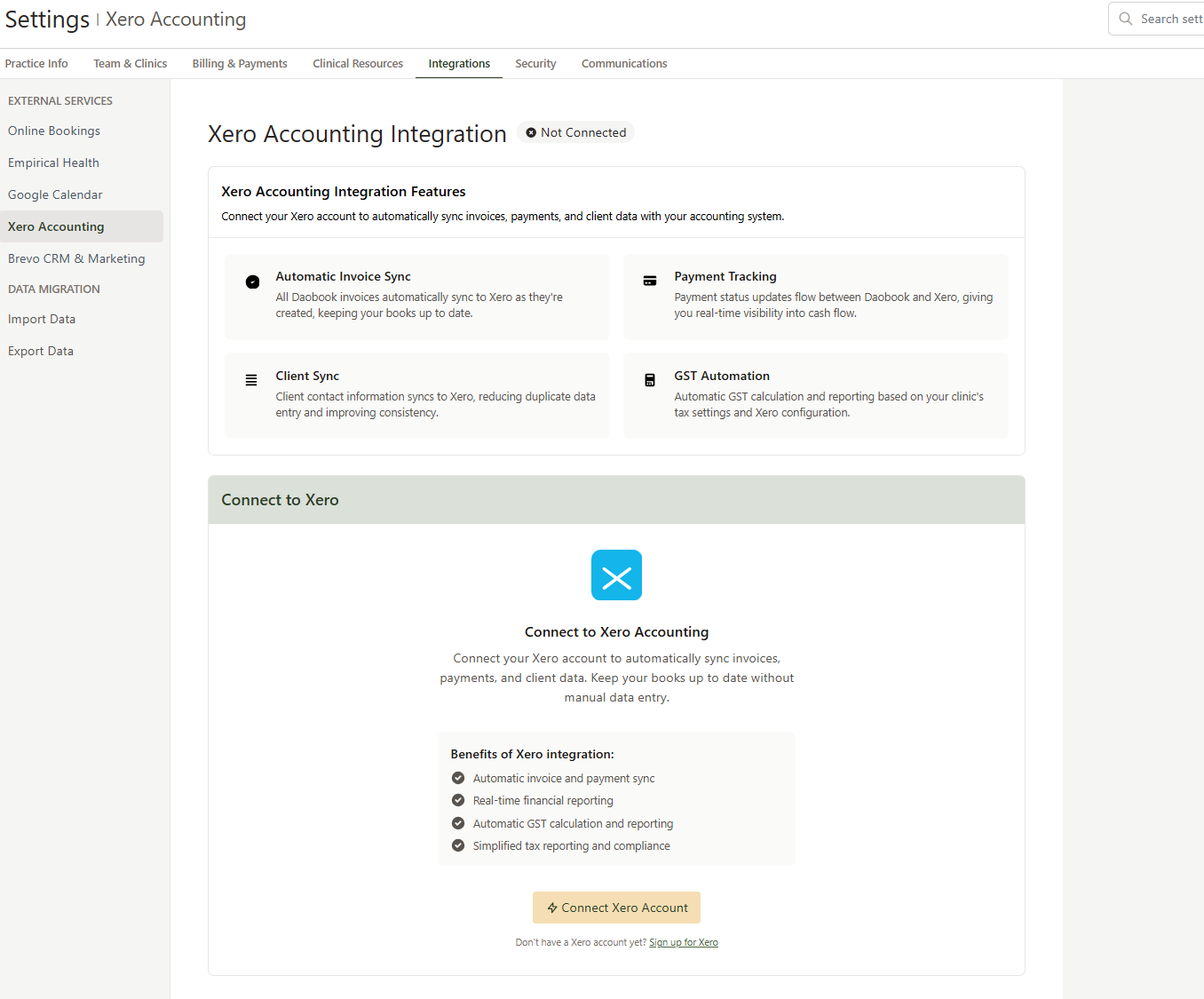
Click Connect Xero Account. You'll be redirected to Xero to sign in and approve the integration. If your Xero login has access to more than one organisation, you'll be prompted to pick the one you want to connect.
Once approved, you'll land back on the settings page with your organisation name confirmed and a Disconnect Xero button available.
The connection is per-subscription — every clinic in your Daobook subscription shares the same Xero organisation.
Step 2: Set Up Your Chart of Accounts in Xero
These are the accounts Daobook expects. In Xero, go to Accounting → Chart of Accounts → Add Account for any that don't already exist.
| Account | Type | Used For | Tax Code | Enable Payments |
|---|---|---|---|---|
| Revenue (e.g. Consultation Income) | Revenue | Invoice line items | GST on Income (or your accountant's choice) | — |
| Bank Account | Bank | Recording received payments | — | ON (standard for bank accounts) |
| Default Expense | Expense | Expenses with no category mapping | As per accountant | — |
| Client Credits (optional) | Current Liability | Clients' account credits | BAS Excluded | ON |
| Gift Voucher Liability (optional) | Current Liability | Unredeemed gift voucher sales | BAS Excluded | ON |
| Goodwill / Comp Expense (optional) | Expense | Comped credits | BAS Excluded | — |
| Undeposited Funds / EFTPOS Clearing (optional) | Bank | Holding takings before they're banked | — | ON |
Here's what the Xero Add Account form looks like when creating the Client Credits liability account:
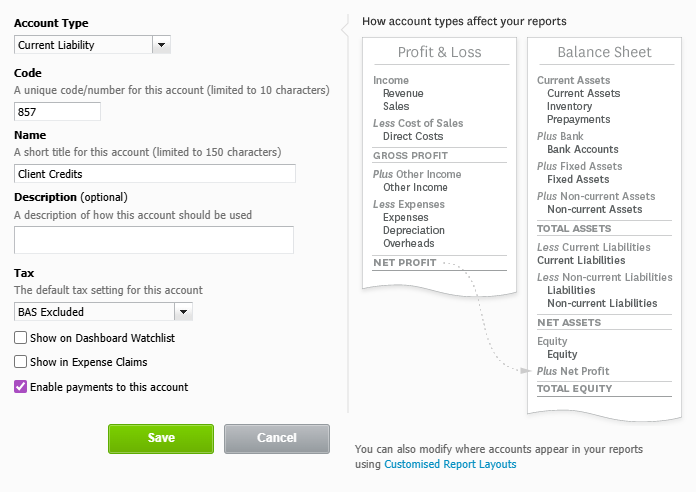
The Enable Payments toggle is the #1 setup gotcha. For both liability accounts (Client Credits and Gift Voucher Liability), tick Enable payments to this account before saving. Without it, Xero rejects payments against those accounts with the error "Payments can only be made to accounts with Enable Payments switched on".

A few notes:
- Pick any unused codes that fit your numbering — for example 855, 857, 858, 466.
- The three optional accounts must all be different. If Goodwill Expense and Client Credits point to the same account, comp journals will cancel themselves out.
- The optional accounts are genuinely optional. Leave them blank in Daobook if you don't want to track credits or gift vouchers through Xero — voucher sales will then route to revenue at the point of sale, and credit transactions won't sync.
Step 3: Map Accounts in Daobook
Back in Settings → Integrations → Xero Accounting, scroll to the Account Mapping section and select the matching Xero accounts from each dropdown:
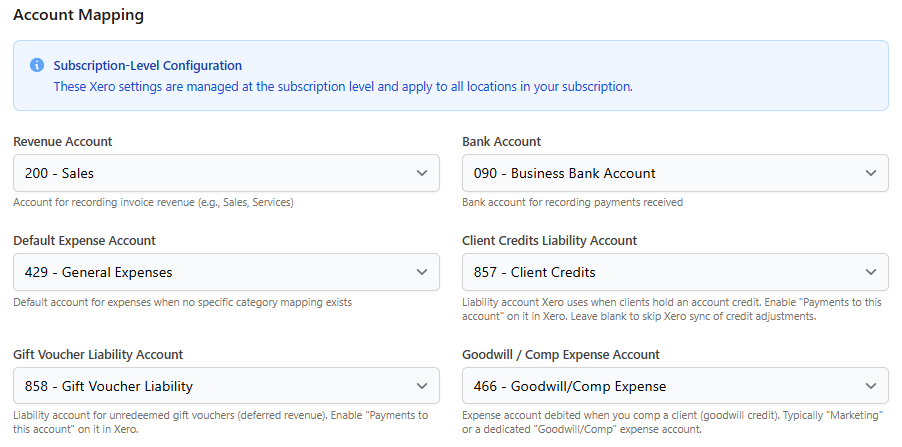
- Revenue Account — default for invoice line items
- Bank Account — where received payments are recorded
- Default Expense Account — fallback for uncategorised expenses
- Client Credits Liability Account (optional)
- Gift Voucher Liability Account (optional)
- Goodwill / Comp Expense Account (optional)
Below the mapping, Where each payment method is recorded lets you give a method its own Xero account, such as a HICAPS clearing account, so each settlement batch matches its payments. Leave a method at Default bank account to record it to the bank account above.
Click Update Settings. The liability dropdowns only show accounts Xero has classified as a liability, and the goodwill dropdown only shows expense accounts — so it's harder to pick the wrong one.
Step 4: (Optional) Fine-Tune Expense Categories and Products
Expense Categories
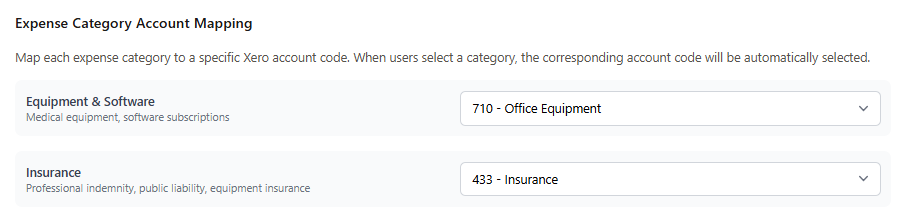
Further down the same settings page, the Expense Category Account Mapping section lets you route each expense category to its own Xero account — for example Insurance → 433 - Insurance, Equipment & Software → 710 - Office Equipment. Anything uncategorised falls back to your Default Expense Account from Step 3.
Products
Each product in your catalogue can override the default revenue account via the Xero Account Code field on the product edit form. Useful if you want herb sales, consult fees, and retail products to land in different revenue accounts in Xero.
Step 5: Day-to-Day Syncing
With the connection made and accounts mapped, most things sync automatically.
Invoices — sync when you mark them sent or paid. The invoice list shows a green Synced badge in the Xero column:

On the invoice itself, the Xero panel on the right shows the same status: Payment Synced to Xero once the payment has gone across, or a Sync to Xero button if the invoice hasn't synced yet:
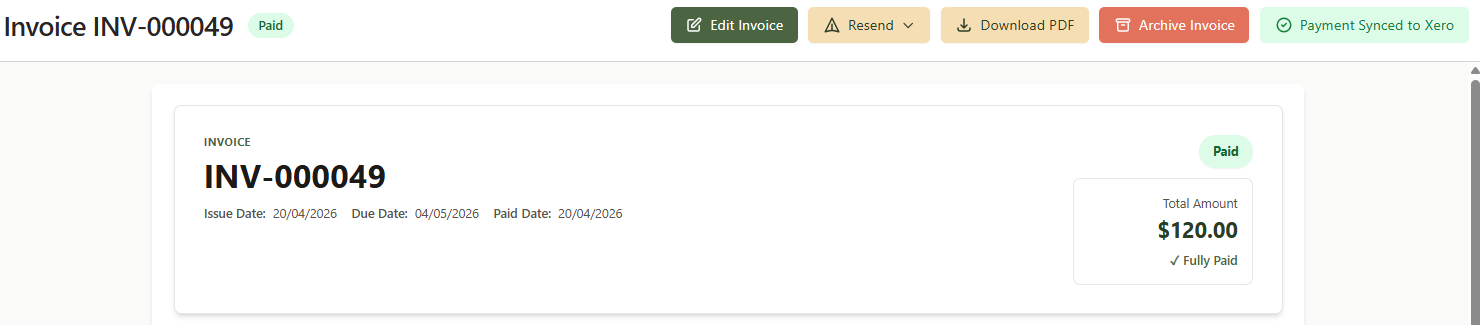
Payments — each payment on an invoice goes to Xero as a payment of its own, with its payment method as the Reference (for example HICAPS or Credit Card, followed by the payment's reference if you entered one), so a visit paid partly by HICAPS and partly by card shows as two payments you can sort or match in Xero. Account credit and gift vouchers go across through their own accounts, as described below. Standalone prepayments (recorded outside an invoice, e.g. a client paying in advance) have their own Sync to Xero button on the payment detail view.
Expenses — use the Sync to Xero button on the expense detail view.
Credits and gift vouchers — sync automatically once the liability accounts are configured. Redeeming a voucher against an invoice posts a payment from the voucher liability account, which simultaneously clears the liability in Xero and marks the Daobook invoice paid.
If a sync fails, you'll see a red error message on the record with a Retry Sync button. The most common causes are a token that needs refreshing (reconnect Xero), the Enable Payments toggle missing on a liability account, or an invoice number that already exists in Xero.
If invoices ever miss Xero (say, while the connection needed reconnecting), there's no need to open them one by one. The Xero Accounting settings page lists them under Invoices waiting for Xero, with the dates they were issued. Click Sync all … to Xero and confirm, and they go across a few a minute:
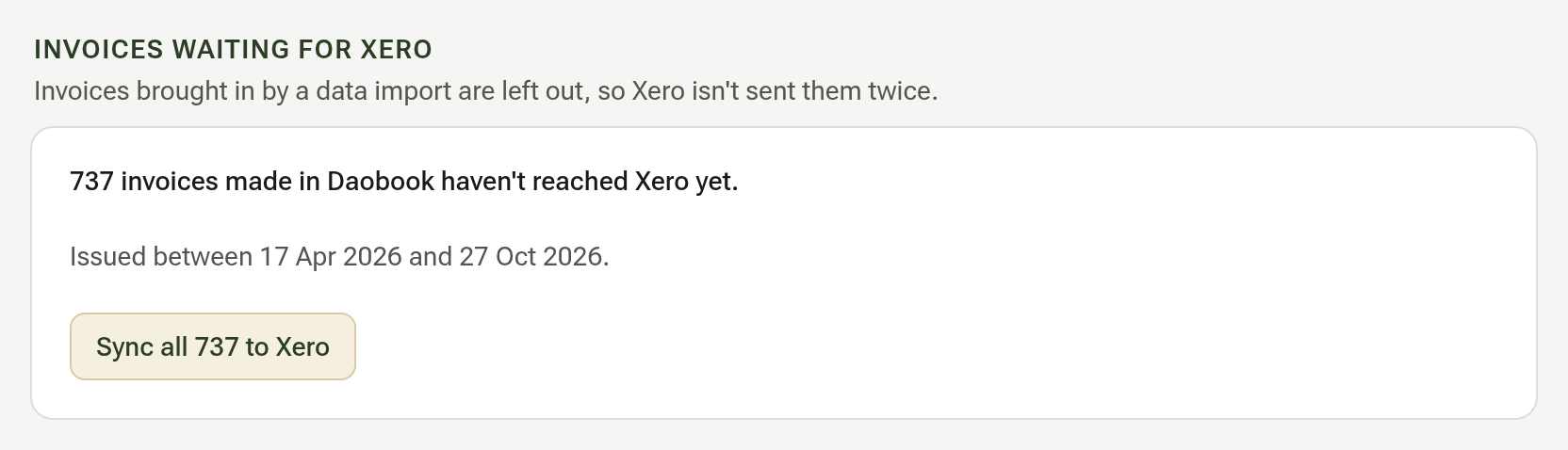
Invoices brought in from your old system by a data import are never sent to Xero from Daobook, because that system may have put them there already. Their Xero column reads Imported, and they have no Sync to Xero button.
Reconciling Card & EFTPOS Settlements
If your clinic takes payments through an EFTPOS or card terminal (or a processor like Square), those payments don't hit your bank one-by-one. The terminal batches up the day's takings and deposits them as a single lump sum — often the next business day, sometimes with the merchant fee already taken out.
Daobook records each payment against its own invoice in Xero, so a day of card payments becomes several individual payment records — but your bank feed shows just the one settlement. Left as-is, those won't line up when you go to reconcile.
The standard Xero way to handle this is a clearing account (you'll also hear it called "Undeposited Funds"):
- In Xero, add a Bank-type account called something like Undeposited Funds or EFTPOS Clearing (see the chart-of-accounts table above), with Enable payments switched on.
- In Daobook, set your Bank Account mapping (Step 3) to this clearing account instead of your everyday business account. Every payment Daobook records now lands in the clearing account rather than directly in your real bank.
- When the settlement arrives in your bank feed, reconcile that single deposit as a Transfer from the clearing account — Xero moves the lump sum into your business account in one line.
Done consistently, the clearing account always returns to zero once everything's banked, so any leftover balance is a quick flag that something hasn't come through yet. If the terminal nets out a merchant fee (so the deposit is slightly less than the day's takings), reconcile the difference to a bank-fees expense account; the clearing account still balances.
This handles cash too: cash takings sit in the clearing account until you physically bank them, then you reconcile that deposit as a transfer the same way.
As always, your accountant can confirm the right setup for your books — but a clearing account is the conventional answer to the lump-sum settlement question.
Disconnecting
Click Disconnect Xero on the settings page. Past synced invoices, payments, and expenses remain in Xero untouched — disconnection only stops future syncing.
Tips
- Talk to your accountant first. BAS Excluded is a reasonable default for Australian liability accounts, but reporting preferences vary.
- The Enable Payments toggle is the #1 setup mistake. If liability or voucher payments stop syncing with an error mentioning "Enable Payments", this is almost always the cause.
- Liability accounts are optional. If you skip them, gift voucher sales go to revenue at the point of sale (rather than at redemption), and credit transactions won't sync to Xero.
- The connection is per-subscription, so all clinics in a Daobook subscription share one Xero organisation.