
Appointment Reminders, Confirmations & Cancellations
Set up automated appointment reminders, and let clients confirm, reschedule or cancel their own appointment straight from the reminder — with a notice window and staff notifications you control.
Appointment Reminders, Confirmations & Cancellations
Daobook can do more than just remind your clients about an appointment — it can let them reply to that reminder to confirm or cancel, and update your calendar automatically. This tutorial covers the whole picture: what Daobook sends, when it sends it, and how to turn on the two-way replies.
Everything here lives in one place: Messages → Automatic messages in the sidebar (owners and admins), with the Pause button that pauses every message beside the page's title.
Two companion tutorials go deeper on the parts this one only touches on:
- SMS Messaging — the SMS wallet, per-message costs, top-ups, and the STOP opt-out keywords.
- Customising Notification Templates — rewording any of these messages and setting per-appointment-type overrides.
What Daobook Sends, and How Clients Can Reply
There are two kinds of client notification:
- Automatic messages Daobook sends — appointment reminders, booking confirmations, and cancellation notices.
- Two-way replies your clients can send back — replying YES to confirm, or NO to cancel. These only work over SMS, and only when you've switched them on.
Automatic messages lists them in plain words. Each row says what it does with your current settings, with an On or Off pill, and opens its own page:
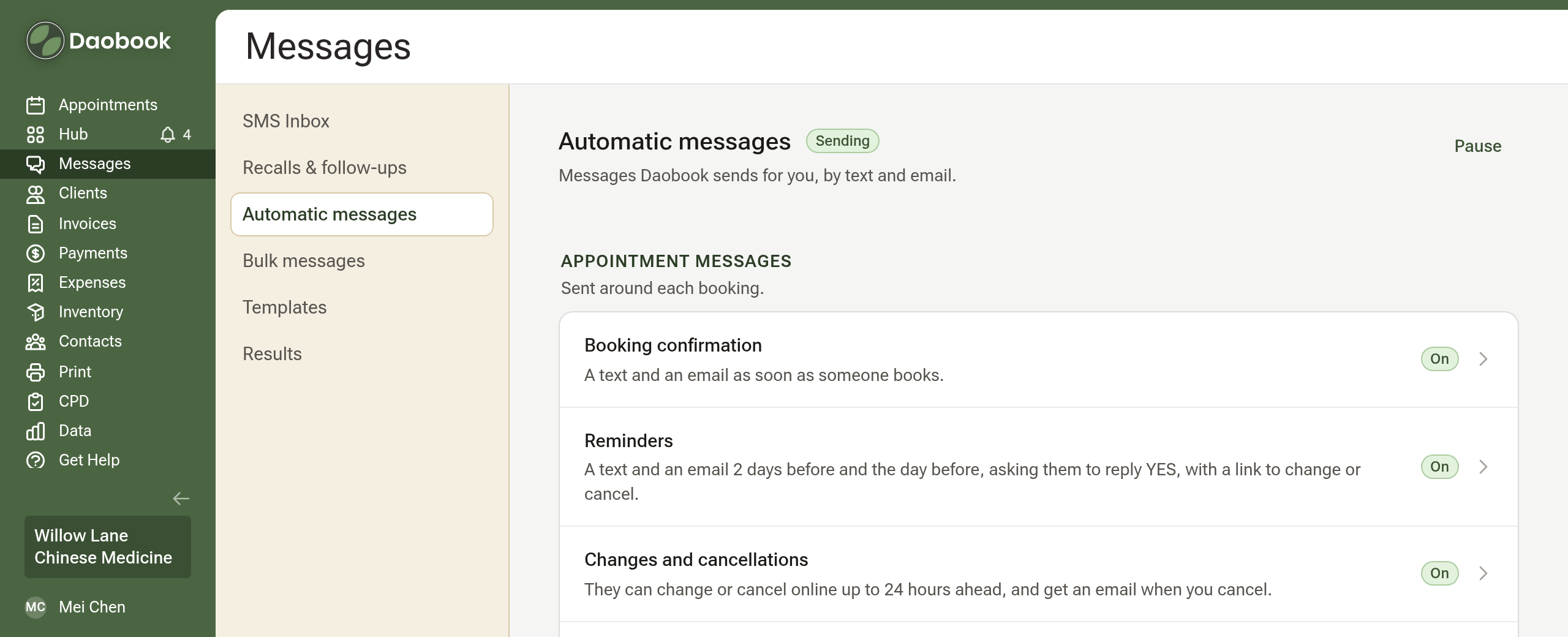
| Page | What's on it |
|---|---|
| Booking confirmation | The text and the email sent when an appointment is booked (online or by staff) |
| Reminders | The reminder text and email, when they go, and the YES replies |
| Changes and cancellations | What clients can change themselves, replying NO, and the email sent after you cancel their appointment |
| Intake forms | Whether a client's answers go straight onto their profile |
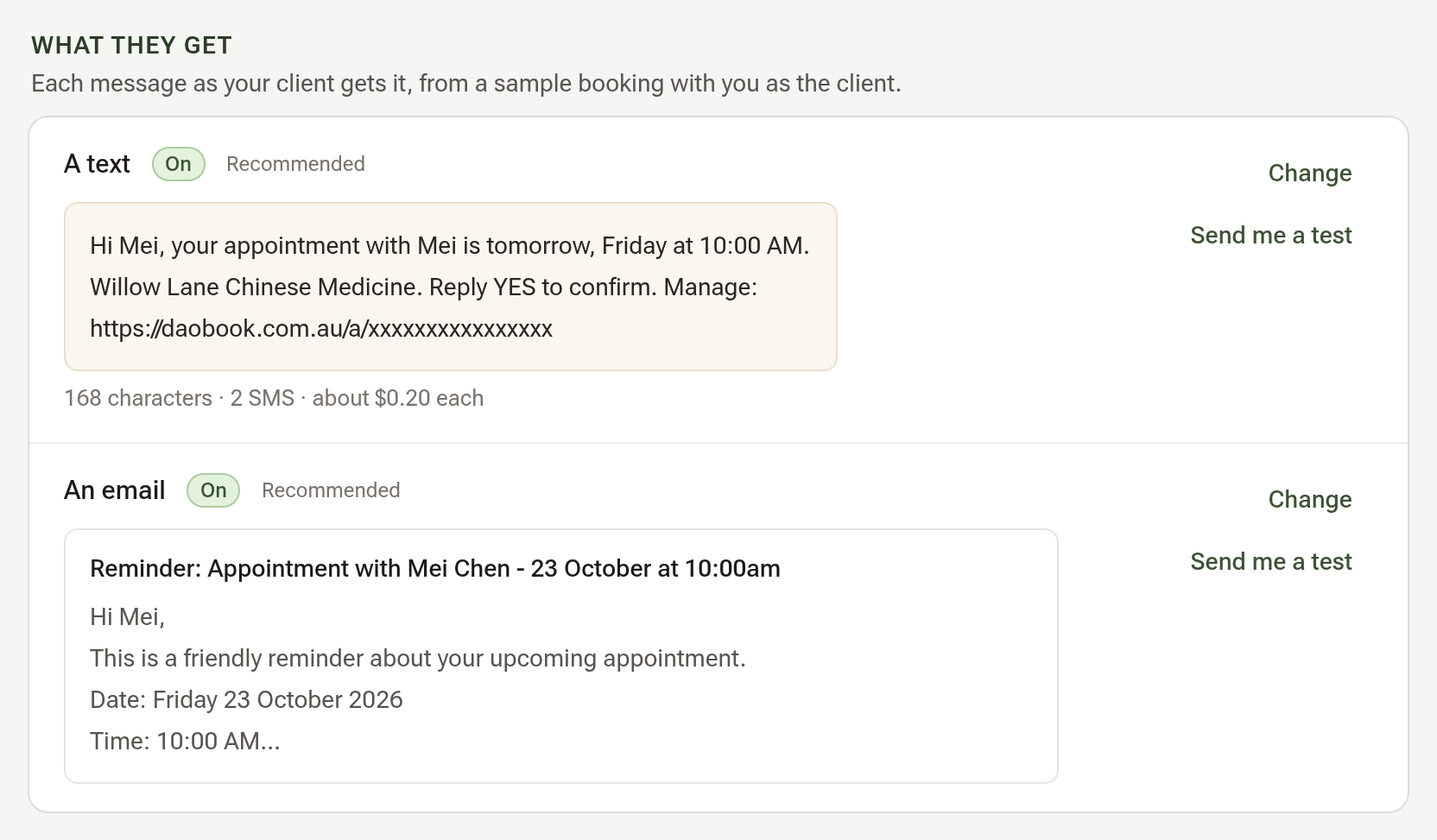
Every page shows each message as your client gets it, filled in from a sample booking with you as the client. Beside each message are Change, which opens its wording and its Send this text or Send this email tick (the message's on/off switch), and Send me a test. Each page saves with Save Changes at its foot.
Step 1: Turn On Appointment Reminders
Everything else here rides on your reminders, so start with those.
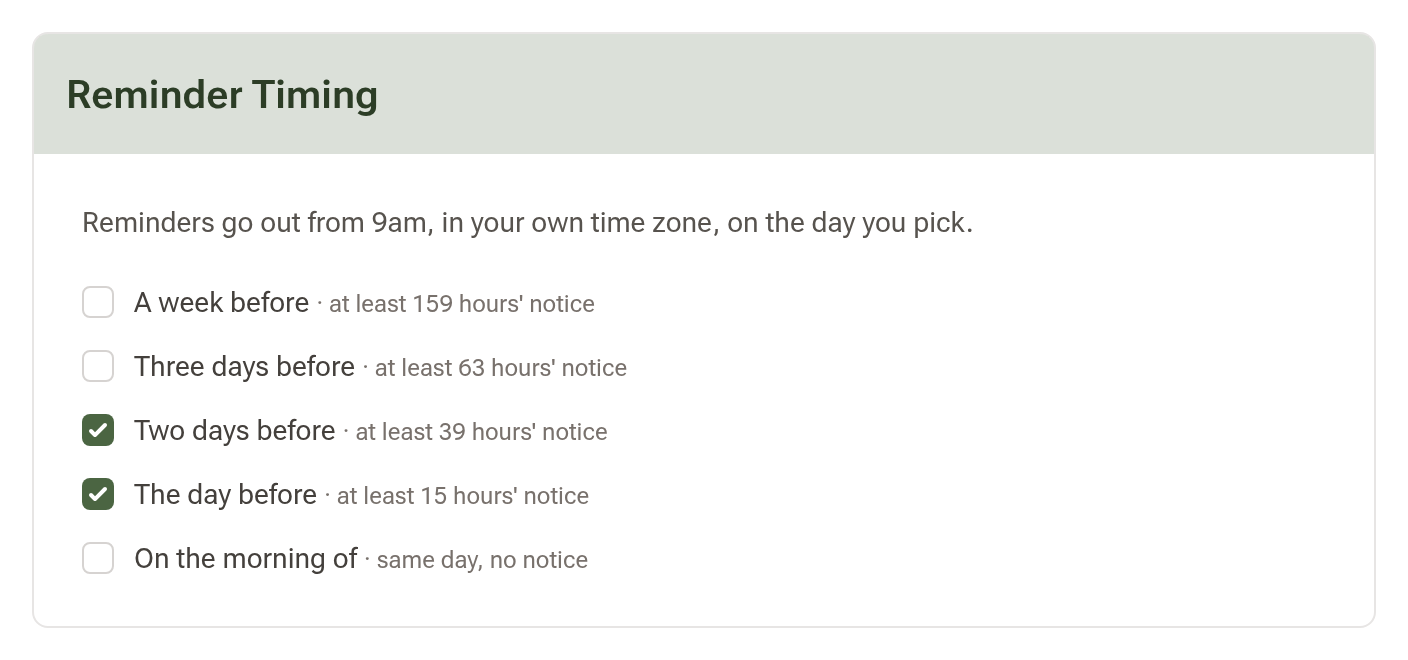
Open Reminders. Under When, tick when you'd like reminders to go out — any combination:
- A week before
- Three days before
- Two days before
- The day before
- On the morning of
Then, under What they get, check the text, the email or both say On. To switch one, click Change beside it and tick or untick Send this text (or Send this email).
Why each option shows an "at least" figure
Reminders go out from 9 AM in your own time zone on the day you've chosen — they're matched by day, not by an exact hour count. That means the notice a patient actually gets depends on what time their appointment is: an 8 AM appointment gets about 15 hours from The day before, while a 5 PM one gets about 32.
Each option shows the least notice it can guarantee, so you can match it to your cancellation policy. This matters if you charge for late cancellations — a 24-hour notice period paired with a day-before reminder asks patients for notice they can't give, because the reminder can arrive with 15 hours to spare. Pick Two days before (39 hours guaranteed) and the policy becomes workable. The Reminders page shows a warning if your notice period and your reminders don't line up.
On the morning of is worth a look if you take a lot of short-notice bookings — roughly a quarter of appointments are booked inside 24 hours, and those can't reach any of the earlier reminders.
For SMS costs and topping up your wallet, see the SMS Messaging tutorial.
Step 2: Let Clients Confirm by Replying YES
Confirmations tell you a client is definitely coming — useful for spotting no-shows before they happen.
On the Reminders page, under Replies, tick Ask them to reply YES to confirm. This appends "Reply YES to confirm." to your SMS reminders.
When a client replies, Daobook acts on the reply automatically:
- The reply must be the whole message — YES, Y, or CONFIRM (any capitalisation). Free text like "yes please, see you then" won't trigger it, so nobody is confirmed by accident.
- Their appointment is marked confirmed on your calendar.
- The client gets a short acknowledgement back, signed with your clinic's name: "Thanks Sarah, your appointment on Tue 12 Aug at 2:00 PM is confirmed. See you then." Don't want it sent? Untick Text back when they reply YES, just below. The YES still confirms the appointment, and you save one SMS per confirmation.
- The practitioner gets a notification: "✅ Sarah Chen confirmed their appointment on Tuesday 12 August at 2:00pm"
A repeat YES on an already-confirmed appointment does nothing — no double-charge, no duplicate notification.
A confirmation belongs to a time. Moving an appointment — on your calendar, or by the client from their link — clears it, and the reminder for the new time asks again. The one exception is a client who moves their own appointment too close to the day for another reminder to go out: their move counts as their YES, and it shows as confirmed.
Booking confirmation vs. asking them to reply YES. These sound similar but do different jobs. Booking confirmation is the message Daobook sends the moment an appointment is booked ("You're booked in for…"). Ask them to reply YES to confirm is the reply prompt on the reminder that lets the client confirm they're coming. You can use either, both, or neither.
Step 3: Let Clients Manage Their Own Appointments
Go back to Automatic messages and open Changes and cancellations. Its first part, Let Clients Manage Their Own Appointments, is where a client gets to move or cancel their own booking from the reminder they already receive — no phone call, and no message sitting in your inbox overnight.
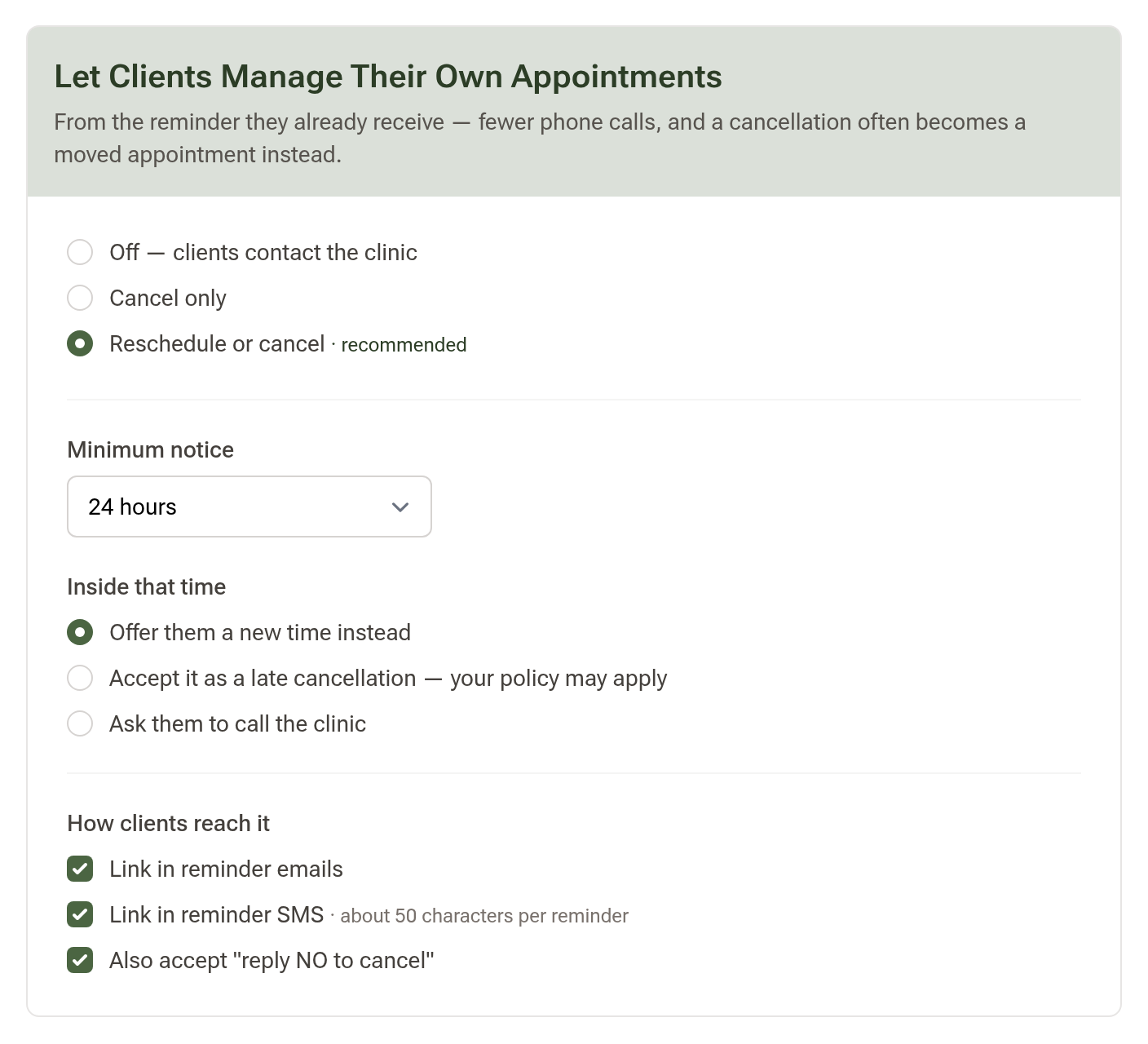
Choose how much clients can do
- Off — clients contact the clinic, as before.
- Cancel only — clients can cancel, but not pick a new time.
- Reschedule or cancel (recommended) — clients can choose another time with you, or cancel. This is the one worth having on: a client who can move an appointment often does, where the same client faced with only a Cancel button simply cancels.
Minimum notice
The least notice a client needs to give to change their appointment themselves — to move it or to cancel it. Set it to 24 hours and a change more than 24 hours out goes through straight away, while anything closer counts as last-minute and is handled by the setting below. Choose Any time to let clients change it right up to the appointment.
Inside that time
What a client can still do inside your notice period, from their link or by replying NO. Each option says it beside its name:
- Offer them a new time instead (recommended) — they can move it, not cancel it. The appointment stays booked, and a client who tries to cancel is shown their open times instead. You keep the slot, they get sorted, nobody rings.
- Accept it as a late cancellation — they can cancel, not move it. Marked as a late cancellation: it deliberately stays on your calendar and the time remains unavailable for online bookings (a last-minute slot usually can't be refilled online), and your cancellation policy may apply. Staff can free the slot manually if they find a taker. A client who wants a different time cancels first and books again, or calls.
- Ask them to call the clinic — no changes from the link. The page shows your phone number, and a Let the clinic know you can't make it button that tells you (in the app and by email) without changing the booking, so you know to expect the call.
How clients reach it
Tick the routes you want. They can all be on at once:
- Link in reminder emails — free, so there's little reason to leave it off. The reminder gets a "Need to reschedule or cancel?" box with a Change or cancel your appointment link, and booking confirmation emails carry the same link.
- Link in reminder SMS — adds about 50 characters to each reminder. With the built-in reminder wording that still fits in one SMS for most clinic names; a longer custom template may tip into two, and the meter under your reminder template shows which.
- Also accept "reply NO to cancel" — free. The client texts back NO or N (the whole message, any capitalisation).
Daobook adds the link when the reminder is sent, so your templates don't need editing. If you'd rather place it yourself, the {{manage_link}} variable works in any reminder template, and Daobook won't add a second copy. When an SMS carries the link, the "Reply NO to cancel." sentence is left out to save you the segment — replying NO still works for anyone who does it out of habit.
What the client sees
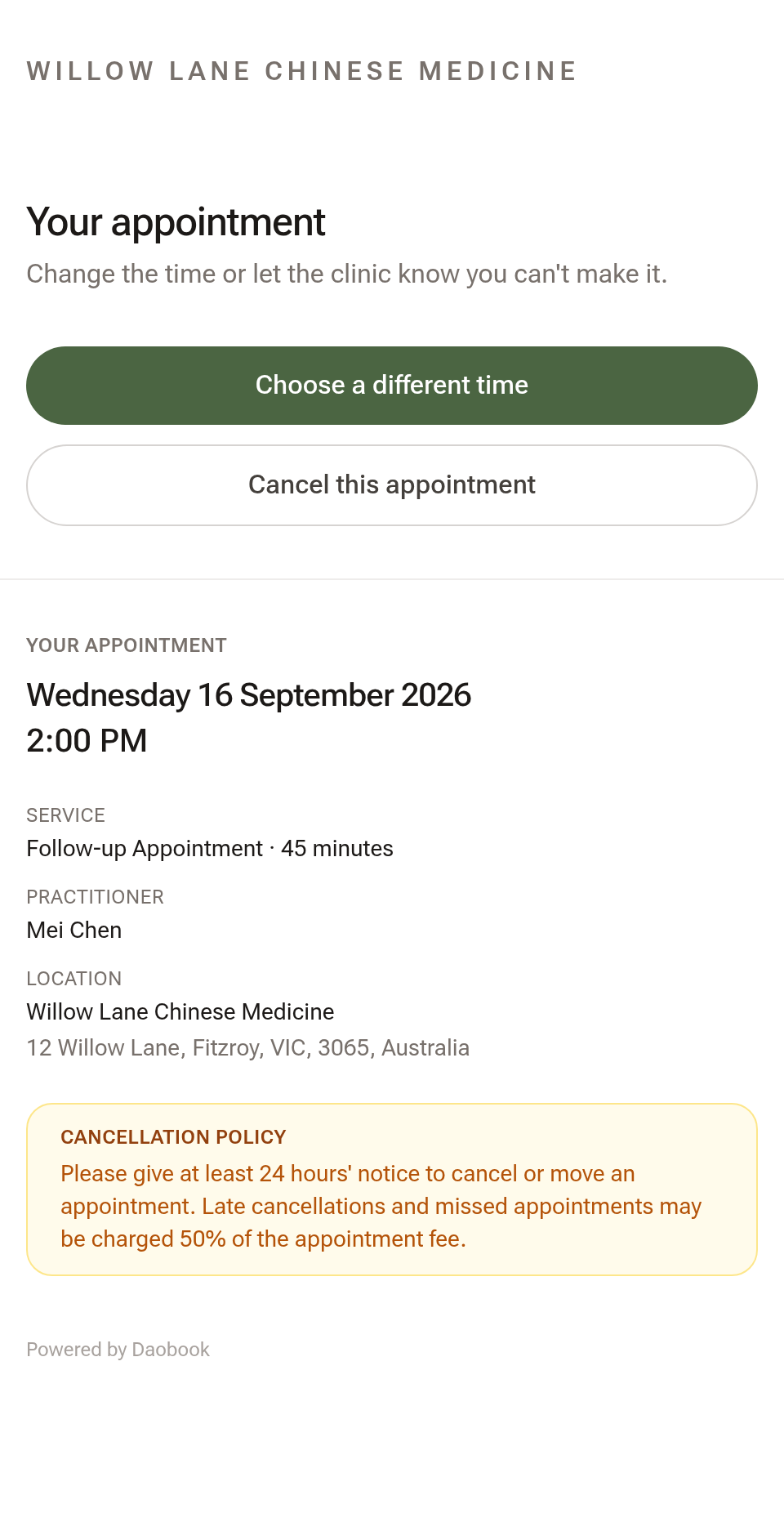
The link opens a page with that one appointment on it — date, time, service, practitioner and location — and two choices: Choose a different time, or Cancel this appointment. It shows nothing else about them, and the link only ever works for that appointment. If you've written a Cancellation Policy under Settings → Practice Info → Online Bookings, it appears beside the appointment details.
Inside your notice period the page says what's still open and why — "It's less than 24 hours away, so it can be moved online but not cancelled" — with your phone number, and shows only the button that still works.
Moving to a new time
Choose a different time lists the openings you already offer online for the same practitioner, service and location — the soonest days up front, the rest of the next four weeks behind Show more days. Switching practitioner or service isn't offered here; that's a new booking, and your booking page handles it.
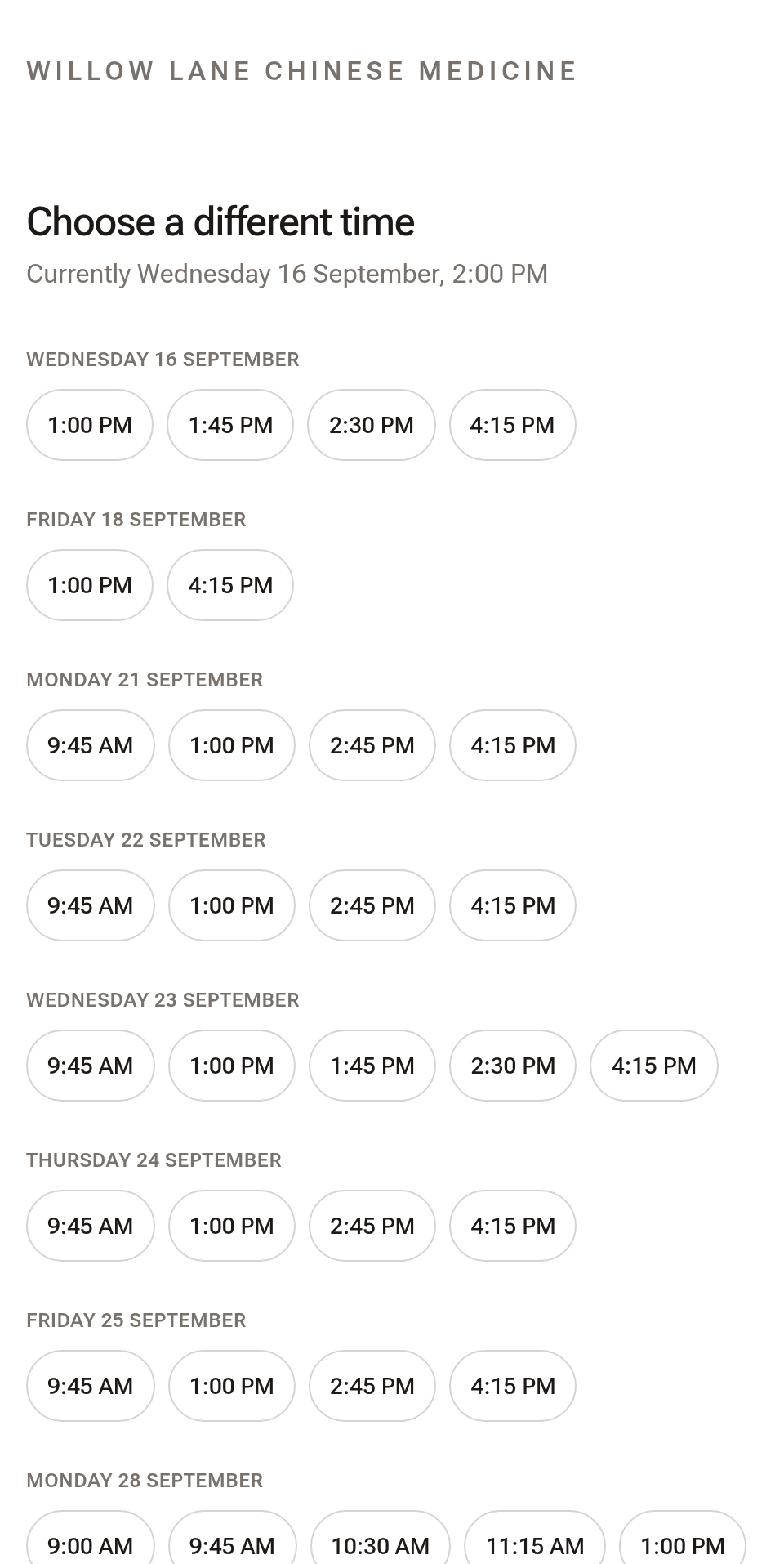
Tapping a time only selects it — a bar appears showing the new time beside the old one, and nothing moves until they press Confirm new time, so a slip of the thumb can't shift the booking. The time is checked again the moment they confirm, so two people can't land in one slot — if it has just gone, they're asked to choose another. Once moved, the page confirms "Your appointment has been moved.", they get a confirmation on the channels their reminders use, and their reminder goes out again for the new date.
Because the list comes from your online availability, a service or practitioner that isn't bookable online has no times to offer, and the client is asked to contact the clinic instead.
Cancelling
Cancel this appointment asks them to confirm first, with Choose a different time instead right beside it. Inside your notice period the page follows the Inside that time setting: with Offer them a new time, there is no cancel button — the page says the appointment can be moved but not cancelled online, and a cancel attempt lands on the time picker; with Accept it as a late cancellation, only cancelling is offered, with a note that your cancellation policy may apply; with Ask them to call, the page shows your clinic's phone number and the Let the clinic know you can't make it button.
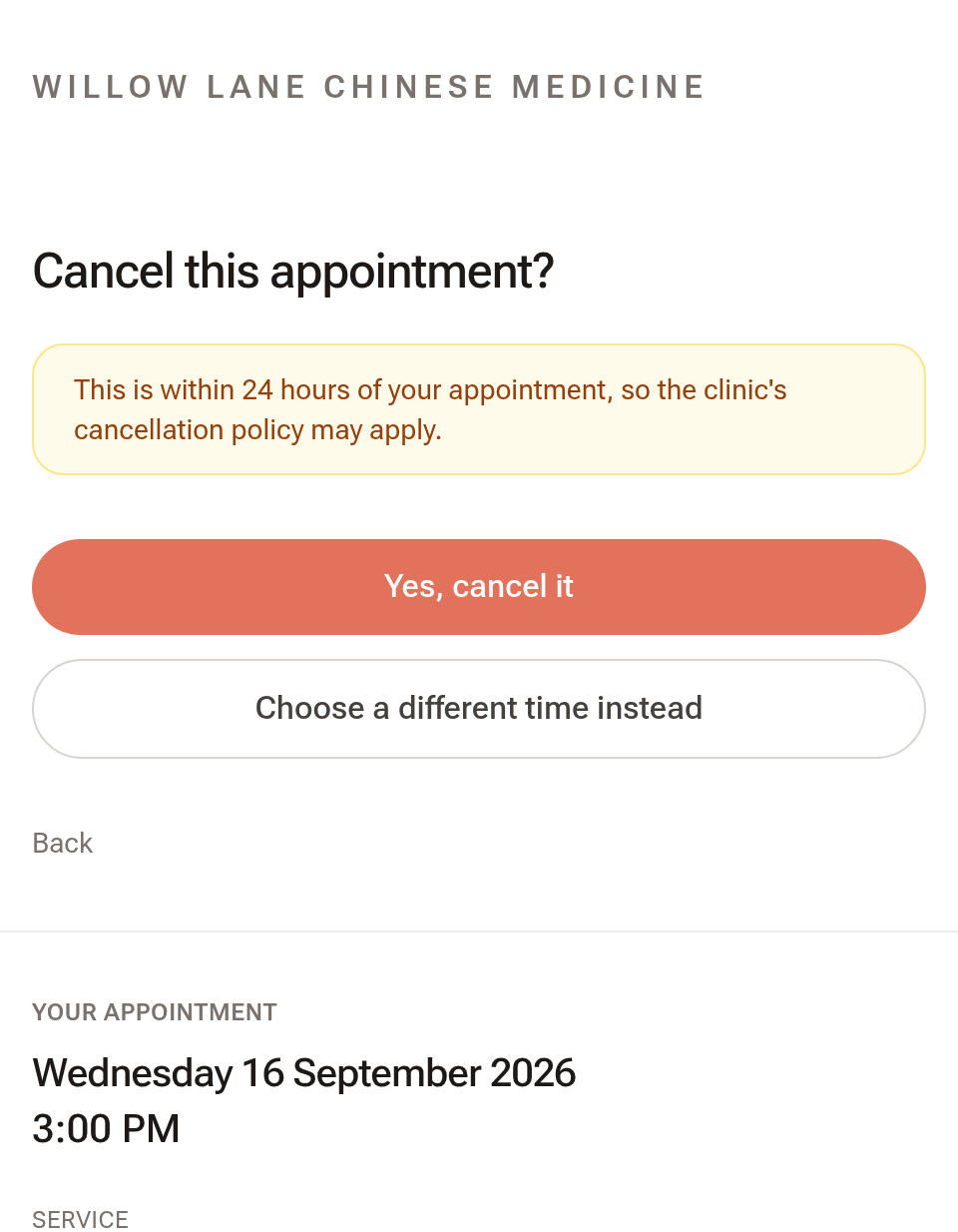
After cancelling, they get a confirmation text, and a rebook link if your clinic has online bookings switched on.
What your team sees
Every client cancellation and every client-made move notifies the appointment's practitioner and your front desk (receptionists, and any owner or admin who doesn't treat patients) in the app, and the practitioner by email — cancellations go to the clinic email address as well. When a cancellation frees a slot, the email tells you how many clients on your waiting list might want it.

A move reads "🔄 Sophie Marchetti moved their appointment from 4 Sep at 3:00 PM to Tuesday 8 Sep at 11:00 AM." — the old time and the new one in the same line, so nothing needs looking up. The email says who moved it (the client, from the link in their reminder) and, when the move was inside your notice period, how much notice they gave. A Let the clinic know you can't make it press reads the same way: the client's name, the appointment, and that it stays booked.
The reminders already sent stay on the client's Communications tab after a move, marked "Sent for 4 Sep, 3:00pm, since moved", so you can always see what they were told and when.
When an appointment can't be changed online
If the appointment's invoice has been paid, a client can neither cancel nor move it themselves — they're asked to contact the clinic so you can handle any refund. A booking deposit doesn't count: a client who paid a deposit can still cancel, and the deposit waits as their account credit until you refund it, apply it to your fee or keep it (see Taking Online Payments with Square or Stripe). The same applies once the appointment has started or been marked completed. A repeat NO after a successful cancellation is ignored, so nobody gets a confusing double message.
Step 4: Why "NO" and not "CANCEL"
You might expect the cancel word to be "CANCEL" — but CANCEL is a carrier-level opt-out keyword. Like STOP and UNSUBSCRIBE, a client texting "CANCEL" is unsubscribed from all SMS by their phone carrier before Daobook ever sees it. That's why the cancel reply is NO (or N) instead.
As with confirmations, the match is whole-message only — "no worries, see you then" won't cancel anything. The client has to reply with just NO.
For the full list of opt-out keywords (STOP, UNSUBSCRIBE, and friends) and how re-subscribing works, see the SMS Messaging tutorial.
Step 5: Save and Test
Click Save Changes at the foot of each page you change.
To see a message as your clients will, click Send me a test beside it: an email comes to your own address, a text to the mobile in your Practitioner Details. To try the replies end to end, book a real appointment for yourself on your own mobile number, wait for its reminder, then reply YES or NO and watch the appointment update on your calendar.
Sending a Client Their Upcoming Appointments
A client who books a run of visits ahead — a course of weekly treatments, say — often wants the dates in writing. Open their profile and click the Appointments tab. The Upcoming Appointments list has two buttons beside its title:
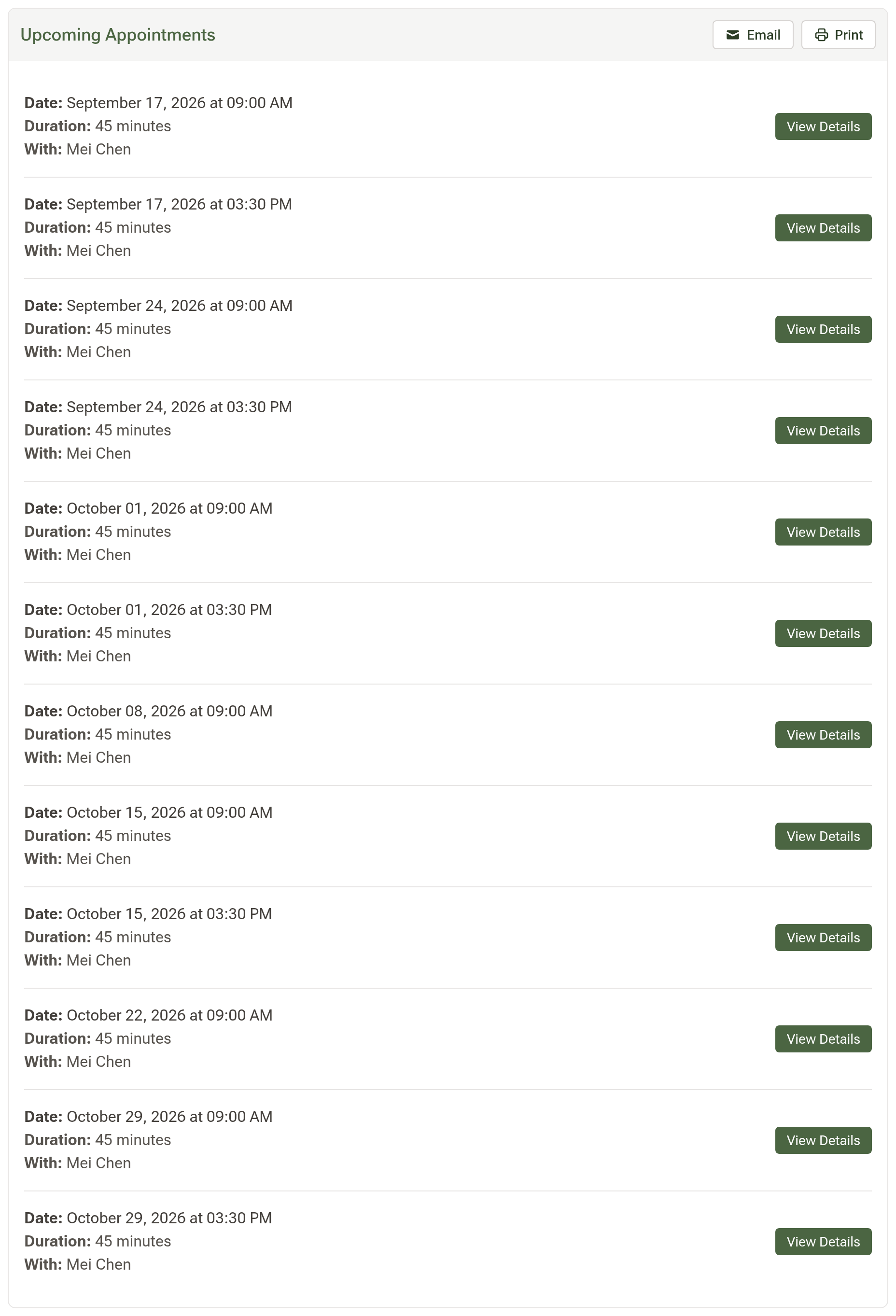
- Email sends one email listing every upcoming appointment — day, date and time, the appointment type, who it's with, and the location if you have more than one. Each appointment carries its own Change or cancel this appointment link when Link in reminder emails is ticked (Step 3). You're asked to confirm the address first, and the email is logged on the client's Communications tab so anyone on the team can see it went.
- Print opens the same list as a clean page in a new tab, with your clinic's name and contact details at the top, ready for the Print button.
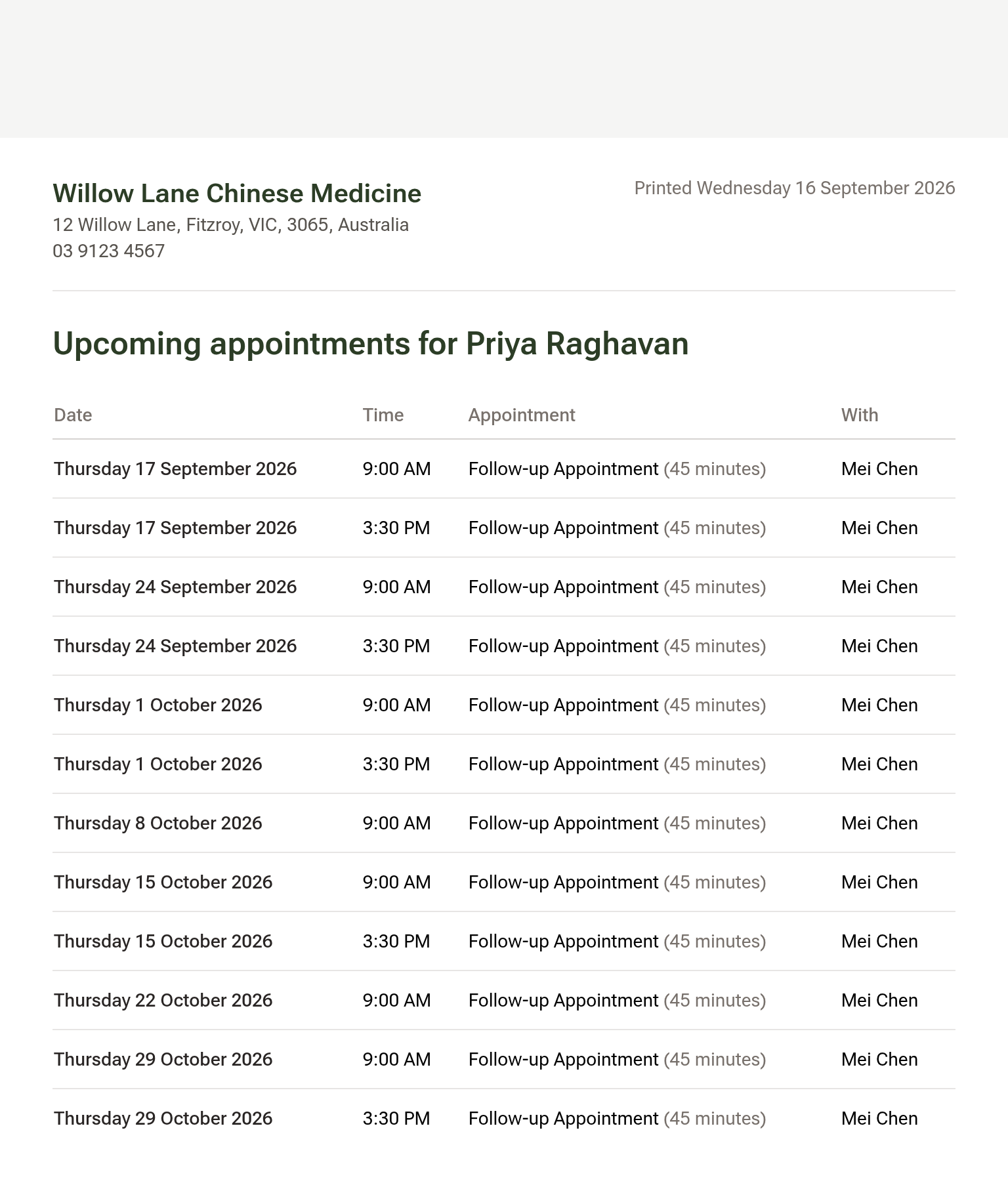
The buttons only appear when the client has something booked ahead, and Email is greyed out when there's no email address on their profile. Both work whenever you press them — they aren't affected by the Pause on Automatic messages.
The same email is offered the moment you book a recurring series from the calendar: the results window shows Email upcoming appointments to the client's name, so someone who has just been booked in for the next three months leaves with every date in their inbox. That's worth knowing because a recurring series doesn't send a booking confirmation of its own — only single bookings do.
Tips:
- Everything here rides on your reminders — if both the reminder text and the reminder email are Off, there's nothing carrying the link. And nothing goes out at all while Messages → Automatic messages says Paused beside its title (the Pause button next to it): new accounts start paused, each location has its own switch, every message on the page says Paused, and the Hub reminds you about every location you manage once it has bookings waiting, with a Turn them on button that does it for all of them.
- If your clinic existed before this setting arrived, it starts Off (or Cancel only if you already used reply-NO). Nothing switched on by itself — turn it on when you're ready. New clinics start with Reschedule or cancel, 24 hours' notice, a new time offered inside it, both links on, and a two-days-before reminder.
- Use Accept it as a late cancellation if you charge a late-cancellation fee — the slot stays on the calendar as a record, and your policy applies. Write the policy itself under Settings → Practice Info → Online Bookings → Cancellation Policy Text, so the client reads it on the page before deciding.