
Recording Your CPD
Keep your continuing professional development in one place for each registration year: drop in certificates, confirm what Daobook reads, add the rest by hand, write the reflection, and export an audit-ready portfolio.
Recording Your CPD
The CPD page keeps one registration year (1 December to 30 November) on a single screen. Certificates you drop on it are read for you and lined up to confirm; anything without a certificate takes a few seconds to add by hand; three bars show where you stand against the Chinese Medicine Board's minimums; and one button exports the lot for an audit.
The Board asks for 20 hours a year, at least 5 of them interactive (two-way, with other practitioners) and at least 4 on professional issues (ethics, boundaries, advertising, infection control, privacy, regulation). There is no formal/informal split any more, so Daobook doesn't ask.
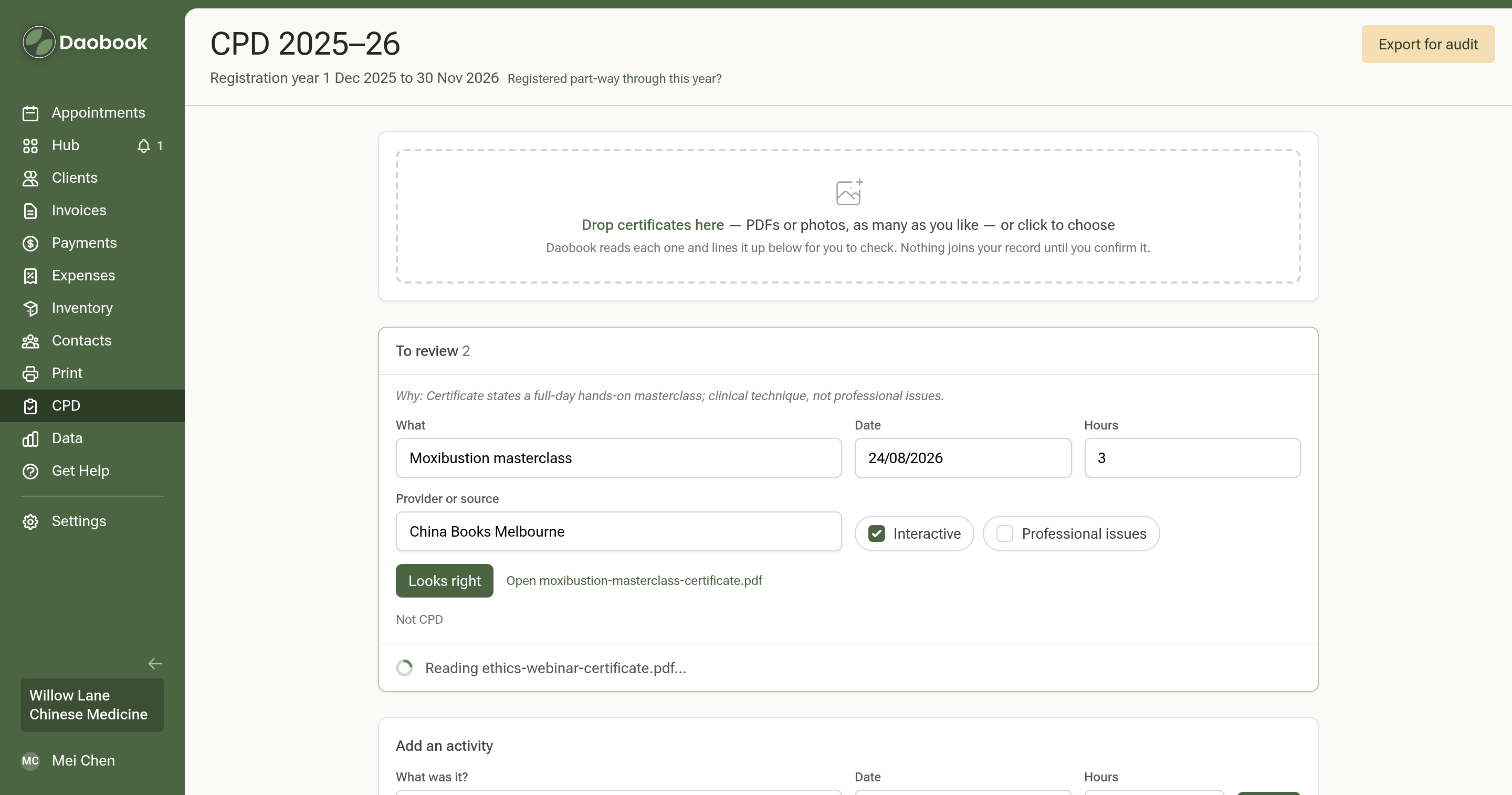
Step 1: Open your CPD year
Click CPD in the sidebar. The page opens on the current registration year — "CPD 2025–26", for example. The small links beside the heading switch to the previous year and, from 1 November, to next year.
Step 2: Drop in your certificates
Drag one or many certificates — PDFs or photos — onto the Drop certificates here zone, or click it to choose files. Each file is saved as evidence straight away and appears in the To review tray while Daobook reads it.
When a read finishes, the row shows what was found: what it was, the provider, the date, the hours, and the two category tick boxes, with a short "Why" line explaining the categories. Check the fields against the certificate, change anything that needs it, and click Looks right. The activity moves onto your record and the bars update.
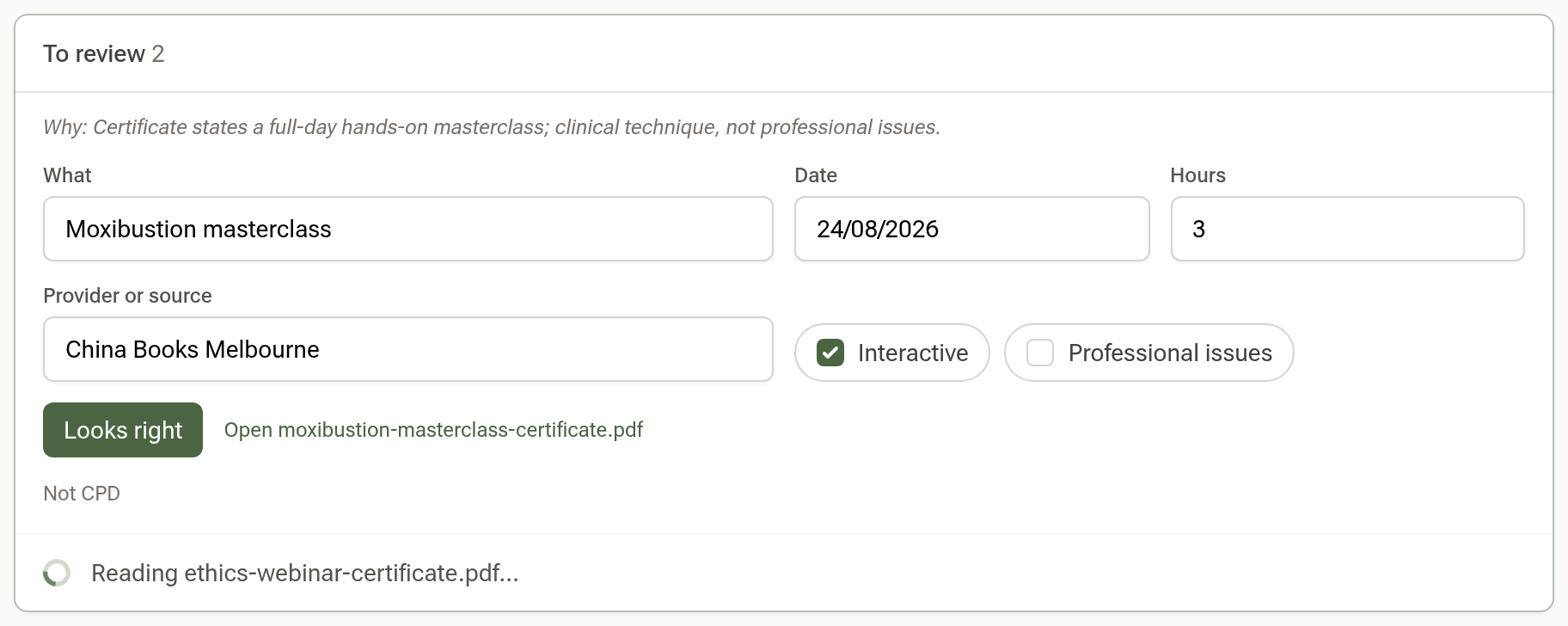
If a file isn't a CPD record — a receipt that slipped in — the row says so, and Not CPD removes it along with the file. Confirm all appears when more than one certificate is ready.
Step 3: Add anything without a certificate
For journal reading, a case discussion or a study group, use Add an activity: what it was, the date, the hours, tick Interactive or Professional issues if they apply, and click Add.
Step 4: Open an activity to finish it
Click any row under Activities to open it in place. Here you can name the provider, link the activity to one of your goals, drop evidence onto it, and write the reflection.
The reflection is two short prompts. What did you take from it? can be drafted for you — click Draft from the certificate and edit the two sentences it writes. What will you do differently? is yours alone to write; it is the half the Board's own examples turn on. The dot at the end of the row turns green once either is written.
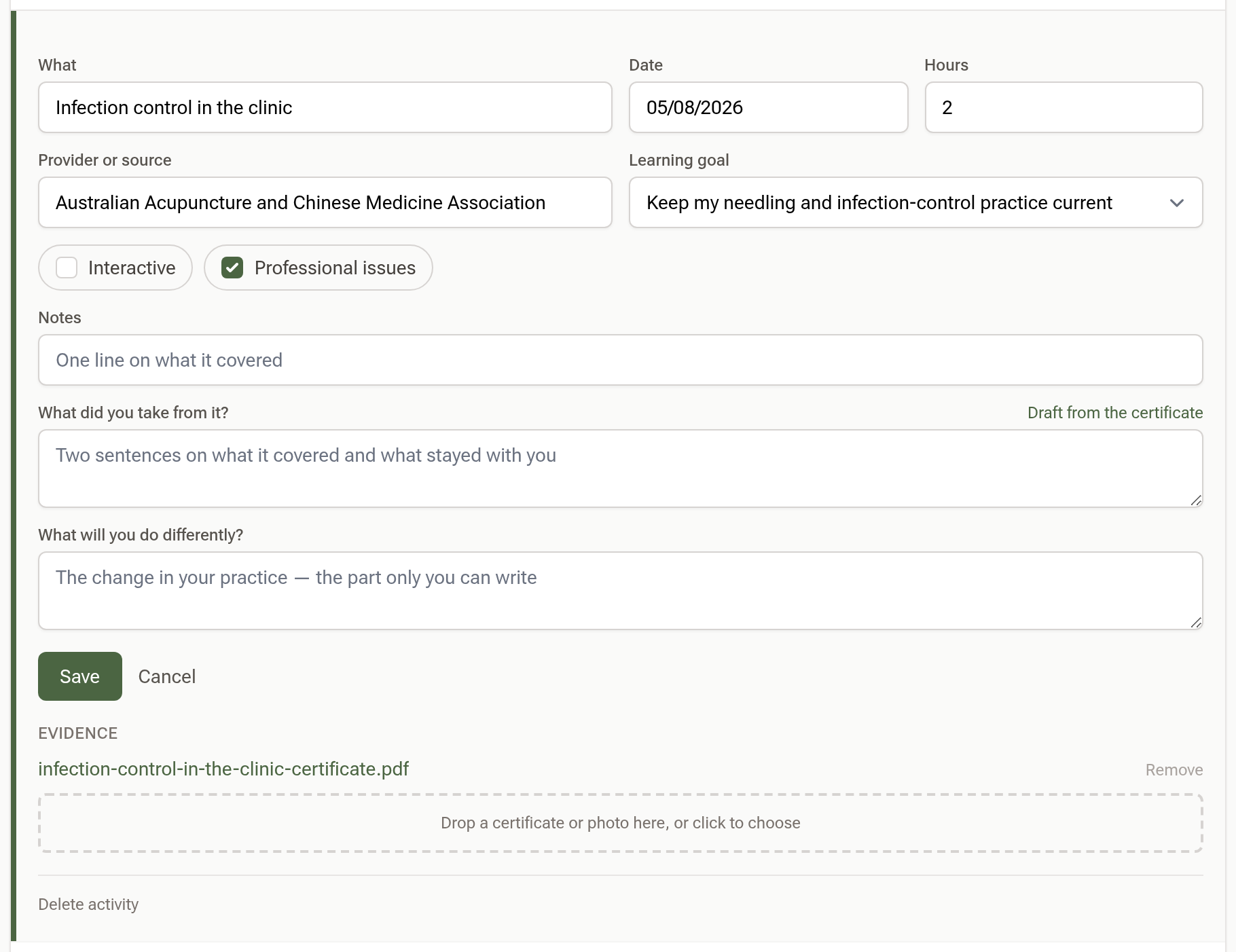
Click Save to keep your changes, or Cancel to close the row.
Step 5: Set a goal or two
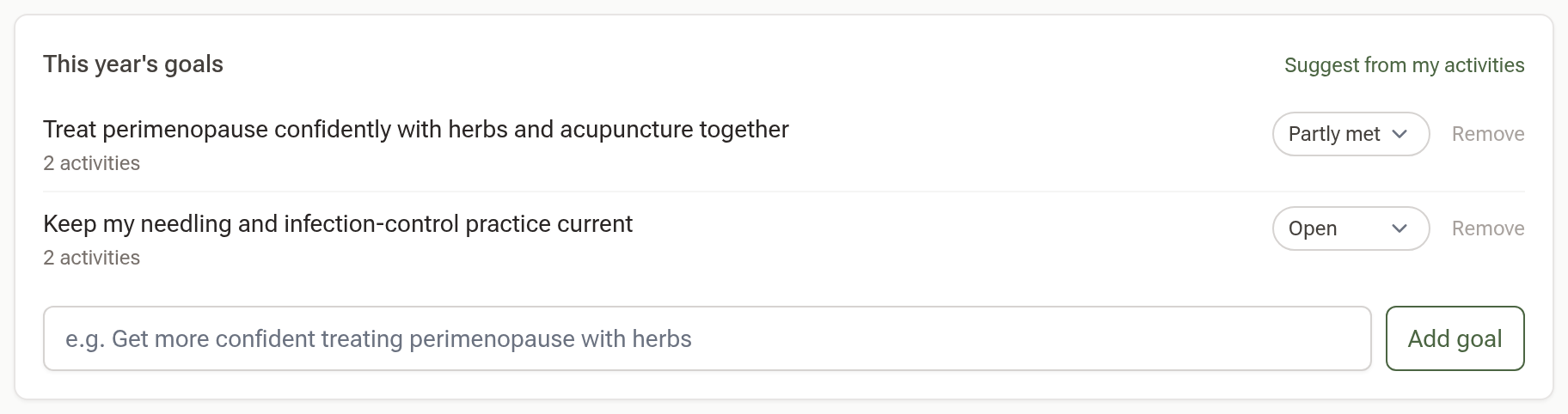
Under This year's goals, type a goal and click Add goal, or click Suggest from my activities to get three written from what you have already logged and Add the ones that fit. Each goal has a status you can change at any time, and shows how many activities are linked to it. It is fine to set goals after the fact.
Step 6: Watch the bars
The three bars show your total, interactive and professional-issues hours against the minimums. Underneath there is at most one line — activities still missing evidence, then activities missing a reflection, then, in the last 60 days of the year, how many hours are still to go.

If you registered part-way through the year, click Registered part-way through this year? under the heading and enter the date. The total scales to 5 hours for each three months remaining.
Step 7: Export for an audit
Click Export for audit at the top right. You get a zip with Report.pdf — your portfolio laid out like the AHPRA template, with goals, every activity and its reflection, and the totals against the Board's minimums — plus an Evidence folder holding every file.
Tips:
- Nothing in the To review tray counts until you click Looks right, so a dropped file never inflates your hours by mistake.
- Reading certificates is included with every plan, up to 60 a month.