
Merging Duplicate Client Profiles
Combine two profiles for the same person, so all their appointments, notes and invoices sit on one.
Merging Duplicate Client Profiles
Sometimes one person ends up with two profiles, often because they booked online and typed their name a little differently. Merging moves everything onto one profile and archives the other.
Prerequisites
- Only clinic owners and admins can merge profiles.
Step 1: Open one of the profiles
Open either profile and click "Merge" at the top, between Edit and Archive. It doesn't matter which of the two you start from.

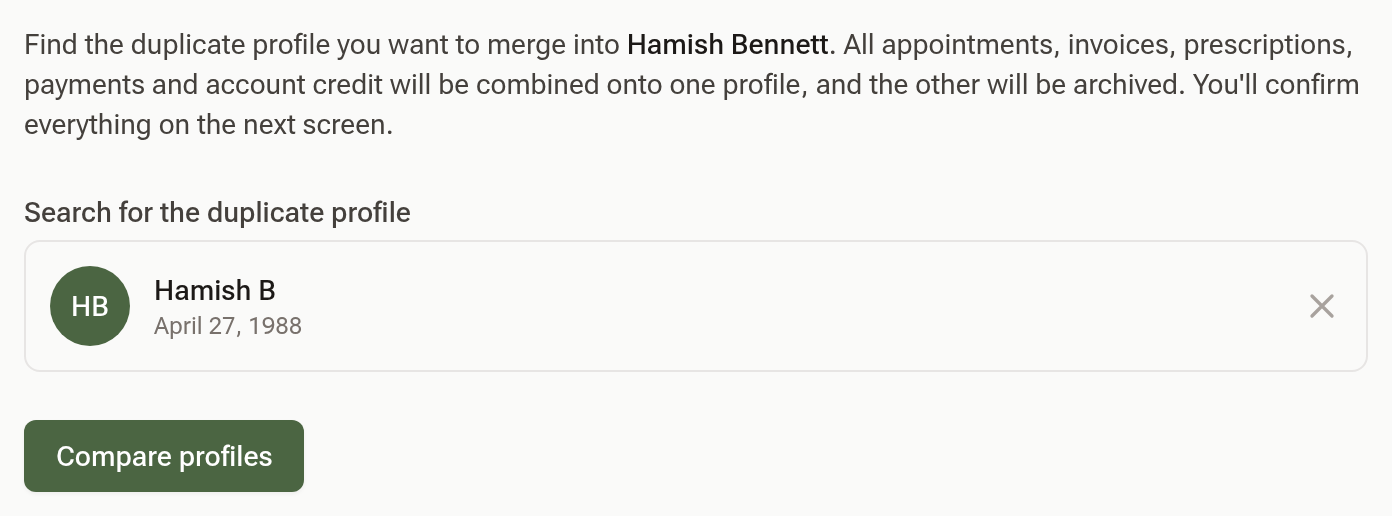
Step 2: Find the duplicate
Under Search for the duplicate profile, search by name, phone number, email or date of birth, and pick the other profile from the results. Click "Compare profiles".
Step 3: Choose which profile to keep
Under Which profile should be kept?, the profile with more appointments and invoices is already selected. Each card shows the date of birth, email and how many appointments, invoices and prescriptions it holds, so you can check you have the right person.

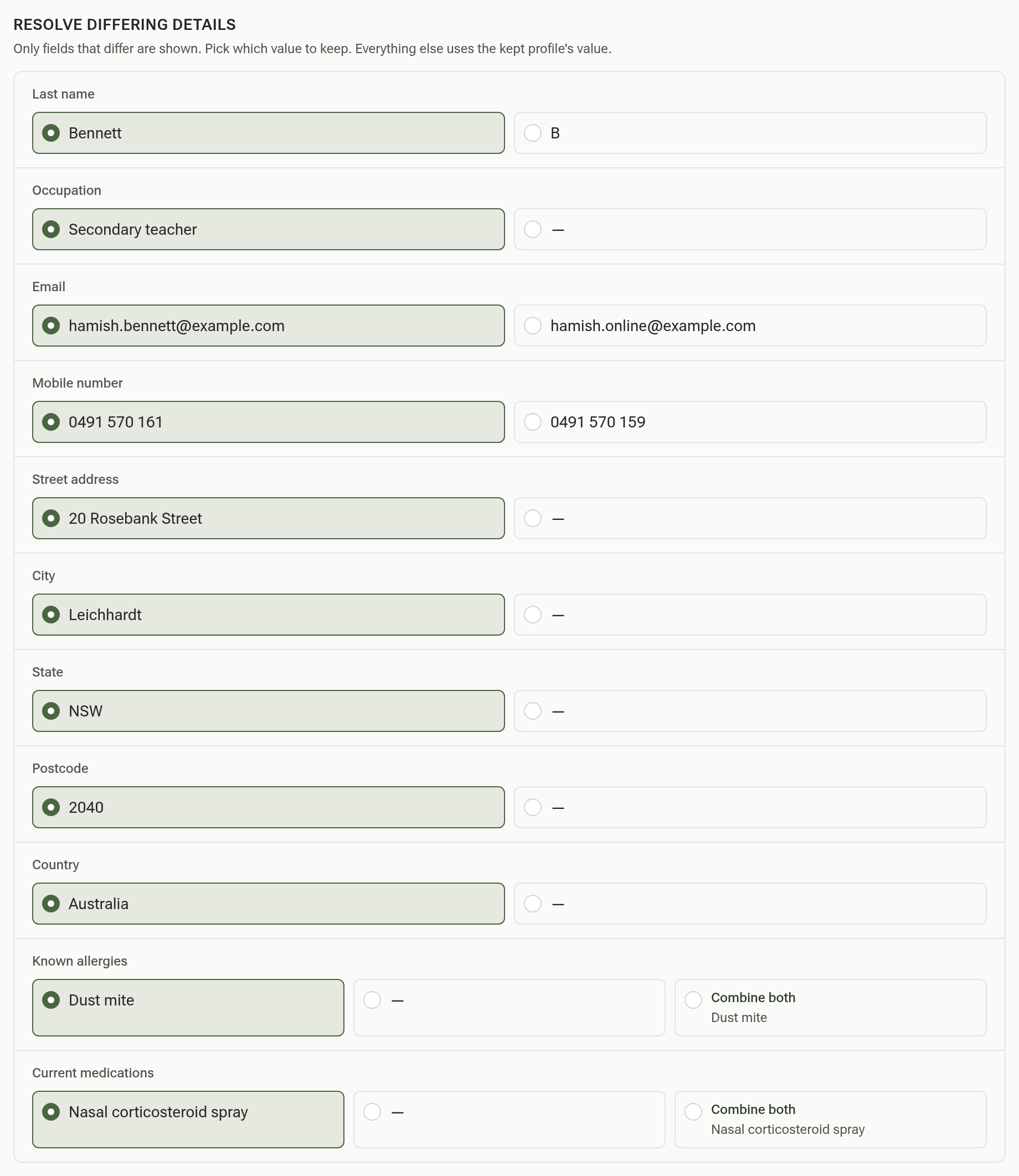
Step 4: Resolve differing details
Under Resolve differing details, only the fields that differ between the two profiles are listed. For each one, pick the value to keep. Where one profile has a value and the other is blank (shown as —), the filled-in value is already selected.
For Medical alerts, Known allergies, Current medications and Notes you can also choose "Combine both" to keep the text from both profiles.
Step 5: Confirm the merge
Under Confirm, type the name of the profile being archived exactly as it's shown, then click "Merge profiles". You land on the kept profile.

Everything from the archived profile moves across: appointments, consultation notes, prescriptions, invoices and payments, emails, SMS and letters, intake forms, uploaded files, cases, waiting list entries and follow-ups. Any account credit on the two profiles is added together.
Tips:
- A merge can't be undone from within Daobook. If you merge the wrong two profiles, contact us through Get Help straight away.