
Card Hold at Booking
Keep a card on file when clients book online, so a late cancellation or no-show can be charged the fee in your cancellation policy — by you, never automatically.
Card Hold at Booking
Instead of taking a deposit, the online booking page can keep the client's card on file against your cancellation policy. Nothing is charged when they book. If they later cancel late or don't turn up, Daobook asks you whether to charge the fee — and you can always waive it.
You need Square or Stripe connected (see Taking Online Payments with Square or Stripe) and to be a clinic admin.
Step 1: Choose Card hold and set your fees
Click Settings in the sidebar, open the Practice Info tab and choose Online Bookings. Under Deposit or Card Hold, choose Card hold.
Set the two fees a held card can be charged, Late cancellation and No-show, each either a Fixed amount or a % of appointment price. Leave one at 0 if you don't charge it.
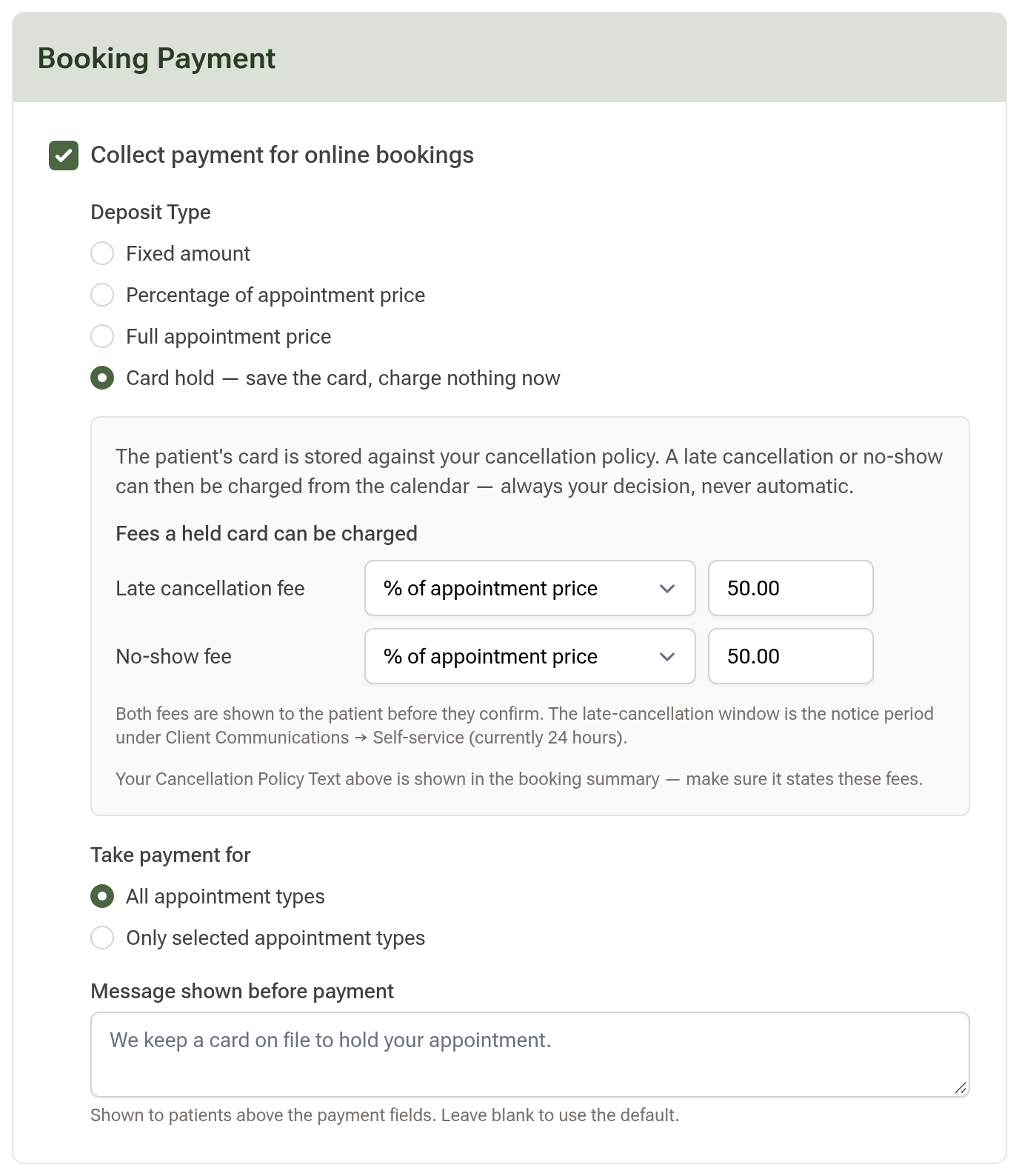
Two other settings feed into this:
- Cancellation Policy Text, on the same Online Bookings page, appears next to the card fields — make sure it states the fees.
- Minimum notice under Messages → Automatic messages → Changes and cancellations is the late-cancellation window (24 hours, say). A cancellation inside it is a late cancellation. The line under the fees shows the current window and links to it.
Under Applies to, choose All appointment types or Selected types and tick the ones that ask for a card.
Click Save.
Step 2: What the client sees
When the client books, the payment panel reads "Card to hold your booking — No charge now" and says in one line what the card could be charged under your policy: the late cancellation fee inside your notice window, and the no-show fee. They enter their card and click "Confirm booking".
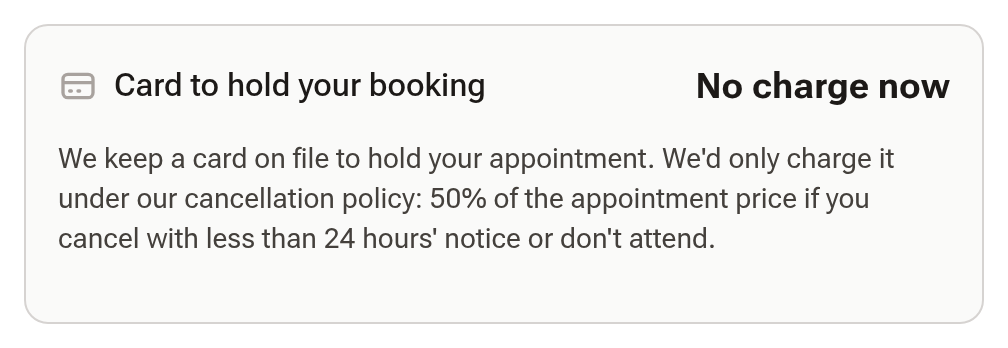
Their confirmation email says which card is on file and that nothing has been charged. The card shows under Payment Method on their profile, where you can remove it at any time. If they cancel from the link in their reminder inside the notice window, the page tells them the fee before they confirm.
Step 3: Charge or waive the fee
On the calendar, right-click the appointment and choose "No-show" or "Late Cancellation". If the client has a card on file and you have set a fee for that outcome, Daobook asks:
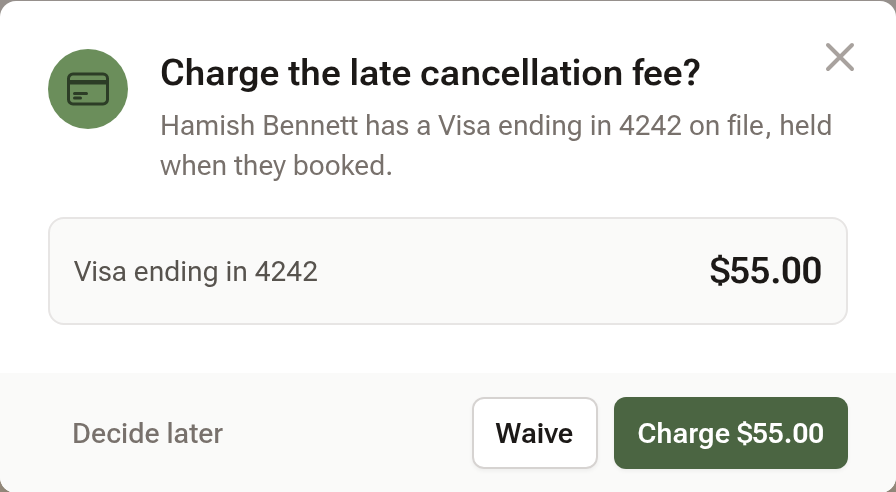
- Charge raises an invoice for the fee and pays it from the card straight away.
- Waive records that you chose not to charge, and the question won't come back.
- Decide later leaves it open. Right-click the appointment again and choose "Charge cancellation fee…" when you're ready.
If the card is declined, the fee invoice stays open on the client's profile, so you can send a payment link or waive it.
Step 4: Read the fee state on the calendar
A late-cancelled or no-show appointment stays in its slot but fades, so the day still reads as booked. A small glyph beside its status icon shows where the fee stands: an amber dot means it is waiting on your decision, a banknote means it was charged (hover the block for the invoice number), an exclamation mark means the card was declined so the fee is still owed, and a minus means you waived it. Hovering the block also shows who cancelled and when.

Click the block to open its details: Outcome repeats what happened and where the fee stands, and a "Charge or waive…" button on the right is there while the fee is undecided. The Cancellations & no-shows tab on the Data page adds a Fee column and a Fees charged total once any fee has a state.
Tips:
- Nothing is ever charged automatically — a person makes every charge.
- A client who books again enters their card again; the new card replaces the old one for your clinic.