
Using the Waiting List
Keep track of clients who want an appointment sooner than you can offer, and book them straight in when a time frees up.
Using the Waiting List
When a client wants to come in sooner than your next free time, put them on the waiting list. When a slot opens up, the list shows you who to call first, and you can book them straight from it.
Step 1: Open the waiting list
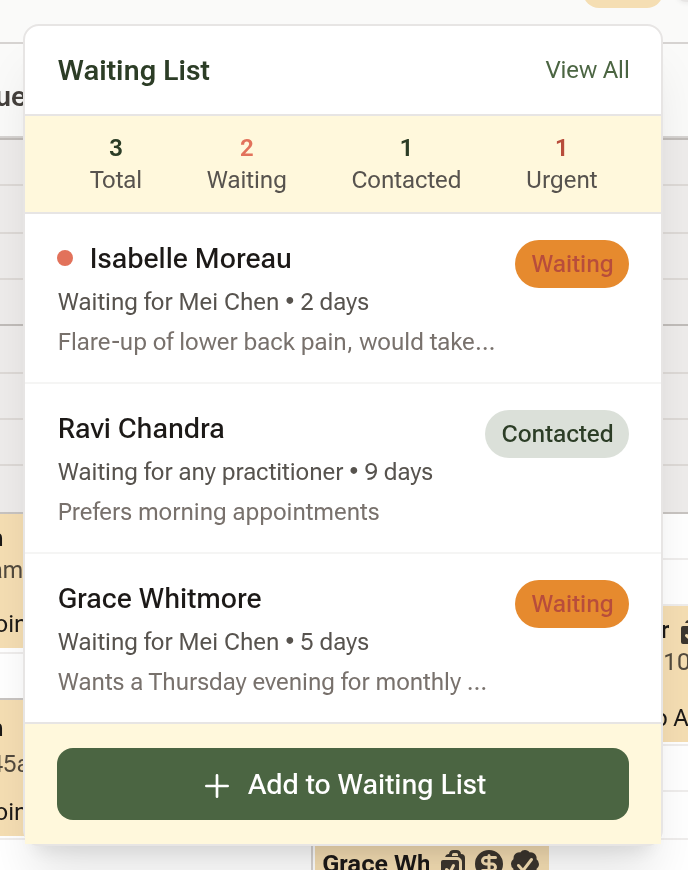
On the Calendar, click the clock icon at the top right, beside the date. A number on the icon shows how many people are waiting, and it turns red when any of them are urgent. The panel that opens shows the totals and your most recent entries.
Step 2: Add a client
Click "Add to Waiting List" at the bottom of the panel.
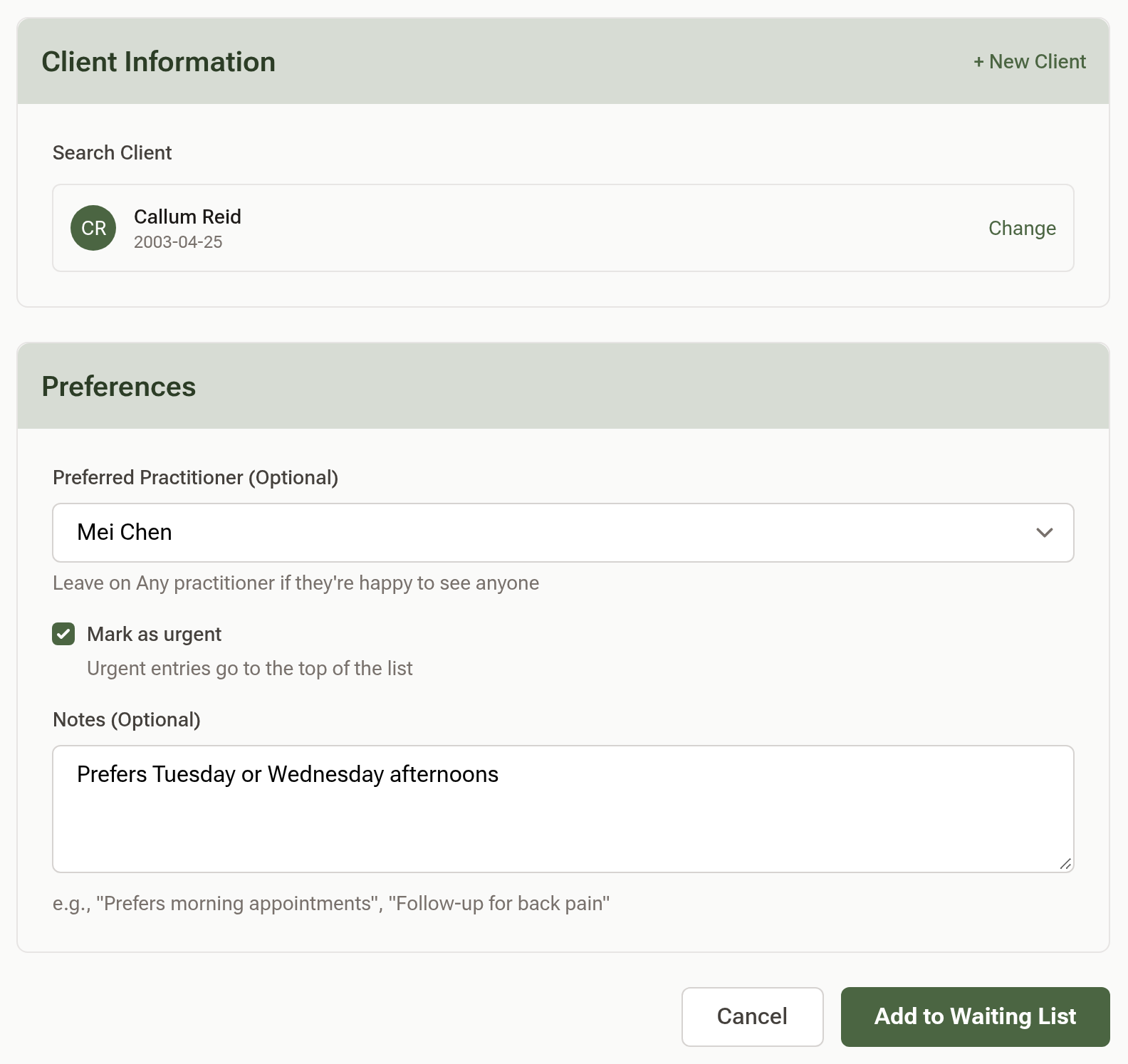
- Under Client Information, search for the client by name or email and pick them from the results. For someone who isn't in Daobook yet, click "+ New Client", enter their name, email and mobile number, and click "Create Client".
- Under Preferences, choose a Preferred Practitioner if they want to see someone in particular, or leave it on Any practitioner.
- Tick "Mark as urgent" to put them at the top of the list.
- Use Notes for anything that helps you match them to a slot, such as "Prefers morning appointments".
Click "Add to Waiting List" to save.
Step 3: Work through the list
Click "View All" in the panel to open the full list. Urgent entries come first, then everyone else in the order they joined. Each row shows how many days they've been waiting, their phone number, who they're waiting for, and your notes.
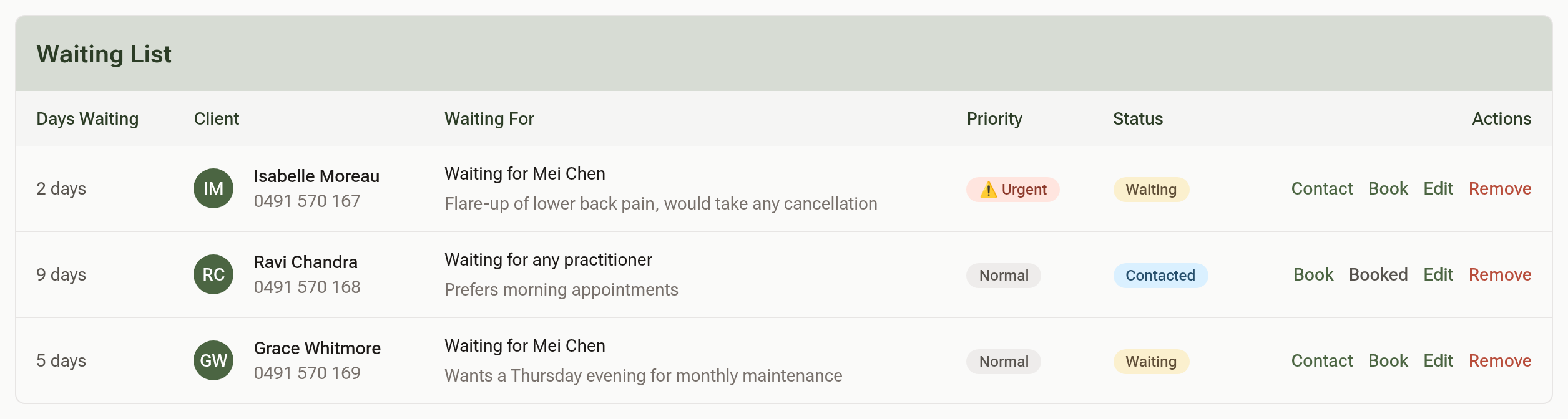
- Contact: once you've rung or messaged them with a time, click this and their status changes to Contacted.
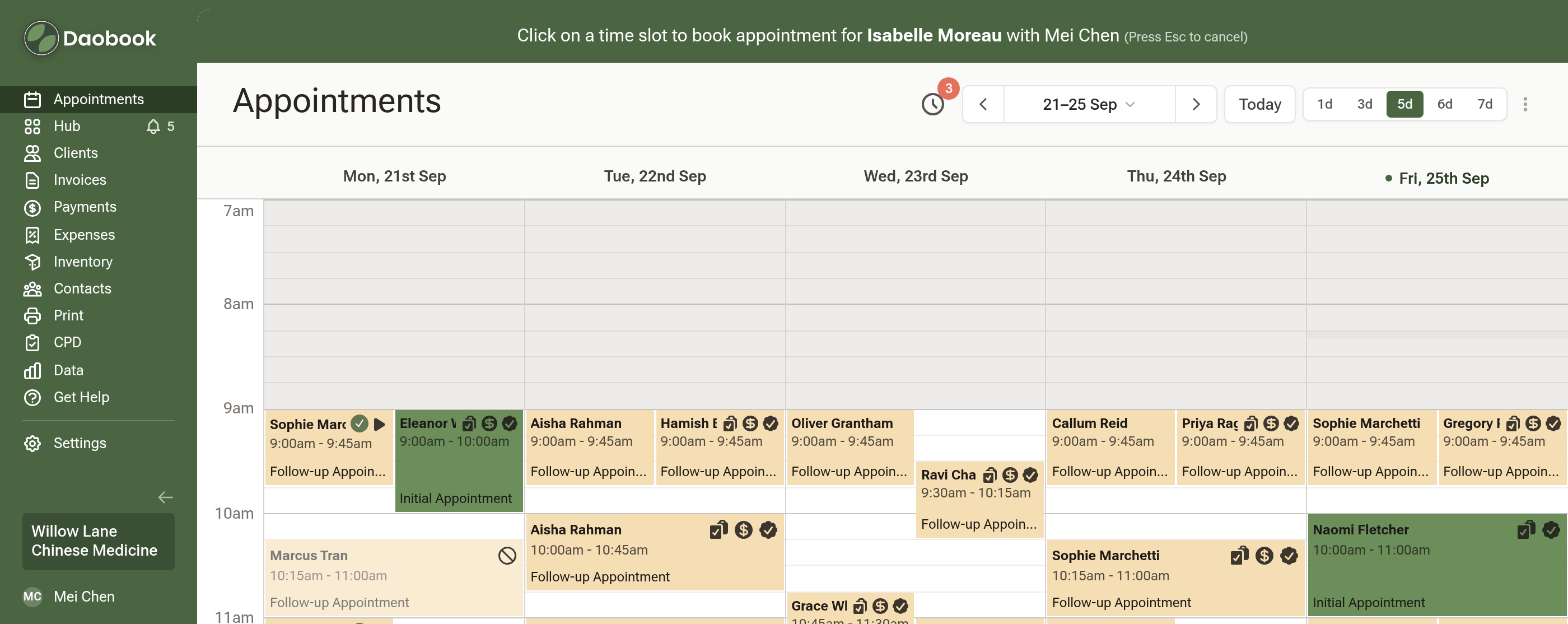
- Book: opens the calendar ready to book them. If they chose a preferred practitioner, it opens that practitioner's calendar. A green bar across the top reads "Click on a time slot to book appointment for …". Click a time, and the booking form opens with the client already filled in. Save it, and they come off the waiting list automatically. Press Esc to cancel without booking.
- Booked: for a contacted client you booked some other way. It takes them off the list.
- Edit changes the entry, and Remove deletes it.
Tips:
- When a client cancels by SMS or from the link in their reminder, the cancellation email tells you how many people on your waiting list might want that practitioner's freed slot.
- Clients on the waiting list aren't messaged automatically when a time opens up. Contacting them is up to you.