
Granule Concentration Ratios
Record the extract ratio of your granules, prescribe in raw-herb doses and let Daobook work out the granule grams, and show the ratio on labels and printouts. Optional throughout — nothing changes until you switch it on.
Granule Concentration Ratios
A granule's extract ratio describes how much raw herb went into it. A 5:1 granule means one gram of granule was extracted from five grams of raw herb. Ratios differ between brands, and between herbs within the same brand — so when a granule goes out of stock and you buy the same herb from another supplier at a different ratio, your dispensing maths has to move with it.
Daobook can hold the ratio against each granule in your herb inventory, use it to convert raw-herb doses into the granule grams you actually dispense, and print it on labels and printouts.
The whole feature is optional and off by default. Nothing on your existing prescriptions, labels, or inventory changes until you turn it on.
A note on precision: extract ratios are yield ratios and vary between brands and even between batches. Daobook treats a ratio as a working guide for dispensing, not a claim of clinical equivalence.
Before You Start
Concentration ratios are part of Herb Inventory. A ratio lives on a granule herb material in your inventory, which means:
- You need herb inventory enabled, with Granules as one of your material types.
- Ratios apply to granules only — not bulk herbs, powders, tinctures, or Empirical Health products.
- If your locations share inventory settings, the switch and the default ratio are shared with them.
Step 1: Turn Concentration Ratios On
Go to Settings > Clinical Resources tab > Inventory Settings.
In the Herb Material Inventory section, tick "Use granule concentration ratios". This option only appears when Granules is one of your enabled material types.

Ticking it reveals Default granule extract ratio (optional). Enter the ratio most of your granules are supplied at — type 5 for a 5:1 range — and click Save.
That default is a live fallback: any granule without its own ratio uses it. Change the default later and every herb relying on it follows automatically. Leave it blank if your granules vary too much for a sensible default, and set each herb individually instead.
This one switch controls everything that follows — the ratio field on herb materials, the ratio column in your herb list, the toggle in the prescription builder, and ratio printing on labels. Turning it back off hides all of it without deleting any ratio you've entered.
Step 2: Set a Ratio on an Individual Herb
The clinic default covers the common case. Set a ratio on the herb itself whenever a particular granule differs — a different brand, a different concentration, a supplier switch.
Click Inventory in the left sidebar, then the Herbs tab. Open the granule herb and click Edit.

Enter the number in Granule Extract Ratio (Optional) — 5 for 5:1, 2.88 for 2.88:1. The field's placeholder shows your clinic default, so you can see at a glance what the herb falls back to if you leave it blank. Click Save.
When you later switch brands, come back and edit this one number. Past prescriptions aren't affected — see "Ratios are frozen when you prescribe" below.
Seeing your ratios at a glance
Once any granule has a ratio, a Ratio column appears in the Herbs list:
- A ratio in dark text is set on that herb.
- A ratio in grey is coming from your clinic default (hover it for "Using the clinic default ratio").
- A dash means no ratio applies.
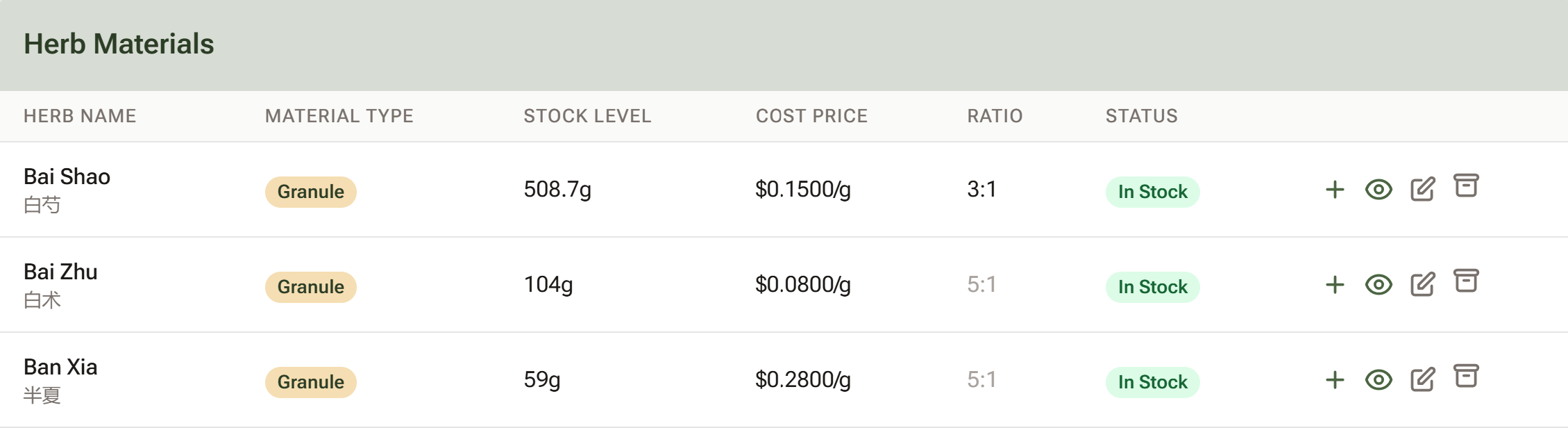
A granule's own page shows the same thing in full, marked (clinic default) when it's inherited.
Adding ratios while you build your inventory
The Bulk Add page (Bulk Add in the ⋮ menu at the top of the Herbs list) has a Ratio column, so you can enter ratios as you add a batch of new granules rather than editing each one afterwards.
Step 3: Prescribe in Raw-Herb Doses
This is where the ratios earn their keep. With ratios switched on, a "Use concentration ratios" tick-box appears above the herb list in the prescription builder — whether you're prescribing from a client's profile, from Purchase Orders, or inside a consultation.
It's ticked by default on a new prescription. With it ticked, type the raw-herb dose you'd write for a decoction — 9g of Dang Gui, 6g of Gan Cao — and Daobook converts each one to granule grams using that herb's ratio.
Each row shows what will be dispensed, live as you type — the granule grams and the ratio used:
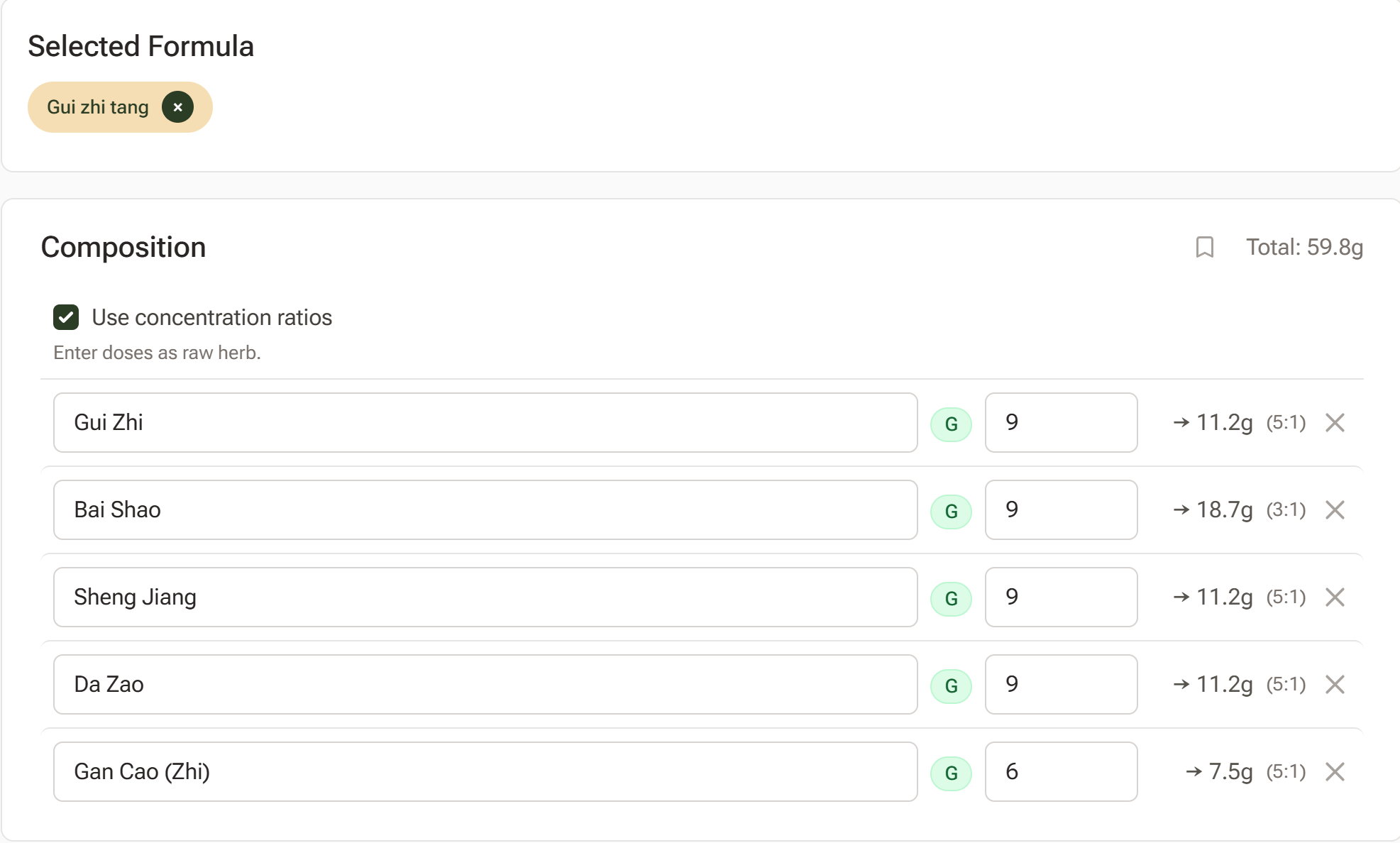
In the example above, Bai Shao is a 3:1 granule while everything else falls back to the 5:1 clinic default — so the same 9g raw dose converts to a larger granule weight for Bai Shao than for its neighbours.
A few things worth knowing:
- The arrow follows your order size. On a script scaled to a set quantity (60g above), the arrow shows each herb's share of that order in granule grams. On an unscaled script it's simply the raw dose divided by the ratio — 9g raw at 5:1 becomes 1.8g.
- The total is the granule total. The Total shown beside Composition is what you'll actually dispense, not the raw figure you typed.
- A herb with no ratio passes straight through. It's marked "no ratio set" and its dose is used exactly as typed. One unratioed herb never blocks the script — but do check it's the dose you meant.
- Untick the box and the amount box means granule grams again, as it always has. Nothing is converted and no ratio is recorded.
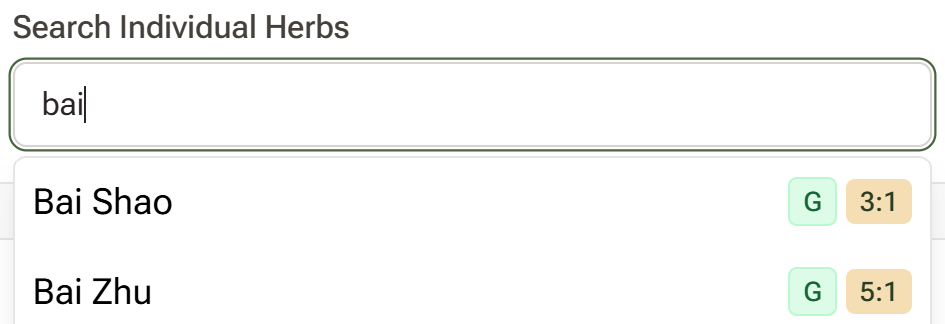
- Ratios also show while you search. Selecting a herb shows a small ratio badge (e.g.
5:1) beside its material-type badge in the search results.
What gets saved
The conversion is applied when you save. The prescription stores the granule grams — so your stock deduction, cost, and pricing all work off what genuinely leaves the shelf. The raw dose you typed and the ratio used are saved alongside it.
Reopen the prescription to edit it and your raw doses come back into the boxes, so you edit the script in the same terms you wrote it.
Ratios are frozen when you prescribe
The ratio in force at the moment you save is recorded onto the prescription. Change a herb's ratio six months later after a brand switch and every past script — and every reprint of its label — still shows what was actually dispensed. Only new prescriptions pick up the new ratio.
Step 4: Show Ratios on Labels and Printouts
Once ratios are switched on for the clinic, they print: the Chinese Medicine Board asks for the extract ratio on granule labels, so "Show granule extract ratios on labels and printouts" is ticked for you.
To leave them off, go to Settings > Notifications & Templates tab > Printout Settings, untick it, and click Save Changes.

Ratios then appear on your dispensing labels (single and double) and on the Instruction Sheet (A4) when it's printed as granules. The raw-herb version of the sheet doesn't show ratios — it lists raw amounts, which an extract ratio doesn't describe.
How they're presented
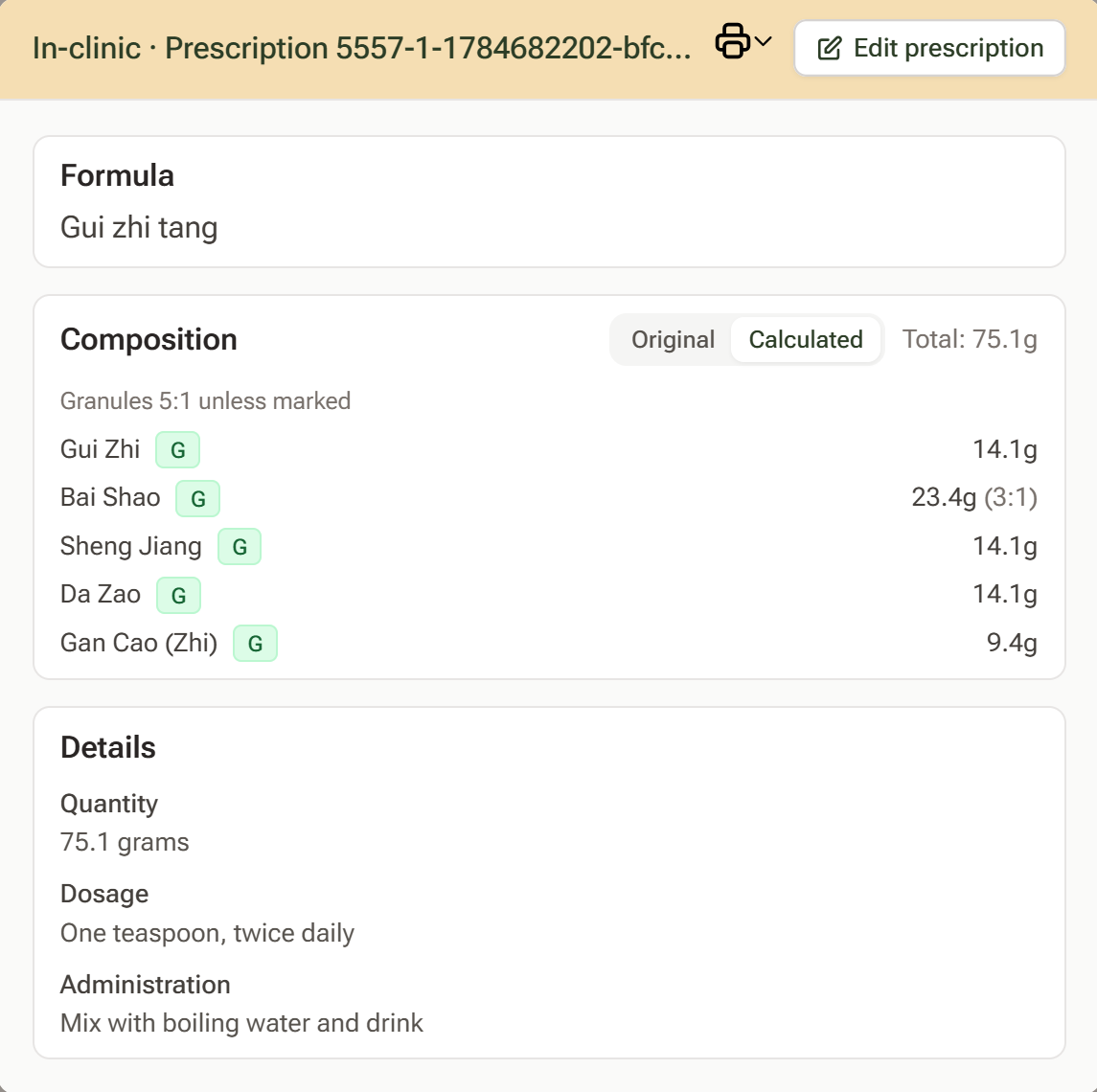
Labels are short on space, so repeating "(5:1)" on every herb would be noise. Instead, the common ratio is stated once above the herbs and only the exceptions are marked:
Granules 5:1 unless marked

Dang Gui 1.8g    Gan Cao 2g (3:1)    Bai Shao 1.8g
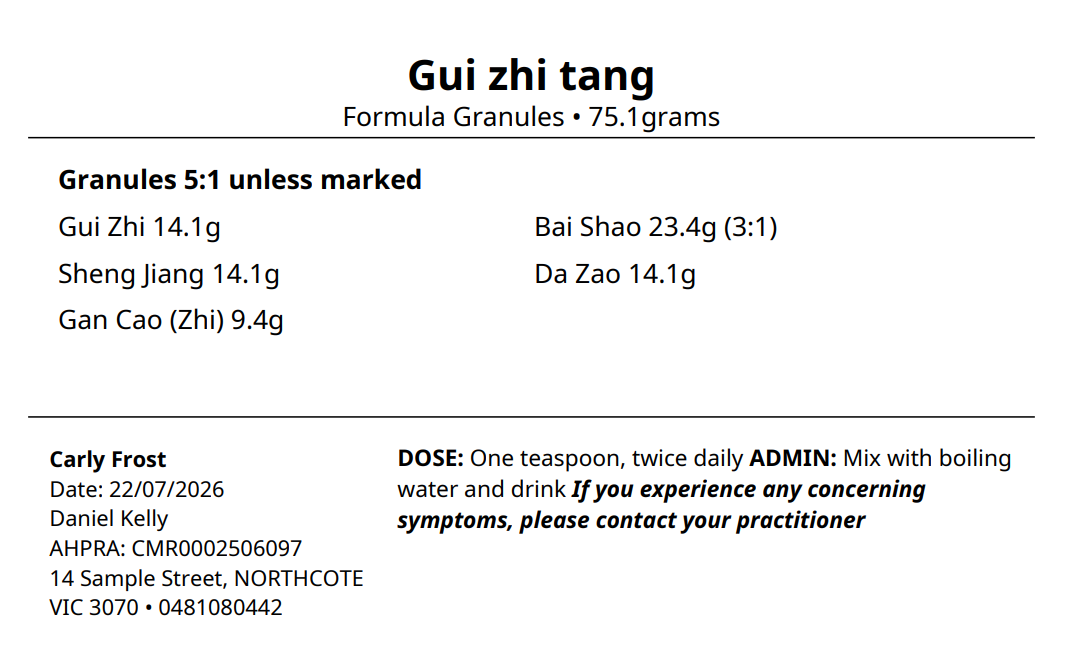
A herb that differs is always marked on the herb itself, never only in the line above — so reading a single herb can't mislead you. When the ratios are too mixed for one to describe the script, the summary line is dropped and every herb carries its own.
Where Else Ratios Appear
- The prescription page and the prescription card show the same summary line and per-herb marks, alongside the calculated dosages. (On a scaled script, ratios sit with the Calculated dosage view — they describe what's dispensed.)
- Data exports — the prescriptions export includes the ratio and the raw-herb dose beside each herb, e.g.
Dang Gui 1.8g (5:1, 9g raw).
Tips:
- Set the clinic default first, then only the outliers. Most clinics need one default and a handful of herb-specific ratios, not a number on every herb.
- Brand switch = edit one number. Update the herb's ratio and new prescriptions convert at the new rate; old ones keep the ratio they were dispensed at.
- With the box unticked, the amount is granule grams — the same as before this feature existed. Only tick it when you intend to type raw-herb doses.
- Watch for "no ratio set" in the builder. That herb's dose is being used exactly as typed, with no conversion.
- Ratios only describe granules. On a mixed prescription, bulk herbs are never converted and never annotated.