
Receiving a Delivery into Stock
Photograph the invoice that came with a delivery, check the lines Daobook reads from it, and put the whole order on your shelf at once.
Receiving a Delivery into Stock
When an order arrives, you don't need to type it in line by line. Photograph the invoice or packing slip that came in the box, check what Daobook read from it, and apply it — every herb, formula batch and product on it goes into stock at once.
Step 1: Open Receive stock
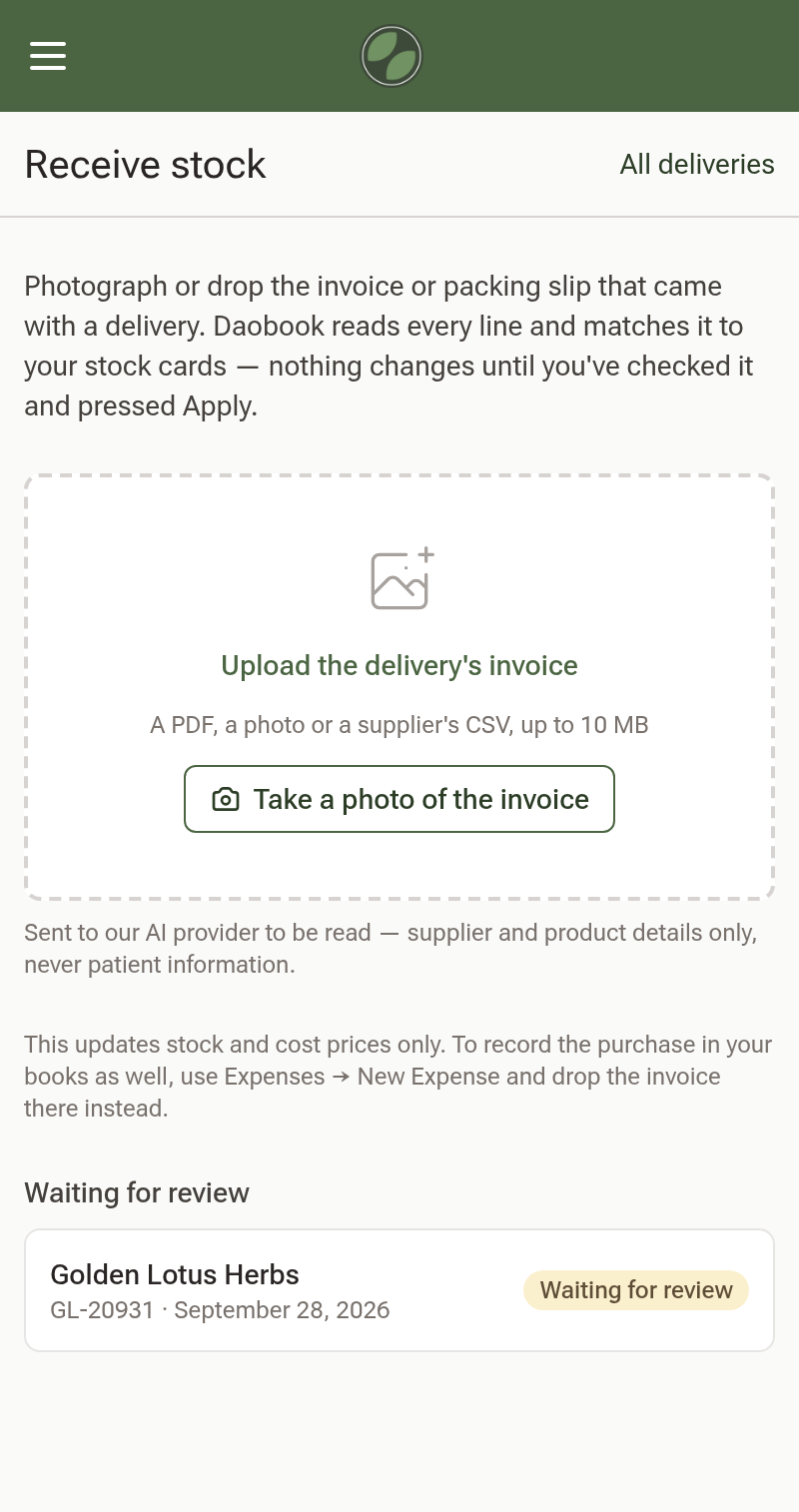
Click Receive stock at the top of any Inventory tab — Products, Herbs or Formula Batches. It works on your phone too.

Step 2: Photograph or drop the invoice
Click Upload the delivery's invoice, or on a phone Take a photo of the invoice. A PDF or your supplier's CSV export works too. Daobook reads every line and opens the review.
A delivery you don't finish checking waits under Waiting for review, so you can photograph it now and check it later.
Step 3: Check each line against the paper
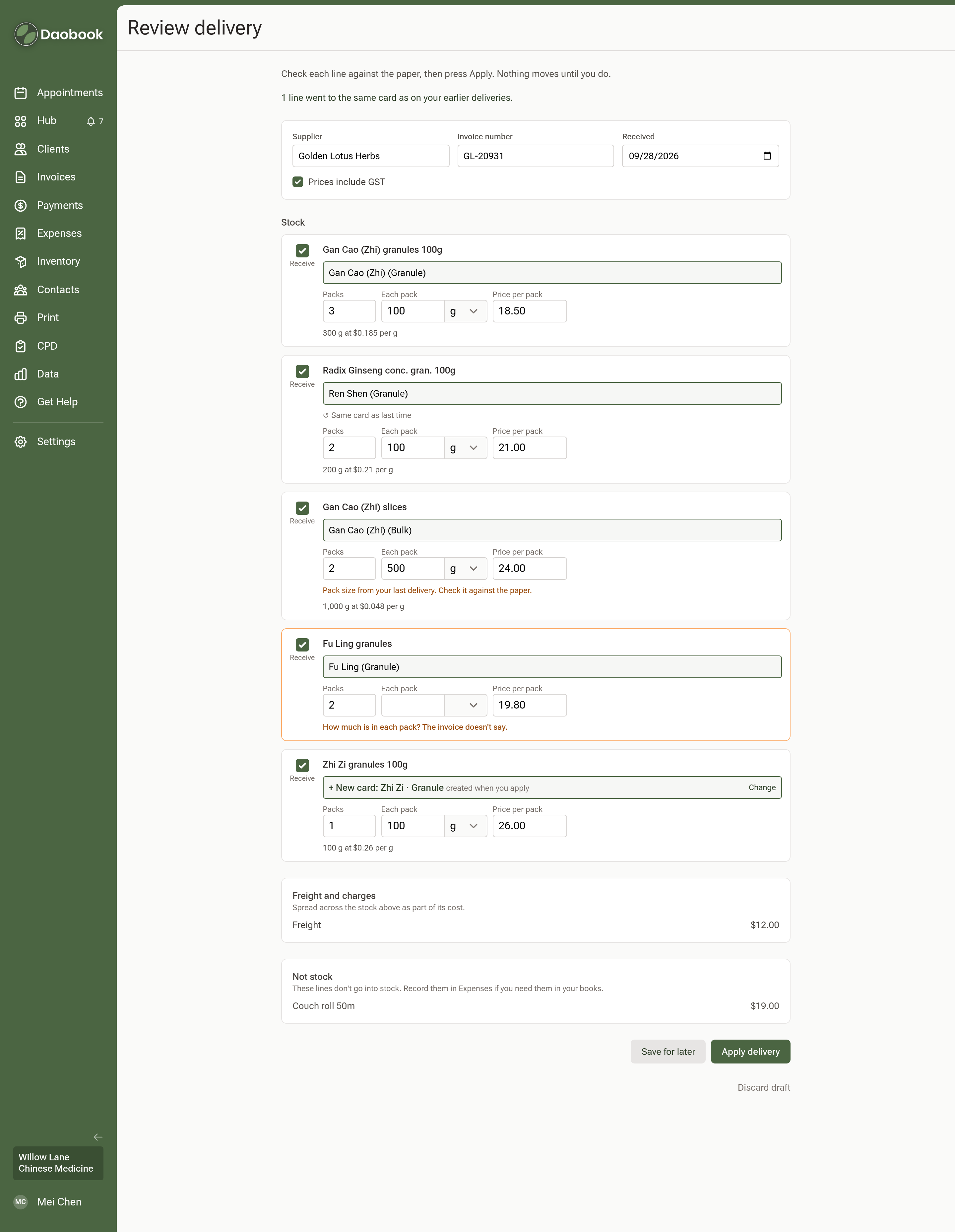
Each line shows the stock card it goes on, with Packs, Each pack and Price per pack as the invoice prints them. Underneath, you'll see what lands on the card — for example 300 g at $0.185 per g.
- A line marked Same card as last time was placed the way you placed it on an earlier delivery.
- A line that names a herb and form you don't stock yet arrives as New card: … — created when you apply. Press Change to choose differently.
- If a line needs something from you — a card, or how much is in each pack — it says so.
- Untick Receive for anything that isn't stock.
Freight is spread across the stock as part of its cost for you.
Step 4: Place a line with no card
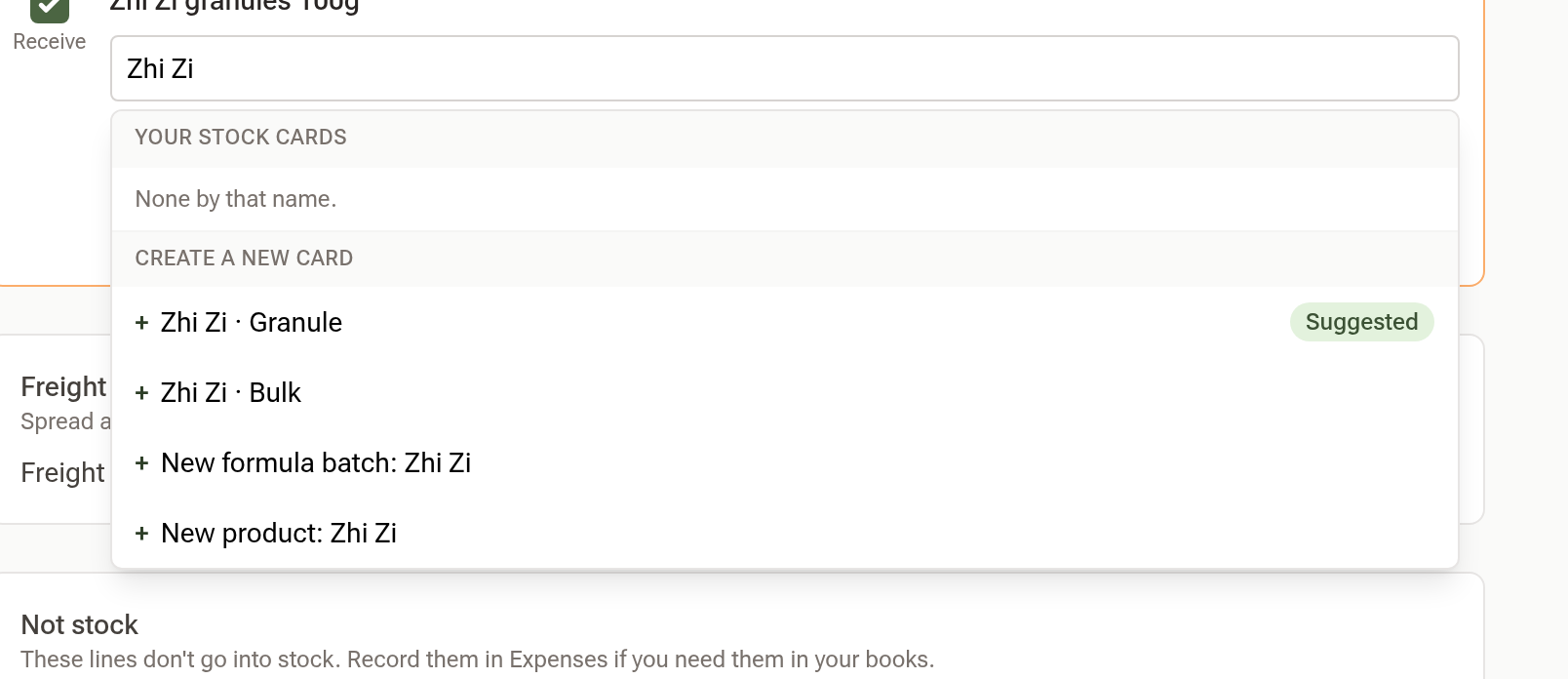
Type in the line's search box. Your stock cards lists the matching cards and what each holds. If the card doesn't exist yet, choose from Create a new card — the herb in the form the invoice names is marked Suggested, or make a New formula batch or New product.
Step 5: Apply
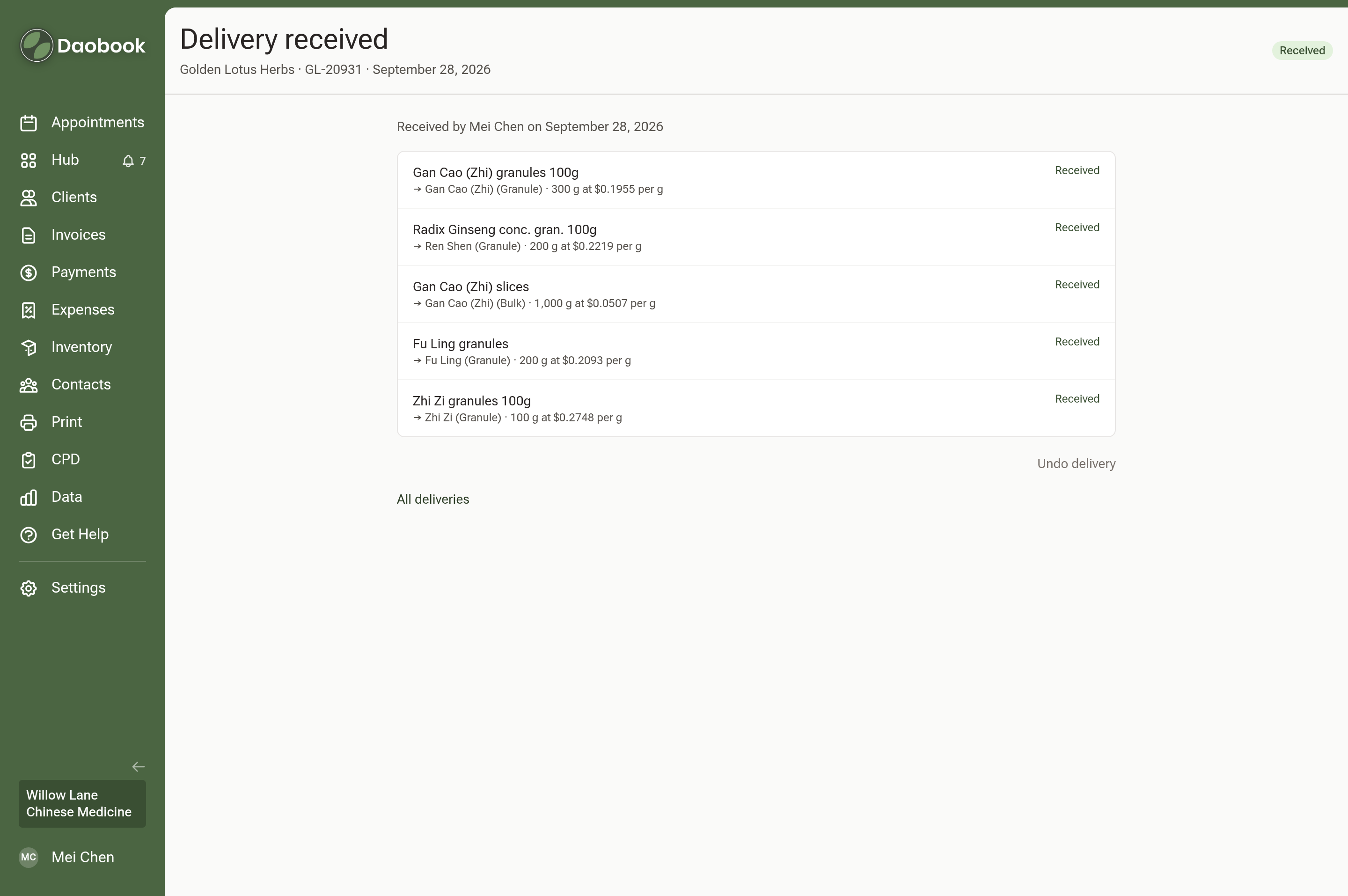
Press Apply delivery. The stock goes onto each card and its cost price is updated. If something turns out to be wrong, Undo delivery on the delivery's page takes the stock back out.
Tip: to record the purchase in your books as well, use Expenses → New Expense. The same invoice is never counted twice.