
GST Setup for TCM Practices
Configure GST correctly for a TCM practice — consultations GST-free under Division 38, retail products taxable, and everything flows through to your invoices, expenses, reports, and Xero.
GST Setup for TCM Practices
GST for a TCM practice isn't one-size-fits-all. Your consultations are GST-free under Division 38 of the GST Act (as AHPRA-registered health services), but the supplements and retail herbs you sell are taxable. Getting the defaults right once means every invoice, expense, and report lines up correctly — and your Xero sync posts the right tax codes without you thinking about it.
This tutorial walks through the GST configuration page, how the settings flow into invoices and expenses, where to see your GST numbers in the reports, and how it all maps to Xero.
As always, this is general guidance — chat to your accountant for advice specific to your circumstances.
Who Needs to Register for GST
If your practice turnover is under $75,000 in a 12-month period, you aren't required to register for GST and can leave GST Registration off. Everything you invoice will be GST-free and you don't need to worry about the rest of this tutorial.
Once you're approaching or over $75,000, you need to register with the ATO and then configure GST in Daobook. The rest of this guide assumes you're registered.
Step 1: Open GST Configuration
In Daobook, go to Settings → Billing & Payments → GST Configuration. The page is headed GST Configuration. If you have the contextual help icon enabled, click the question mark beside that heading for an in-page summary of how GST applies to a TCM practice.
Step 2: Tick GST Registered and Set the Rate
Tick GST Registered. This unlocks the rest of the settings — GST rate, pricing mode, and category defaults. Leave the GST Rate at 10% unless the ATO has given you a different rate.
Step 3: Choose GST Inclusive or Exclusive Pricing
This decides how the price you type into Daobook is interpreted. It only affects your taxable items — consultations are GST-free either way.
- GST Exclusive — the number you enter is the price before GST. On the invoice, GST is added on top. Example: enter $67.50, invoice shows $67.50 + $6.75 GST = $74.25. Margins and cost-plus pricing are easier to reason about, and the base revenue reads cleanly on your P&L.
- GST Inclusive — the number you enter already includes GST. On the invoice, GST is extracted out of the total. Example: enter $74.25, invoice shows $67.50 + $6.75 GST = $74.25. The number you type matches the shelf price a client sees on the product — no mental maths between your clinic display and the system.
Either is fine, and Daobook shows the full breakdown on the invoice regardless. Pick the one that matches how you think about your prices.
Note that under Australian Consumer Law, prices displayed to clients (website, in-clinic price lists, shelf tags) must be GST-inclusive — but that's about your customer-facing displays, not this setting.
Step 4: Set Category Defaults
This is where it matters most. Each category tells Daobook whether GST applies by default when you add that item to an invoice. Here are the TCM-correct defaults:
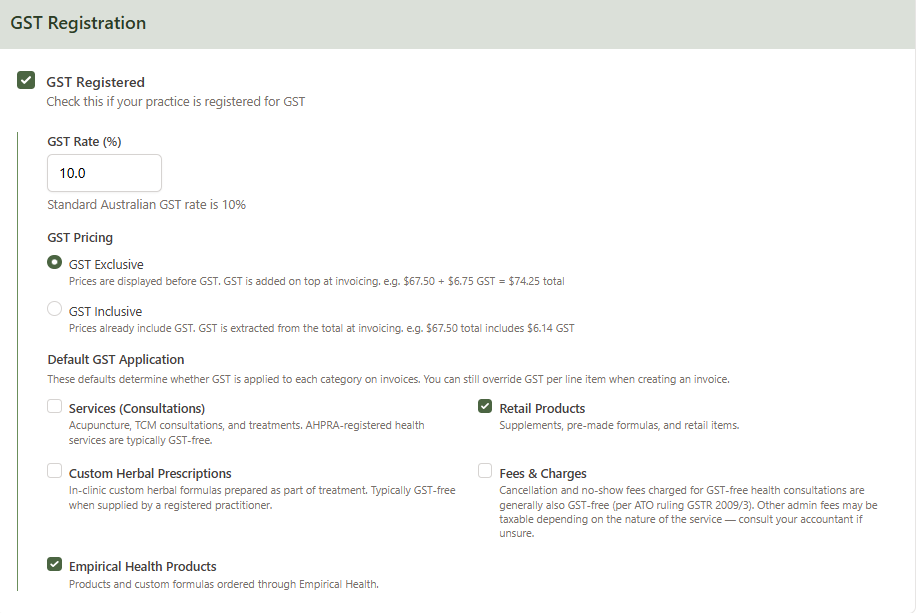
| Category | Recommended | Why |
|---|---|---|
| Services (Consultations) | Unticked | Health services provided by an AHPRA-registered practitioner are GST-free under Division 38 |
| Retail Products | Ticked | Supplements, pre-made formulas, and retail items are generally taxable |
| Custom Herbal Prescriptions | Unticked | In-clinic custom formulas prepared as part of treatment are GST-free when supplied by a registered practitioner |
| Fees & Charges | Unticked | Cancellation and no-show fees for a GST-free consultation are generally also GST-free (per ATO ruling GSTR 2009/3) |
| Empirical Health Products | Ticked | Practitioner-range products and custom formulas ordered through Empirical Health are taxable |
Click Save Changes.
New clinics in Daobook now start with these defaults pre-selected — if you're an existing clinic, ticking and unticking to match the table above is a one-minute job.
Step 5: How It Plays Out on Invoices
Once the defaults are set, invoices build themselves correctly. A typical follow-up invoice might have a consultation (GST-free) and a bottle of supplements (taxable) side by side, with the GST broken out separately in the totals:
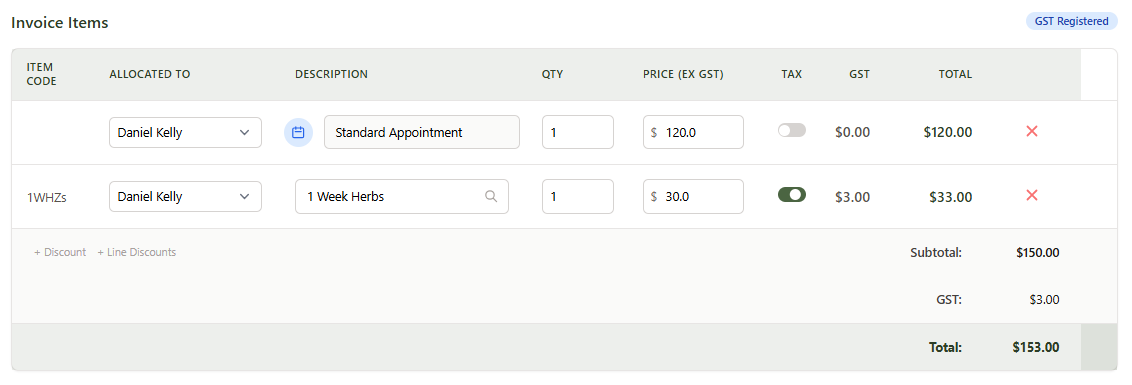
Per-line overrides. If a specific line needs to deviate from the default (a non-health consultation, a GST-free product), tick or untick the GST toggle on that line. The override only affects that one line item; the category default stays put.
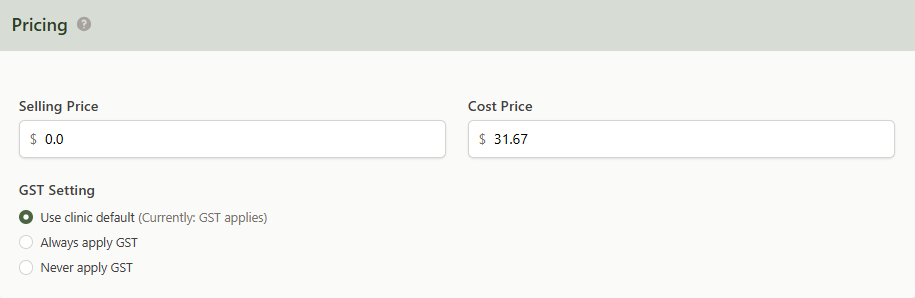
Per-product overrides. On the product edit form you can also set a per-product GST setting that overrides the category default every time that product is added to an invoice:
Step 6: Expenses
When you record an expense, tick GST Inclusive (the amount you entered already includes GST) or GST Exclusive (the amount is before GST).
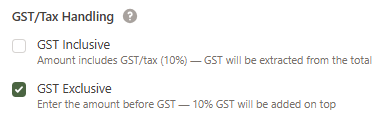
Once the expense is saved, the detail view shows the GST portion broken out — this is what you'll claim as an input tax credit on your BAS.
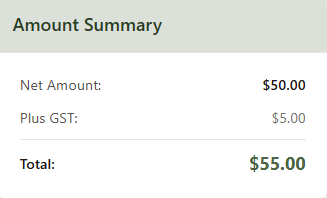
Leave both GST checkboxes unticked if the expense is GST-free (insurance premiums, government charges, most bank fees).
Step 7: Reports
The Profit & Loss report breaks revenue into three columns — ex-GST, GST, and inc-GST — for each category so you can see at a glance what GST you've collected in the period:
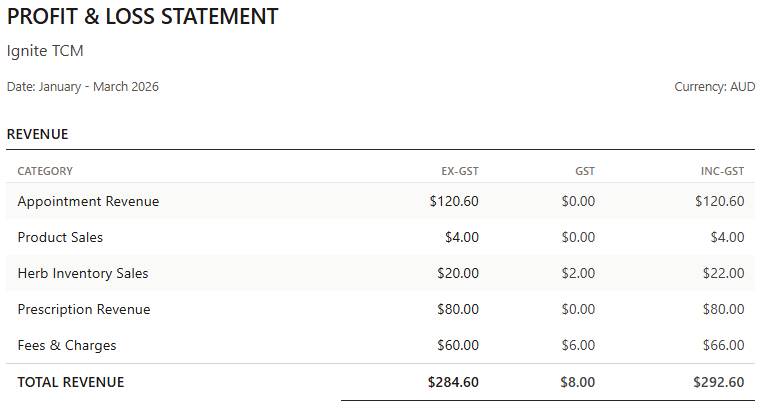
Same breakdown is available per-practitioner on the Itemised Revenue report if you need to attribute GST-collected to individual practitioners (useful for commission or payout reconciliation).
Step 8: Xero Sync
If you've connected Xero, every invoice line item syncs with the right tax code:
- Line items with GST applied → OUTPUT (GST on Income)
- Line items without GST → EXEMPTOUTPUT (GST Free Income)
- Expenses route to the correct Xero account with the GST portion recorded
You don't need to configure this separately — the GST decisions you've made above flow through to Xero automatically. See the Xero Integration tutorial for connecting Xero and setting up your chart of accounts.
Tips
- Multi-location practices — if your subscription has more than one clinic, tick Share tax settings across all locations at the top of the page. Most businesses have one GST registration, so sharing is the right default.
- Overrides compound. Per-line override beats per-product override, which beats the category default. If something looks wrong, start from the invoice line and work backwards.
- When in doubt, ask your accountant. The Division 38 and GSTR 2009/3 references above are general — your specific circumstances may differ.