
Using Heidi AI Scribe with Daobook
Use Heidi — a free, purpose-built AI medical scribe — to transcribe your consultations, then drop the finished note straight into Daobook. A simple copy-and-paste workflow that lets you stay present with your patient instead of typing.
Using Heidi AI Scribe with Daobook
A few practitioners have asked whether Daobook can transcribe consultations. Rather than build a second-rate scribe into Daobook, we'd recommend pairing Daobook with Heidi — a purpose-built AI medical scribe that's free for individual clinicians and does this one job exceptionally well.
Heidi listens to your consultation in the background and writes the note for you. You don't dictate or narrate anything — you just talk to your patient as normal, and Heidi turns the conversation into a structured clinical note. When it's done, you copy that note into Daobook in a couple of clicks.
There's no direct integration between the two apps, and honestly you don't need one — the copy-and-paste workflow below takes seconds and keeps you in control of exactly what lands in the patient's record.
Before You Start: Patient Consent
Heidi records and transcribes the consultation, so let your patient know and get their consent before you begin. A short line in your intake form or a verbal "I use an AI tool to help me write my notes — is that alright with you?" is usually all it takes. This is good practice (and your professional obligation) any time a consultation is recorded.
Step 1: Install Heidi and Create a Free Account
Heidi runs as a proper desktop app, which is the most stable option for seeing patients at your desk and works nicely with a headset.
- Go to heidihealth.com/download.
- Download the app for your computer — macOS (Apple Silicon or Intel) or Windows (.exe or .msi).
- Install it, open it, and sign up for a free account.
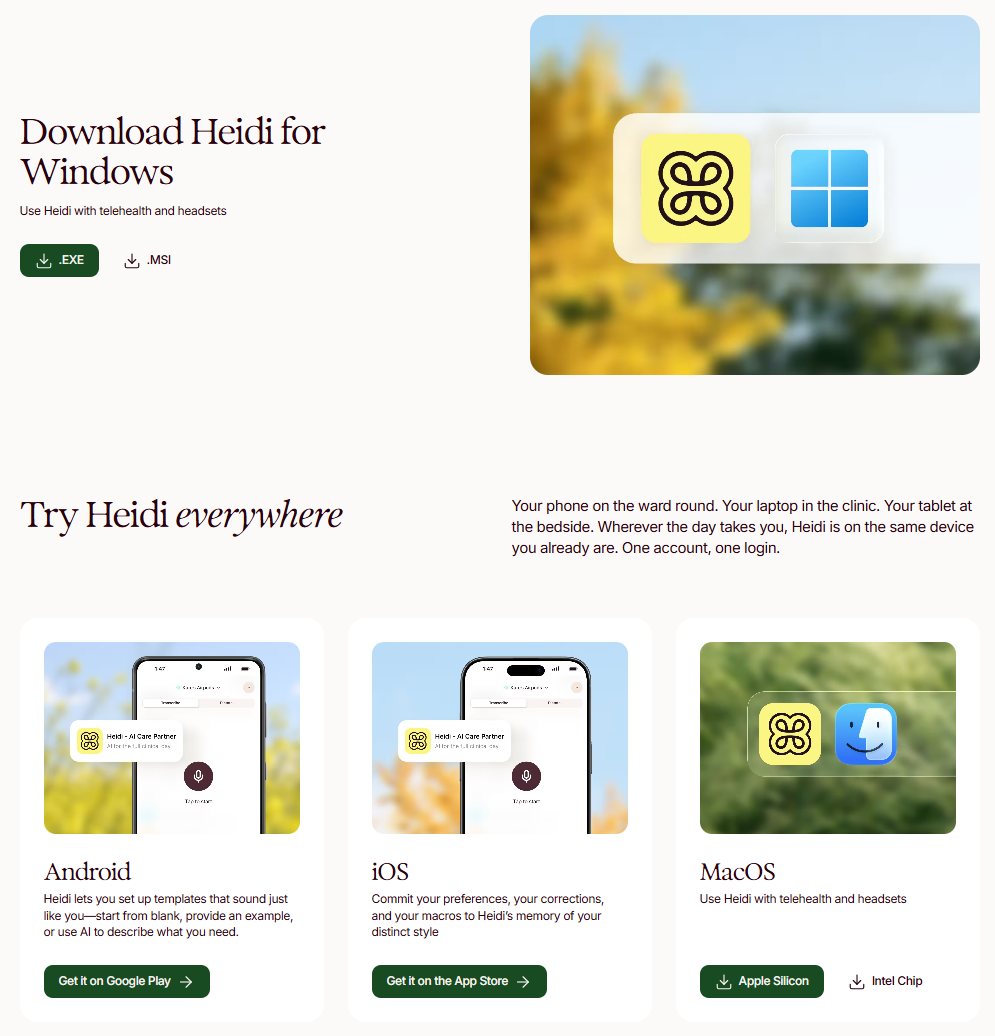
There are also iOS and Android apps if you'd rather record on your phone while moving between rooms — one login syncs all your sessions together, so you can record on mobile and finish the note on your desktop.
Step 2: Set Your Daobook Consultation to a Simple Template
Because Heidi does all the structuring on its side, you want a plain, single-body note on the Daobook side to paste into — otherwise you're fighting two sets of structure.
When you open a consultation in Daobook, choose the "Simple" template from the template dropdown. It gives you one clean note body, which is perfect for pasting in a finished Heidi note.
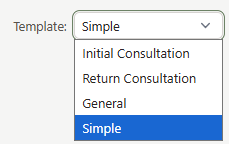
If you'd like a little scaffolding instead, "General" is a good lightly-structured alternative. Either works — the idea is to keep the Daobook side simple and let Heidi carry the detail.
Step 3: Pick a Template in Heidi and Start the Session
In Heidi, choose a template for the note, then click Transcribe to start listening. On the desktop app you'll see a Telehealth/in-person audio setting — choose the one that matches how you're consulting for the best transcript quality.
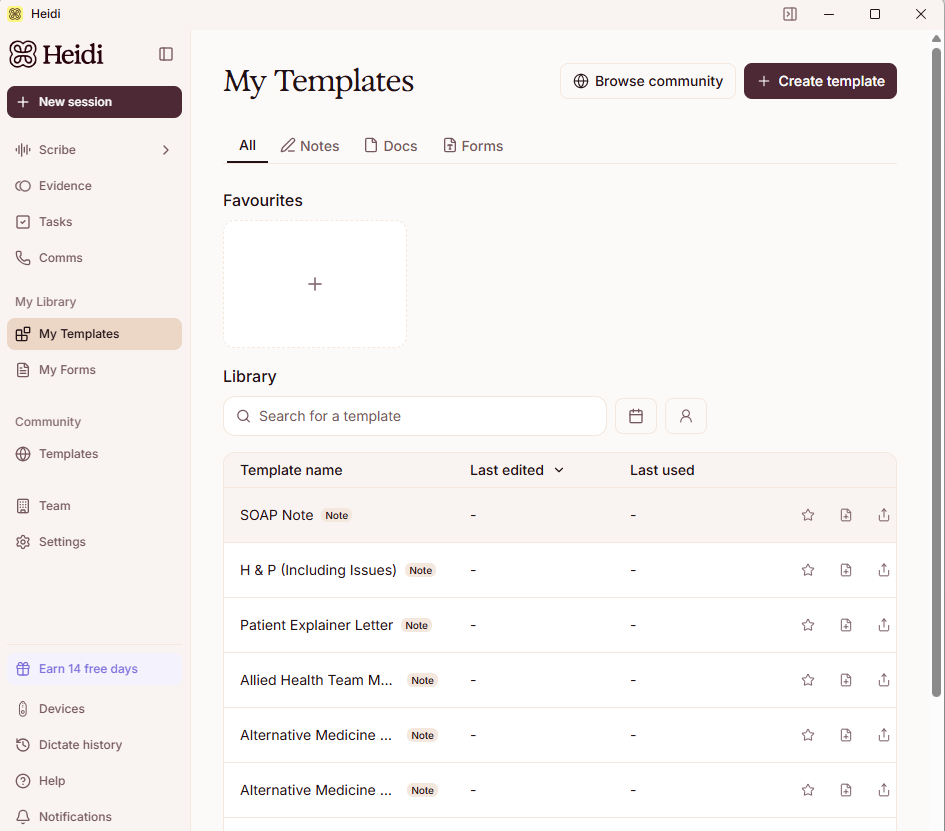

On the free plan, stick to a standard template such as SOAP Note. It maps well to a TCM consultation (Subjective → presenting complaint and history, Objective → tongue, pulse and observations, Assessment → pattern and diagnosis, Plan → treatment principle, points and herbs).
About custom templates: Heidi lets you build your own template in plain English to match your exact note layout, but on the free plan custom templates and AI features use a limited number of "Pro Actions" each month (currently around 10). For everyday note-taking, a standard template gives you unlimited free transcription with no cap. If you find yourself wanting a fully bespoke TCM template for every consult, that's the point where Heidi's paid plan starts to pay off.
Step 4: Consult, Then Generate the Note
Talk to your patient as you normally would — Heidi listens in the background. You can Pause and Resume at any time.
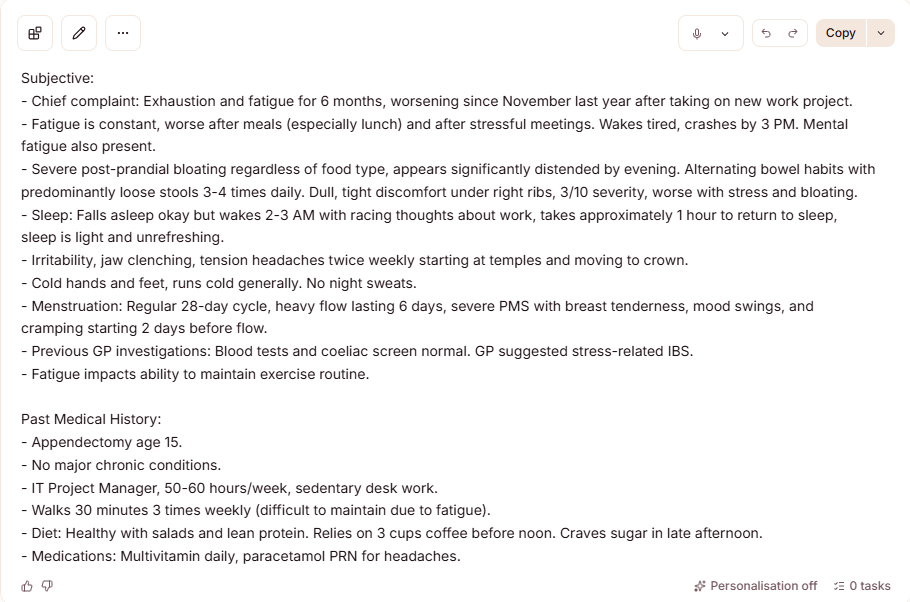
When you've finished, click Stop Transcribing (on mobile, tap the green stop button). Heidi generates the note from the conversation, formatted to your chosen template. Read it through and tidy anything that needs it — you're the clinician, Heidi is the scribe.
Step 5: Copy Into Daobook
- In Heidi, click Copy to copy the finished note to your clipboard.
- Switch to the open consultation in Daobook.
- Paste into the note body and Save.
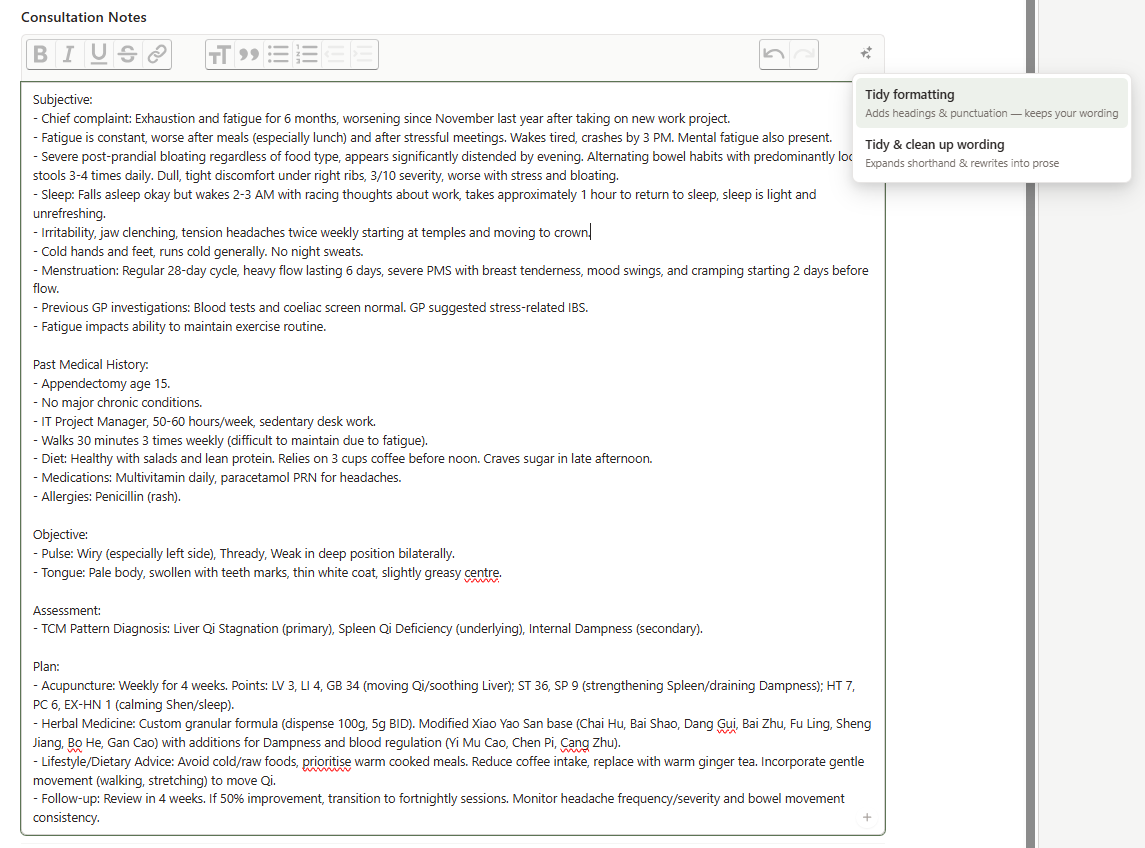
That's it — your note is in the record.
Optional: AI Formatting (requires the AI add-on)
If you have Daobook's AI add-on enabled, you can have Daobook reformat the pasted note to match the rest of your records. With the consultation note focused, open the AI formatting menu and choose:
- Tidy formatting — adds headings and punctuation while keeping your exact wording.
- Tidy & clean up wording — expands shorthand and rewrites the note into clean prose.
Daobook reformats the note in place and shows an AI formatted banner with an Undo link if you'd rather revert.
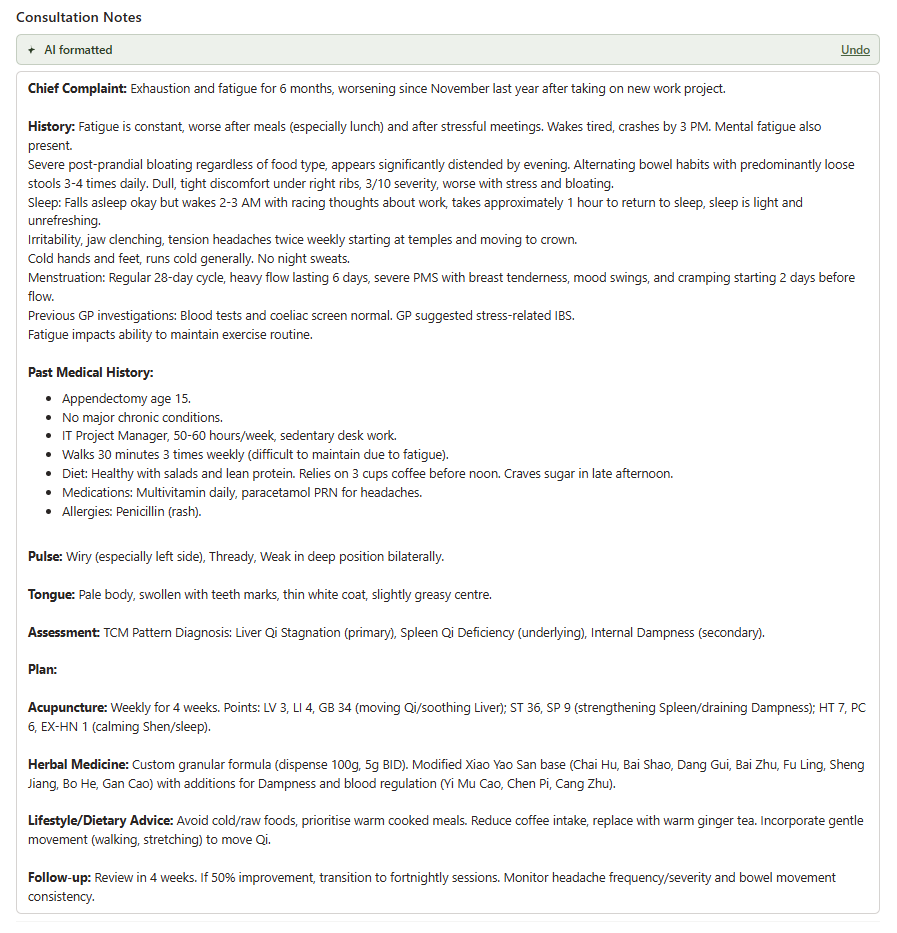
Heidi's notes are already well-structured, so this is genuinely optional — reach for it when you want the formatting nudged to match your house style.
Tips
- Use the desktop app at your desk. It's the most stable option and handles headsets and Bluetooth mics well.
- Keep your computer awake. If the screen sleeps or a screensaver kicks in mid-consult, it can interrupt the transcription.
- On your phone, turn on Do Not Disturb. An incoming call can disconnect the microphone from your session. The mobile app also works offline and syncs once you're back online — handy for home visits.
- Standard templates are unlimited and free. Save Heidi's custom-template feature for when you're sure you want a fully bespoke layout.
- Keep the Daobook note simple. "Simple" (or "General") avoids double-structuring and makes the paste clean every time.