
Selling Herbs & Formula Batches on Invoices
Sell herb materials and formula batches directly on invoices with automatic stock deduction, default pricing by material type, and dedicated reporting under the Herb Inventory category.
Selling Herbs & Formula Batches on Invoices
You can sell herb materials and formula batches directly on invoices — just like products or services. When an invoice is sent or paid, stock is automatically deducted from your inventory, and all sales appear under a dedicated Herb Inventory category in your reports.
Setting Up Default Pricing
Rather than setting a sell price on every individual herb, you can configure default pricing by material type. This means all your granules, bulk herbs, powders, and tinctures automatically get a sell price without any extra work.
Step 1: Open Inventory Settings
Go to Settings > Clinical Resources tab > Inventory Settings in the left sidebar. Scroll down to the Direct Herb & Formula Sales section.
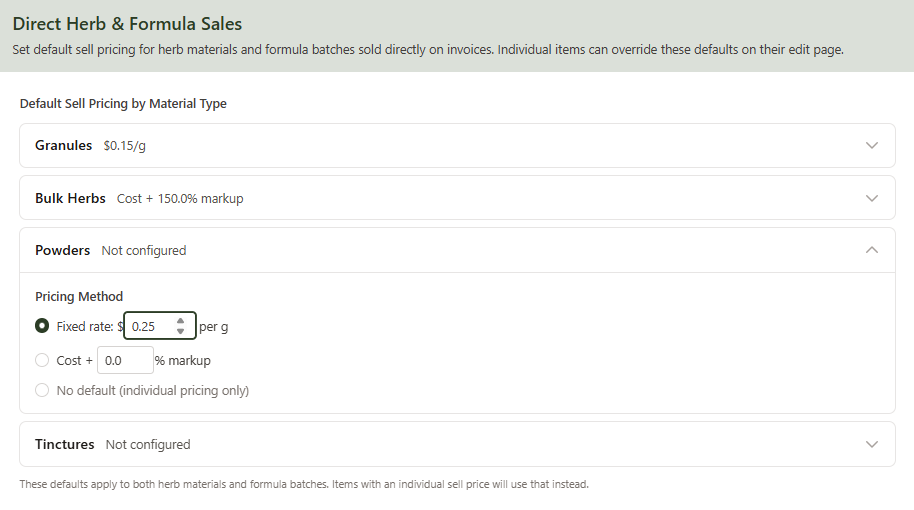
Step 2: Configure Pricing for Each Material Type
Expand any material type (Granules, Bulk Herbs, Powders, Tinctures) and choose a pricing method:
- Fixed rate — set a flat price per gram or ml (e.g. $0.15/g for granules)
- Cost + markup — automatically calculate the sell price from each item's cost price plus a percentage markup (e.g. cost + 150%). This option requires inventory tracking to be enabled for that material type.
- No default — only items with an individual sell price will be available for sale
These defaults apply to both herb materials and formula batches of that type. Click Save Changes when you're done.
Individual Overrides
You can also set a sell price directly on any individual herb material or formula batch from its edit page. Individual prices always take priority over the clinic default.
Adding Herbs & Formula Batches to an Invoice
Step 1: Open the Add Item Menu
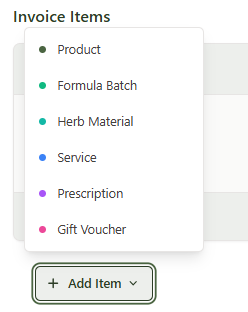
When creating or editing an invoice, click + Add Item to see the item type menu. You'll see Formula Batch and Herb Material alongside the existing options.
Step 2: Search and Select
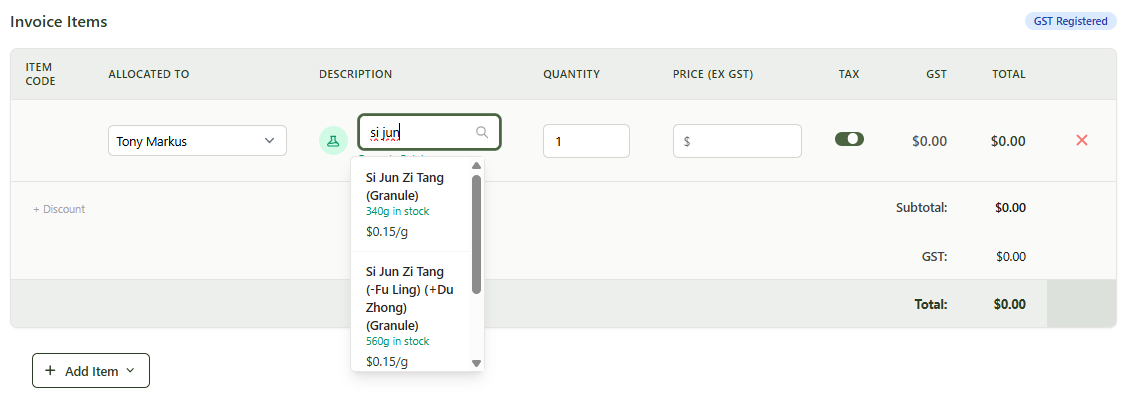
Click Formula Batch or Herb Material to add a new row. Type at least two characters to search — results show the item name, current stock level, and price per unit.
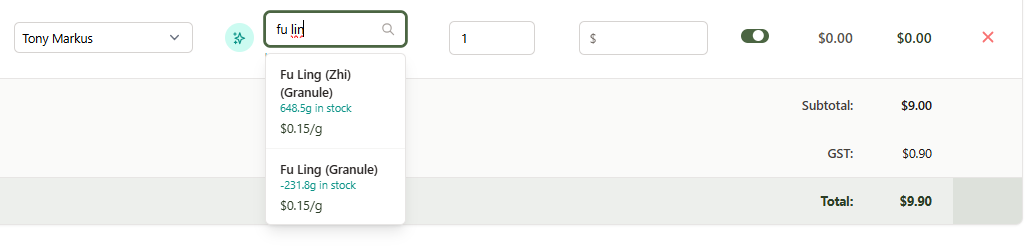
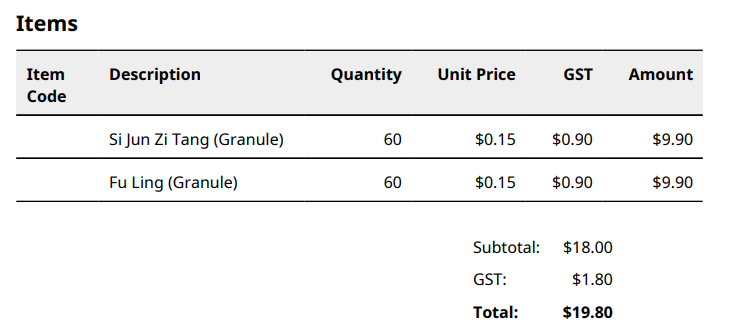
Click an item to select it. The description, price, and GST are filled in automatically. Adjust the quantity to the amount being sold (e.g. 60 grams).
Step 3: Save the Invoice
Click Create Invoice or Update Invoice. Your items appear on the invoice with their quantities and totals.
Stock Deduction
Stock is automatically deducted from your inventory when the invoice status changes to Sent or Paid. You don't need to manually adjust stock levels.
- If an invoice is voided or archived, the stock is restored automatically
- Items with unlimited stock (inventory tracking disabled) are not affected
- If a stock deduction fails for any reason, you'll see a warning message on the invoice
Reporting
All herb material and formula batch sales appear under a dedicated Herb Inventory category across your reports — separate from regular product sales.
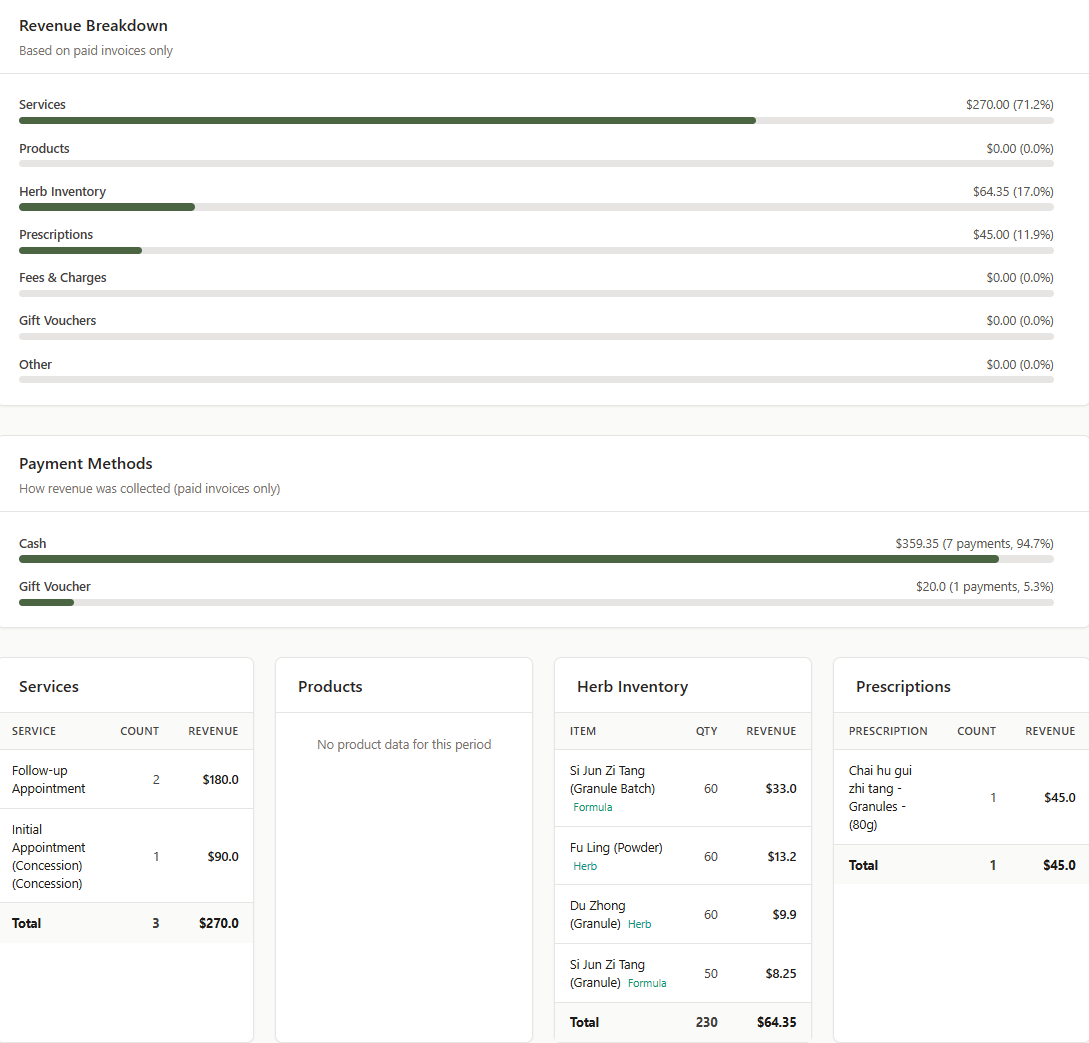
You'll find Herb Inventory in:
- Practitioner Performance — as a revenue category and a detailed breakdown column
- Practitioner Comparison — as its own column for comparing herb sales across practitioners
- Profit & Loss Statement — as a separate revenue line item
Tips:
- Set up default pricing first — it saves you from having to set a sell price on every individual herb
- The search works with pinyin names, common names, and Chinese names for herb materials
- You can mix item types on the same invoice — for example, a consultation (service), a formula batch, and two herb materials
- Stock levels shown in the search results are live, so you can see what's available before adding it