
Gift Vouchers: Selling, Redeeming & Managing
Sell a gift voucher on an invoice or online, give one away, redeem it at the payment screen, and find every voucher in one place.
Gift Vouchers: Selling, Redeeming & Managing
You can sell a gift voucher at the desk on an invoice, sell them online through a link, or give one away. Daobook gives every voucher its own code, and whoever holds it puts it towards an invoice at your clinic.
Sell a Voucher on an Invoice
Raise the invoice on the file of the person paying. If a patient's family member is buying a voucher for the patient, that's the family member's file, and nothing goes on the patient's account. (If the buyer isn't a client yet, add them first: every invoice belongs to a client file.)
On the invoice, click Add Item and choose Gift Voucher. Enter the voucher's value as the price, then the Recipient Name, their Recipient Email (optional), a Personal Message and the Expiry Date, which starts three years out.
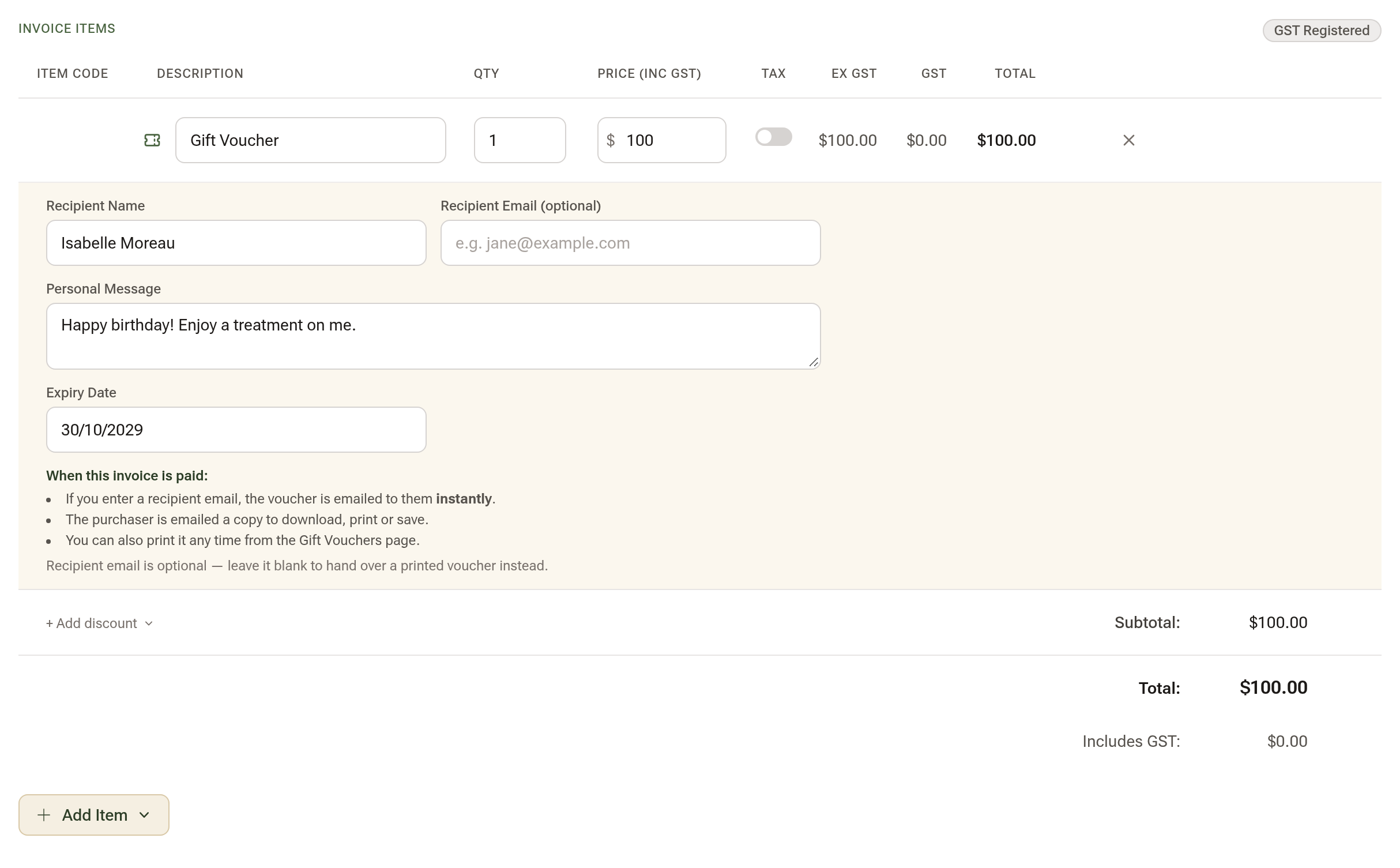
The voucher goes live when the invoice is paid. If you entered the recipient's email, it's emailed to them then, and the buyer is emailed a copy to download, print or save. Leave the email blank to print the voucher and hand it over.
Daobook makes the voucher's code (GV-XXXX-XXXX), so there's no numbering to keep. The code is on the printed voucher and in the email, and it's what the recipient uses to redeem it. What you type on the invoice line is only the invoice's wording.
Find Your Vouchers
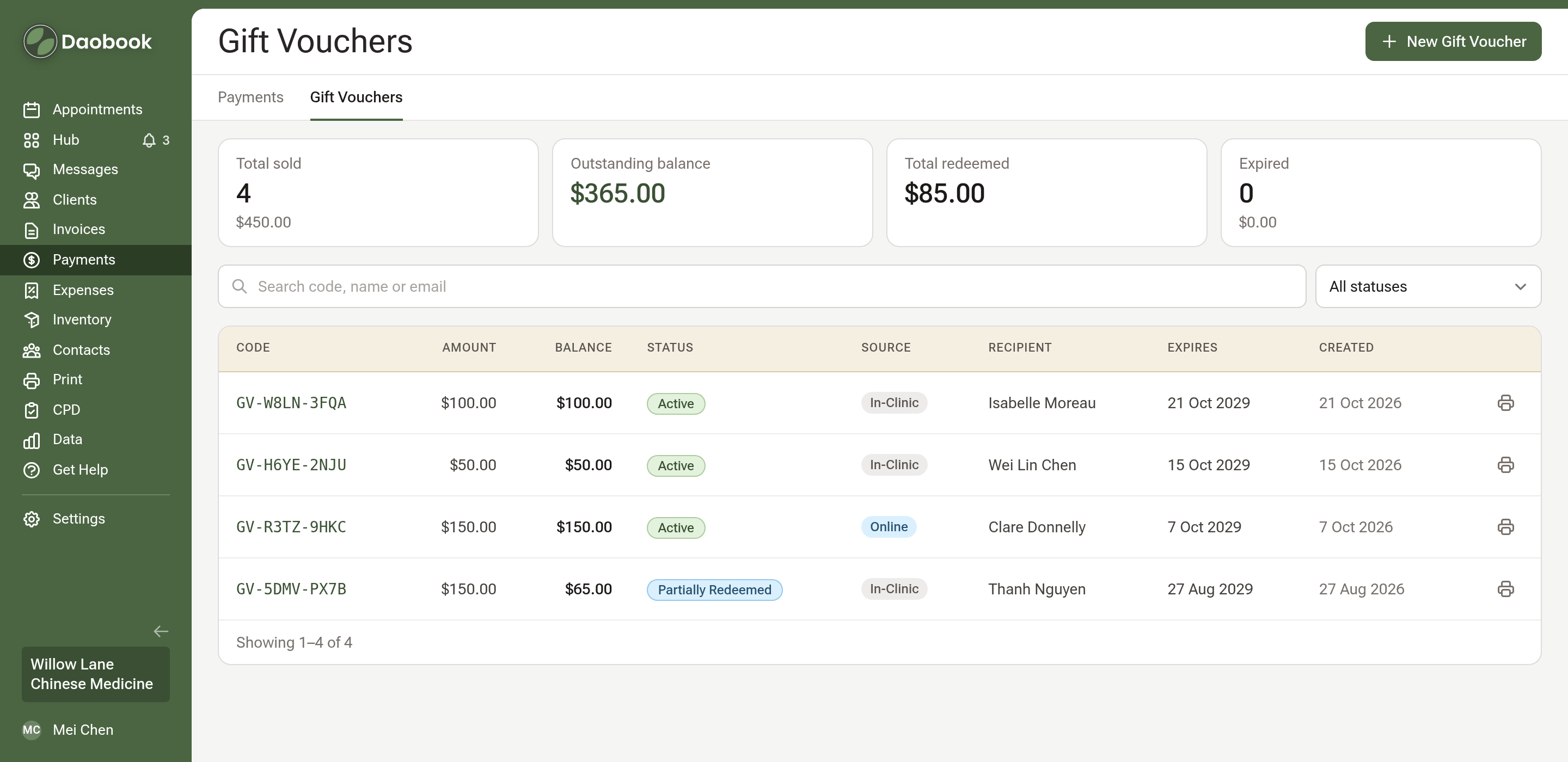
Click Payments in the sidebar, then the Gift Vouchers tab. The totals across the top show Total sold, Outstanding balance, Total redeemed and Expired. Type a code, name or email to narrow the list, or pick a status. The printer at the end of a row prints that voucher.
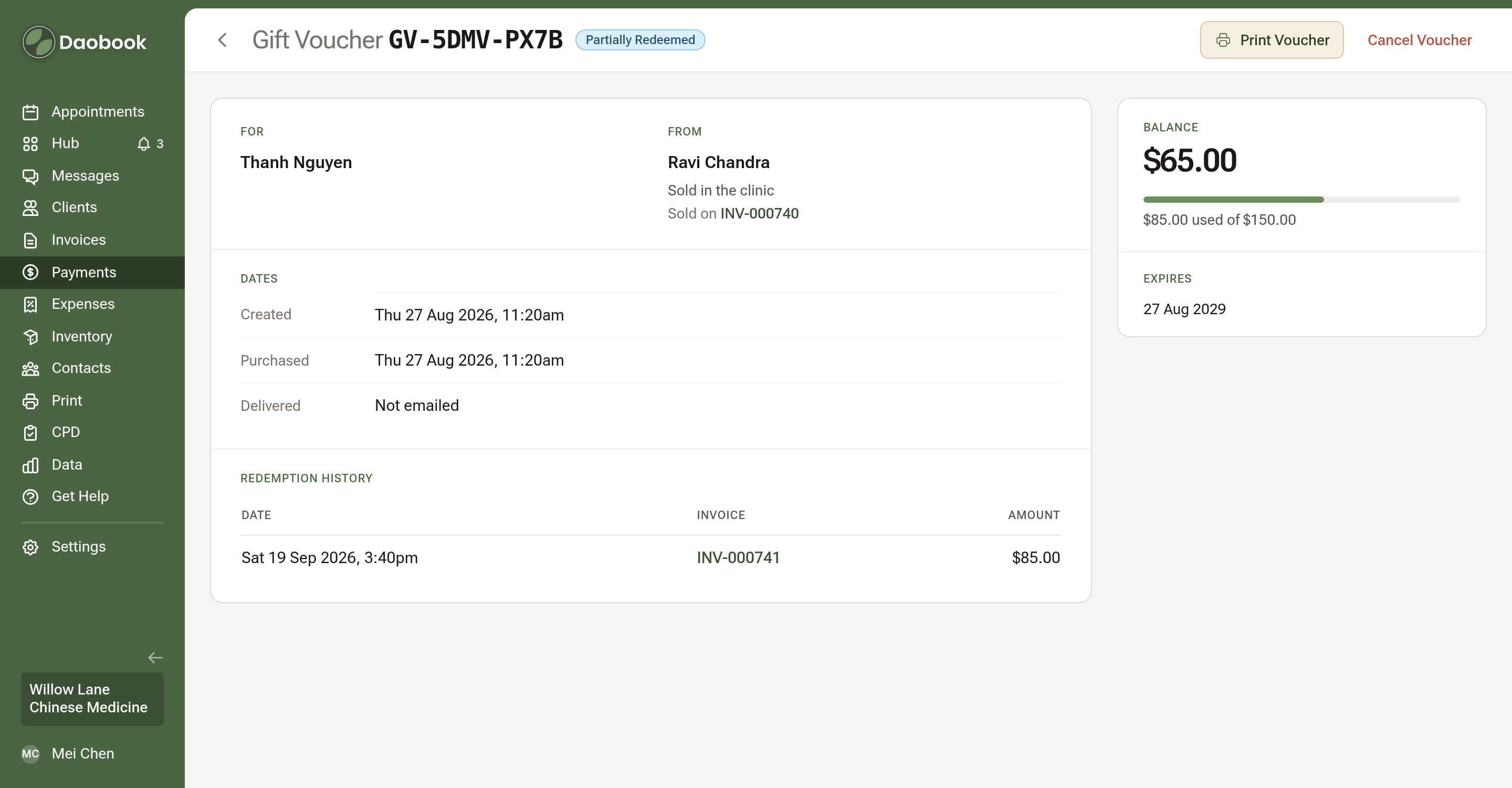
Click a voucher's code to open it. The panel on the right leads with its Balance, how much has been used, and when it Expires. Beside it are who it's For and who it's From, the invoice it was Sold on, its Dates and its Redemption history. Print Voucher prints it. Where it has a recipient email, Send Email sends it (Resend Email once it has gone). Cancel Voucher stops it being used.
Redeem a Voucher
When the recipient comes in, open their invoice and click Record Payment. On the Gift Voucher line, enter the amount to put towards the invoice and type their code into Enter voucher code. The voucher's balance shows beside the code once it's found.
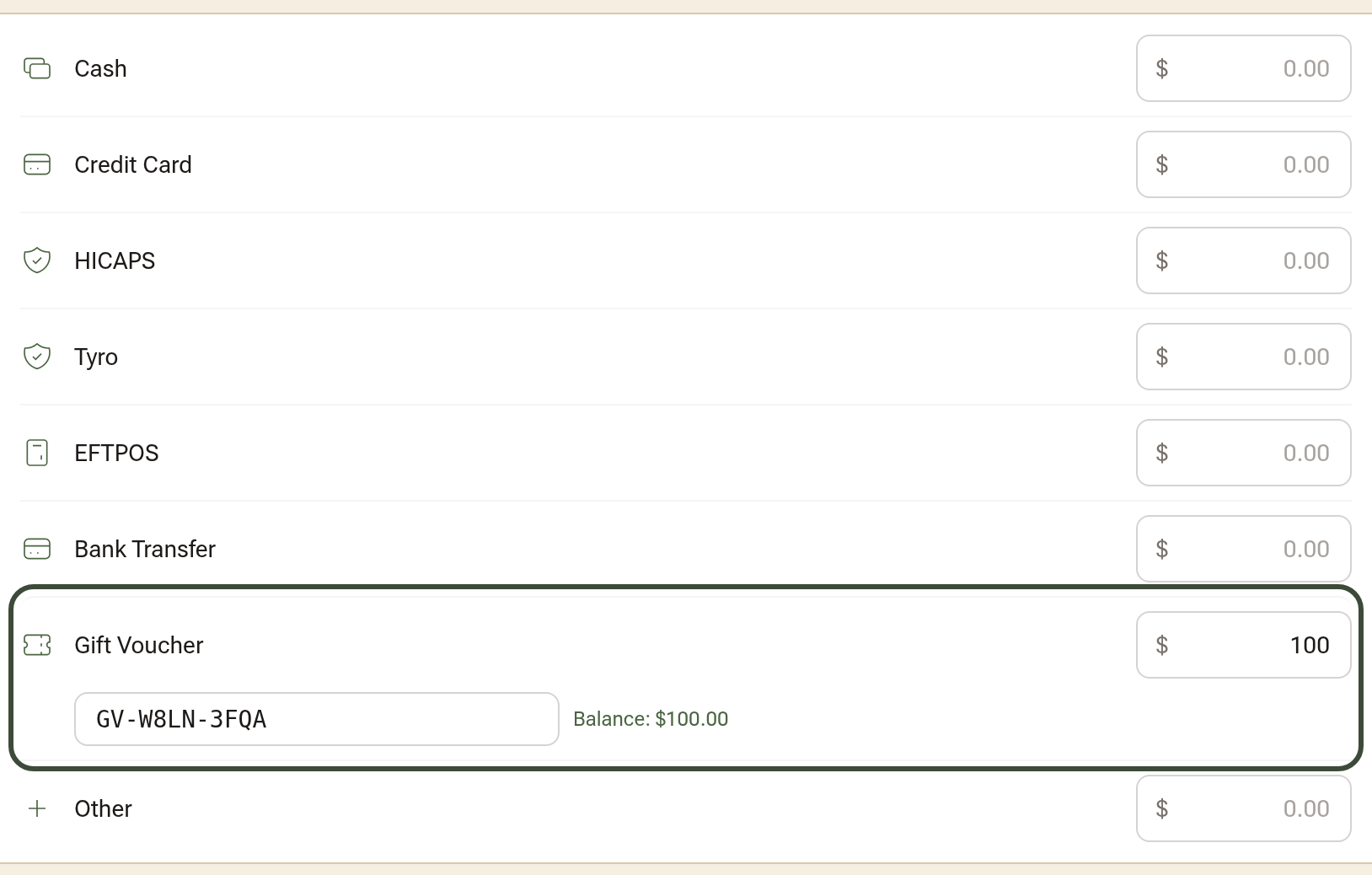
The Gift Voucher line sits with Cash, EFTPOS and the other methods, so the rest of the invoice can be paid another way. Whatever isn't used stays on the voucher for next time. Vouchers Daobook sent the client itself, by letter or automatic message, are also listed under Available Gift Vouchers on their payment page: click Use Voucher to fill in the code.
Sell Vouchers Online
Online sales need Square or Stripe connected to take the payment. See Taking Online Payments with Square or Stripe.
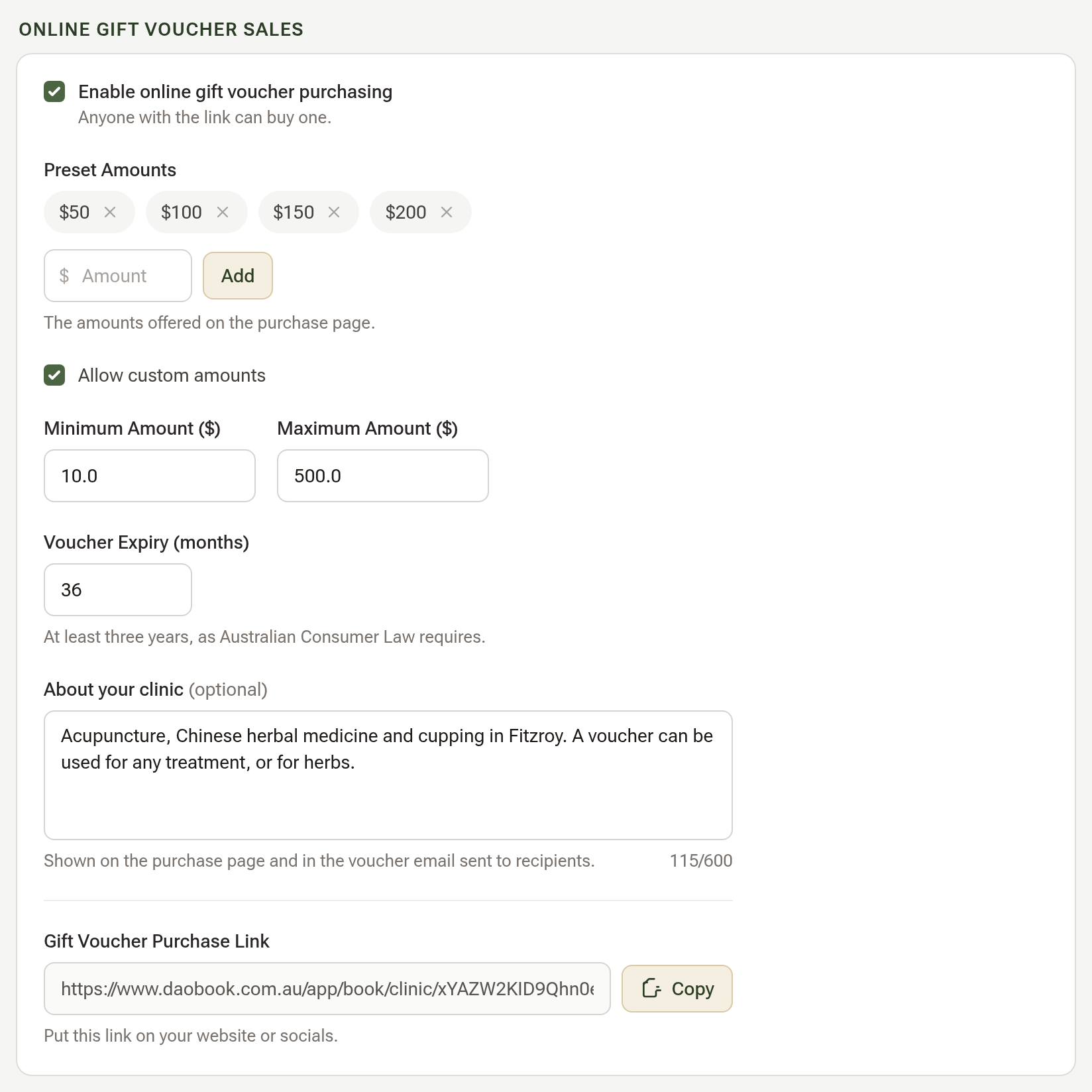
A clinic owner or admin turns them on under Settings → Billing & Payments → Gift Voucher Settings, in Online Gift Voucher Sales:
- Tick Enable online gift voucher purchasing.
- Preset Amounts are the amounts offered on the purchase page: type one and click Add, or click × to remove one.
- Tick Allow custom amounts to let buyers choose their own, between the Minimum Amount ($) and Maximum Amount ($).
- Voucher Expiry (months) is at least 36, as Australian Consumer Law requires.
- About your clinic is shown on the purchase page and in the voucher email.
Click Save Changes, and the Gift Voucher Purchase Link appears below. Click Copy and put it on your website or socials.
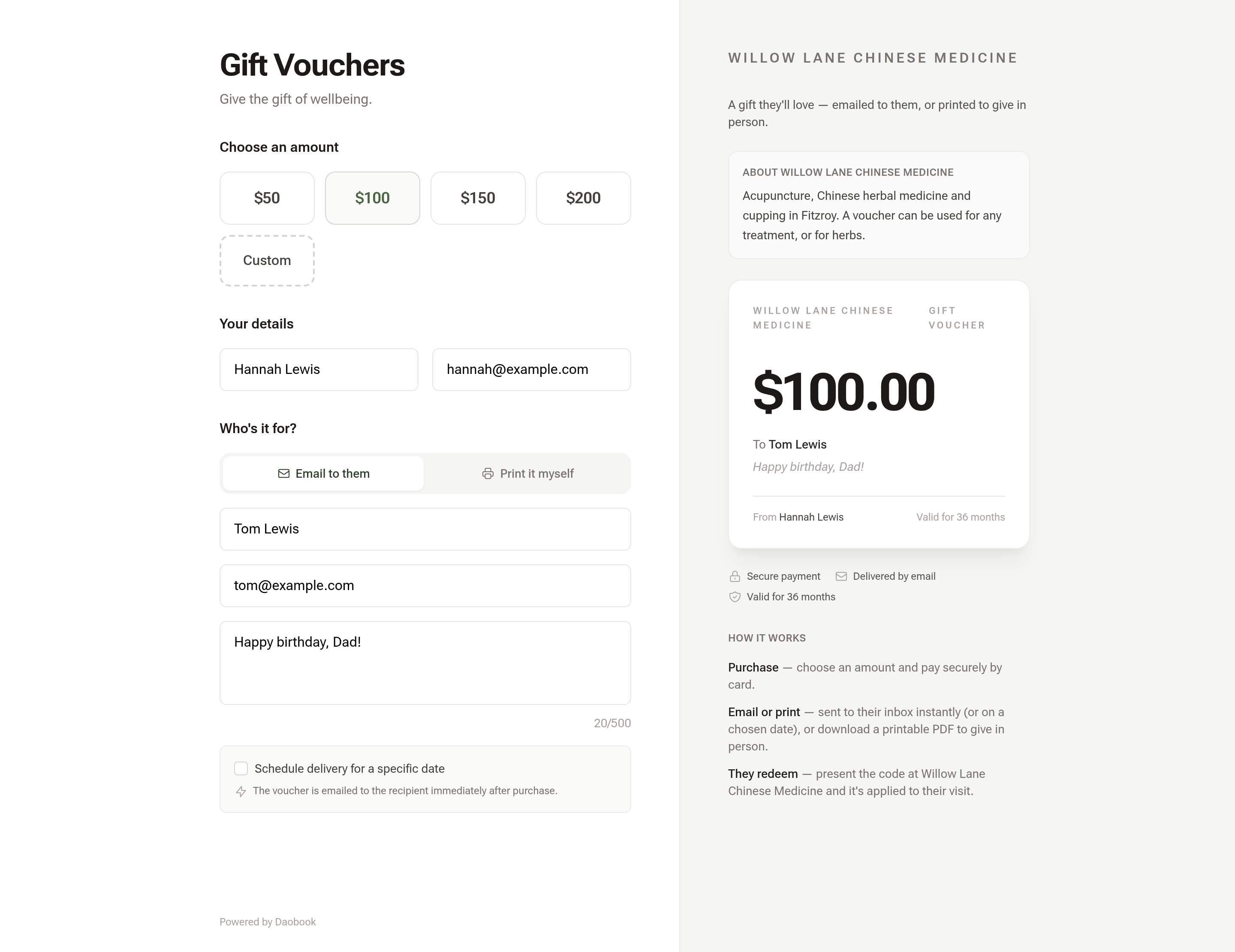
On the purchase page the buyer chooses an amount, fills in Your details, and under Who's it for? picks Email to them or Print it myself, with an optional message. They can tick Schedule delivery for a specific date to have it emailed on a birthday, say. The voucher beside the form fills in as they type.
They pay by card through Square or Stripe, whichever you've connected. Each purchase is recorded as a paid invoice for the buyer, on their client file if their name and email match one, or on a new file if not, so the sale shows in your reports like any other.
Give a Voucher Away
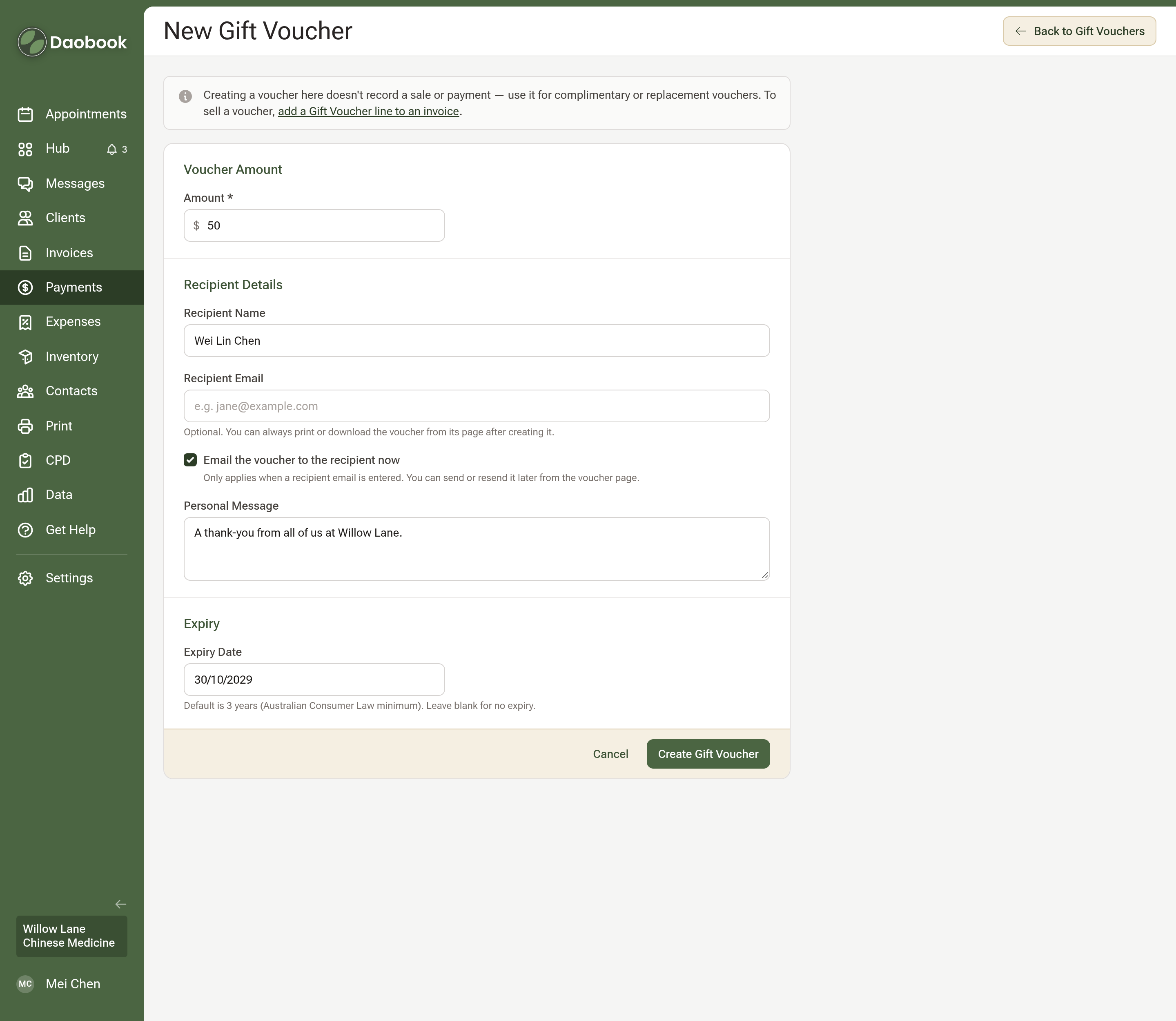
For a complimentary voucher, or one replacing a lost paper voucher, click New Gift Voucher on the Gift Vouchers tab. This records no sale or payment; to sell a voucher, use an invoice as above.
Enter the Amount, the Recipient Name and Recipient Email, a Personal Message and the Expiry Date (three years to start; leave it blank for no expiry). With an email entered, Email the voucher to the recipient now sends it as soon as you click Create Gift Voucher. Untick it to print the voucher instead.
Vouchers Sent Automatically
A clinic letter can carry a voucher for each client it's sent to. Open the letter's edit page and, in its Automation part, pick a Trigger (such as Birthday — send on client's birthday), tick Enabled — send automatically and Attach a gift voucher, then set the Voucher Amount ($) and Voucher Valid For (days).
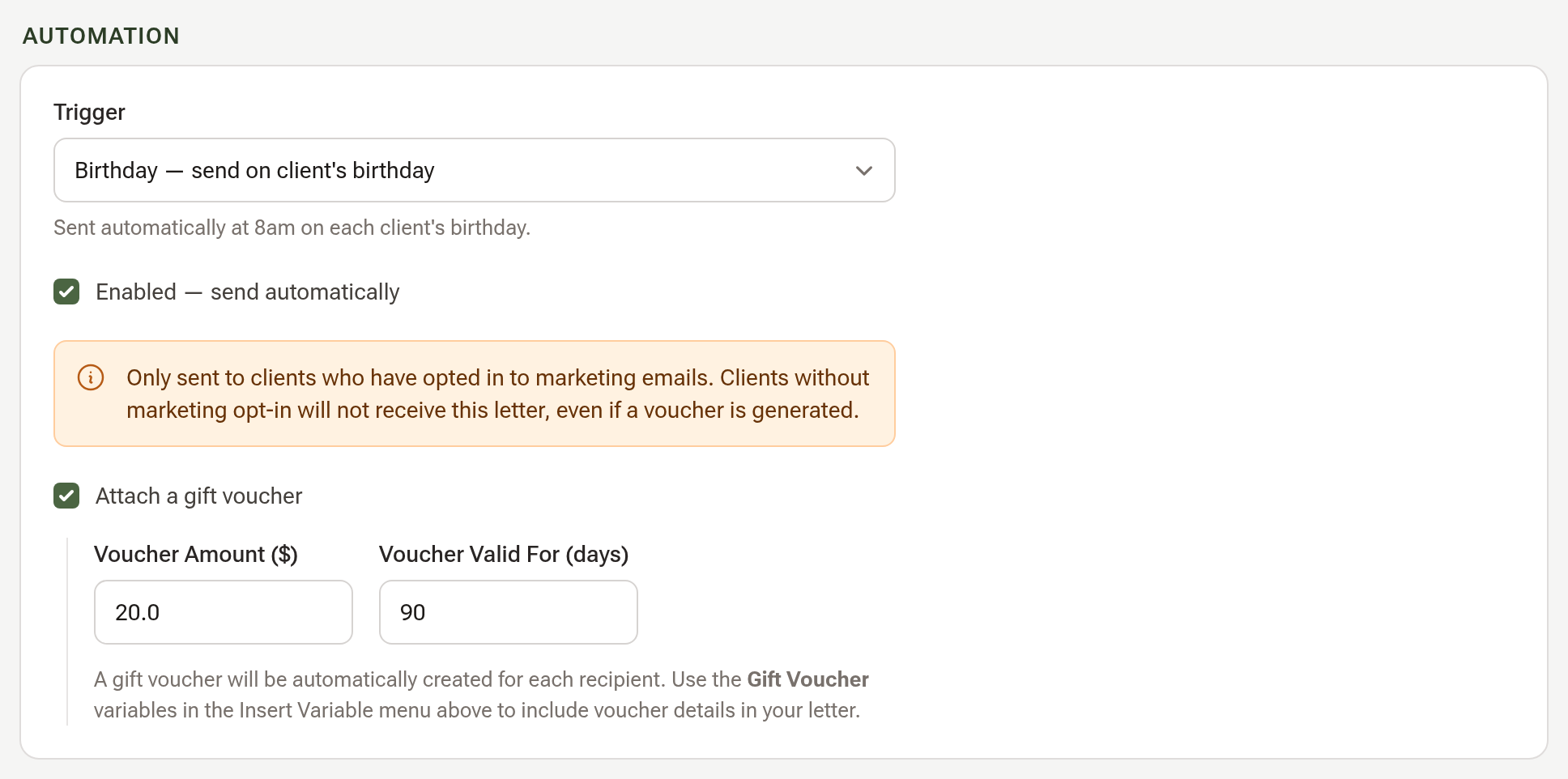
Use the Gift Voucher variables in the Insert Variable menu to put the code in the letter. Birthday, re-engagement and referral letters go only to clients who have opted in to marketing emails. See Letter Templates & Automated Emails.
When an Invoice Is Voided or Archived
Voiding or archiving the invoice that sold a voucher cancels the voucher, so a refunded buyer's voucher can't still be used. A voucher that's been partly used keeps its history and loses only what was left. Restoring an archived invoice brings the voucher back.
Tips:
- A voucher on an unpaid invoice isn't live yet. Take the payment, and the code works.
- Don't add account credit for a voucher. Credit belongs to one client's file and records no voucher sale.