
Practitioner Commission
Configure commission rates per practitioner, handle GST on the clinic's service fee correctly, and read the commission report.
Practitioner Commission
If your practitioners work as contractors on a percentage split, Daobook can calculate what you owe each one for any period — broken down by revenue category, with every dollar that was or wasn't included clearly listed.
This tutorial walks through setting up commission for one practitioner, the GST settings that matter when you're GST-registered, how to read the report, and the things worth knowing about how the math works.
As always, this is general guidance — chat to your accountant for advice specific to your circumstances.
Step 1: Open the Practitioner's Commission Section
Go to Settings → Team & Clinics → Team Members & Invites, click the practitioner you want to configure, and scroll to the Commission section. Click Edit to expand it.
The collapsed view shows a one-line summary of the current settings, so once a practitioner is configured you can see at a glance what's set without expanding the form.

Step 2: Turn On Commission
Tick Pay this practitioner commission. Until this is on, every commission report for this practitioner will show no payable. Use it to pause commission temporarily (e.g. while a practitioner is on extended leave) without losing your settings.
Step 3: Set Per-Category Rates
Daobook treats different types of revenue separately so you can pay different percentages on each.
| Category | Typical content |
|---|---|
| Appointments | Consultations, treatments — the practitioner's clinical services |
| Products | Retail items: supplements, oils, books. Also covers product-type prescriptions (pre-made bottles dispensed in-clinic or sold via Empirical Health) — clinic owns the stock, so they're commissioned as sales |
| Herb Inventory | Loose herbs and pre-made formulas dispensed from clinic stock |
| Prescriptions | Custom herbal formulas written by the practitioner. In-clinic decoctions and empirical-channel custom formulas both sit here — they're the practitioner's IP |
| Fees & Charges | Late cancellation fees, no-show fees, surcharges |
| Gift Voucher Sales | Sale of vouchers (not the redemption — that flows through the appointment line when the voucher is used) |
| Other | Any line item not in the buckets above |
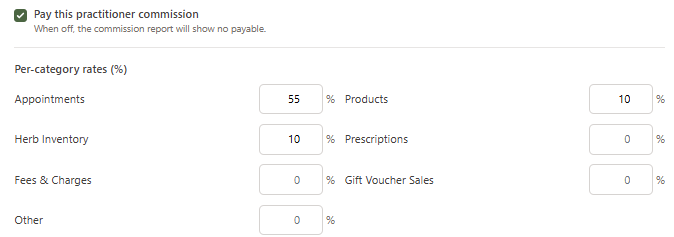
For each category, type the percentage the practitioner earns. Leave a category blank (or 0%) to exclude it — typical for Gift Voucher Sales, since voucher cash is held as a liability until the voucher is redeemed against a real service.
Use 0% if you want the category to appear on the report as "excluded" so the practitioner can see what wasn't paid out. Use blank if you don't pay commission on that category at all.
Step 4: Choose What the Percentage Applies To
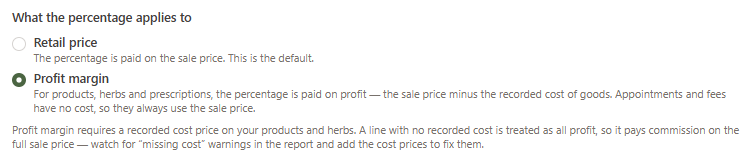
By default, each rate is paid on the retail price — the sale price of the line. If you'd rather pay commission on profit, switch the What the percentage applies to radio to Profit margin.
- Retail price (default) — the percentage is paid on the sale price.
- Profit margin — for products, herbs and prescriptions, the percentage is paid on profit: the sale price minus the recorded cost of goods. Appointments and fees have no cost, so they always use the sale price even in this mode.
Profit margin needs cost prices. It relies on a recorded cost on your products and herbs. A line with no recorded cost is treated as all profit, so it pays commission on the full sale price — watch for "missing cost" warnings in the report and add the cost prices to fix them.
One thing to note: with Profit margin selected, the live "Per $100 of revenue" preview (Step 7) switches off, because the payout then depends on each item's individual cost rather than the rate alone.
Step 5: Choose Your Policy Toggles
Two checkboxes affect how the commission base is calculated:
- Include comp/goodwill credit redemptions in commission base — off by default. When a client pays an invoice using comp credit (a goodwill credit, not real cash), commission isn't usually paid because no cash came in. Tick if you want comp redemptions to count.
- Subtract invoice discounts before calculating commission — on by default. When you discount an invoice, commission is paid on the discounted amount, so the practitioner shares in the discount. Untick if you want commission on the pre-discount amount (practitioner gets full commission, clinic absorbs the discount).

Step 6: GST Treatment
The GST treatment block only appears if your clinic is GST-registered. Two settings live here, and the second one is where most owners need to think carefully.
6a: Practitioner's Base — ex-GST or inc-GST
This decides whether the commission percentage is applied to the GST-exclusive or GST-inclusive amount of each line item.
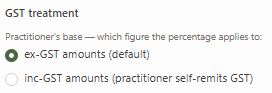
- ex-GST amounts (default) — Commission is paid on the pre-GST portion of revenue. Use this when the practitioner is not GST-registered, or when you handle their GST remittance for them. Any GST collected belongs to the clinic and is excluded from the practitioner's payout.
- inc-GST amounts (practitioner self-remits GST) — Commission is paid on the GST-inclusive amount. Use when the practitioner is GST-registered and remits their own GST to the ATO. They receive the gross figure and handle their own BAS.
For a TCM practice where most revenue is GST-free, the two options give the same answer for those categories — so the default is fine unless you have a specific reason to switch.
6b: GST on the Clinic's Service Fee
This is a separate taxable supply: when the clinic is GST-registered and charges its practitioners a facility/admin fee (the clinic's percentage cut of the revenue), that fee is itself a taxable supply from clinic to practitioner, and GST applies on top of it.
Worked example. Olivia is a contractor practitioner. She bills $730 in acupuncture services this week, split 55% Olivia / 45% clinic. Your 45% cut ($328.50) is a service fee from the clinic to Olivia — so on top of $328.50 you also charge $32.85 GST. Olivia's take-home is $730 − $361.35 = $368.65, not the simple 55% × $730 = $401.50.
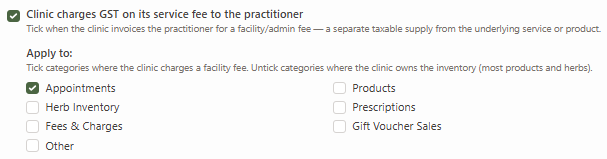
Tick Clinic charges GST on its service fee to the practitioner to switch this on. The category list then appears with Appointments pre-ticked.

6c: Which Categories Get the GST-on-Fee Treatment?
Tick each category where the clinic genuinely charges the practitioner a facility fee. Untick categories where the clinic owns the inventory and the practitioner is paid a sales commission instead — there's no service fee for the clinic to charge in that case.
Decision rule. If the practitioner is the legal supplier of the goods/service (the revenue is "theirs" and they pay the clinic for facilities), tick. If the clinic owns the stock and pays the practitioner a sales commission on the sale, untick.
| Category | Typical setting for a TCM clinic |
|---|---|
| Appointments | Tick — the practitioner is the supplier; the clinic charges a facility fee |
| Products | Untick — clinic owns the inventory, the 1 − rate isn't a service fee |
| Herb Inventory | Untick — same as products |
| Prescriptions | Tick in most cases — only custom formulas land here, and the practitioner is paid for writing the formula as a service (product-type prescriptions count as Products, see above) |
| Fees & Charges | Tick if the practitioner is paid for these as their service; untick otherwise |
| Gift Voucher Sales | Untick — the clinic carries the voucher as a liability until redeemed |
| Other | Depends on the line type |
Why this matters: at a 10% practitioner rate, the implied "clinic service fee" is 90% — absurd for clinic-owned products. Ticking the wrong categories can crush the practitioner's commission to nearly nothing because the math will assume the clinic is charging an enormous facility fee that doesn't exist.
Step 7: Watch the Live Preview
As you change rates and toggles, the Per $100 of revenue, at the current settings table at the bottom of the form updates live. Each row shows what the practitioner and the clinic each receive per $100 of revenue in that category, with a small note about any GST on the clinic's fee.
Use this to sanity-check before saving. If a row looks wrong, your settings are wrong — adjust until each row reads what you'd expect.
This preview only applies to retail-price commission. If you switched to Profit margin in Step 4, the table is replaced with a short note instead — there's nothing to preview from the rate alone, since each payout depends on the item's recorded cost.

Step 8: Save
Click Save Changes. The disclosure collapses and shows the new summary line — for the Olivia example it reads something like "55% appointments · ex-GST · net of discounts · GST on service fee (appointments)". If you turned on Profit margin, the summary also carries an "on profit margin" segment so you can see the basis at a glance.
Step 9: Read the Commission Report
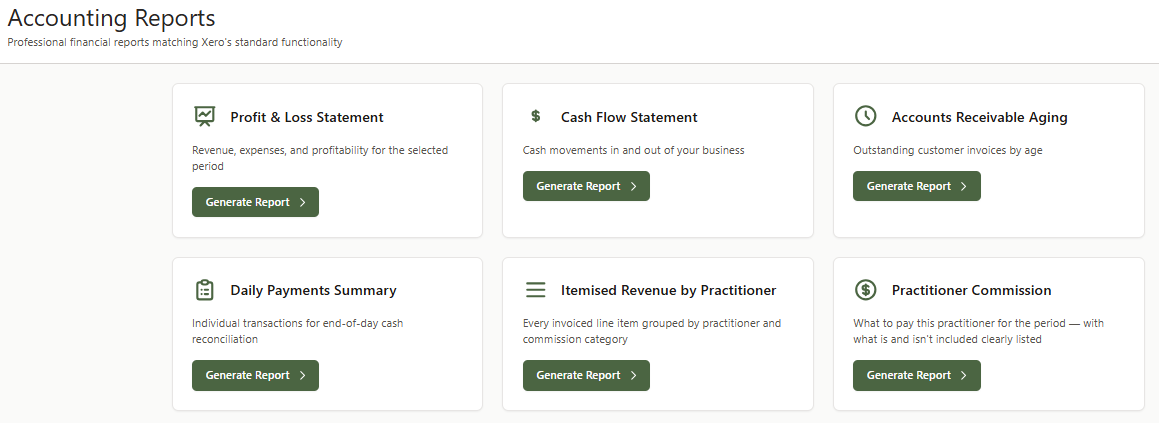
Go to Accounting Reports → Practitioner Commission. Pick the clinic, the practitioner, and the date range. The report has three parts:
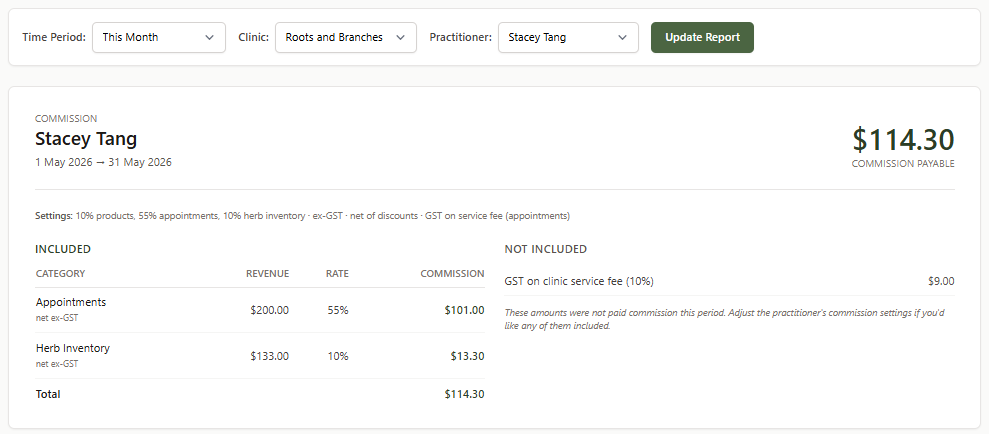
- Header — total commission payable for the period, plus a settings string echoing the rates and toggles used to calculate it.
- Included — every category that contributed to the payable, with revenue, rate, and commission per row.
- Not Included — everything the report deliberately excluded: 0%-rate categories, comp redemptions, invoice discounts, GST portions (when commissioning ex-GST), the GST on clinic service fee, and — when you're paying on profit margin — the cost of goods carved off each product, herb and prescription line (shown as a "Cost of goods" row).
The "Not Included" panel is the report's most useful feature — it's the explicit answer to "why isn't this paying commission?" Every excluded dollar carries a reason. On profit-margin commission, the Included table also notes that products, herbs and prescriptions are calculated on profit (revenue − cost), while everything else is still paid on the sale price.
Click PDF at the top to export a hand-to-the-practitioner copy.
Tips
- Rate changes affect history. Commission is computed from current rates against historical invoice data — changing a rate today also recalculates last month's report. Snapshotting payouts is on the roadmap; for now keep your own records of what you actually paid.
- Multi-clinic practitioners. Rates are configured per practitioner per clinic — a practitioner working at two of your locations can be on 55% at one and 60% at the other.
- Comp credit redemptions flow through to a normal appointment line on a different invoice — the practitioner still earns commission on the underlying service when a voucher or comp credit is used to settle the bill. The "comp redemption" exclusion only applies to the comp credit itself, not the service it paid for.
- Margin column in the Included table means different things depending on Step 4. On retail-price commission it's informational only — commission is computed from the rates you set, and the column just highlights when costs are eating into a category's profitability. On profit-margin commission, the margin is the base the percentage is applied to for products, herbs and prescriptions, so it directly drives those payouts.