
Letter Templates & Automated Emails
Create reusable letter templates with smart placeholders, send personalised emails or PDFs to clients, and set up automated emails for birthdays, welcome messages, re-engagement, and referral thank-yous.
Letter Templates & Automated Emails
Daobook's letter templates let you create reusable emails and letters with smart placeholders that automatically fill in client, appointment, prescription, and clinic details. You can send them manually from a client's profile, download them as professional PDFs, or set them to send automatically on events like birthdays and new client referrals — with optional gift vouchers attached.
Creating a Letter Template
Step 1: Open Letter Templates
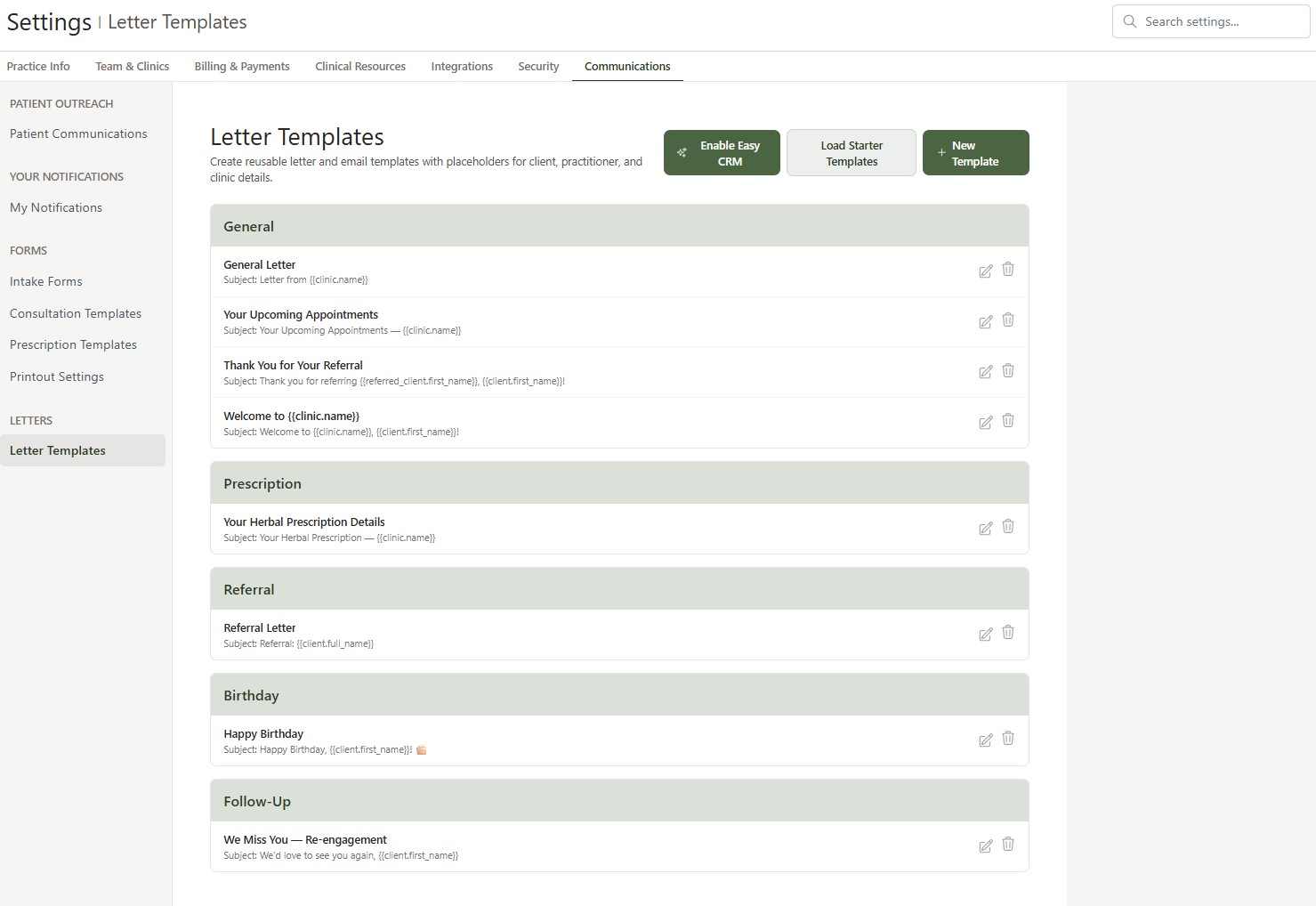
Go to Settings > Communications tab > Letter Templates in the left sidebar. You'll see your template library organised by category, with options to create new templates, load starter templates, or enable Easy CRM.
Step 2: Create a New Template
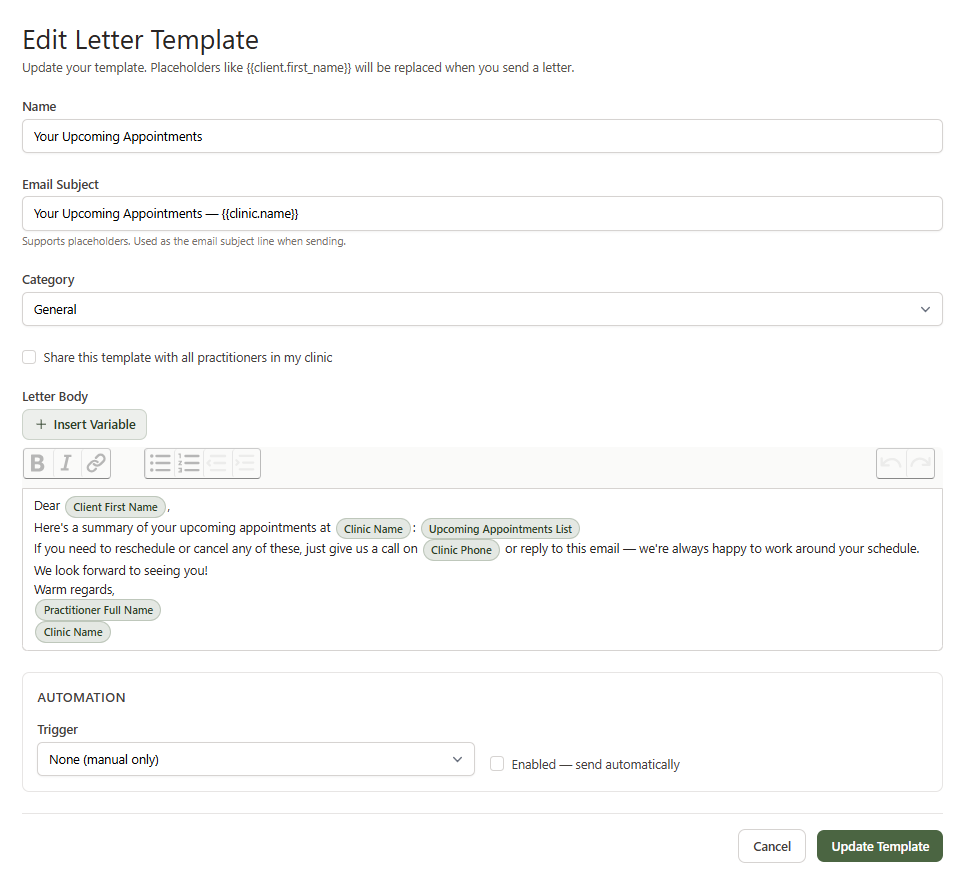
Click New Template. You'll see a form with the following fields:
- Name — a descriptive name for the template (e.g. "Referral Letter" or "Happy Birthday")
- Email Subject — the subject line when sent as an email. Supports placeholders like
{{client.first_name}} - Category — organises your templates (General, Prescription, Referral, Birthday, Follow-Up)
- Send for clinic — on multi-location subscriptions, pin the template to one location or leave it as "All clinics"
Clinic templates like this one are shared with the whole practice, so only an owner or admin can create or edit them.
Step 3: Write Your Letter
Use the rich text editor to compose your letter. You can format text with bold, italic, links, and bullet lists — just like writing an email.
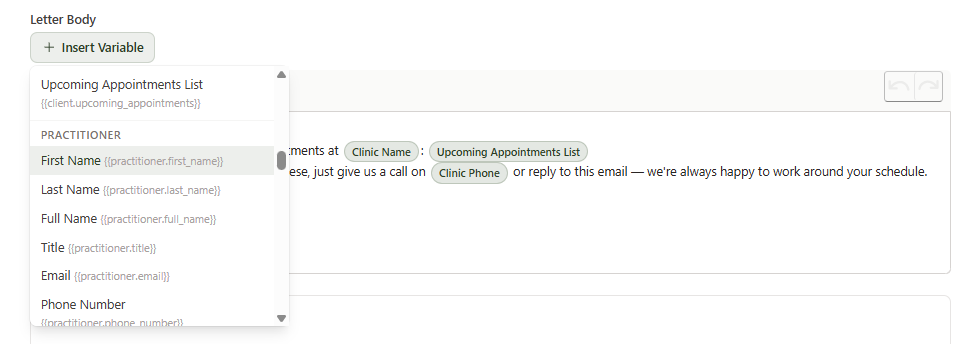
The key feature is placeholders — dynamic variables that get replaced with real data when the letter is sent. Click the Insert Variable button above the editor to browse all available placeholders, grouped by category:
| Group | Example Placeholders |
|---|---|
| Client | First Name, Full Name, Age, Date of Birth, Address, Known Allergies, Health Fund |
| Practitioner | Full Name, Title, AHPRA Number, Phone |
| Clinic | Name, Address, Phone, ABN |
| Appointment | Date, Time, Type, Duration, Booking Reference |
| Prescription | Formula Name, Dosage, Administration, Quantity |
| Contact | Full Name, Title, Practice, Provider Number (for referral letters) |
| Gift Voucher | Code, Amount, Expiry Date (for automated emails with vouchers) |
| Date | Today's Date |
Placeholders appear as styled green chips in the editor, so you can clearly see where dynamic content will be inserted.
Adding an image or a file
A template can carry images and files, the same way your reminder and confirmation emails can. Drag an image or a PDF into the letter body, paste it, or click the paperclip in the editor's toolbar. An image sits in the letter where you drop it; another file (a PDF, a Word document) is emailed with every letter sent from the template, and the letter says Attached: with its name.
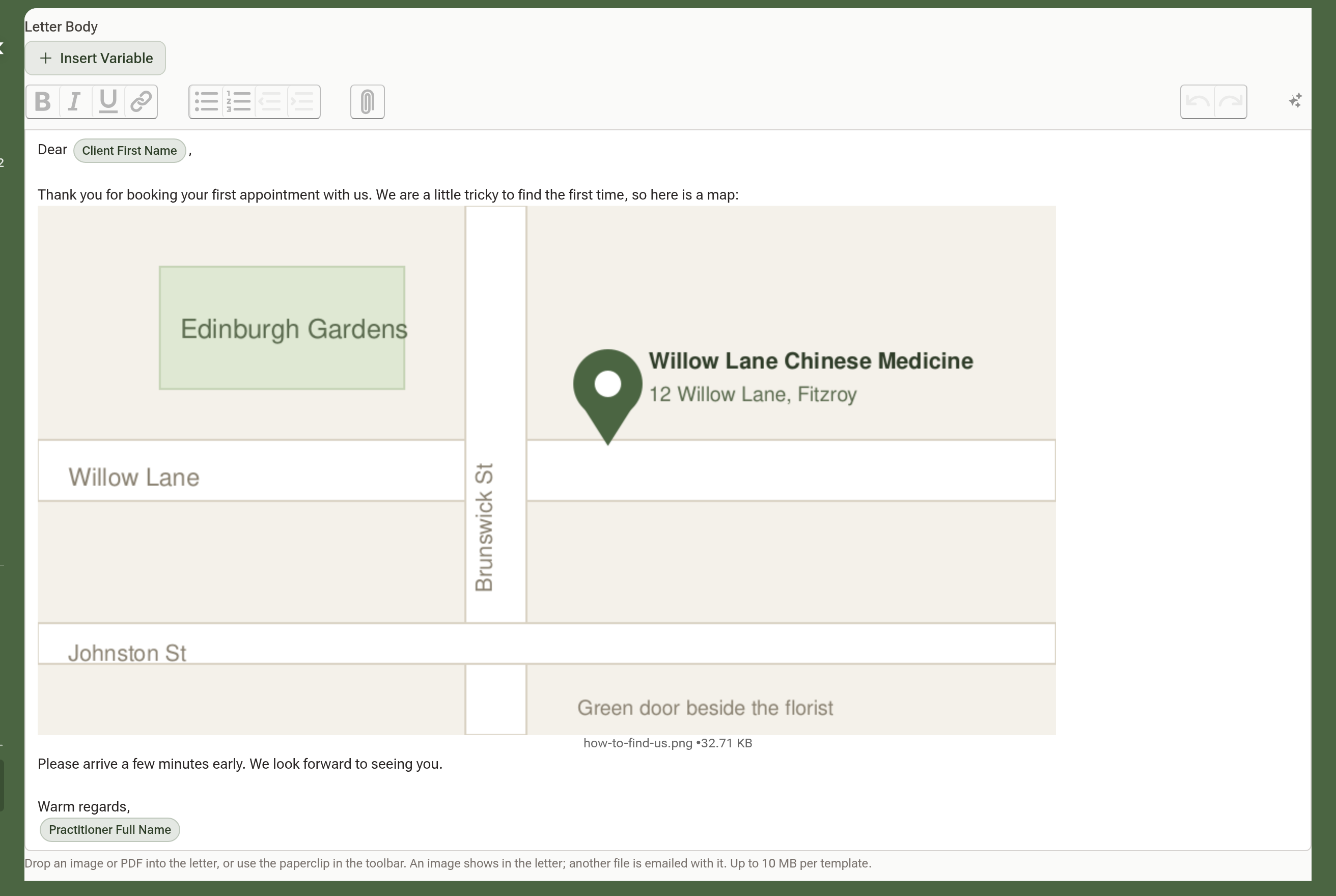
A template's files can total up to 10 MB. When you send a letter from the template, any files you attach to that letter count towards the same 10 MB. When you download a letter as a PDF, an image prints in place; a file the template carries is not part of the PDF.
Step 4: Save
Click Create Template. Your template is now available for use.
Your Own Templates
Every practitioner can also keep templates of their own — referral letters in your own words, say — without needing owner or admin access. On the same Letter Templates page, click New personal template. The form is the same minus the automation and location settings, because a personal template is always sent by hand.
Personal templates appear under Your templates at the bottom of the page and at the top of the template picker when you write a letter. Only you can see, use or edit them.
Sending a Letter from a Client's Profile
Step 1: Go to the Client's Letters Tab
Open a client's profile and click Letters in the navigation. You'll see a history of previously sent letters and a New Letter button.
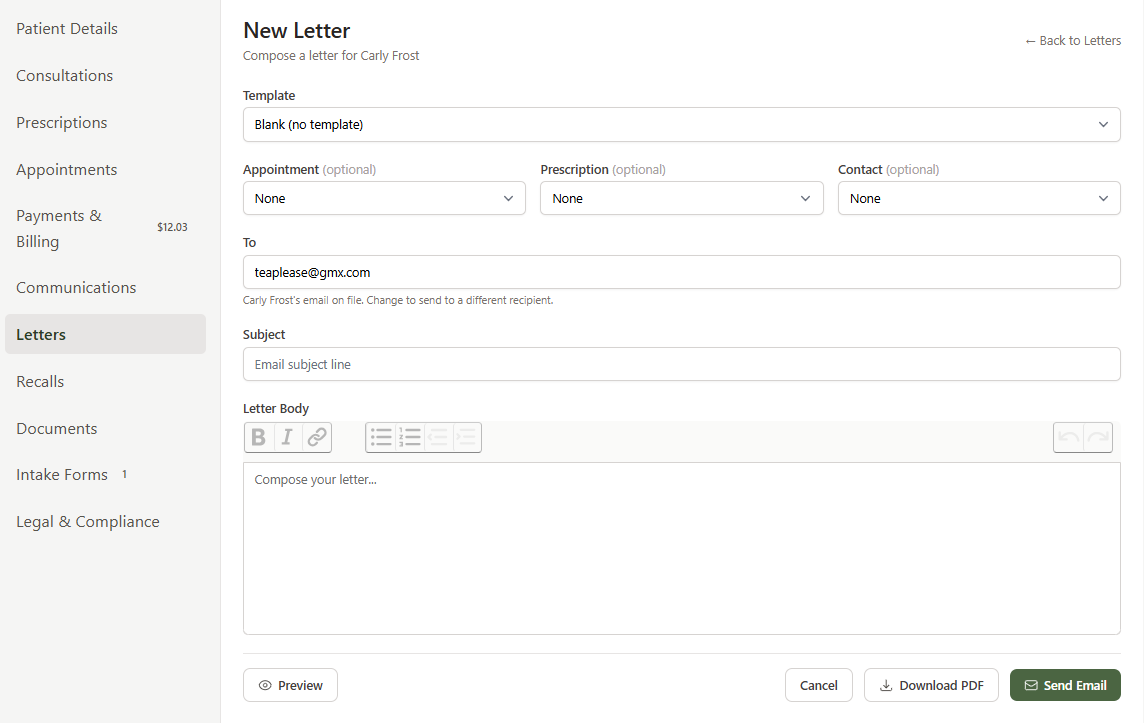
Step 2: Compose Your Letter
On the compose page, you'll find:
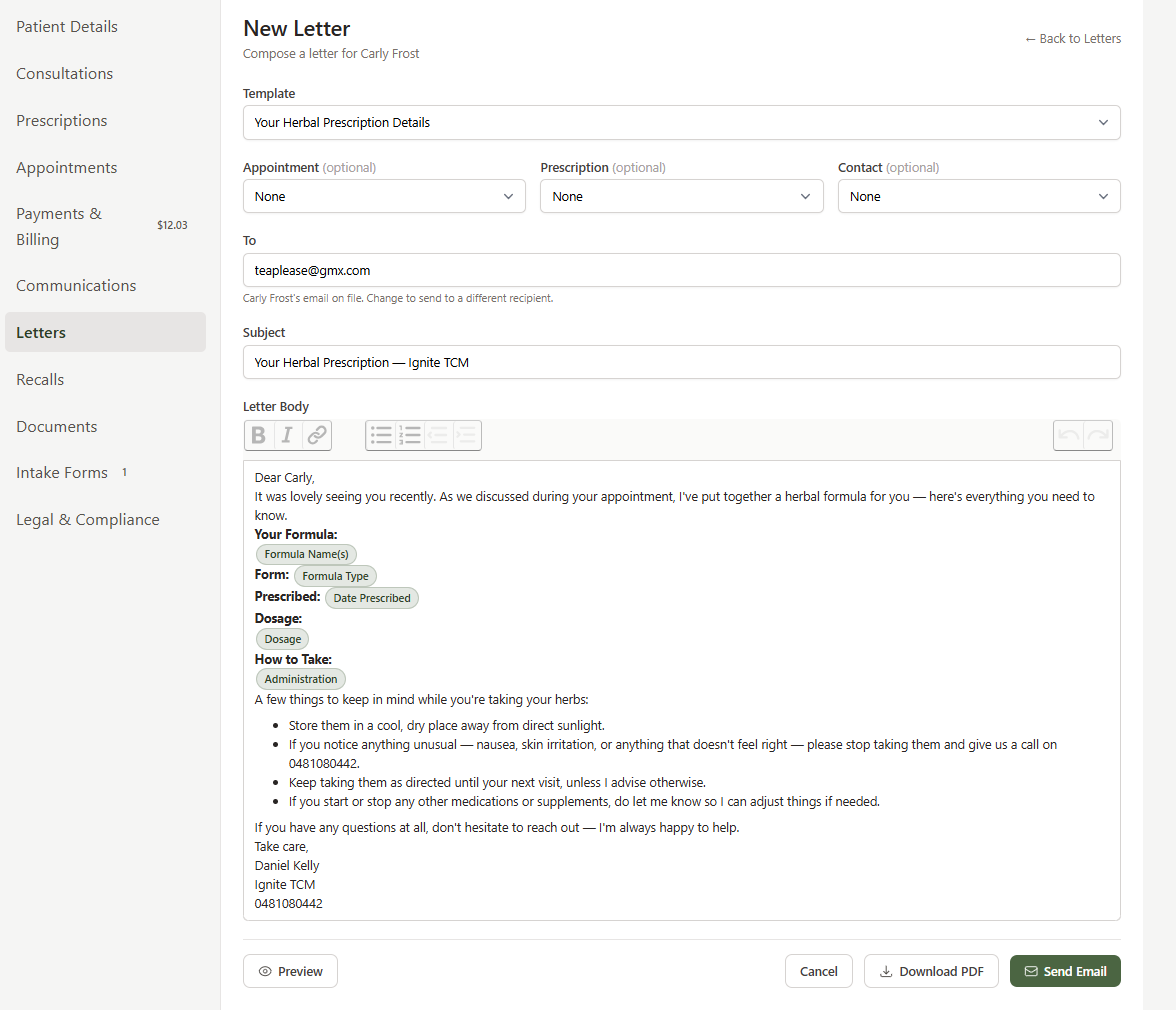
- Template — select one of your saved templates. The subject and body are pre-populated with placeholders already resolved for this client, along with any image or file the template carries.
- Appointment (optional) — select a specific appointment to fill in appointment-related placeholders like date, time, and type.
- Prescription (optional) — select a prescription to auto-populate formula name, dosage, and administration details.
- Contact (optional) — select a doctor or practitioner contact for referral letters. Selecting a contact also pre-fills the "To" email field with their email address.
- To — defaults to the client's email, but you can change it to send to anyone (e.g. a referring doctor).
- Subject and Body — editable after the template loads. You can tweak the content before sending.
Step 3: Preview, Send, or Download
- Preview — click to see exactly what the client will receive, with all placeholders resolved.
- Send Email — sends the letter immediately. A record appears in the client's Letters tab and Communications history.
- Download PDF — generates a professional PDF with your clinic's letterhead, the client's address, and a practitioner sign-off with AHPRA credentials.
Setting Up Automated Emails (Easy CRM)
Daobook can automatically send personalised emails to your clients on key events — no manual action required. The easiest way to get started is the Easy CRM button, which loads starter templates and enables all automations with sensible defaults.
Quick Start: Enable Easy CRM
In Settings > Communications > Letter Templates, click Enable Easy CRM. This sets up four automated emails:
| Automation | What It Does | Gift Voucher |
|---|---|---|
| Birthday | Sends a birthday greeting on the client's date of birth | $20 voucher included |
| New Client Welcome | Sends a welcome email when a new client is created | — |
| Re-engagement | Sends a "we miss you" email when a client hasn't visited in 3 months | — |
| Client Referral | Sends a thank-you to clients who refer someone new | $20 voucher included |
All automated emails send at 8am in your clinic's timezone. Each client only receives one of each type per period (e.g. one birthday email per year, one re-engagement per inactive period) — no duplicates.
After enabling, you'll see the Active Automations summary at the top of the page showing exactly what's running.

Marketing Consent & Automated Emails
All automated letters are treated as marketing emails under Australian law. This means they will only be sent to clients who have opted in to marketing emails. If a client hasn't opted in, automated letters will be skipped for them — but you can still send them manual letters from their profile at any time.
How clients opt in to marketing emails:
- Public Booking form — if you enable the Marketing Email Opt-in field in your Public Booking settings, clients can opt in when they book online. To enable this, go to Settings > Public Bookings and tick Marketing Email Opt-in in the form fields section.
- Intake forms — if your intake form includes a marketing consent question, the client's preference is recorded automatically.
- Manually — you can enable it in any client's profile under Communication Preferences by ticking the Marketing Email checkbox.
Every automated email includes an unsubscribe link in the footer. If a client clicks it, their marketing email preference is turned off and they will stop receiving automated letters.
Recommended setup: If you're using automated emails, make sure the Marketing Email Opt-in field is enabled on your Public Booking form so new clients can opt in during booking.
Customising an Automation
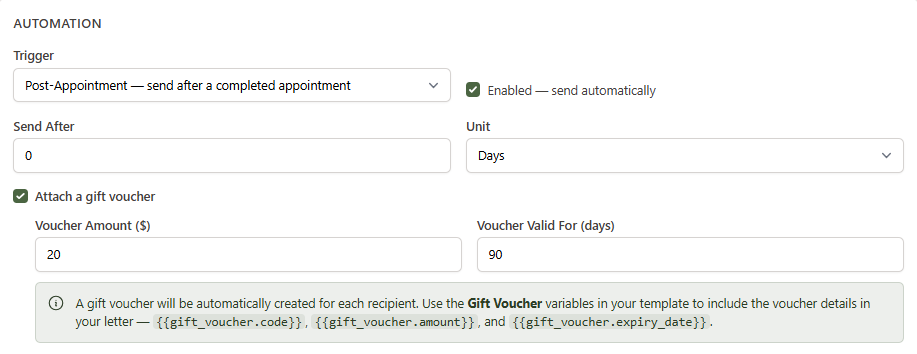
Click Edit on any template to customise it. In the Automation section at the bottom of the editor, you can:
- Change the trigger — Birthday, Post-Appointment, Re-engagement, New Client, or Client Referral
- Enable or disable — toggle the automation on or off without deleting the template
- Set a delay — for triggers like Post-Appointment and Re-engagement, configure how long to wait (e.g. "send 1 day after appointment" or "send after 3 months inactive")
- Attach a gift voucher — when enabled, a real gift voucher is automatically created for each recipient. Use the
{{gift_voucher.code}},{{gift_voucher.amount}}, and{{gift_voucher.expiry_date}}placeholders in your template to include the voucher details.
How the Client Referral Automation Works
The referral thank-you is a special automation. Here's the flow:
- You create a new client and set their Referral Type to "Patient" with a Referring Patient selected (an existing client who referred them)
- Daobook detects the referral and automatically sends the "Thank You for Your Referral" template to the referring client — not the new one
- The template can reference the new client's name using
{{referred_client.full_name}}, so the thank-you message says something like "Thank you for referring Sarah to our clinic" - If a gift voucher is attached, it's created for the referring client as a thank-you
Starter Templates
Daobook comes with 8 ready-to-use templates. Click Load Starter Templates to add them to your account:
- General Letter — a blank letterhead format for any purpose
- Referral Letter — formal referral to a doctor or practitioner, with contact placeholders
- Happy Birthday — automated birthday greeting with gift voucher
- Your Upcoming Appointments — automatically lists all the client's future appointments
- Your Herbal Prescription Details — pulls formula, dosage, and administration from a prescription
- We Miss You — automated re-engagement for inactive clients
- Thank You for Your Referral — automated referral thank-you with gift voucher
- Welcome — automated welcome email for new clients
You can edit any of these or create your own from scratch. Clicking Load Starter Templates again will update existing defaults with the latest content without overwriting your customisations.
Tips:
- Use Preview before sending to verify all placeholders resolve correctly
- The Upcoming Appointments template dynamically builds a full list — no need to type them out
- Gift vouchers created by automations appear on the Gift Vouchers management page — to find a particular client's vouchers, search there by their name or email
- All sent letters are tracked in the client's Communications tab for a full audit trail