
Running a class
Run Qi Gong, a Ba Duan Jin group or a workshop as an appointment type with places: put the sessions on the calendar, let clients book a place online, add them at the desk, and have every attendee reminded and invoiced like any other booking.
Running a class
A class is an appointment type with a number of places. You put its sessions on the calendar, one or a weekly series; clients book a place online, or you add them from the calendar; and every attendee is reminded, confirmed, invoiced and noted exactly as a one-to-one booking is, because underneath each attendee is a booking of their own.
Step 1: Make the appointment type a class
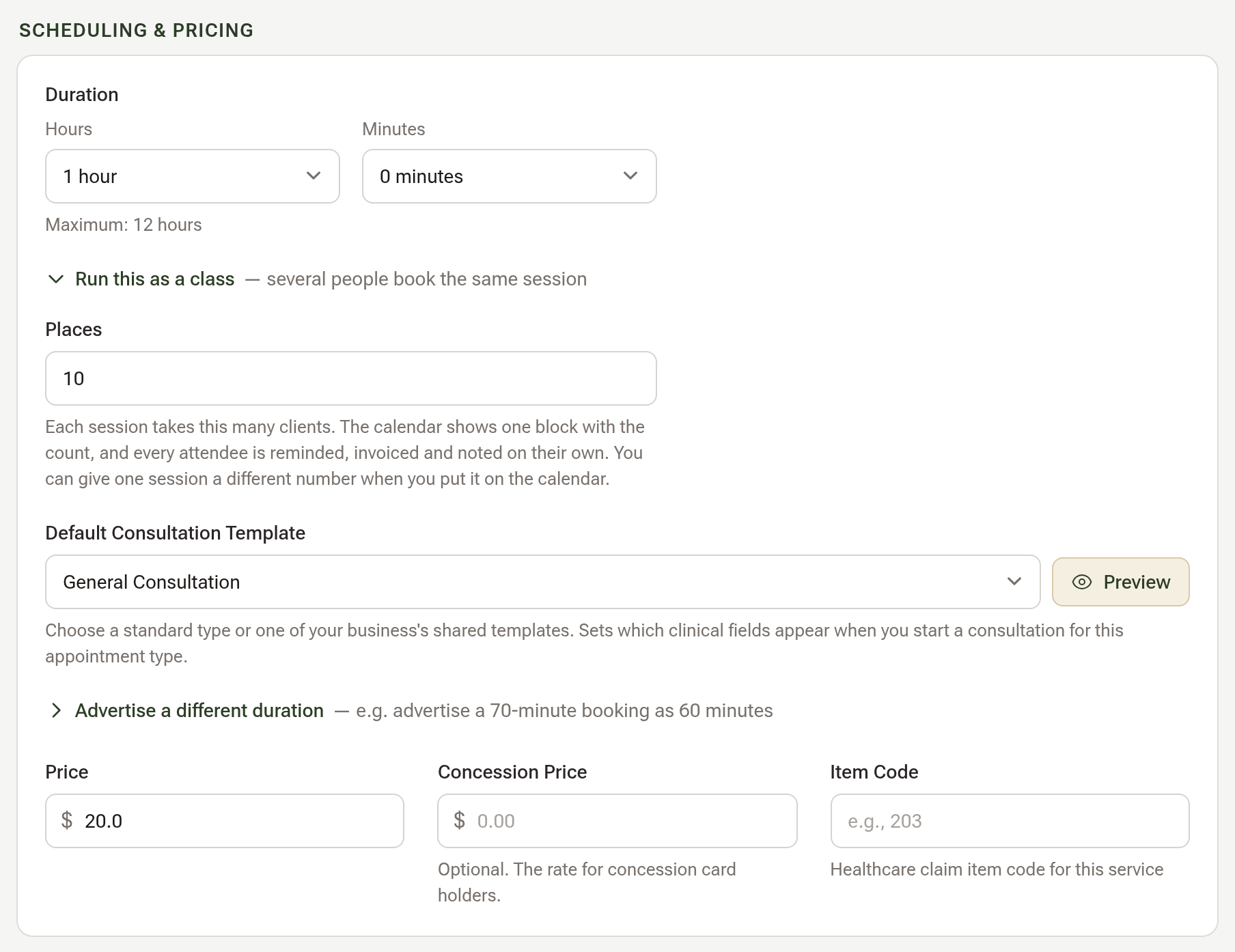
Click Settings, then Appointment Types, and open the type (or click Add Type). Under Duration, click Run this as a class and set Places, the number each session takes. Tick Show in Online Bookings if clients may book a place themselves, then save.
Step 2: Put the sessions on the calendar
Click the time on the calendar. In the New Appointment window choose the class as the Appointment Type: the client search goes, and Places shows the number from the type, which you can change for this session only. To run it every week, tick Repeat this appointment, choose Weekly and how many weeks, and click Create class sessions.
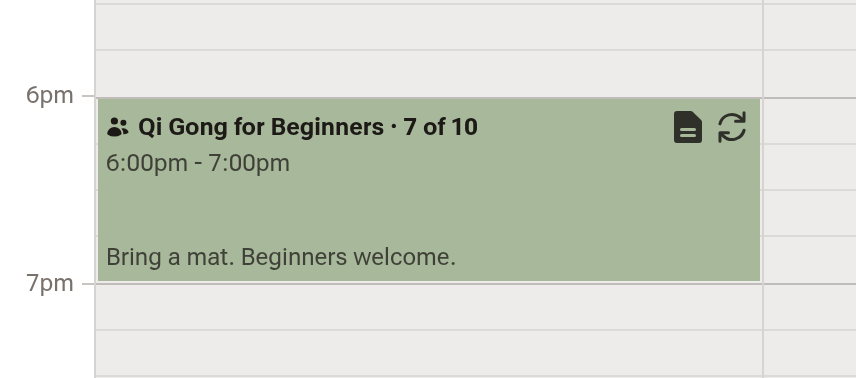
Each session draws as one block reading the class and its count.
Step 3: Add attendees from the calendar
Click the block. The session's window lists the attendees. Click Add attendee, find the client (or + New Client), tick Send intake forms if you want them sent, and click Add to class.
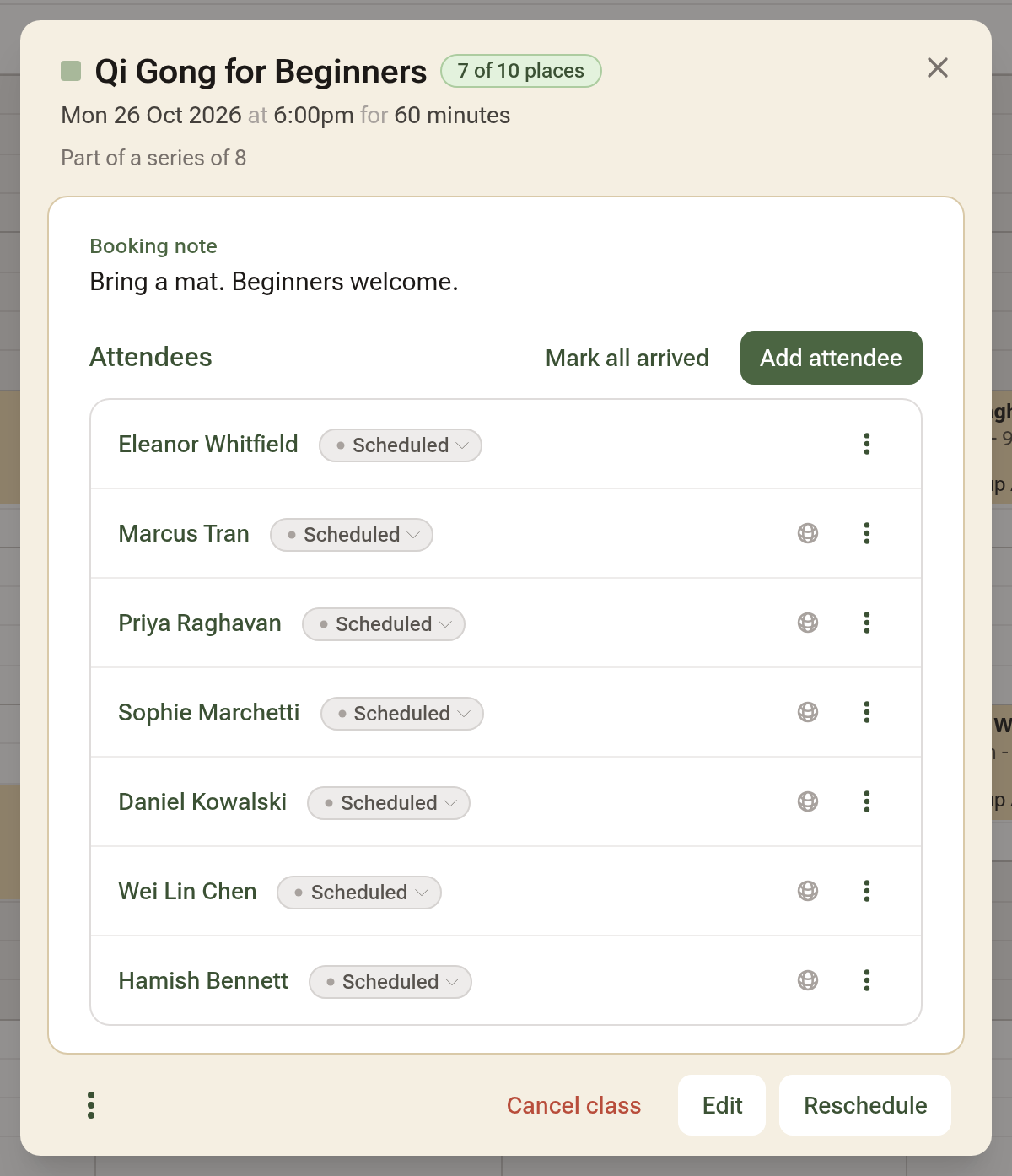
Each attendee's status pill and ⋮ menu work as they do on a single booking: Mark as Arrived, Create Invoice, Cancel Appointment. Mark all arrived marks everyone at once.
Step 4: What clients see online
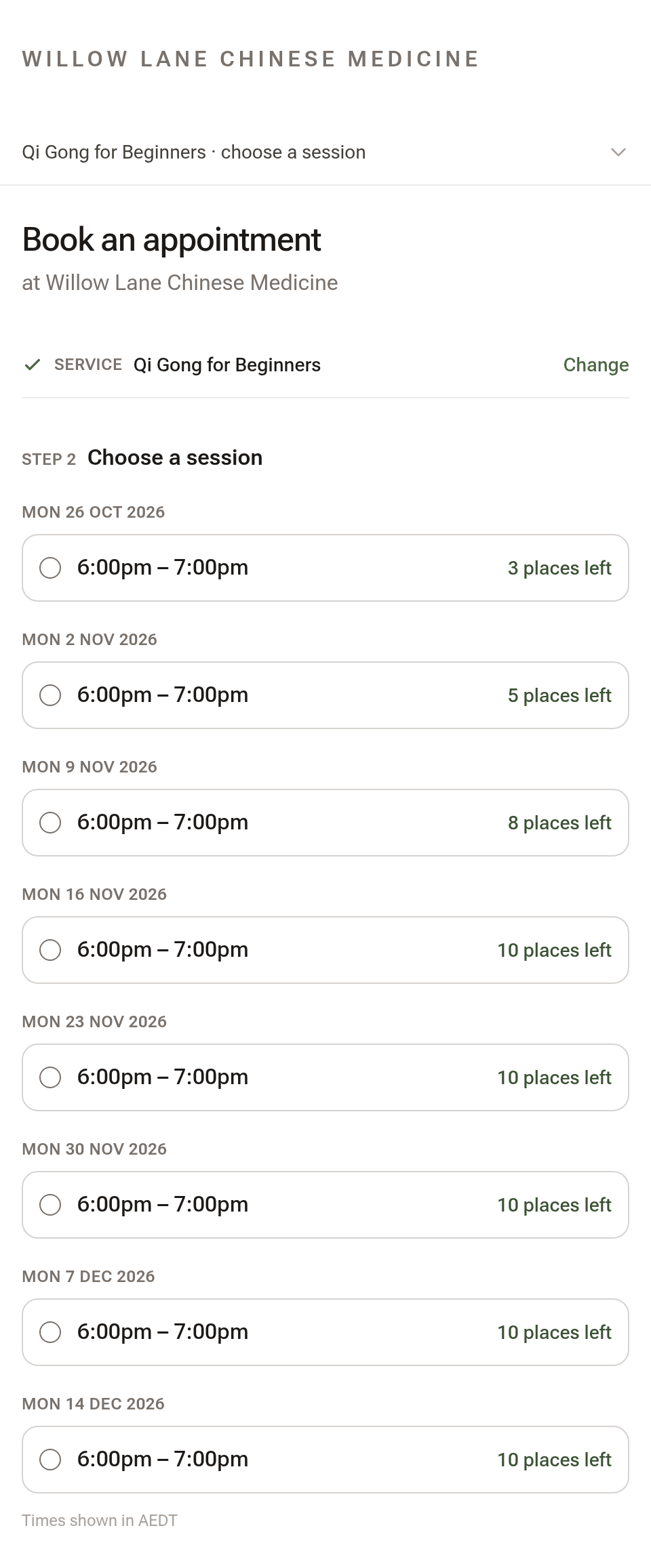
On your booking page the class shows Class · 10 places, and once chosen it lists the coming sessions with the places left instead of a calendar. A full session is listed as Full and can't be picked.
Step 5: Moving or cancelling a session
Drag the block, or Edit it: every attendee moves with it and is told. Cancel class in the session's window cancels the session and every place, and tells each attendee. A session with attendees can't be deleted, only cancelled.
Tips:
- A class is only offered online while one of its sessions is open for booking; create the next block of weeks before the last session runs.
- Deposits, reminders and invoices follow each attendee, not the class: the clinic's booking deposit rule applies to each place.