
Follow-ups
Set a reminder to get back to a client — at the end of a consultation or from their profile — and work through recalls and follow-ups from one list.
Follow-ups
A follow-up is a reminder to get back to a client: ring them about how the new formula is sitting, or check in after a cancellation. You set it where the client is — in a consultation or on their profile — and it waits in the recalls and follow-ups list in Messages → Recalls & follow-ups, alongside the automatic recalls, until someone ticks it off. Nothing pops up and nothing is sent to the client.
Step 1: Set one in a consultation
While writing a note, click "Remind me to follow up" at the bottom left of the note, across from Save as Draft. Pick 3 days, 1 week, 2 weeks or 1 month — or "More" for tomorrow, the next few days by name, 6 weeks, 3 months or any date — add a time if you like, type one line, and click "Set reminder".
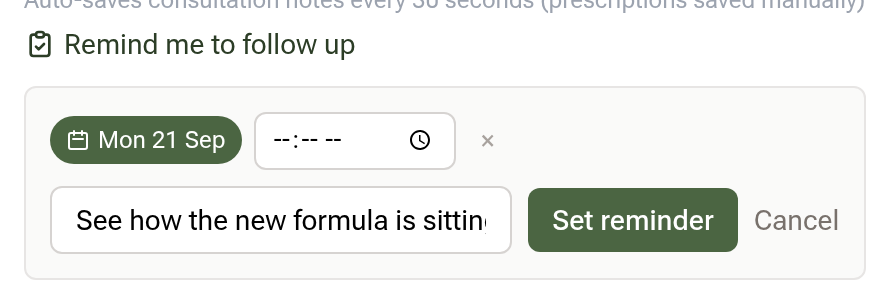
It confirms in place — "Follow-up set for Fri 18 Sep" — and never gets in the way of saving or finalising the note.
Step 2: Or set one from the client's profile
Open the client and click "Recalls & follow-ups" in the profile menu. The line at the top says where this client stands on recall: booked in, due, or the next date it falls due, worked out from their last visit and the recall interval on its appointment type. Below it, type into "Follow up with … about…", tap a date chip if you want one, and press Enter.
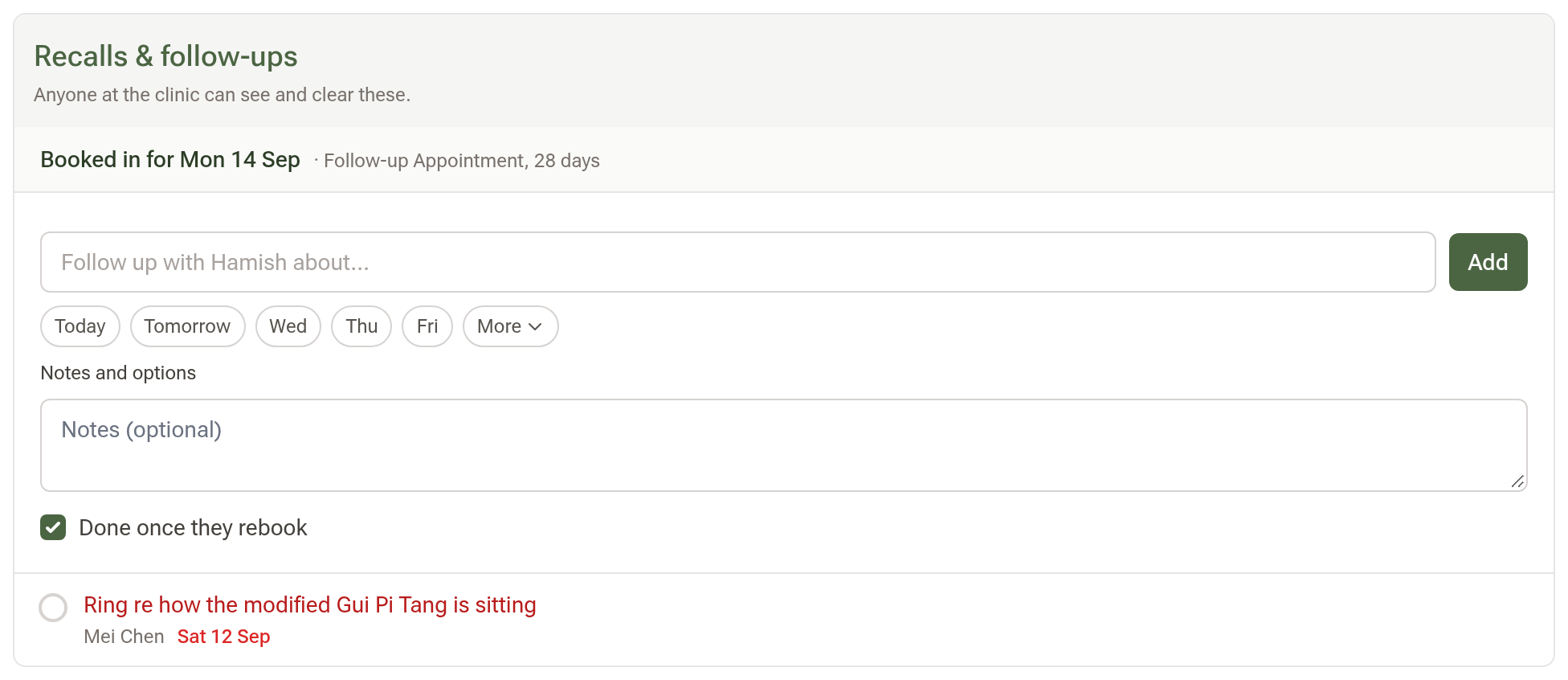
Open "Notes and options" for a notes box and the "Done once they rebook" tick box. Leave it ticked for a "check in after cancelling" follow-up — it completes itself the moment the client is booked in again. Untick it for a clinical check-in that should stay until you have actually done it.
Everyone at the clinic sees a client's follow-ups on their profile, and anyone can tick one off.
On the profile, tick the circle to mark one done, click the text to edit it in place, click the date to change or clear it, and use the cross to remove one. Completed ones sit under "Past follow-ups" with an "Undo" link.
Step 3: See what has fallen due
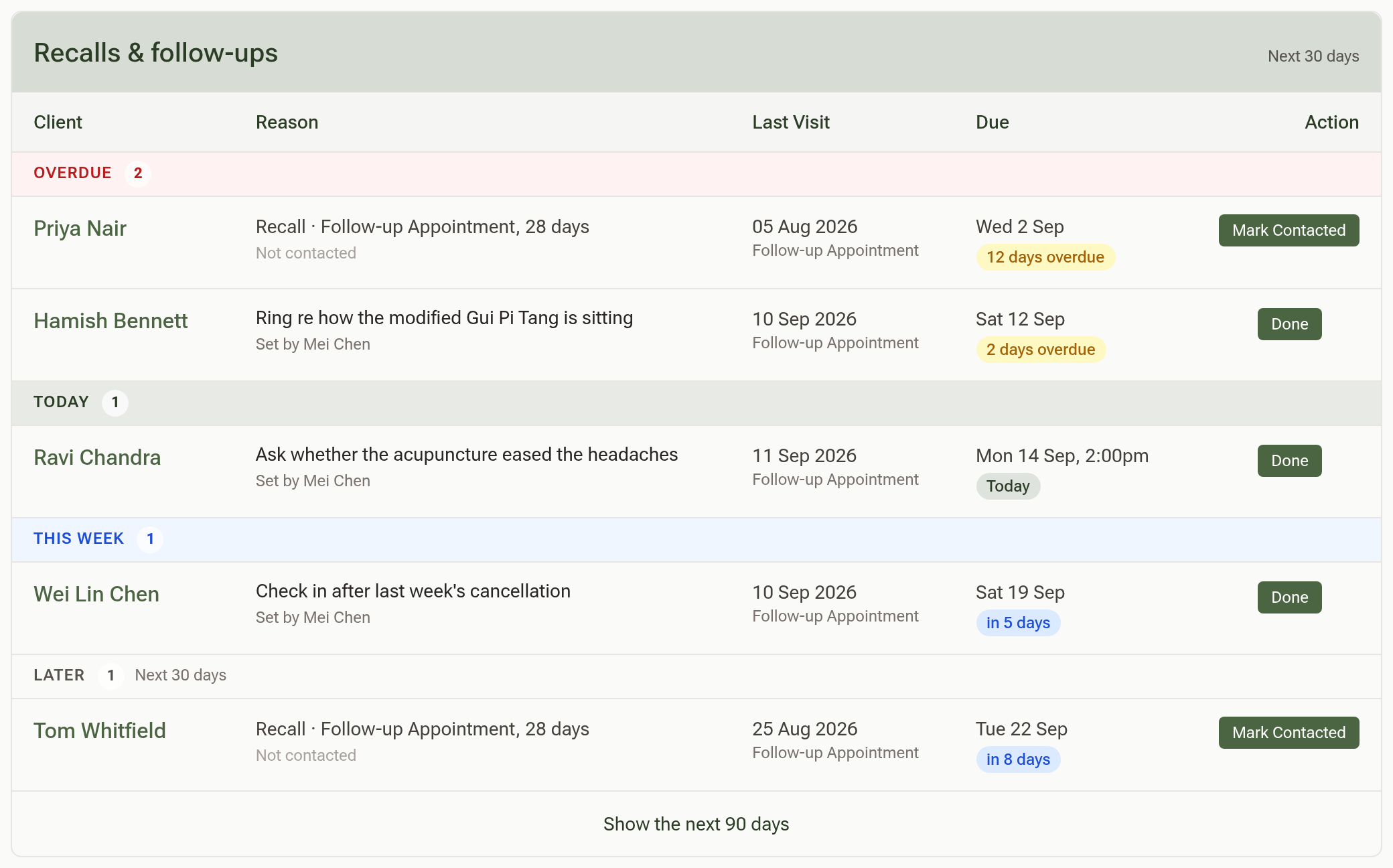
Click "Messages" in the sidebar, then "Recalls & follow-ups". Everything to get back to is there, in one list.
The "Clients" page has a way in too: whenever anyone is due for recall or a follow-up is waiting, a "Recalls & follow-ups" pill sits above the client list. Its red number is who is waiting on a message now: recent cancellations, regulars who drifted, and what is overdue or due today; it shows no number while everything is still ahead. Clicking it opens the same list.
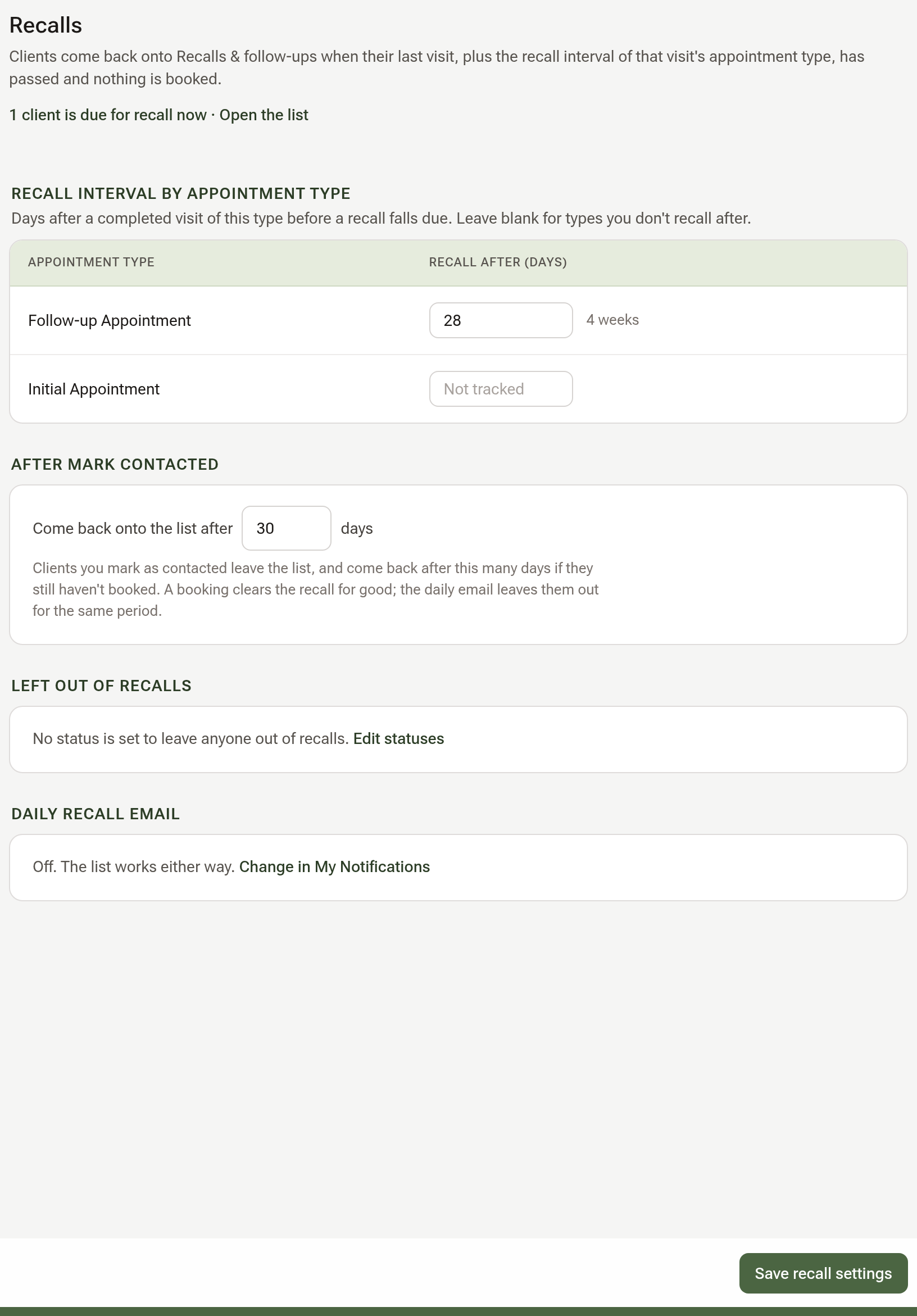
Recalls only appear once an appointment type has a recall interval. An owner or admin sets these once, in Settings → Practice Info → Recalls: type a number of days beside each appointment type you recall after (28 reads as "4 weeks"), leave the rest blank, and click "Save recall settings". The same page sets how long Mark Contacted keeps a client off the list, shows which patient statuses are left out of recalls, and says how many clients are due right now.
Two bands open the list: Cancelled, nothing rebooked and Haven't been back (regulars last seen 3 to 12 months ago). Recalls and follow-ups follow in time order: Overdue, Today, This week, Later and Anytime (follow-ups with no date). A recall row reads "Recall · Acupuncture, 28 days": that client's last visit plus the recall interval on its appointment type has passed, and nothing is booked. A follow-up row shows what was typed and who set it. Every row ends with icons to text, email or book them, and a tick.
- The tick on a follow-up marks it done. Click its text to edit it in place, or click its date to change or clear it.
- The tick on a recall (Mark Contacted) records that you have reached out, and how: Phone, Email, SMS or In person. The client then drops off the list for 30 days, or whatever you have set under After Mark Contacted in Settings → Practice Info → Recalls. If that passes and they still have nothing booked, they come back onto the list by themselves, reading "Last contacted 31 days ago". A booking clears the recall for good.
- The small line at the foot of the list, "1 contacted in the last 30 days · Show", brings those clients back into view in a Contacted band, each with an "Undo" in case you marked the wrong one.
- Show the next 90 days at the foot looks further ahead. Export PDF, beside it, prints the list you are looking at.
Tips:
- The Later band covers the next 30 days until you widen it.
- If the daily recall email is on (Settings → Notifications & Templates → My Notifications → Daily Recall Email), owners and admins get the same overdue recalls and due follow-ups each morning. The list works whether it is on or not.