
Running a dispensary
Turn on the Dispensary for a clinic where several practitioners prescribe and one dispensary makes up their prescriptions, say how each prescription is to be made up, and work the queue and the bench.
Running a dispensary
The Dispensary is for a clinic where several practitioners prescribe and one dispensary makes up their prescriptions. One switch turns it on. With it off, nothing changes for anyone.
Step 1: Turn the Dispensary on
Click Settings, open the Clinical Resources tab and click Dispensary. Tick Our clinic runs a dispensary, then tick what your dispensary offers: We decoct for patients (and choose the usual under it), We post medicine to patients and We take urgent orders. Click Save.
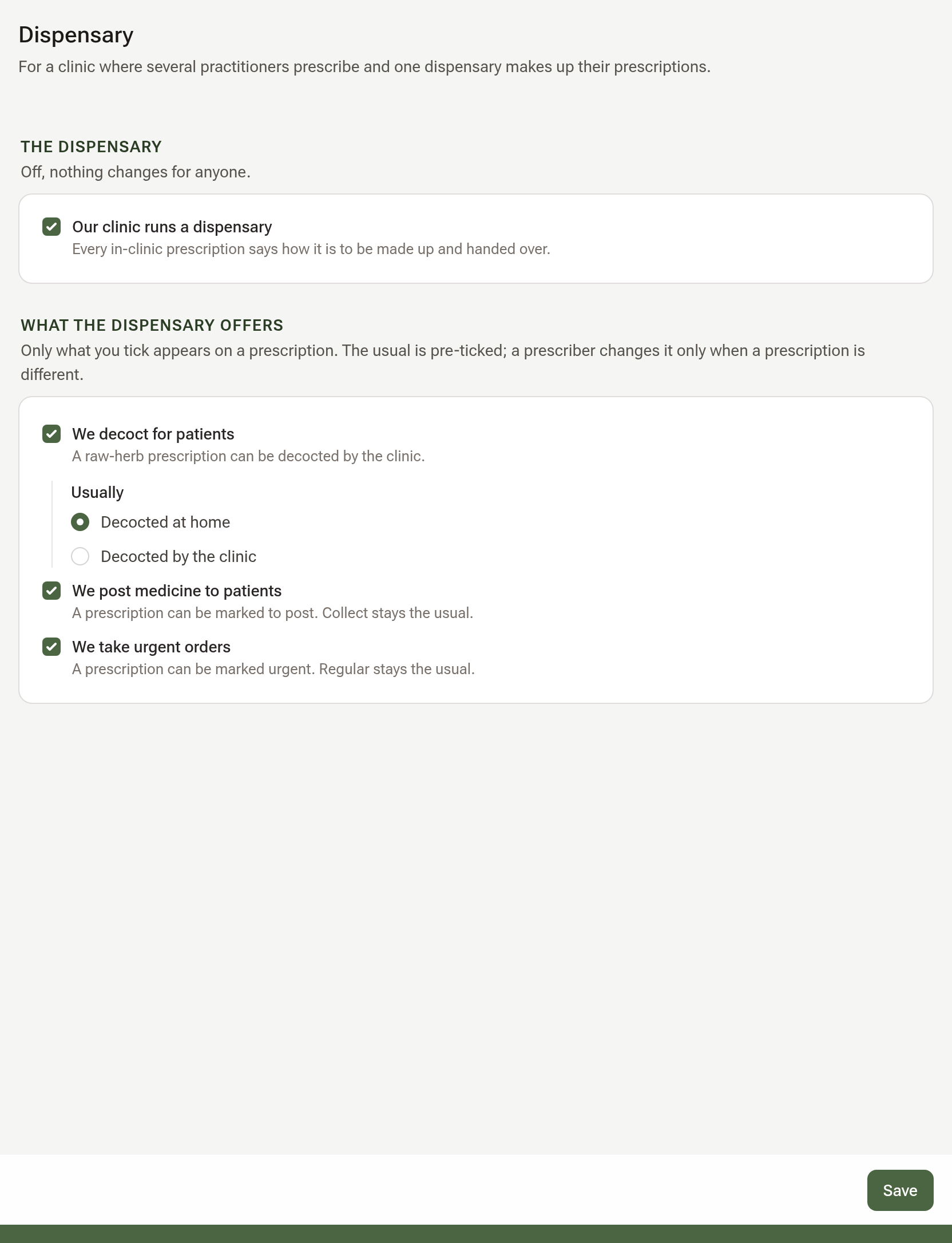
Only an owner or admin sees this section.
Step 2: Say how each prescription is to be made up
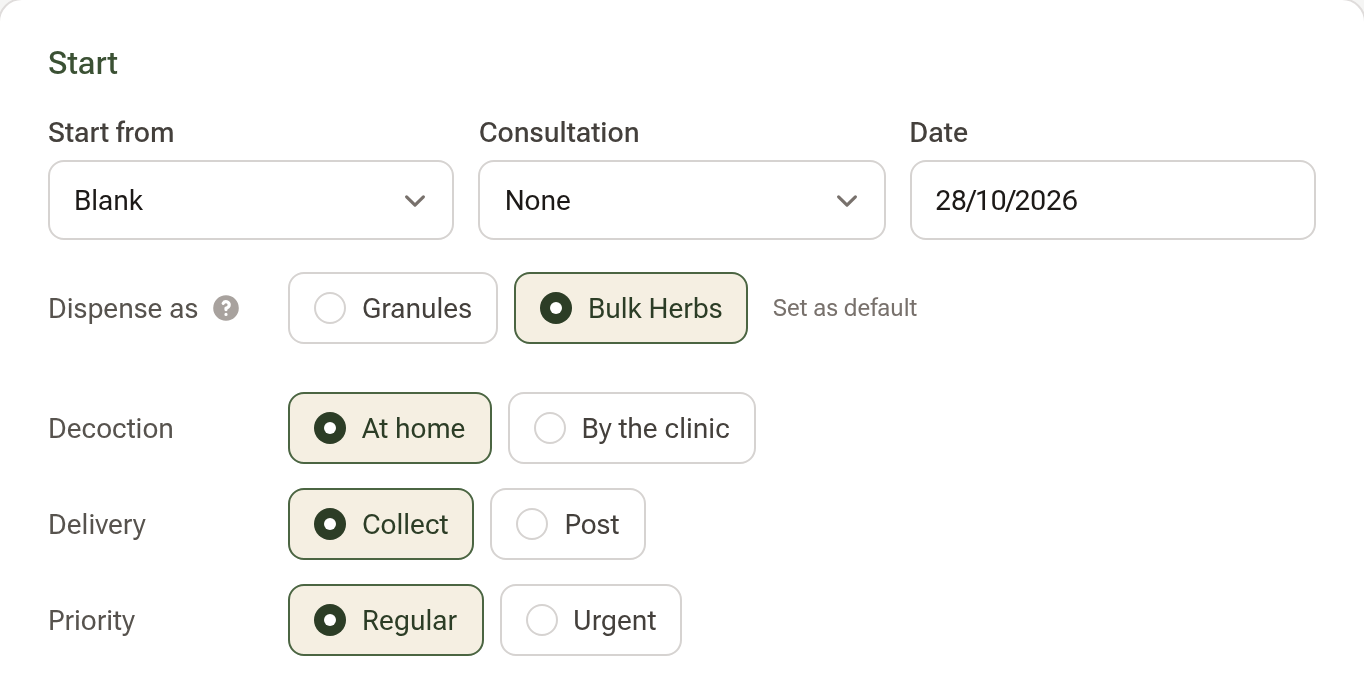
In the prescription builder's Start part, under Dispense as, the rows Decoction, Delivery and Priority now appear, each with your usual already ticked. Change a row only when this prescription is different. Decoction shows for Bulk Herbs only.
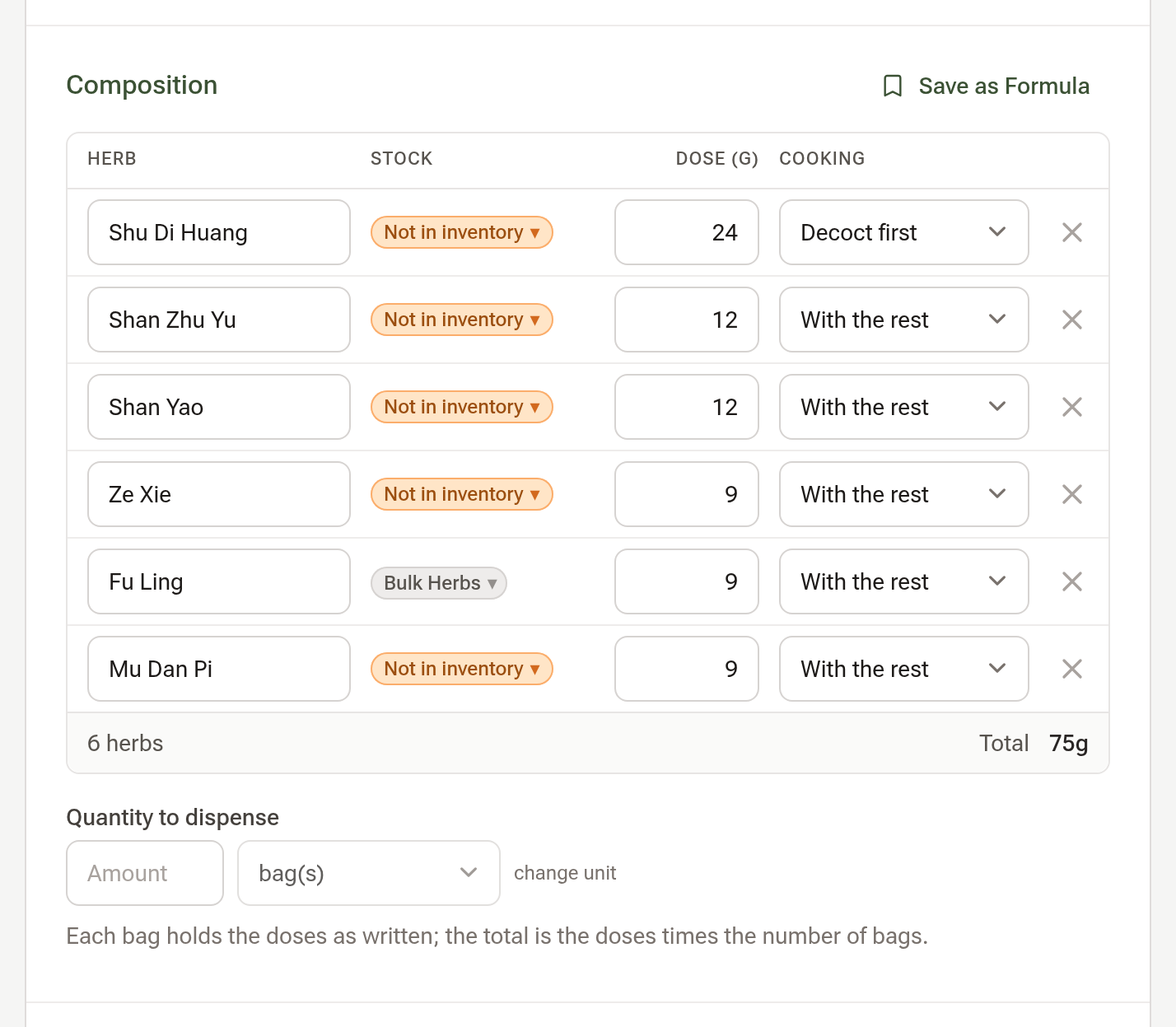
For bulk herbs, each line of the Composition also has a Cooking choice: Decoct first (先煎), Add near the end (后下), Decoct in a bag (包煎), Decoct separately (另煎), Melt in (烊化) or Take with the liquid (冲服). Leave it on With the rest for a herb cooked with the others. The note shows on the bench and prints on the raw-herb sheet and the label.
Step 3: Work the queue
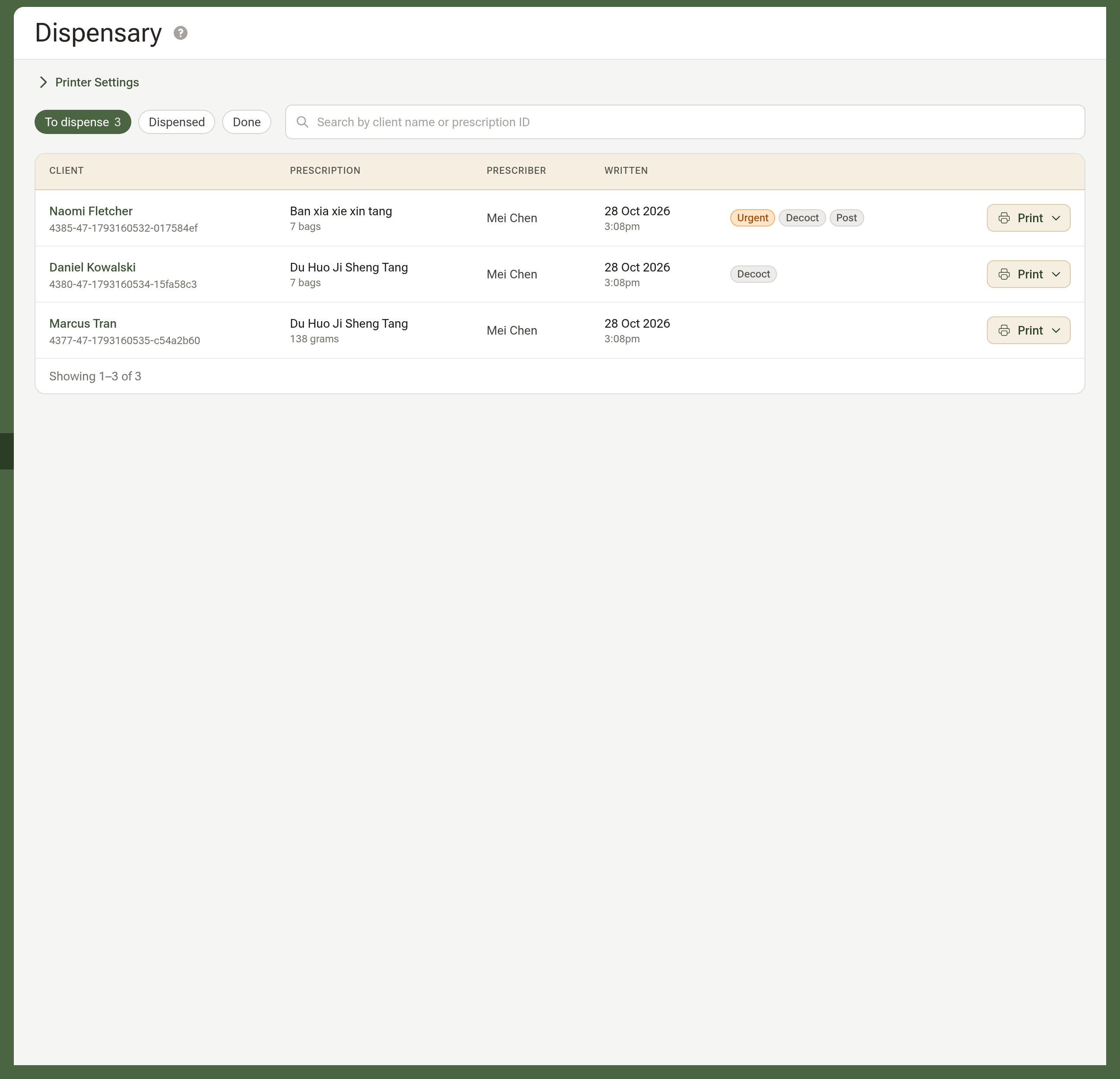
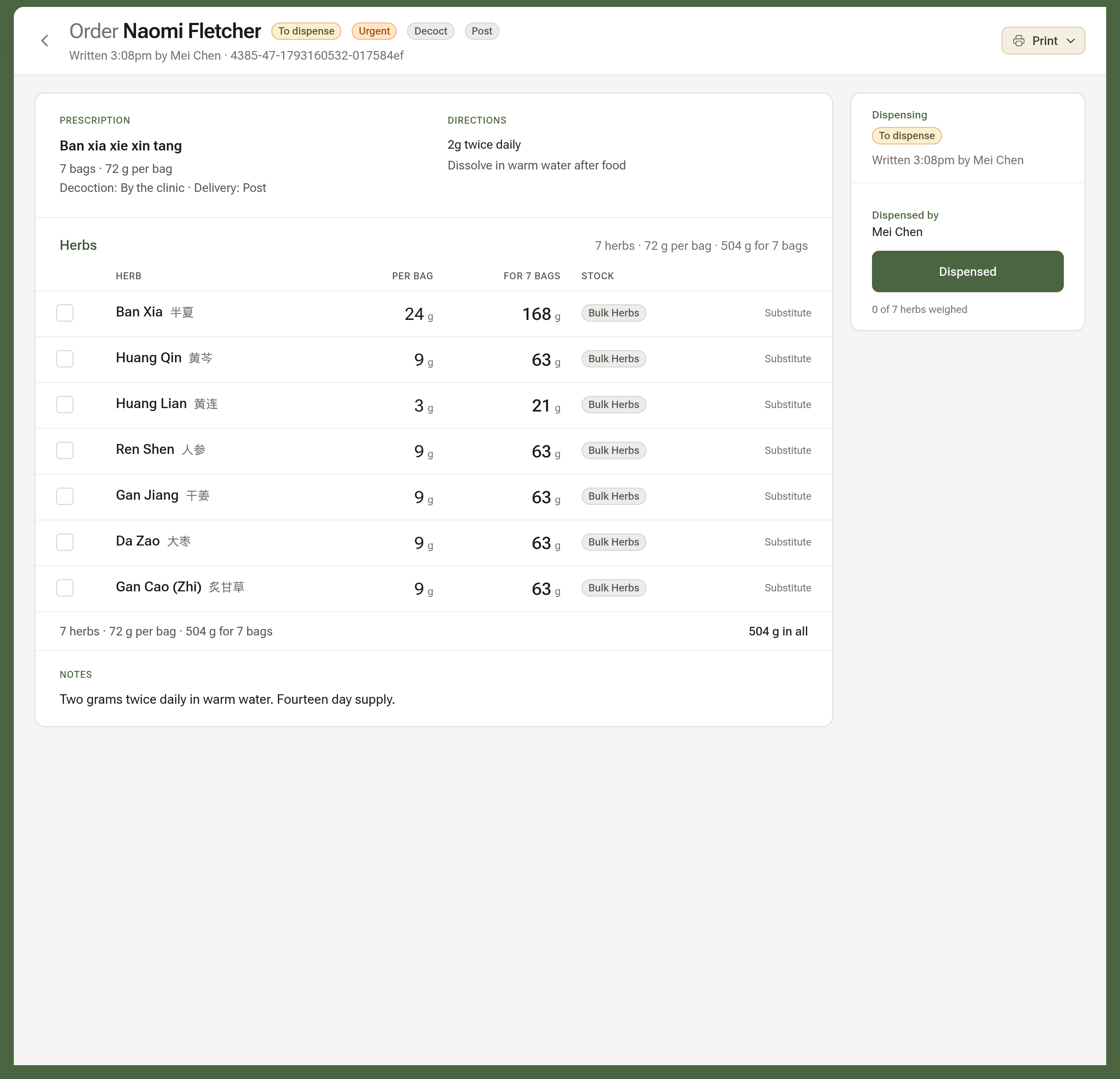
The sidebar's Print item now reads Dispensary. To dispense lists the orders not yet made up, urgent first, then oldest first. Urgent, Decoct and Post mark the exceptions; a regular order to be collected carries no mark. Click the patient's name to open the order.
Step 4: Make up the order at the bench
The order's page lists the herbs with the grams per bag and for the whole order. Tick each herb as you weigh it. If a herb is out, click Substitute on its line, pick the herb you dispensed instead and give the reason. When the order is made up, click Dispensed. If you aren't registered to dispense, choose who checked it under Checked by first.
Step 5: Print the label and hand it over
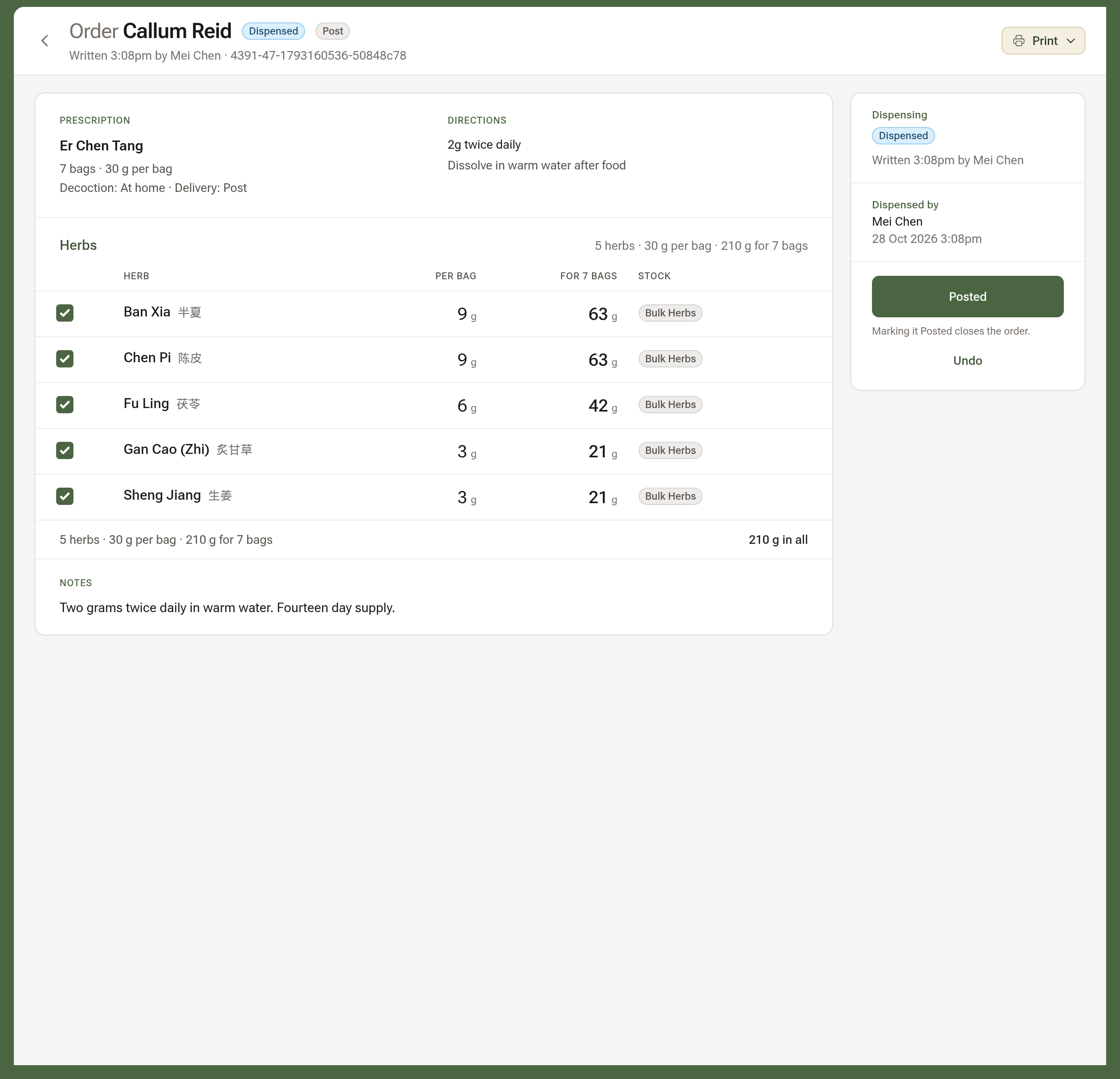
Print the label from the Print menu after marking the order dispensed: it then names who dispensed it, their AHPRA number, the prescriber if that was someone else, and the date dispensed. Once the order is dispensed, the button becomes Collected or Posted, according to the order's delivery choice; the same button sits on the order's row under the Dispensed chip. Click it when the patient takes the medicine or once it is sent. Undo takes either step back after a mis-tap.
Tips:
- To let a practitioner or receptionist work the bench, tick Can dispense prescriptions in the Role & Access section of their team-member page. The tick only appears while the Dispensary is on.
- The order's facts on the consultation and the client's Prescriptions list show who dispensed and checked it, and when it was collected or posted.