
Billing WorkCover and Other Funders
Bill WorkSafe, WorkCover, an insurer or an aged care provider under a claim: the funder as a contact, the claim on the patient's case, and invoices that carry the claim number, your provider number and the patient's details.
Billing WorkCover and Other Funders
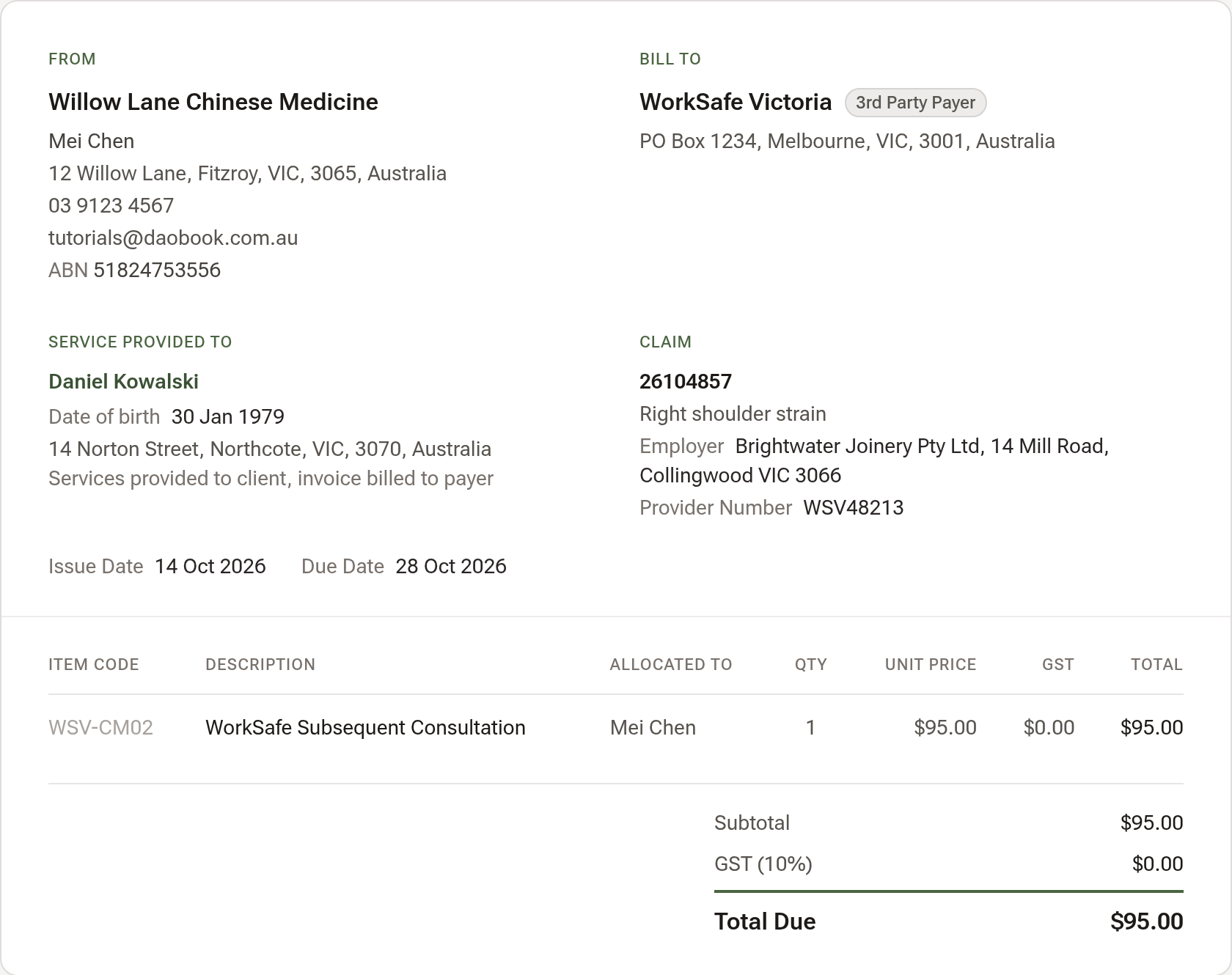
When a funder such as WorkSafe, WorkCover, an insurer or an aged care provider pays for a patient's treatment, Daobook bills them under the claim. The claim lives on the patient's case, and every invoice for the case's visits goes to the funder with the claim number, your provider number with them, the employer and the patient's date of birth and address.
Step 1: Add the funder as a contact
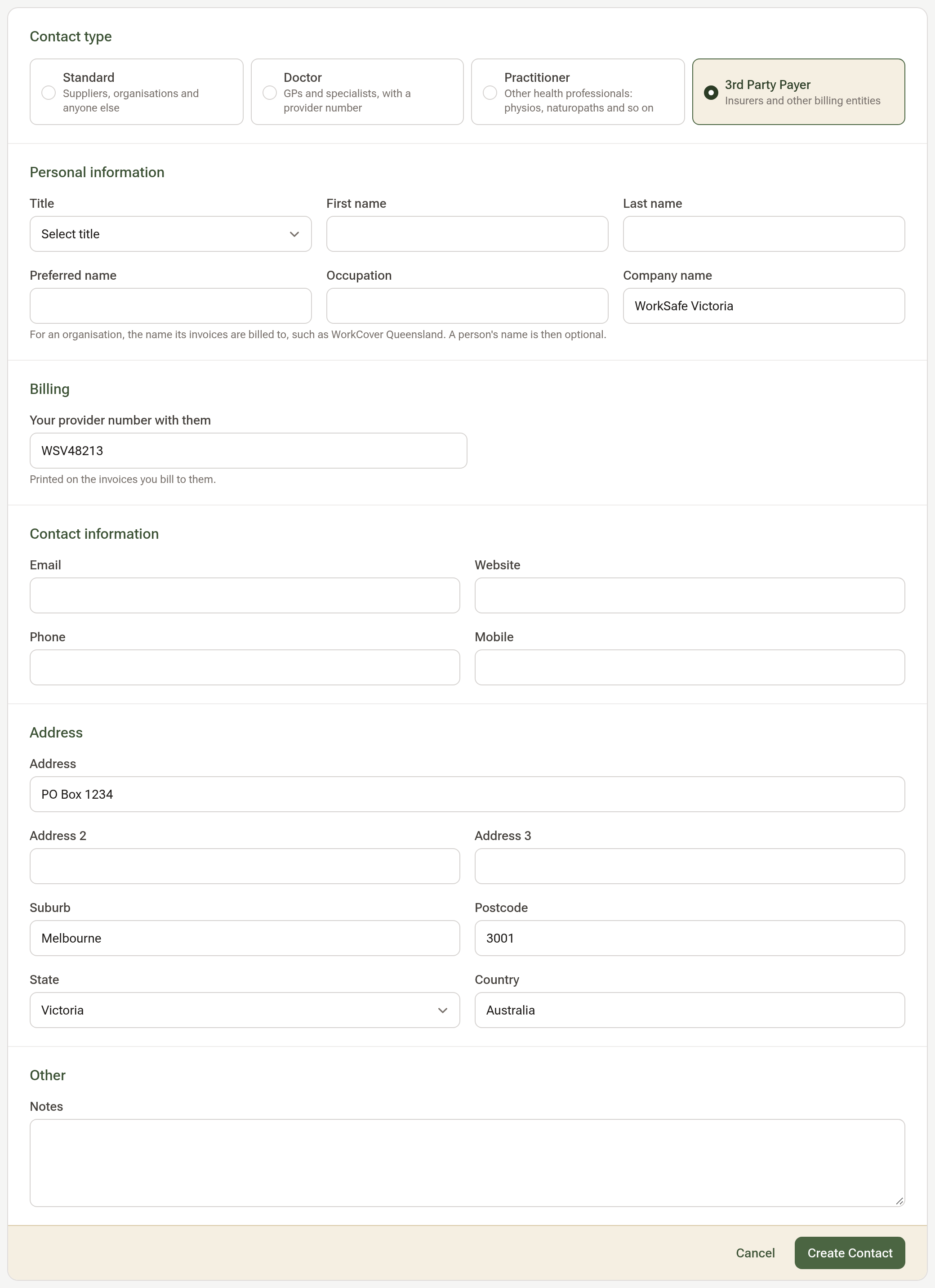
Click Contacts in the sidebar, then New Contact, and choose 3rd Party Payer. Fill in Company name with the name the funder's invoices go to, and the postal address they gave you. A person's name is optional; if you add one, it prints under the company as "Attention:". Under Billing, enter Your provider number with them, which prints on every invoice you bill to them under a claim. Click Create Contact.
Step 2: Set up the funder's appointment types
Open Settings and click Appointment Types. Make one type for each service the funder pays, such as an initial and a subsequent consultation. Give each the funder's fee as its price and the code from the funder's fee schedule in Item Code, which prints on the invoice line. Untick Show in Online Bookings so patients can't book them online.
Step 3: Check the patient's details
Funders identify the patient by name, date of birth and address. Open the patient's Details and make sure their date of birth and home address are filled in; both print on every invoice an organisation pays.
Step 4: Open a case for the claim
On the patient's profile, click Cases, then New case. Name it for the injury and set Planned sessions to the number of sessions approved. Under Billing, choose the funder in Who pays, then fill in Claim number, Employer and Employer's address. Click Create case.
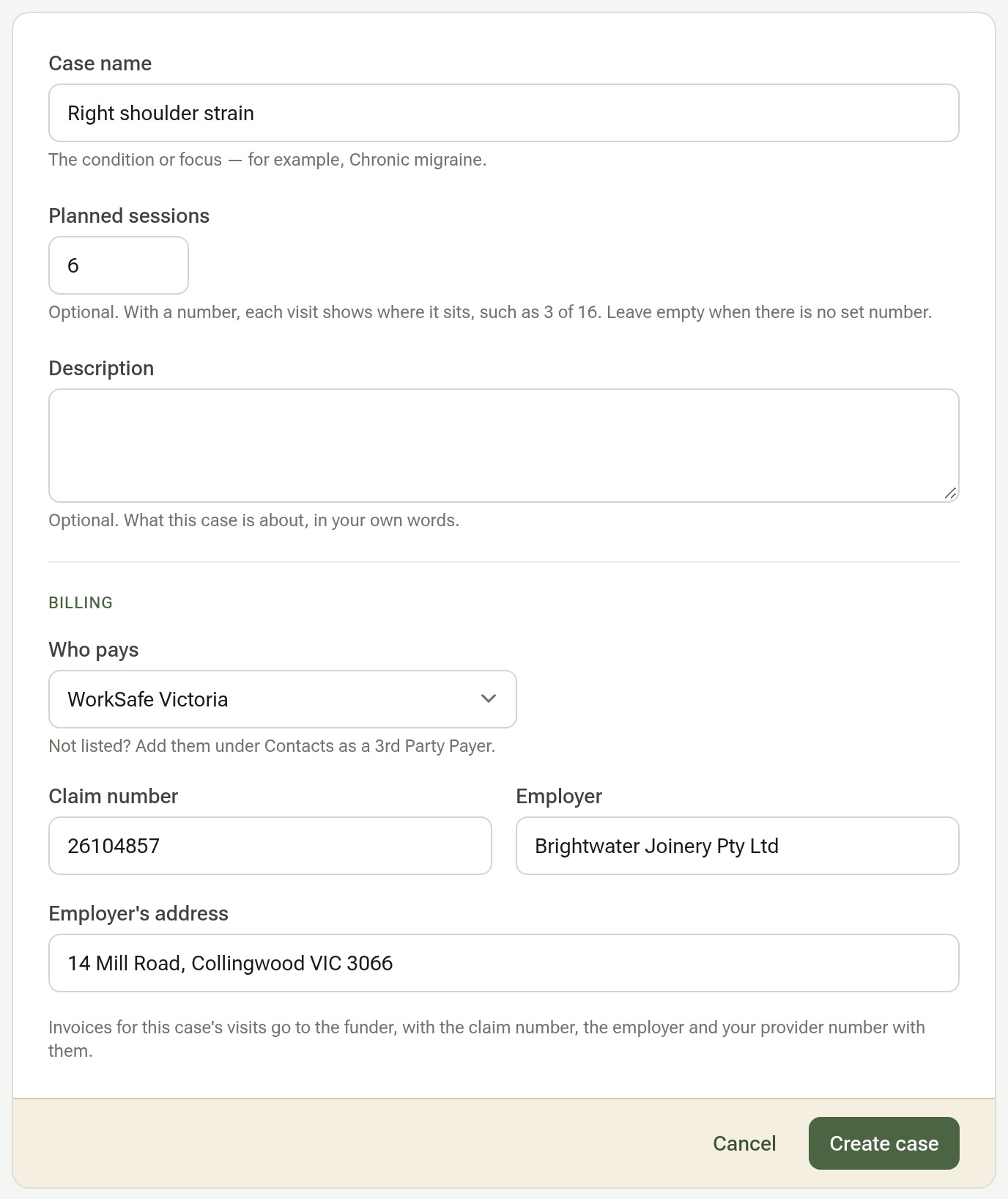
The case's page now says who is billed, with the claim number and the employer, under its title.

The Billing part only appears once you have a 3rd Party Payer contact. Planned sessions is a plan, not a limit: Daobook won't stop or warn you once the visits pass the number approved.
Step 5: Book the visits into the case
Book each visit as usual, and tick the case with the + Case pill under the patient's name in the booking window. Each visit then shows where it sits in the claim, such as 3 of 6.
Step 6: Invoice the visit
Create the invoice from the visit as you normally would. It opens billed to the funder under the claim, even if the patient has a default payer. Once it's saved, the invoice shows the claim beside Service Provided To: the claim number, the case, the employer and your provider number with them. The patient's date of birth and address sit under their name, and each line carries its item code.
Step 7: Put the herbs on a second invoice
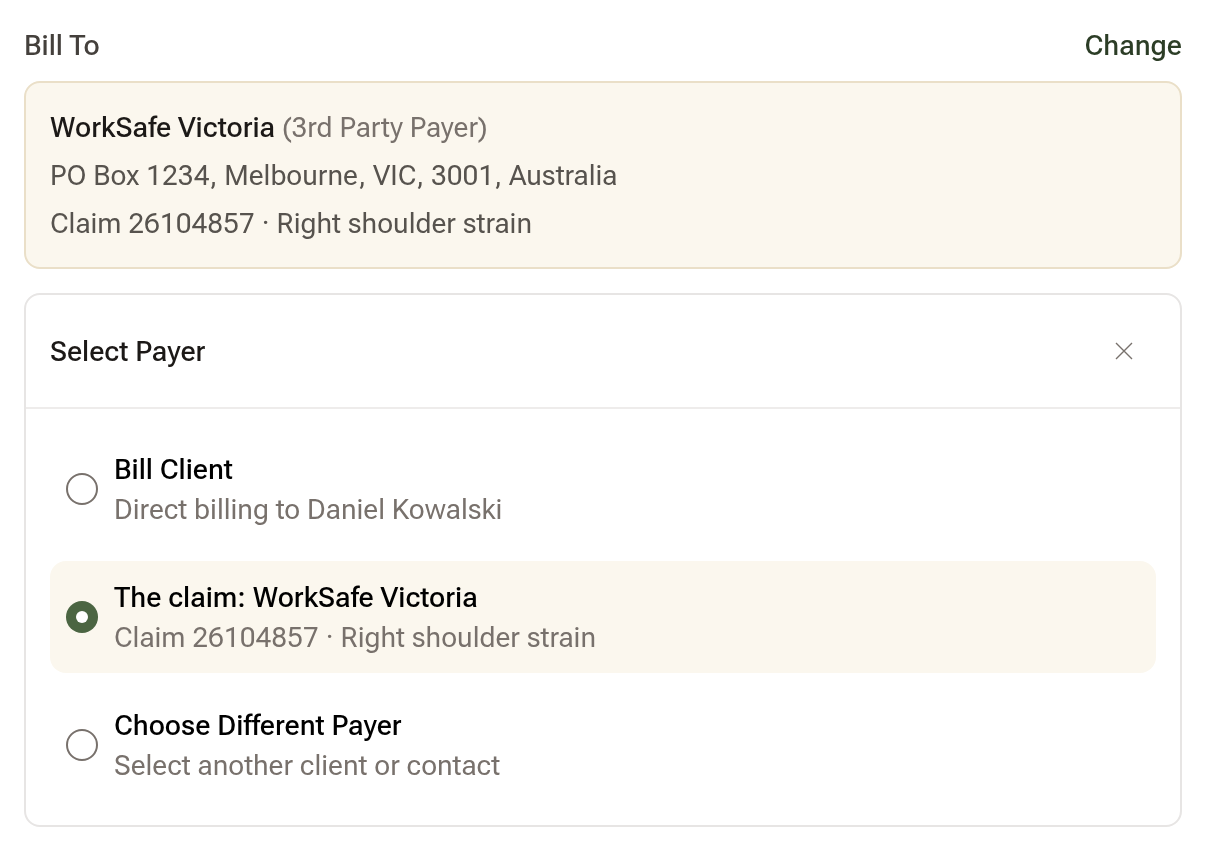
If the funder pays for the treatment but not the herbs, create a second invoice for the same visit with the herbs on it. It opens on the claim too, so click Change beside Bill To and choose Bill Client. Choosing The claim: WorkSafe Victoria puts an invoice back on the claim.
Step 8: Send it to the funder
Click Download PDF on the invoice and send it to the funder, or enter it in their own portal. Daobook doesn't connect to WorkCover Queensland's Provider Connect or to any funder's electronic invoicing.
Step 9: Write a progress report
On the case's page, open the ⋯ menu and click Write a letter, then pick the Progress Report template. It fills in the claim number, who pays, the employer and the sessions so far, and leaves the treatment and plan for you to write. If it isn't in your list, click Load Starter Templates under Messages → Templates.
Tips:
- The Work Injury intake form template asks the patient about the injury, their employer and claim, their doctor and their pain. Choose it with Use Template when you add an intake form.