
Herb Inventory: Stock, Batches and Expiry
Track what your dispensary is holding, what it cost and when it expires — herb stock, formula batches, and the alerts that tell you before you run out.
Herb Inventory: Stock, Batches and Expiry
You don't need inventory to record prescriptions. That works from the day you sign up — the formula and herb libraries are already there. Inventory is the step beyond: it tracks how much stock you're holding, what it cost you, and when it expires.
Products are already on
Products cover anything you sell whole — patent herbs, an exercise band, a bottle that leaves the clinic unopened. Add them under Inventory → Products. Stock comes off when the invoice is paid, or when you add the product to a prescription. Selling them is covered in Selling Herbs & Formula Batches on Invoices.
Step 1: Turn on herb material inventory
Go to Settings → Clinical Resources → Inventory Settings, and under Herb Material Inventory tick the types you actually track: Granules, Bulk Herbs, Powders, Tinctures. Only the types you select appear in your inventory, your expenses and the prescription builder.
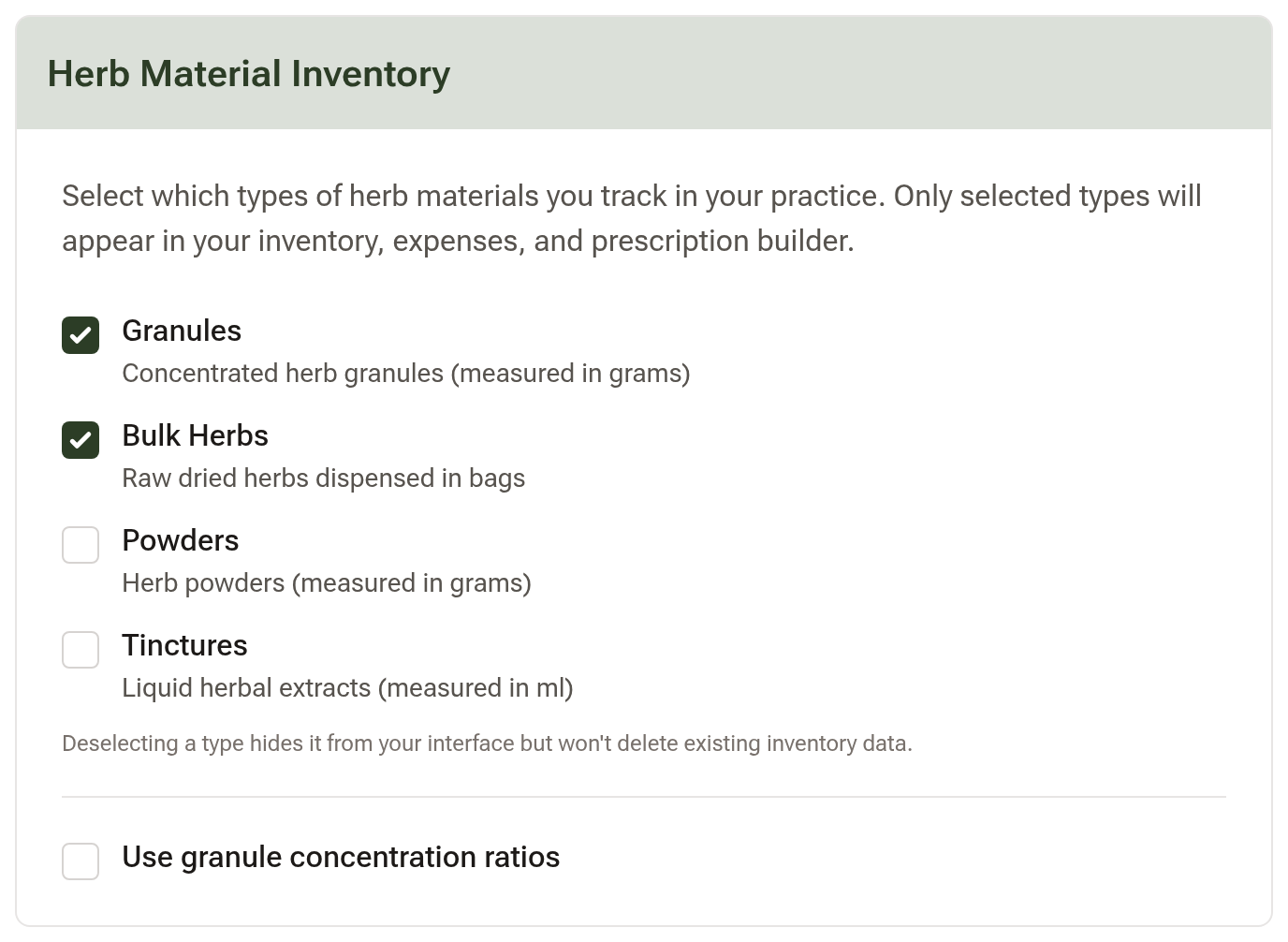
Save, and two new sections appear under Inventory: Herbs and Formula Batches.
Deselecting a type later hides it from your interface — it doesn't delete the stock data behind it.
Step 2: Stock your dispensary
Go to Inventory → Herbs, open the ⋮ menu at the top and choose Bulk Add. Search each herb, enter how many grams you're holding, and add the cost if you know it. Costs can be filled in later.
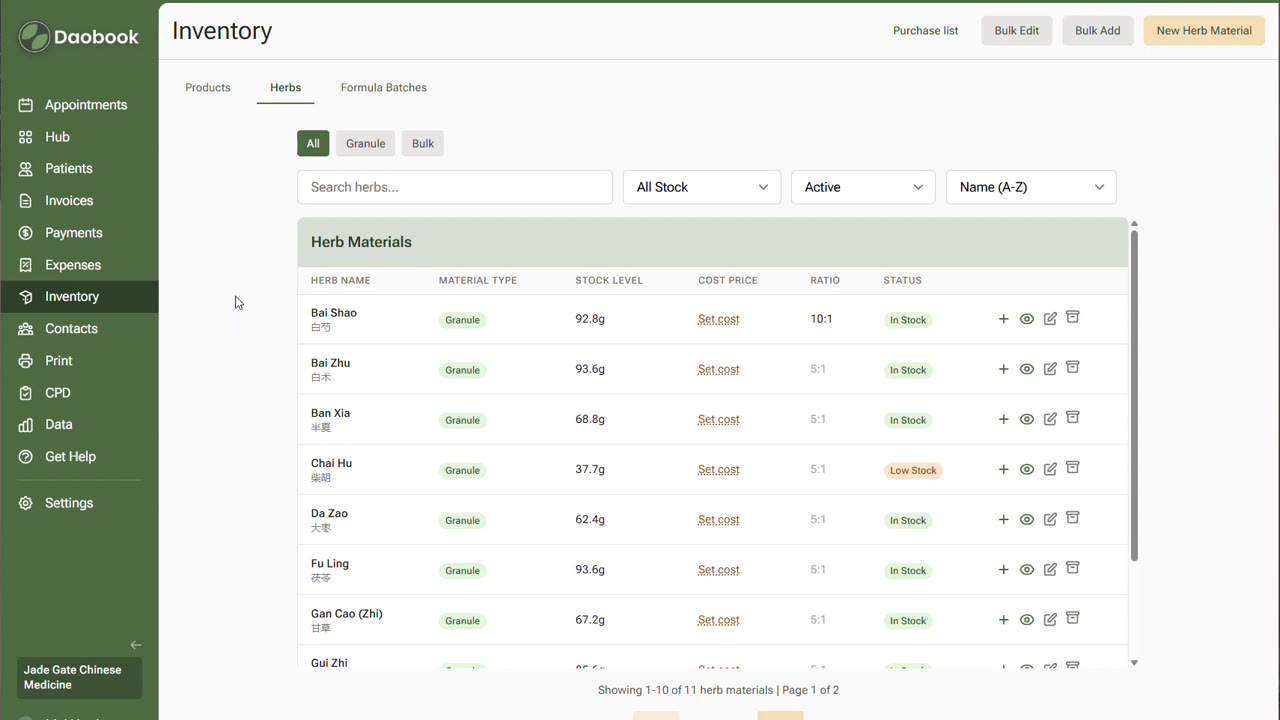
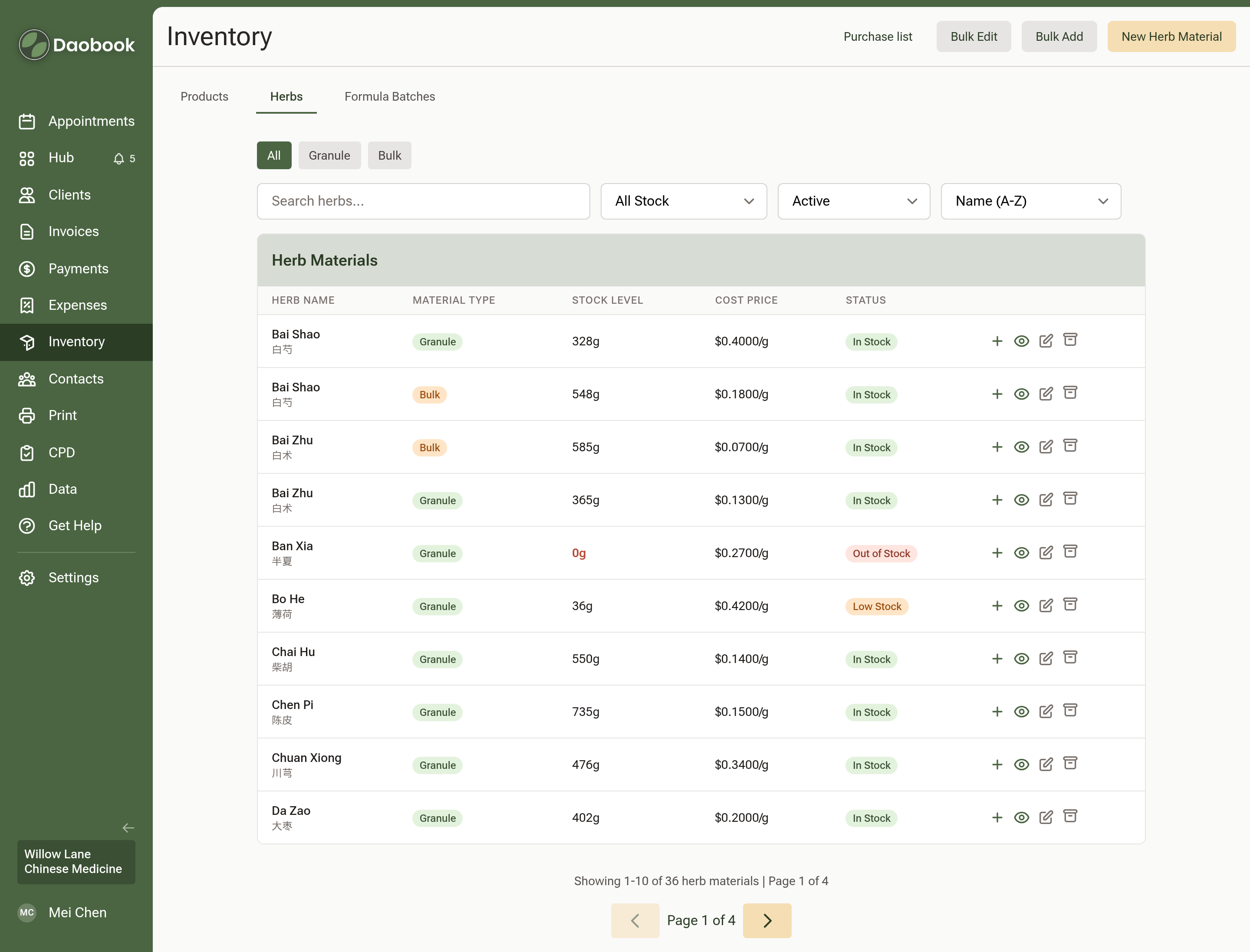
Each herb then sits on the list with its Chinese name beneath the pinyin, its material type, what you're holding and what it costs you per gram. The status column is the one to watch — it marks anything low or out before you find out mid-consultation.
Step 3: Prescribe, and watch stock come off
Build a prescription as you normally would. With inventory on, the builder's Start part asks which form you Dispense as, and each line's Stock column says what is on the shelf. Set the quantity and the Inventory impact panel beside the builder shows current stock against projected. Choose Create & dispense, and the herbs come off your shelf.
Step 4: Concentration ratios
If you dispense granules, Use granule concentration ratios in Inventory Settings lets you set a Default granule extract ratio — 5:1 for most dispensaries — and any individual herb can override it. A prescription then calculates each herb against its own ratio, and the label prints the ratio it used.
This has its own walkthrough: Granule Concentration Ratios.
Step 5: Formula batches
A batch is different from a product. If you sell a whole unopened bottle, that's a product. If you're dispensing portions out of a pre-made bottle, or mixing several formulas together, that's a formula batch.
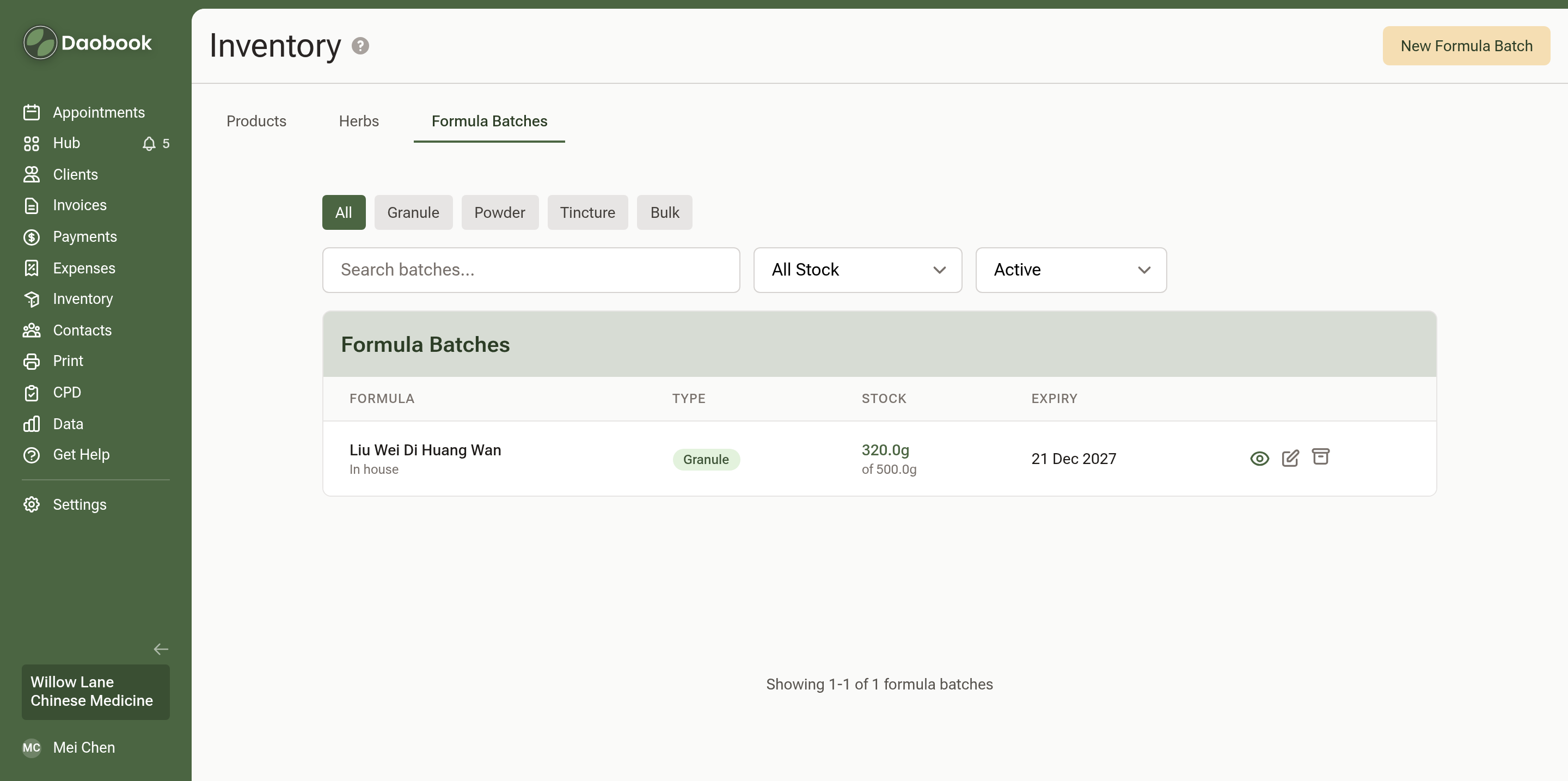
Go to Inventory → Formula Batches → New Formula Batch. If you're making it in-house from your own herb stock, say so, pick the batch type and size, and choose the formula. Creating the batch deducts every herb that went into it.
The batch then carries how much is left of what you made, and when it expires.
Step 6: Prescribe from a batch
Search the formula in the prescription builder and the batch appears as an option alongside it. Pick it, add any single herbs on top, and enter your total. Daobook works out exactly how many grams come from the batch and how many from each single granule. The saved prescription and the printed label both show the batch portion broken down into the herbs inside it.
Step 7: Keep stock current
When a delivery arrives, click Receive stock at the top of any Inventory tab and photograph or drop the invoice that came in the box. Daobook reads every line and matches it to your stock cards; check the grams and prices against the paper, then Apply delivery puts it all on your shelf at once.
To record the purchase in your books as well, use an expense instead: New Expense, upload the supplier invoice or receipt, let AI pre-fill the fields, and check the stock items it found. Creating the expense updates your stock. See Recording Expenses.
For a one-off correction, adjust the stock on a herb directly.
Step 8: Stay on top of it
Data → Inventory gives you Stock on Hand and Stock Alerts, which lists the items needing attention. Low stock thresholds are set in your inventory settings.
And under Settings → Notifications & Templates → My Notifications you can turn on stock alert emails, so low and expiring stock come to your inbox instead of you having to go looking.