
Building a Herbal Prescription
Start from a classical formula, add or adjust individual herbs, scale the whole script to the amount you are dispensing, and save it to the client record.
Building a Herbal Prescription
The prescription builder works the way you'd write a script on paper: start with a formula, adjust it, add what's missing. Daobook keeps the composition, the name and the dispensing amounts in step as you go.
Step 1: Open the builder
Open the client, click Prescriptions in their profile menu, then New Prescription.

The builder opens with Start: three settings before you build.
- Start from — pick an earlier script to repeat, or leave it on Blank.
- Consultation — attach this prescription to a visit, so it shows on that consultation as well as in the client's prescription list.
- Date — today's date, unless you're recording something after the fact.

Step 2: Start from a formula
Under Formula, type into Add a formula. Pin Yin or the abbreviation both work — "Liu Wei" or "LWDHW" will find Liu Wei Di Huang Wan.
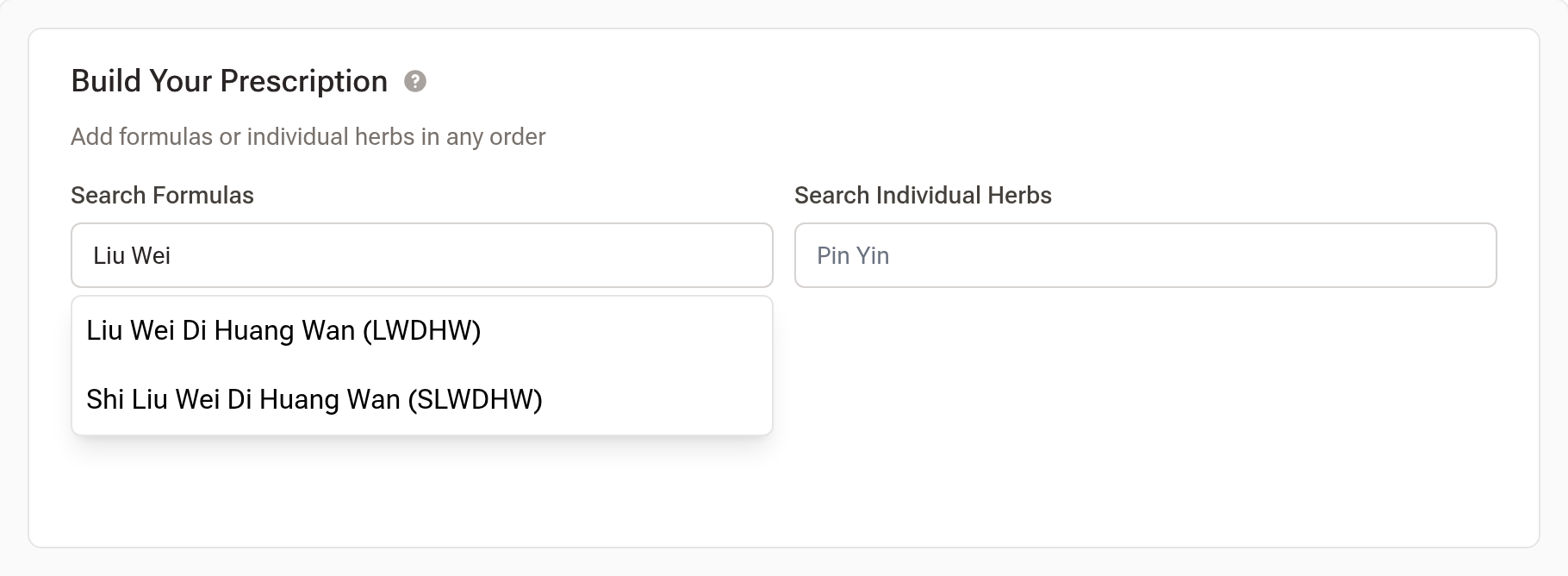
Click the formula you want. It appears under the search as Based on, and its herbs and their doses drop straight into Composition, ready to adjust.
You can add more than one formula. Where two formulas share a herb, the higher dose is the one kept.
Step 3: Adjust the composition
Add individual herbs on top with Add a herb — Pin Yin, Chinese, common or Latin name, with the preparation first if that's how you write it (Zhi Gan Cao, 炙甘草, Jiang Ban Xia). Every dose in Composition is editable, so modify the classical doses however you need to, and remove any line you don't want.
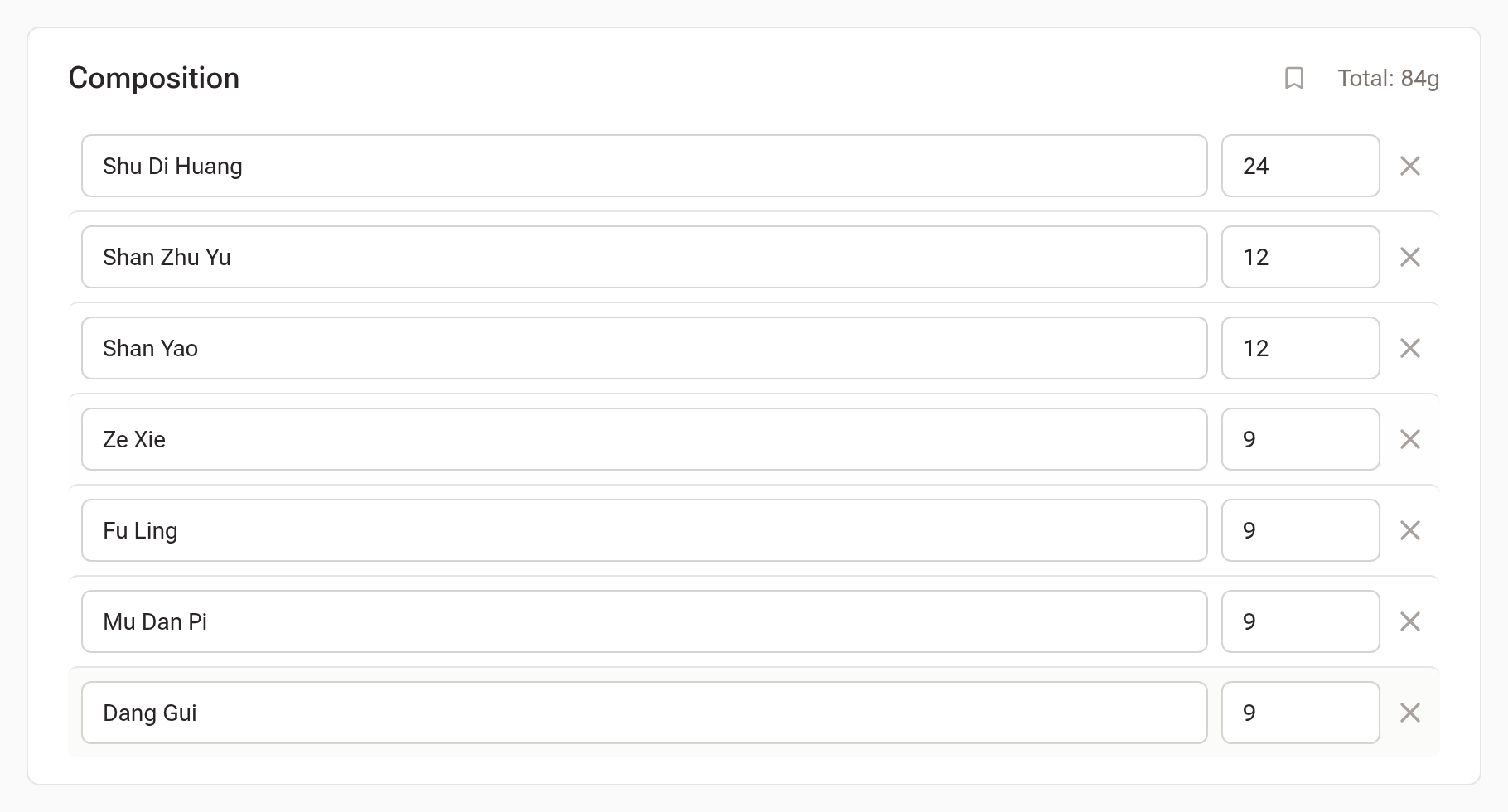
The line count and the running Total sit in the foot of the table.
Step 4: Set the quantity
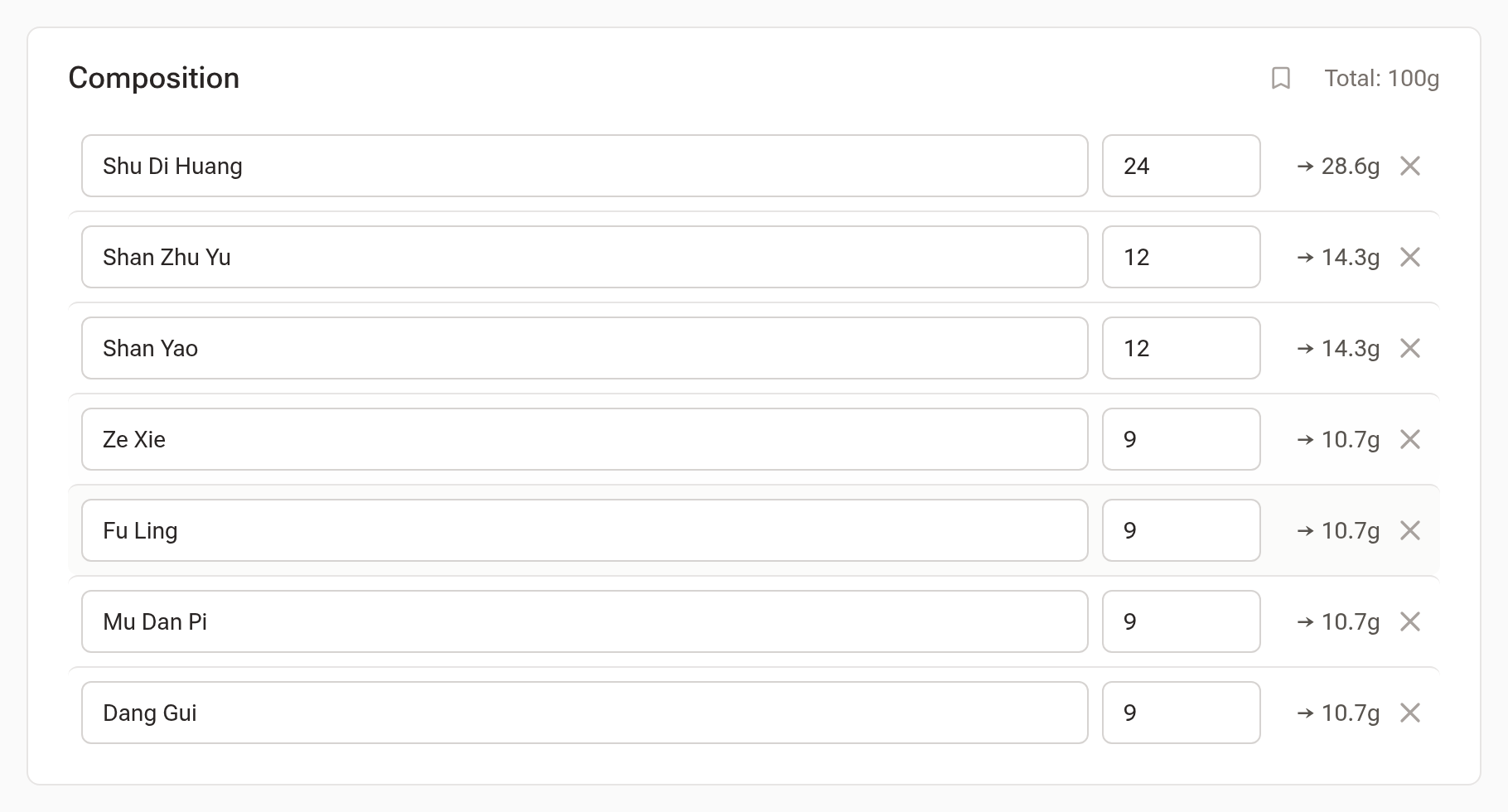
Quantity to dispense, just under the composition, is how much you're actually dispensing — bags, grams or ml.
Enter an amount in grams and Daobook scales every herb proportionally: a Dispensed column appears beside each dose with that herb's share. The ratios of the formula are preserved; you don't need to do the arithmetic.
Step 5: Check the details
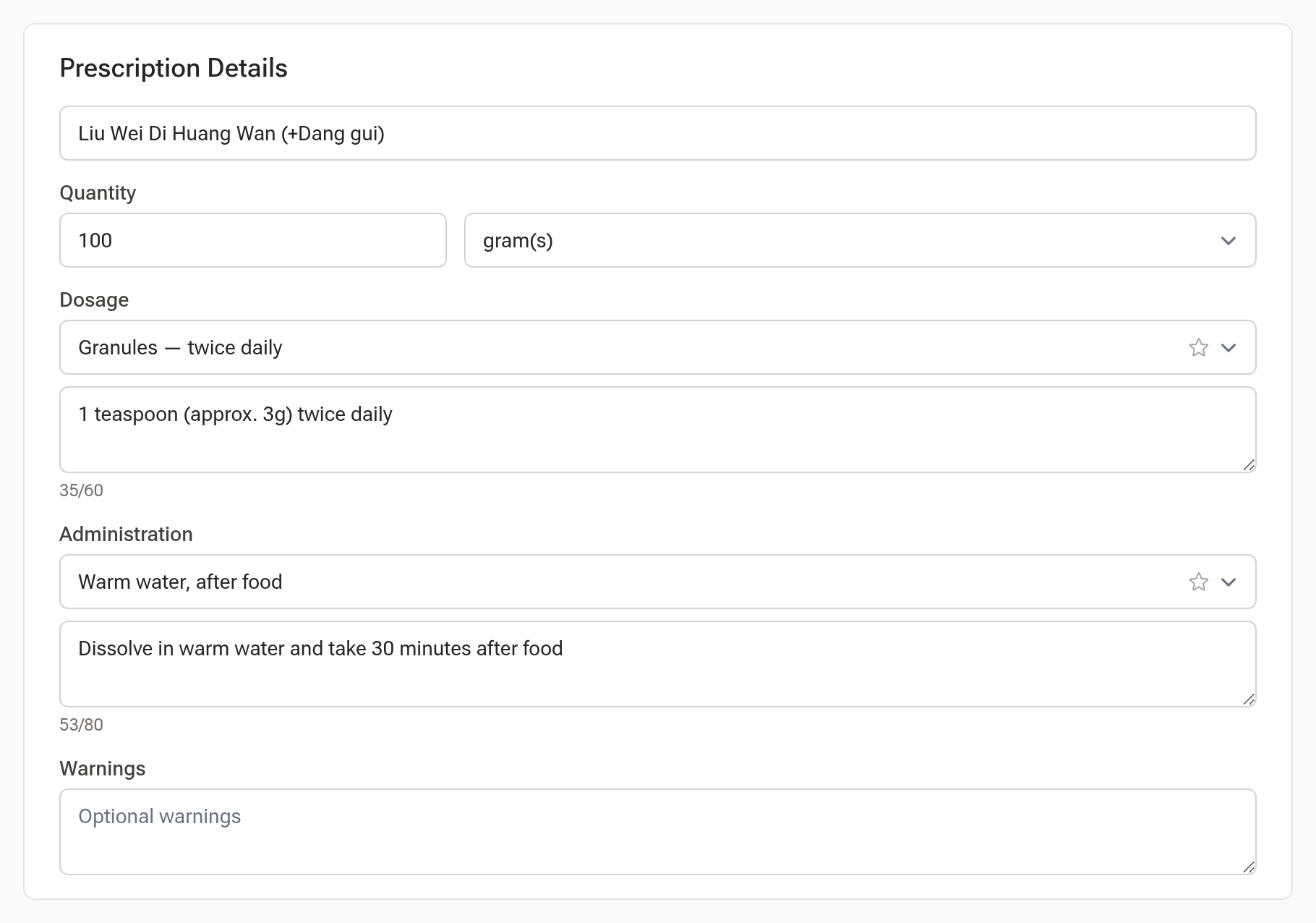
In Prescription Details, the Name is generated from the formulas you chose — something like "Liu Wei Di Huang Wan (+Dang Gui)" — and you can edit it to whatever you'd like on the label.
Dosage and Administration are free text, and if you've saved templates for the wording you use most, they appear as a dropdown above each field. Warnings and Notes are both optional; warnings print on the label, notes are for you.
Step 6: Save it
Click Create prescription (it reads Create & dispense when your clinic tracks herb inventory). You'll land back on the client's Prescriptions list with the new script at the top, ready to print.
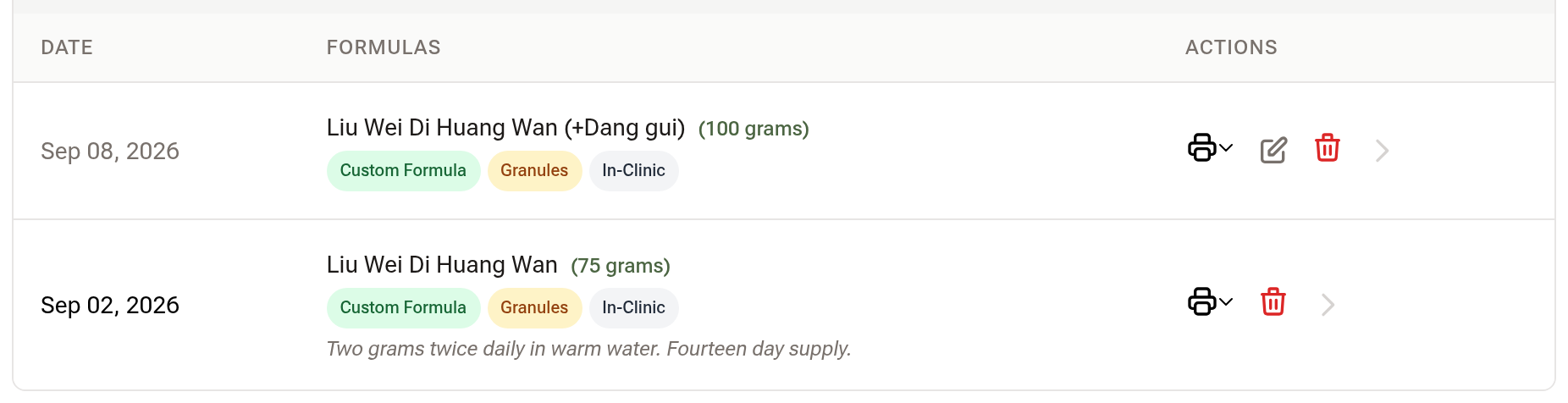
From the Print button on that row you can produce a Single Label (Front Only), a Double Label (Front & Back), or an Instruction Sheet (A4) for the client to take home.
Saving a combination you use often
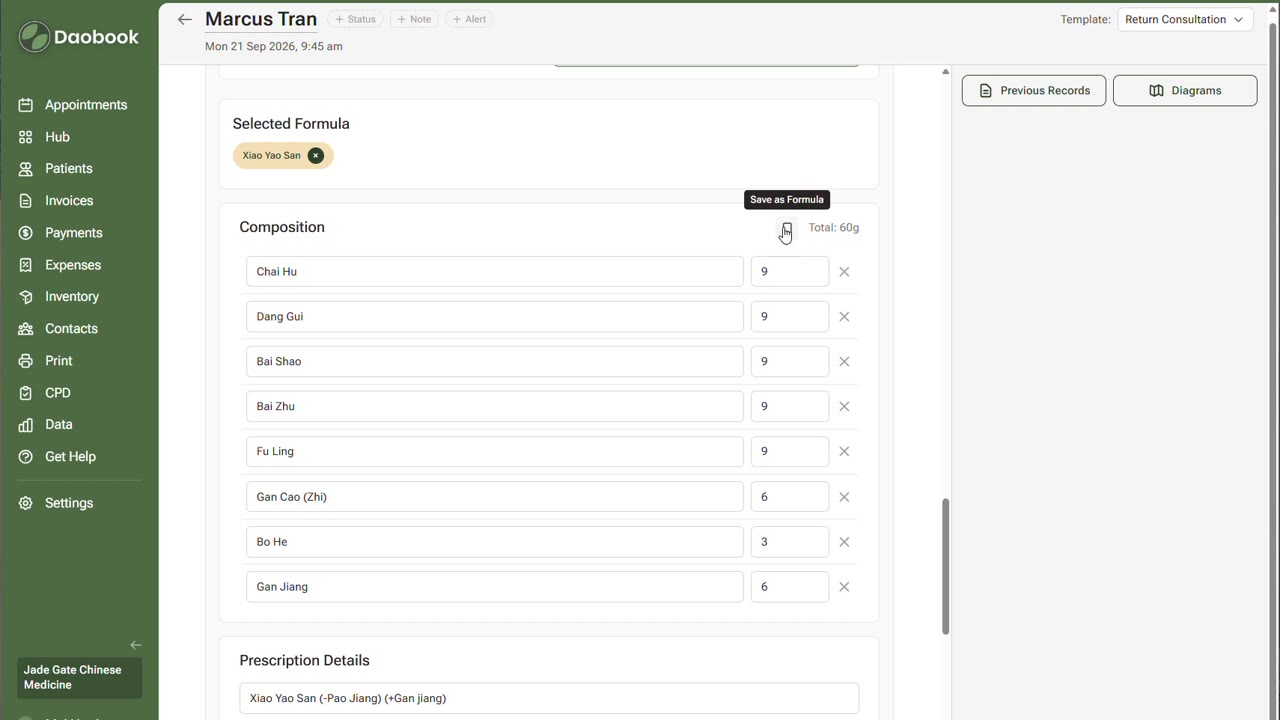
If you've built a modification you'll prescribe again, click Save as Formula beside Composition to save the current herbs as your own formula. It'll come up in Add a formula next time, alongside the classical formulas.

Prescribing during a consultation
You don't have to leave the consultation to prescribe. In the Prescriptions section of a consultation, click + In-clinic and the same builder opens inline. Click Add to consultation (Dispense & add to consultation if your clinic tracks herb inventory) and it saves on the spot, appearing as a card on the note.
Save as Draft and Finalise save the note, not a prescription still in the builder — if one is left there, Daobook takes you back to it and highlights it. Add it, or close the builder to discard it, then save.
Repeat beside it loads a previous prescription for that client, so a returning patient on the same formula takes a couple of clicks. The list includes scripts a colleague wrote for them at your clinic, with the colleague's name beside each one. Reading an earlier visit in Previous Records? Each prescription there has its own Repeat, which does the same.

Every prescription for a client
A client's profile has a Prescriptions section listing everything you've ever prescribed them, newest first, with a Print button on each row. You can start a new one straight from there too — New Prescription — which is quicker than opening a consultation when someone just needs a repeat.
The formula and herb libraries
Settings → Clinical Resources → Manage Formulas lists every formula available to you: the library that ships with Daobook, and your own alongside it, marked Custom for one you made (anything you've saved out of the builder) or Edited for a library formula you've changed. Manage Herbs works the same way, and you can add any herb that isn't there. Once you have some of your own, Yours beside the search box lists just those.
Replace a herb is the one worth knowing about. Most formulas that call for Gan Cao use Zhi Gan Cao, the honey-fried form. If you'd rather dispense the raw herb, you can swap it across every formula at once instead of editing them one at a time.
Pricing prescriptions automatically
In Settings → Clinical Resources → Inventory Settings, under Prescription Invoicing, tick Automatically add custom prescriptions to invoices. When you raise an invoice from a consultation, the script arrives as a line item already priced.
Each material type is priced separately — granules by the gram, bulk herbs by the bag — and you choose how: a fixed price per unit, or your cost plus a markup. You can add a packaging cost for bottles, bags and labels, and round the result to the nearest dollar, $5 or $10.
Dosage and administration templates
Rather than typing the same directions every time, save them once at Settings → Communications → Prescription Templates. Give each a name, write the template, and they become selectable in the builder's dosage and administration fields.
Tips:
- A prescription is attached to a client, not to an invoice — dispensing and charging are separate steps.
- If you track herb inventory, the builder gains a Material Type choice and an Inventory Impact panel showing current versus projected stock, and stock is deducted the moment you save.