
Sending a Bulk Message
Email or text a group of your clients at once — a holiday closure, a change of hours, a nudge to rebook — to everyone who has opted in.
Sending a Bulk Message
A bulk message is one email or SMS sent to a group of your clients: a holiday closure, a change of hours, a nudge to rebook. It only ever goes to clients who have opted in to marketing on that channel.
Step 1: Open Bulk messages
Click Clients in the sidebar, then "Message clients" at the top of the page. Click "New message".

Step 2: Choose who
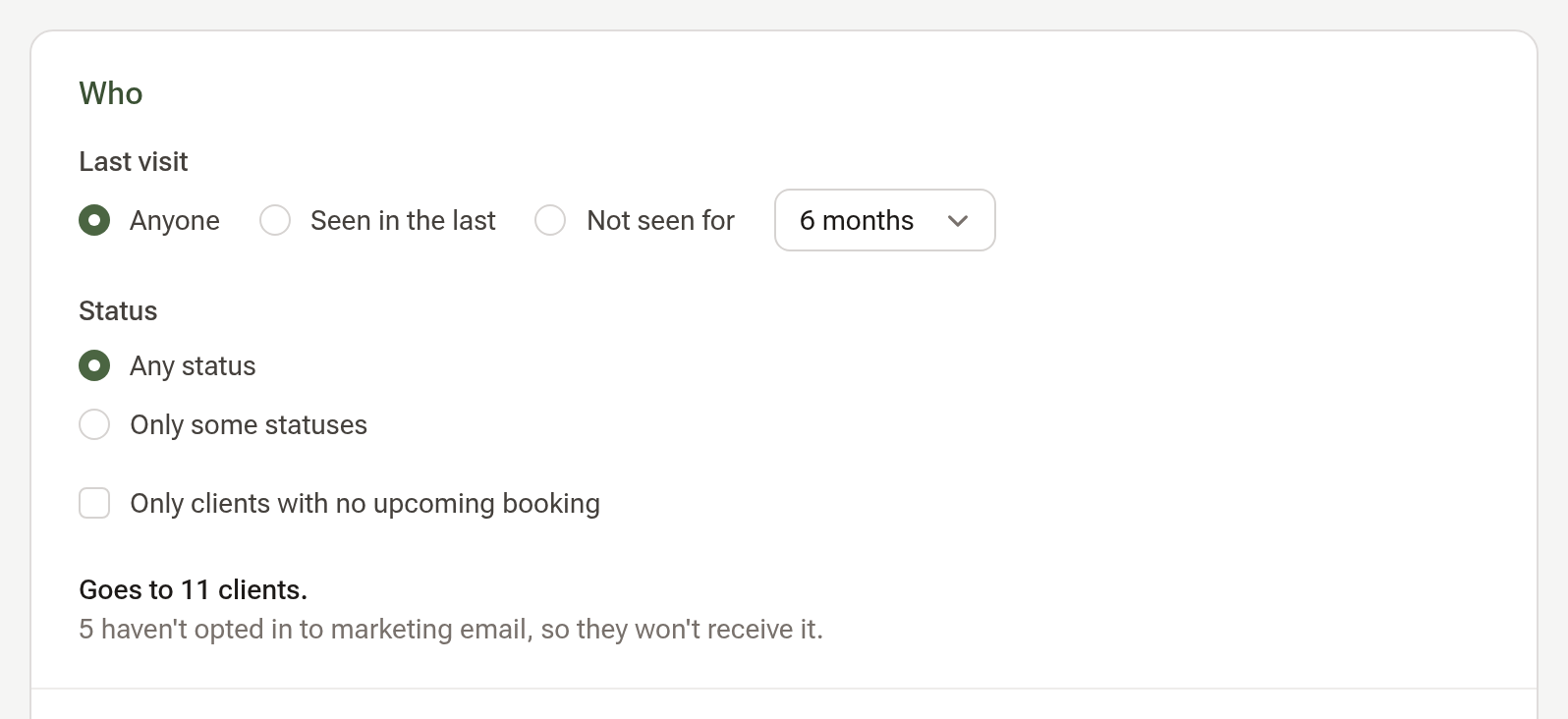
Under Who, narrow the list if you want to: by Last visit, by status, or only clients with no upcoming booking. The line underneath says how many it goes to and how many are left out because they haven't opted in.
Step 3: Write the message
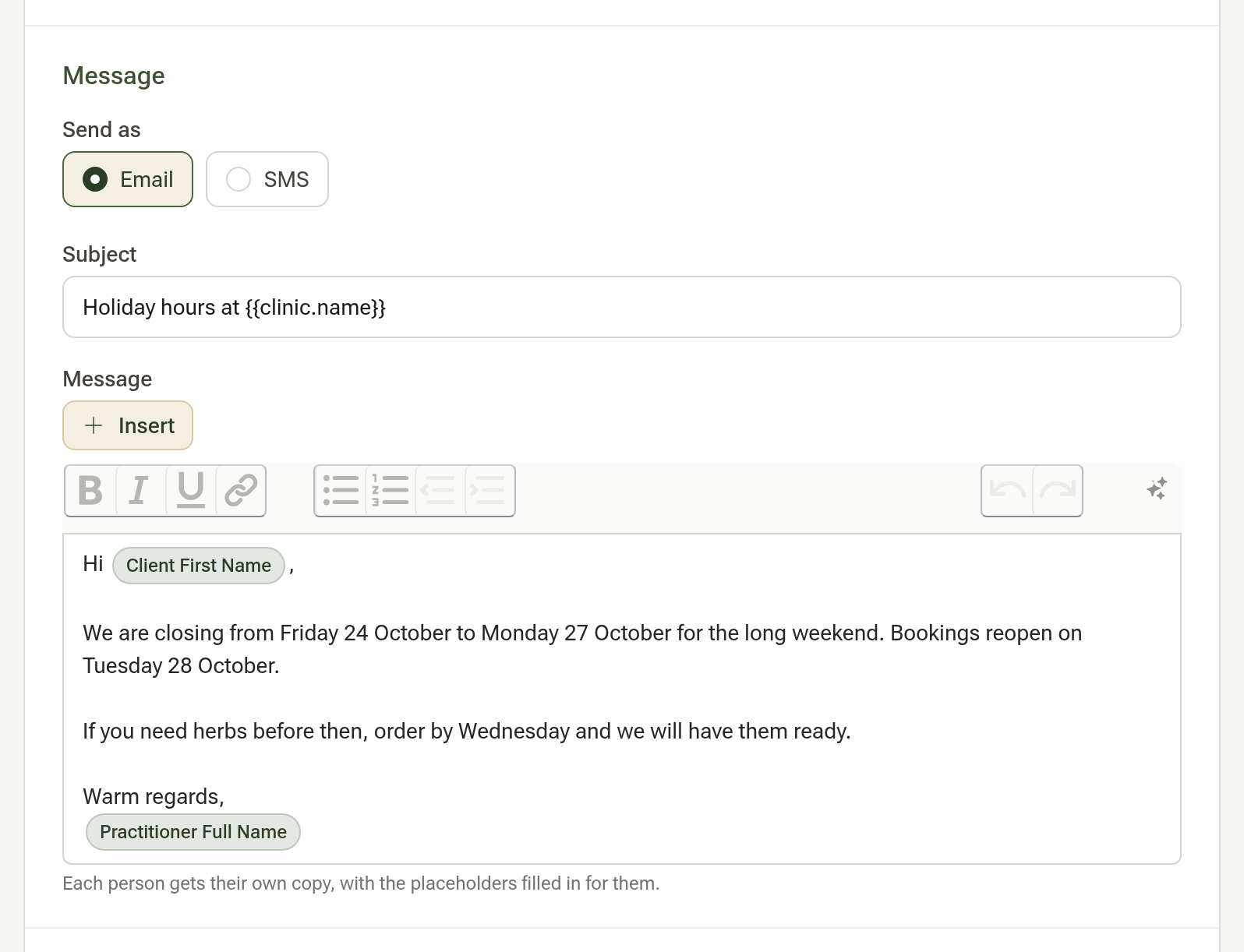
Under Message, choose Email or SMS. For an email, type a Subject and the message; click "Insert" to add the client's first name or your clinic's name, which are filled in for each person.
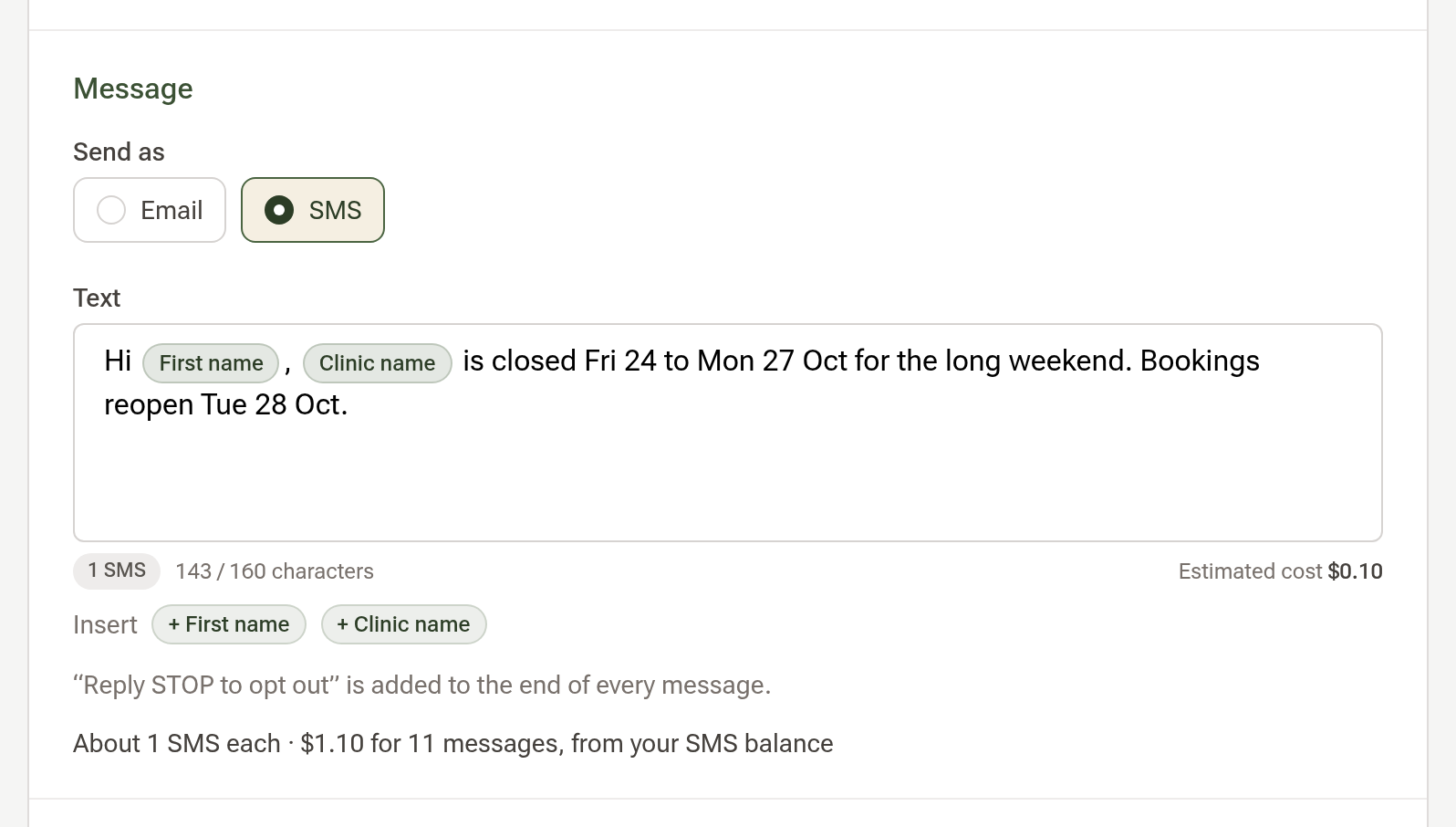
For an SMS, type the text. The counter shows how many SMS it will be billed as and what the run costs. "Reply STOP to opt out" is added to the end of every text for you.
Step 4: Check it
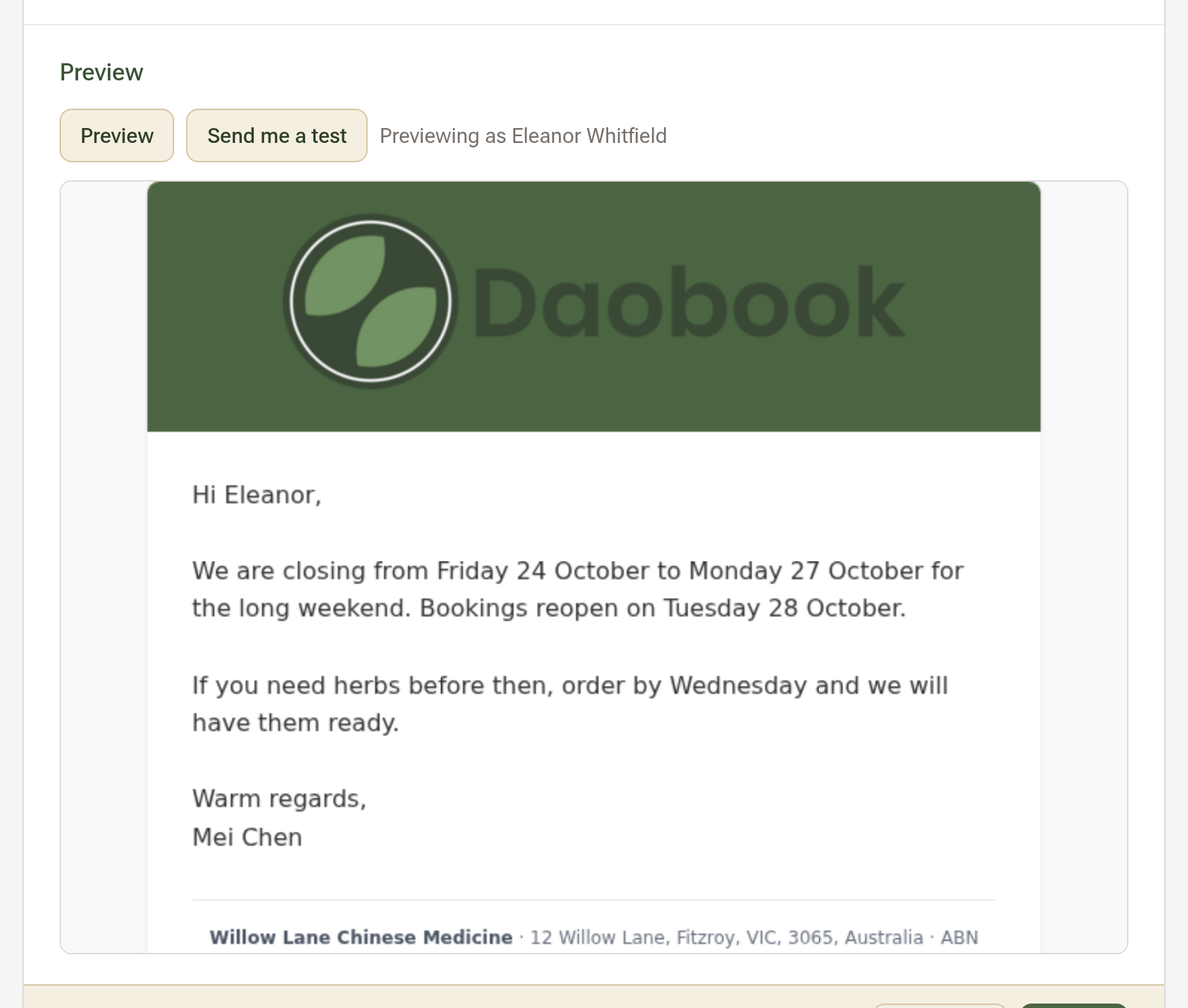
Under Preview, click "Preview" to see it as a client will, or "Send me a test" to get a copy yourself.
Step 5: Send
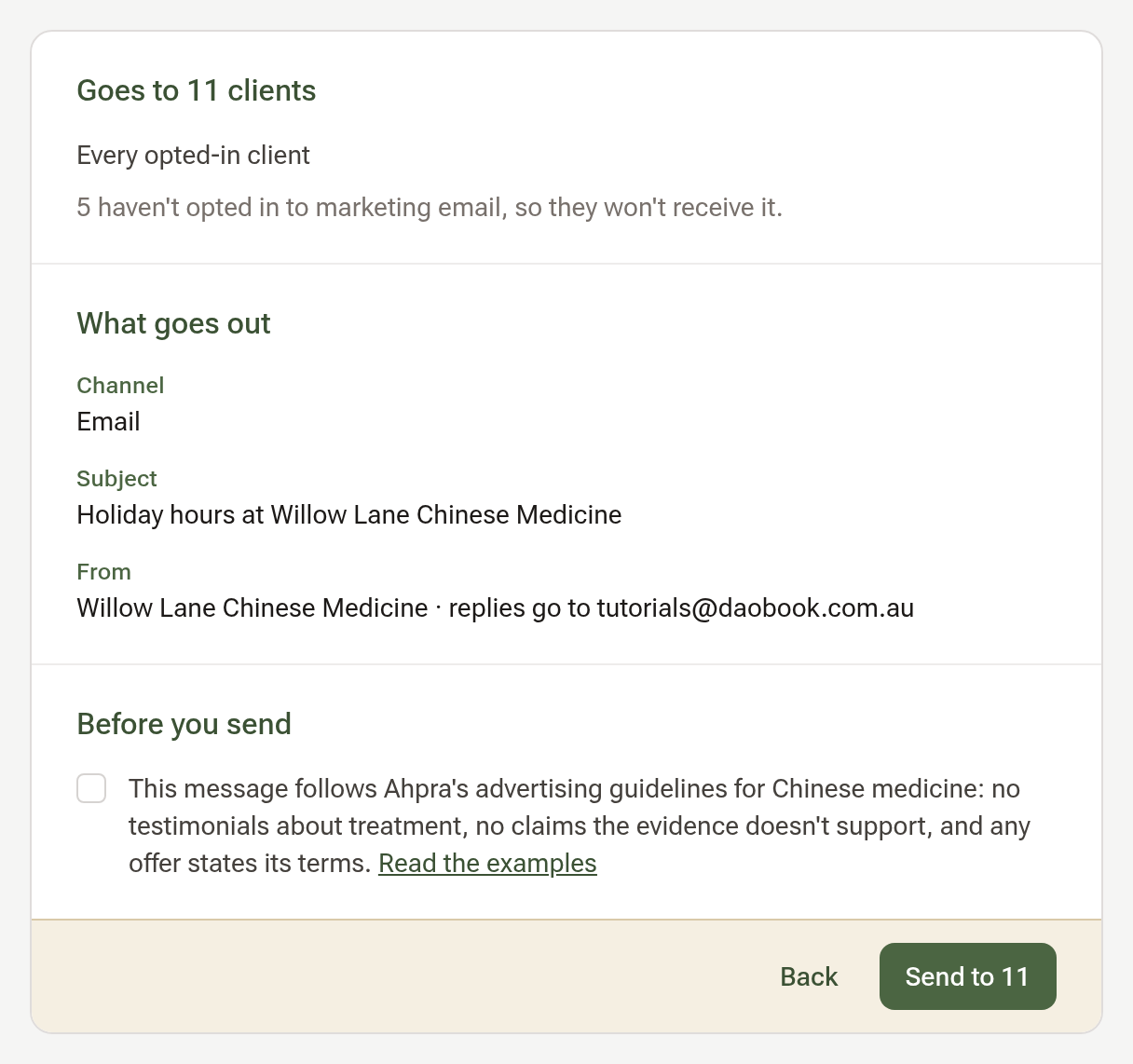
Click "Send…". The next page says how many it goes to and what goes out. Tick the box confirming the message follows Ahpra's advertising guidelines, then click "Send to …".
Step 6: See who got it
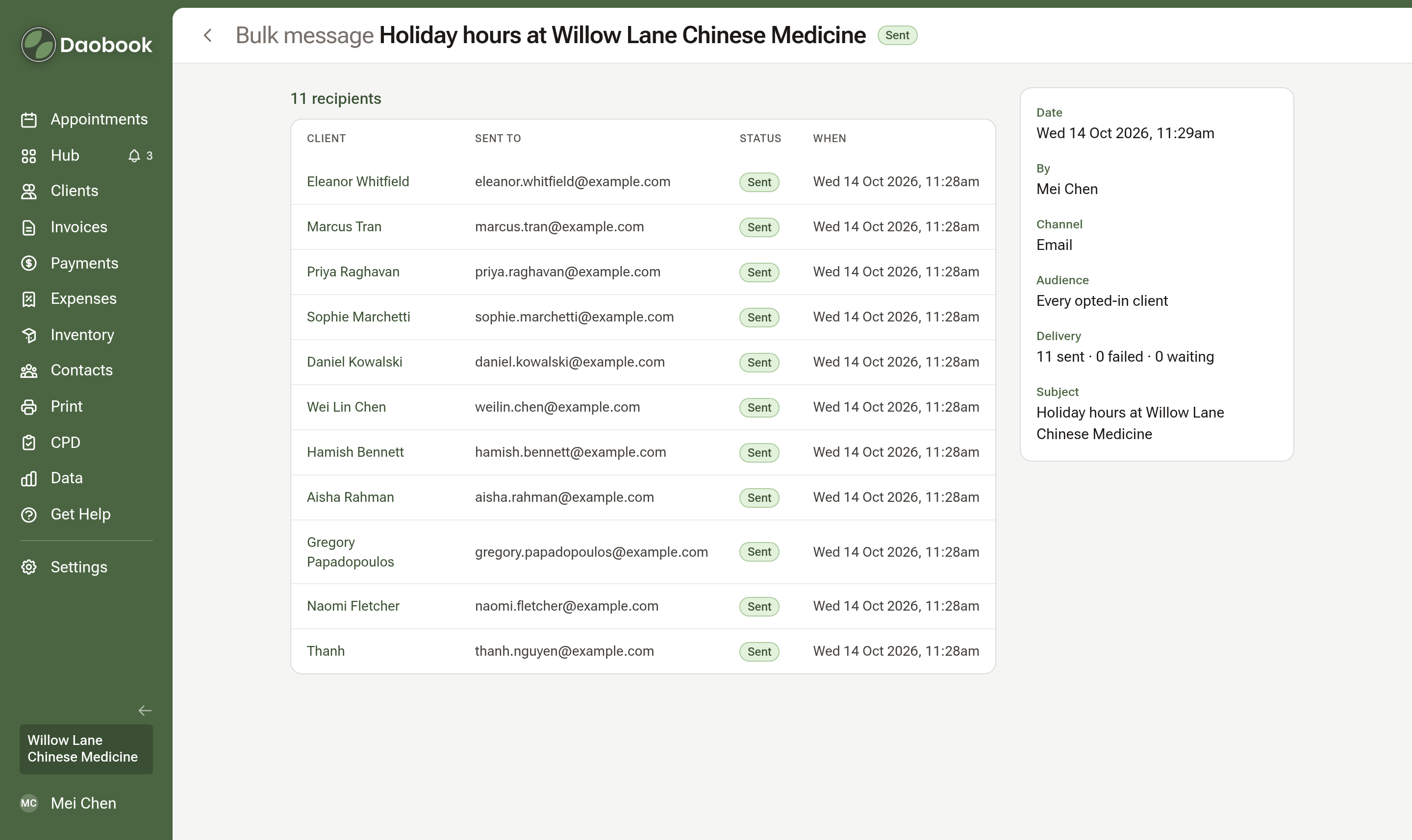
Sending runs in the background. Open the message from the Bulk messages list to see how many were sent and one row per client; the same row shows under Communications on each client's profile.
Tips:
- Clients opt in under Communication preferences on their record, when they book online, or on an intake form. The sender can't switch this off.
- "Save draft" keeps a message to finish later. Only a draft can be edited.