
Reaching out from the Hub
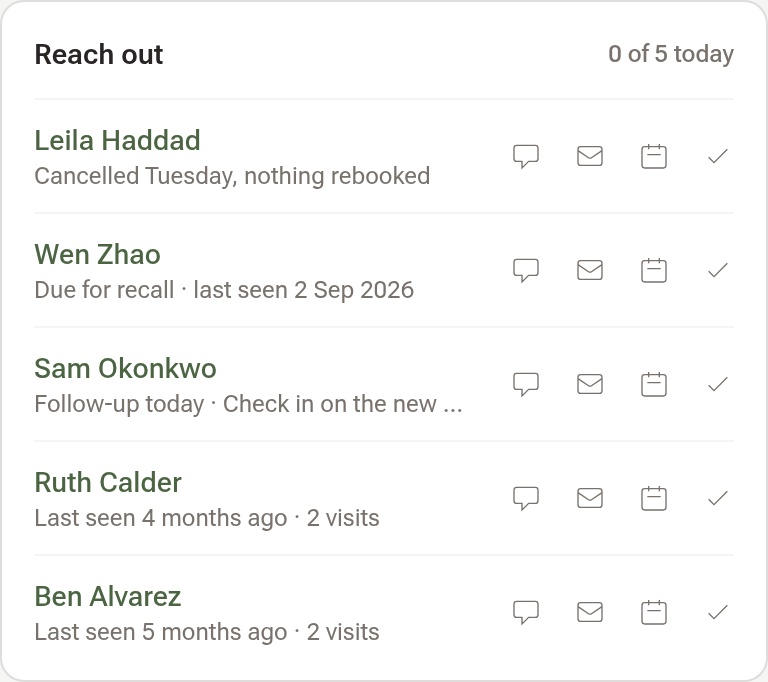
Five people worth a message today, on the Hub: text, email or book each one in a press, and tick them off.
Reaching out from the Hub
The Reach out card on the Hub lists five people worth a message today: someone who cancelled and hasn't rebooked, someone due for recall, a follow-up that's due, or a regular you haven't seen for a few months. Each row is one press to text, email or book them in, and a tick for when you've reached them some other way.
Step 1: Open the Hub
Click "Hub" in the sidebar. The card sits above Bookings on the right. When nobody is worth a message, the card isn't there. Owners and admins see everyone's patients, with Mine and Everyone to switch; a practitioner sees their own.
Step 2: Text, email or book
On a row, click the speech bubble to text them. The SMS window opens with your clinic's Reach out text already written — read it, change anything you like, and send. Sending it marks the row done.
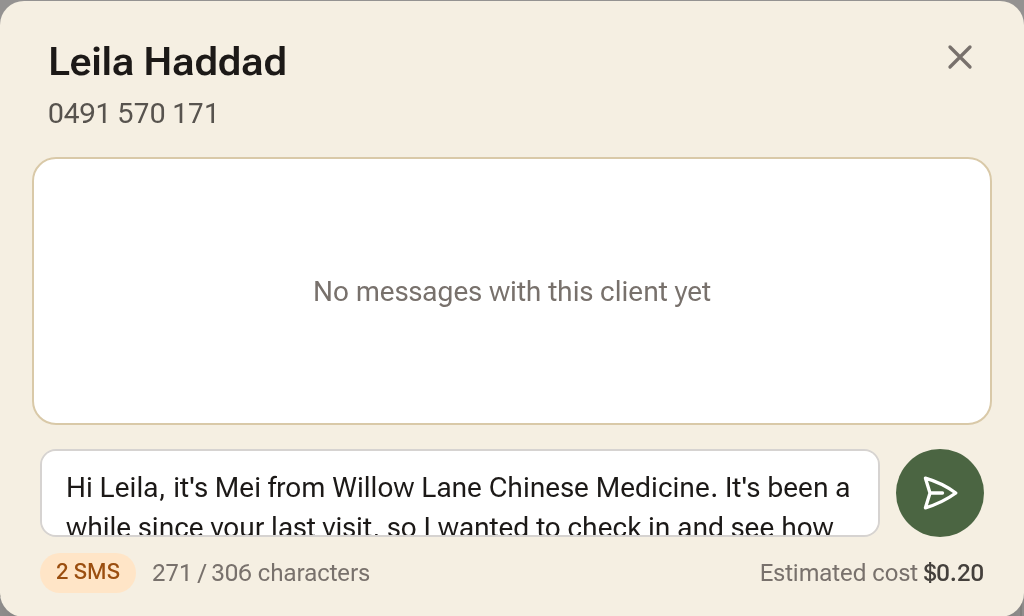
The envelope opens a letter to them with your "We Miss You — Re-engagement" template chosen, and the calendar icon opens the calendar ready to book them in. A greyed icon means you can't reach them that way — hover over it to see why.
Step 3: Tick them off
Click the tick when you've called them or reached them another way. The row goes quiet and the count at the top goes up; Undo brings it back. Tomorrow the card fills again with the next five, and Show all lists everyone waiting.
Step 4: Change the text
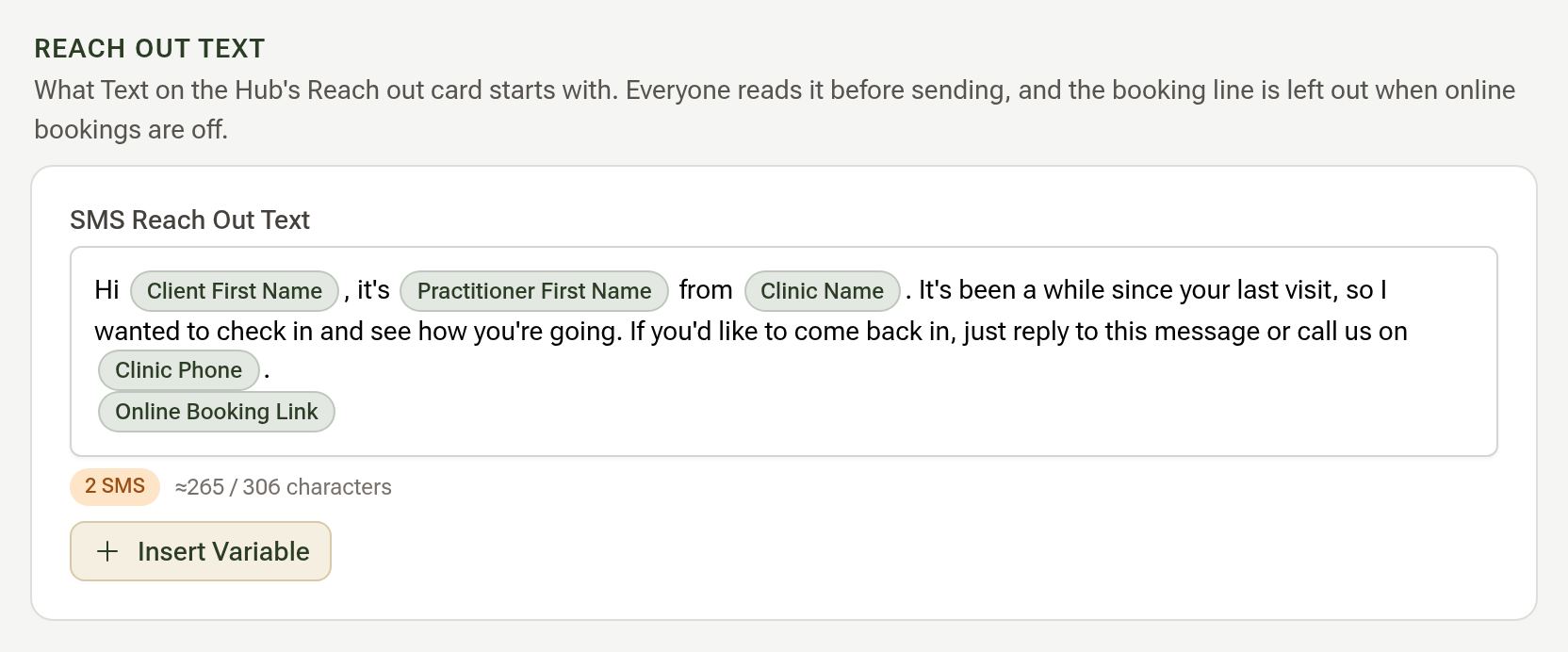
Go to Settings → Communications → Client Communications and find "Reach Out Text". Edit the message, using Insert Variable for the client's first name, your name, the clinic and the online booking link, then click "Save Changes".
Tips:
- Anyone with a future booking is never listed, and a patient status ticked "Leave out of recalls" keeps a client off the card.
- The tick parks them for your re-alert interval (Settings → Practice Info → Recalls), the same as Mark Contacted on the Recalls list.