
Line-Item Discounts on Invoices
Apply percentage or fixed dollar discounts to individual invoice line items instead of the whole invoice, giving you precise control over what gets discounted.
Line-Item Discounts on Invoices
Sometimes you need to discount a specific item on an invoice — like waiving a telehealth consult fee while charging full price for herbs. Line-item discounts let you do exactly that, without affecting the other items on the invoice.
This is different from the invoice-level discount (which applies proportionally across everything). You can also use both together if needed.
Applying a Line-Item Discount
Step 1: Show the Discount Column
When creating or editing an invoice, look for the + Line Discounts button in the subtotal row at the bottom of the items table. Click it to reveal the Disc column on all line items.

Step 2: Choose the Discount Type
On the item you want to discount, use the dropdown in the Disc column to select:
- % — percentage discount (e.g. 10% off)
- $ — fixed dollar amount (e.g. $25 off)
A value field will appear next to the dropdown.
Step 3: Enter the Discount Value
Type the discount amount. The line total, GST, and invoice totals all update in real time.
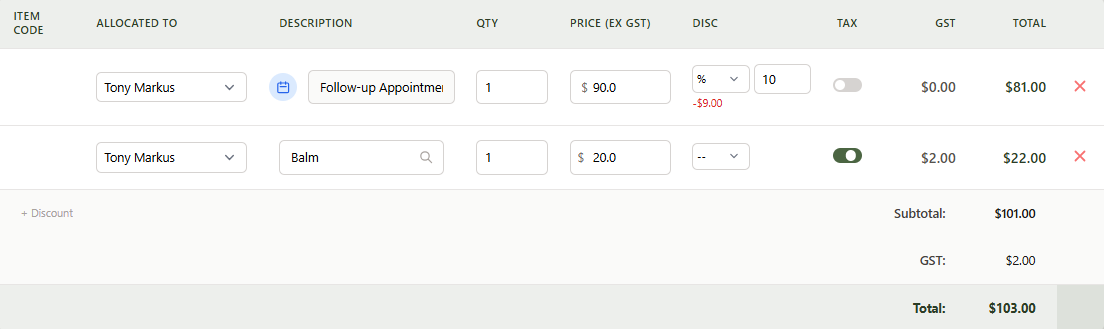
To remove a discount, change the dropdown back to --.
How Discounts are Calculated
The order of operations follows accounting standards:
- Line-item discounts are applied first — reducing each item's amount individually
- Invoice-level discount (if any) is applied to the already-reduced subtotal
- GST is calculated on post-discount amounts
For example, if you have a $200 consult with a 50% line discount and a 10% invoice discount:
- Line discount: $200 × 50% = $100 off → item becomes $100
- Subtotal: $100
- Invoice discount: $100 × 10% = $10 off
- GST calculated on $90
Where Discounts Appear
Line-item discounts are shown everywhere the invoice appears:
- Invoice detail page — a Discount column shows the per-item discount
- PDF download — includes a Discount column when any item is discounted
- Client payment page — discounted items show a small annotation (e.g. "-10% disc")
- Xero sync — percentage discounts use Xero's native DiscountRate field; fixed discounts adjust the line amount
Tips
- You can waive an item entirely by applying a 100% discount — the item stays on the invoice for record-keeping but the amount is $0
- The Disc column is hidden by default to keep the form clean — it only appears when you click + Line Discounts or when editing an invoice that already has line discounts
- Line-item discounts cannot be changed on paid invoices