
Printing Prescription Labels
Print thermal labels and A4 instruction sheets for your prescriptions, and set up how they look — the layout, herb names, label warnings, preparation instructions and your logo.
Printing Prescription Labels
Daobook prints a thermal label for every prescription you create, and an A4 instruction sheet for raw herb scripts. This covers printing them and setting up how they look.
Step 1: Check your printer settings
Go to Print Labels and open the Printer Settings panel at the top.
Choose Brother or Dymo, then your model. Daobook sizes every label to match — 62mm x 100mm for Brother, 59mm x 102mm for Dymo — so the PDF comes out right without you touching your print dialog. Your choice saves itself as you make it.

Formula label layout chooses how a custom formula label is arranged, on Brother and Dymo alike:
- Sidebar — details down the left — the standard layout. Your clinic, the client and the prescriber sit in a column on the left, the herbs print in columns with the grams lined up, and the dose, admin and warning each get a row.
- Classic — details along the bottom — the earlier layout: the formula name across the top, the herbs beneath it, and the client, prescriber and instructions along the bottom.
Both leave a line for the dispenser's signature, to sign by pen once the label is on the bag. Double labels print in the classic layout whichever you choose. Patent product labels have one layout of their own: your details down the left, and the product's name with its dose, admin and warning on the right.
For a child, both layouts add a Guardian line under the client's name when their record names one. Fill it in by editing the client: Parent or guardian sits under the date of birth in General Information, where you can search for another client of the practice or type a name.
If you haven't bought a printer yet, the Brother QL-810W is the one to get: it's wireless, and on Mac it registers over AirPrint with no driver at all. The QL-800 (USB) and QL-820NWB (wireless) are also supported, all using the same 62mm x 100mm label.
Setting the printer up for the first time is covered in Setting Up Your Brother Label Printer (Mac) and Setting Up Your Brother Label Printer (Windows).
Step 2: Print a label
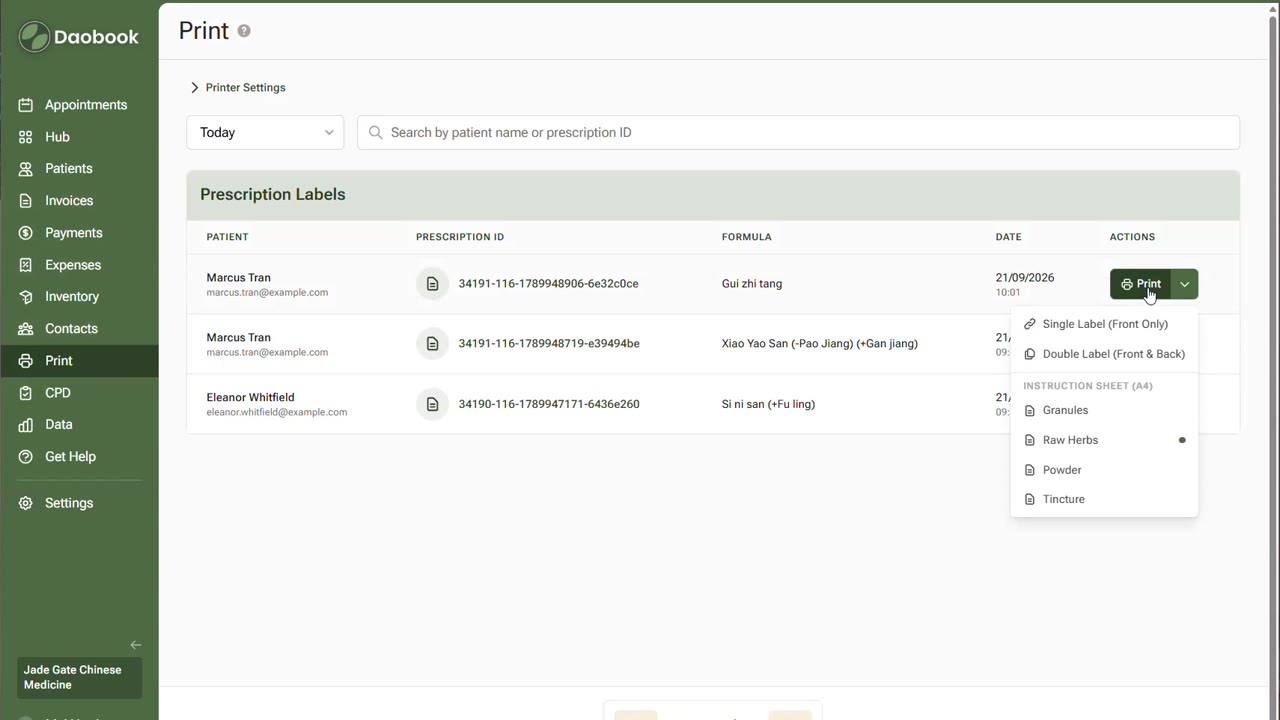
Open any prescription and click Print:
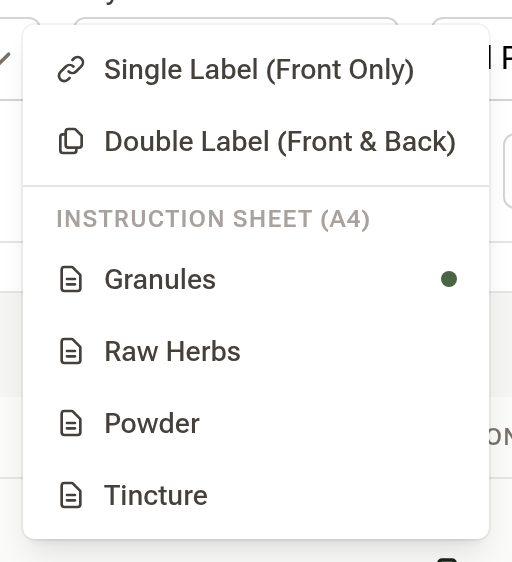
- Single Label (Front Only) — the everyday choice.
- Double Label (Front & Back) — when the script carries more information than fits on one face.
- Instruction Sheet (A4) — not one option but a heading, with a sheet for each material type underneath: Granules, Raw Herbs, Powder and Tincture. The dot marks the type this script actually is, which is the one you'll usually want.
Step 3: Choose which herb names appear
Go to Settings → Notifications & Templates → Printout Settings.
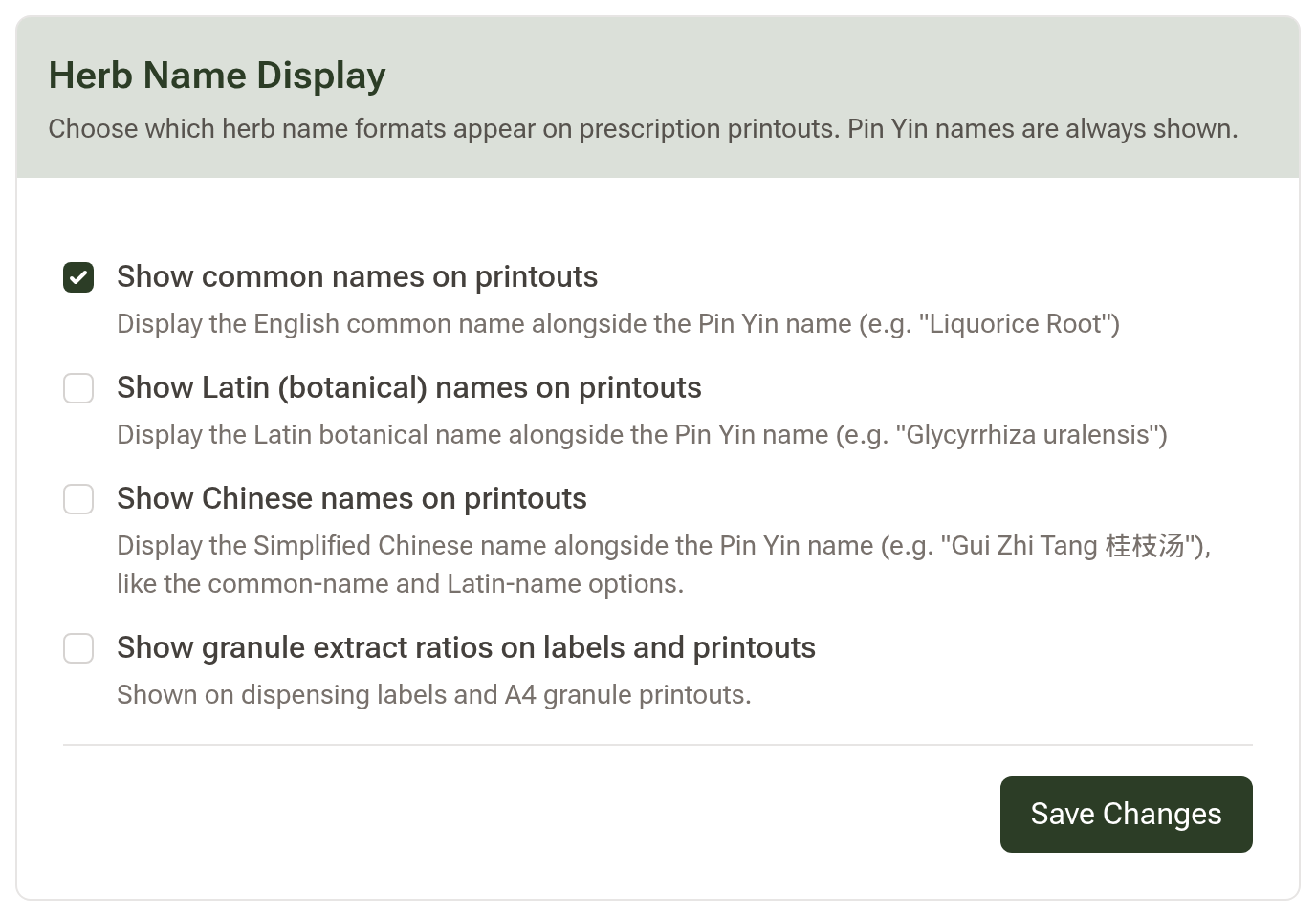
Under Herb Name Display, tick the formats you want on your printouts. Pin Yin names are always shown, and these options add to them:
- Show common names on printouts — the English common name, e.g. "Liquorice Root"
- Show Latin (botanical) names on printouts — e.g. "Glycyrrhiza uralensis"
- Show Chinese names on printouts
- Show granule extract ratios on labels and printouts
The whole Printout Settings page saves at once: make your changes in any of its cards, then click Save Changes in the bar at the foot of the page.
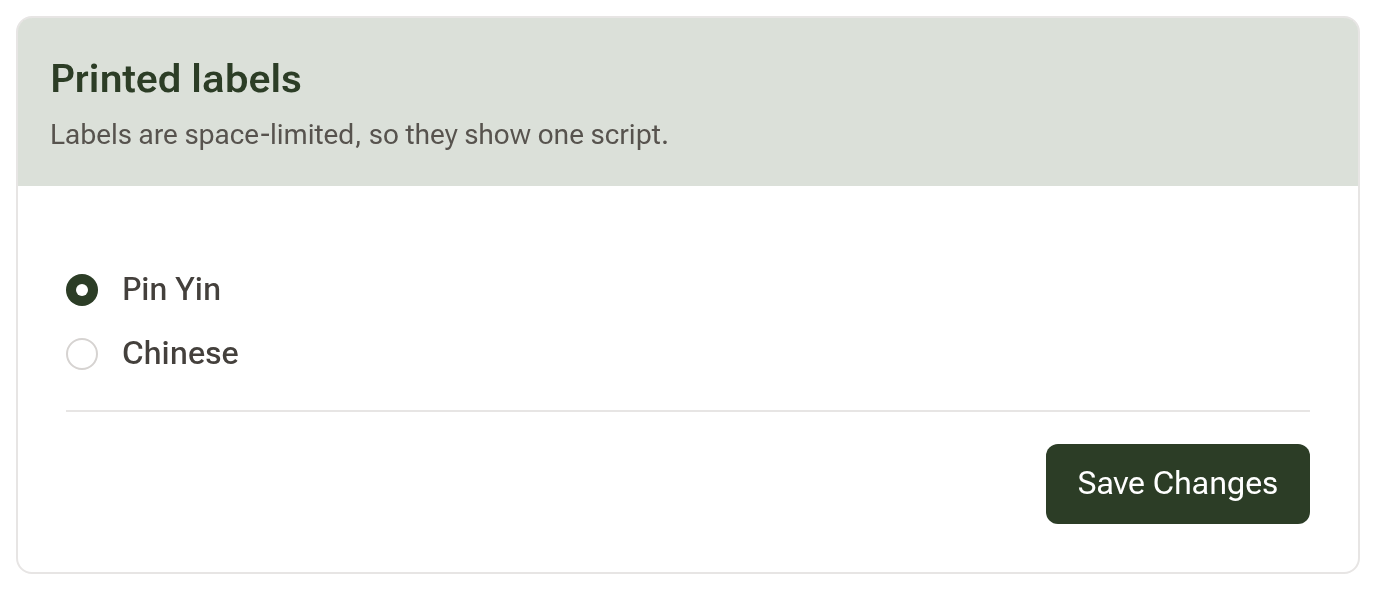
Labels are set separately, just below. A label always shows Pin Yin — under Printed labels, choose Pin Yin on its own or Pin Yin and Chinese to add the Chinese name beside it. This catches people out: ticking Show Chinese names on printouts above does not put Chinese on the label; this is where you choose it.
Step 4: Set the warnings on your labels
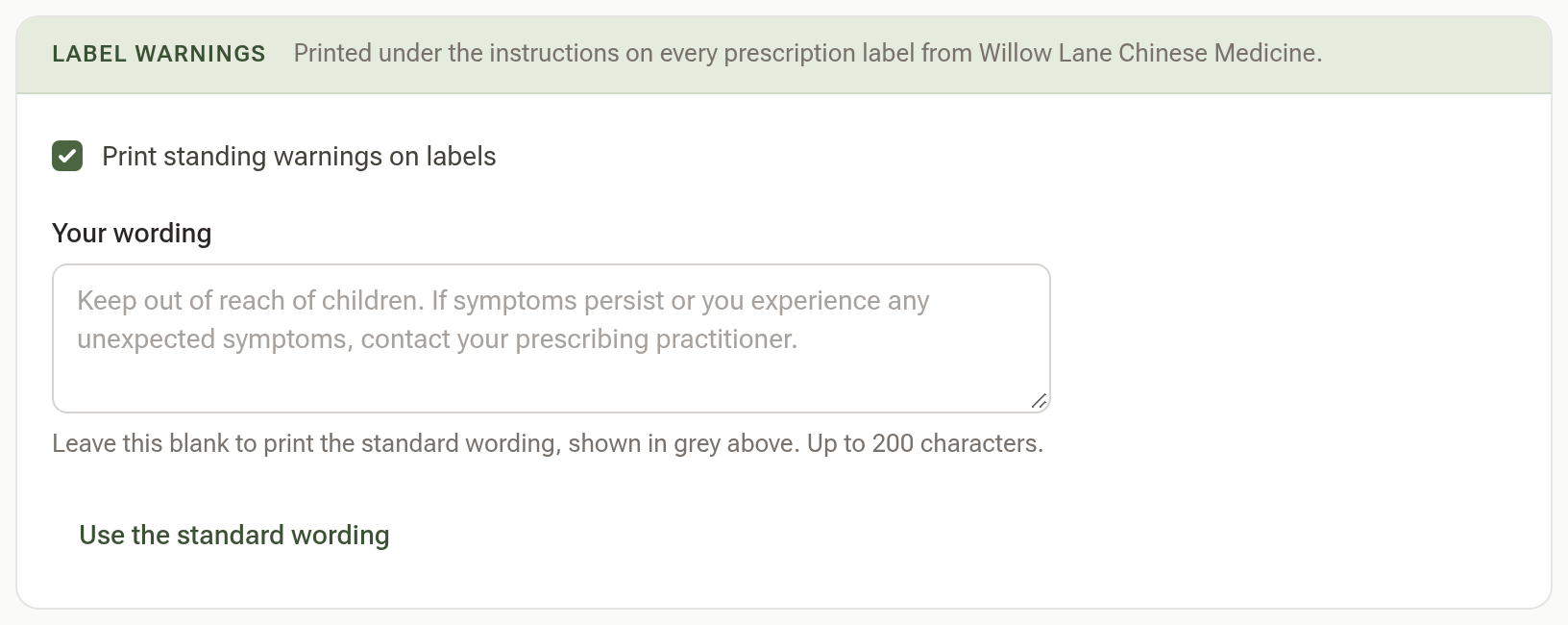
Still in Printout Settings, find Label warnings. Every prescription label ends with a standing warning under the instructions. Until you write your own, that is the standard wording, shown in grey in the box: "Keep out of reach of children. If symptoms persist or you experience any unexpected symptoms, contact your prescribing practitioner."
Type into Your wording to replace it (up to 200 characters), then Save Changes at the foot of the page. Use the standard wording clears your words and saves the page in one go, and unticking Print standing warnings on labels leaves the warning off altogether.
The wording belongs to the clinic, so everyone printing labels there prints the same words, and only the clinic's owner or an admin can change it.
Step 5: Edit the preparation instructions
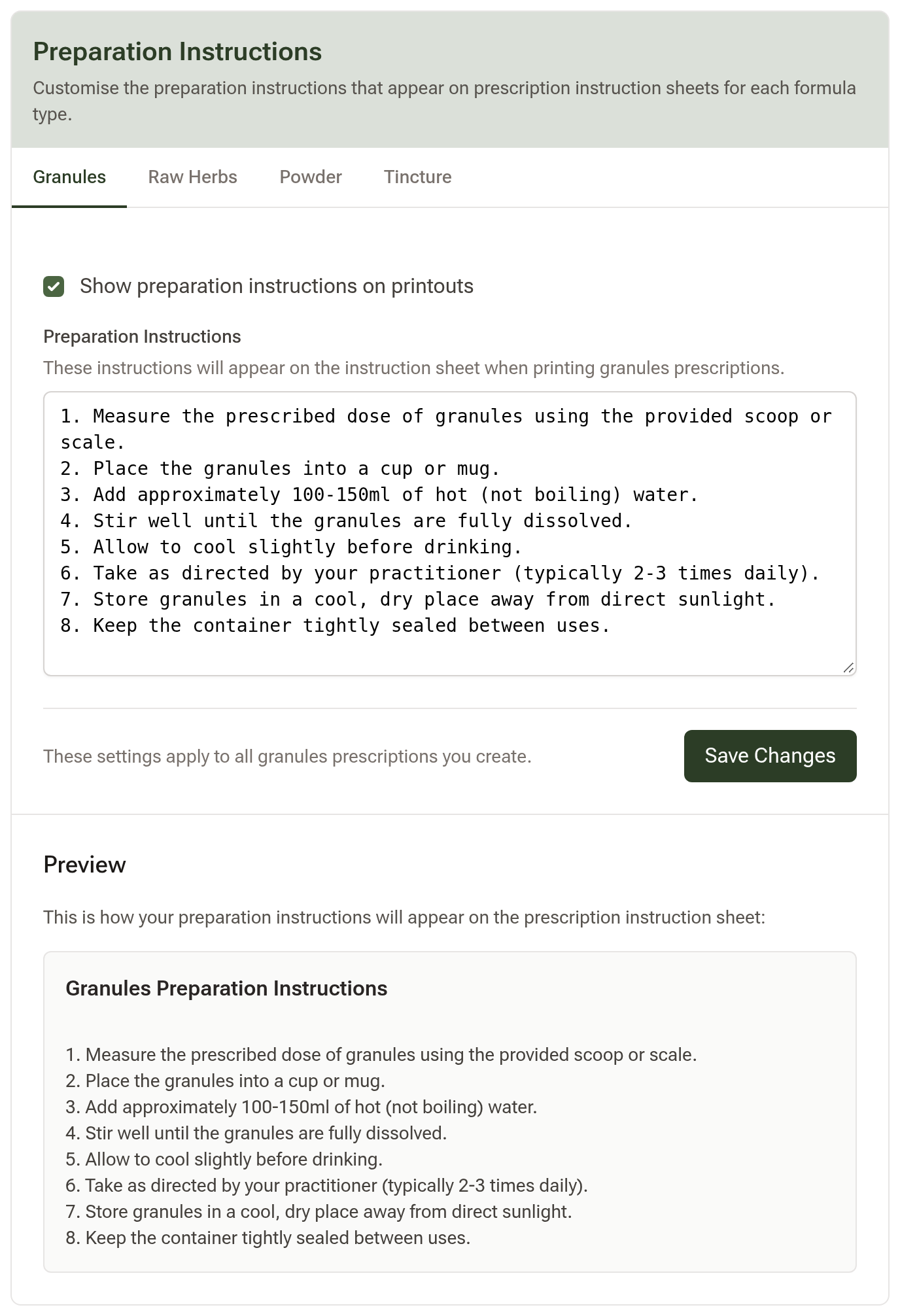
Still in Printout Settings, scroll down to Preparation Instructions.
The tabs across the top are formula types — Granules, Raw Herbs, Powder, Tincture — and each carries its own text. Pick the type you want to change, edit the instructions, and the Preview underneath shows exactly how it will read on the sheet your client receives. Tick Show preparation instructions on printouts to include them. Every type's text is kept when you click Save Changes at the foot of the page, so you can edit more than one tab before saving.
Step 6: Add your logo
Go to Settings → Practice Info → Branding.
There are two logo slots. Primary Logo is your colour version, used on your online bookings and the emails you send patients. Print Logo (Optional) is for printed output — upload a black and white version here if you have one, because thermal printers only print black and lighter colours come out faint. If you don't upload one, your primary logo is used instead.
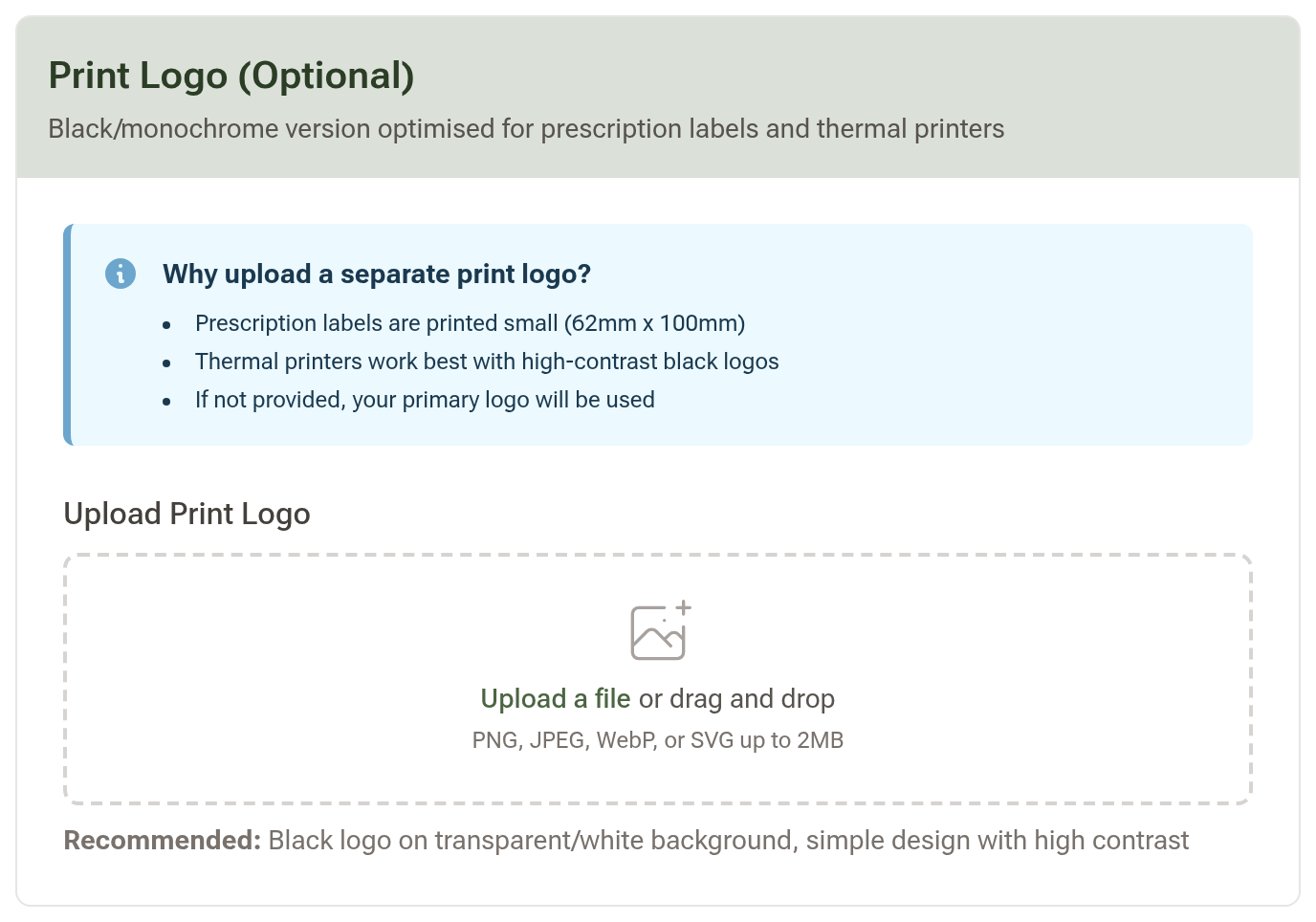
Uploading it doesn't put it anywhere on its own. Scroll to Display Options and tick Show logo on prescription labels and Show logo on herb instruction sheets, then save and print again to see it on both.
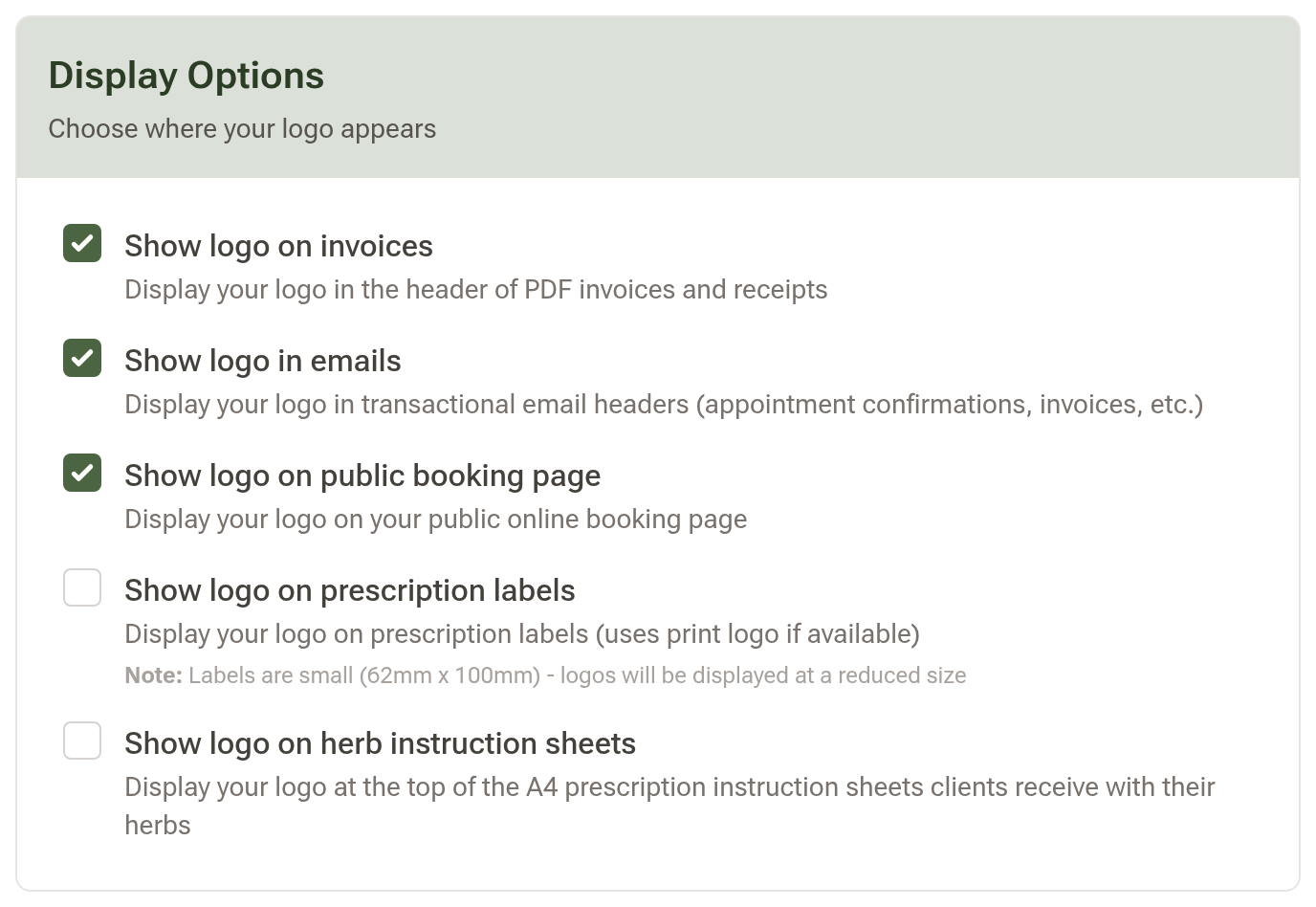
Tip: Labels print at 62mm x 100mm, so your logo appears at a reduced size. A simple, high-contrast mark reads far better than a detailed one.