
Reaching out
Everyone worth a message, in Messages → Recalls & follow-ups: text, email or book each one in a press, and tick them off.
Reaching out
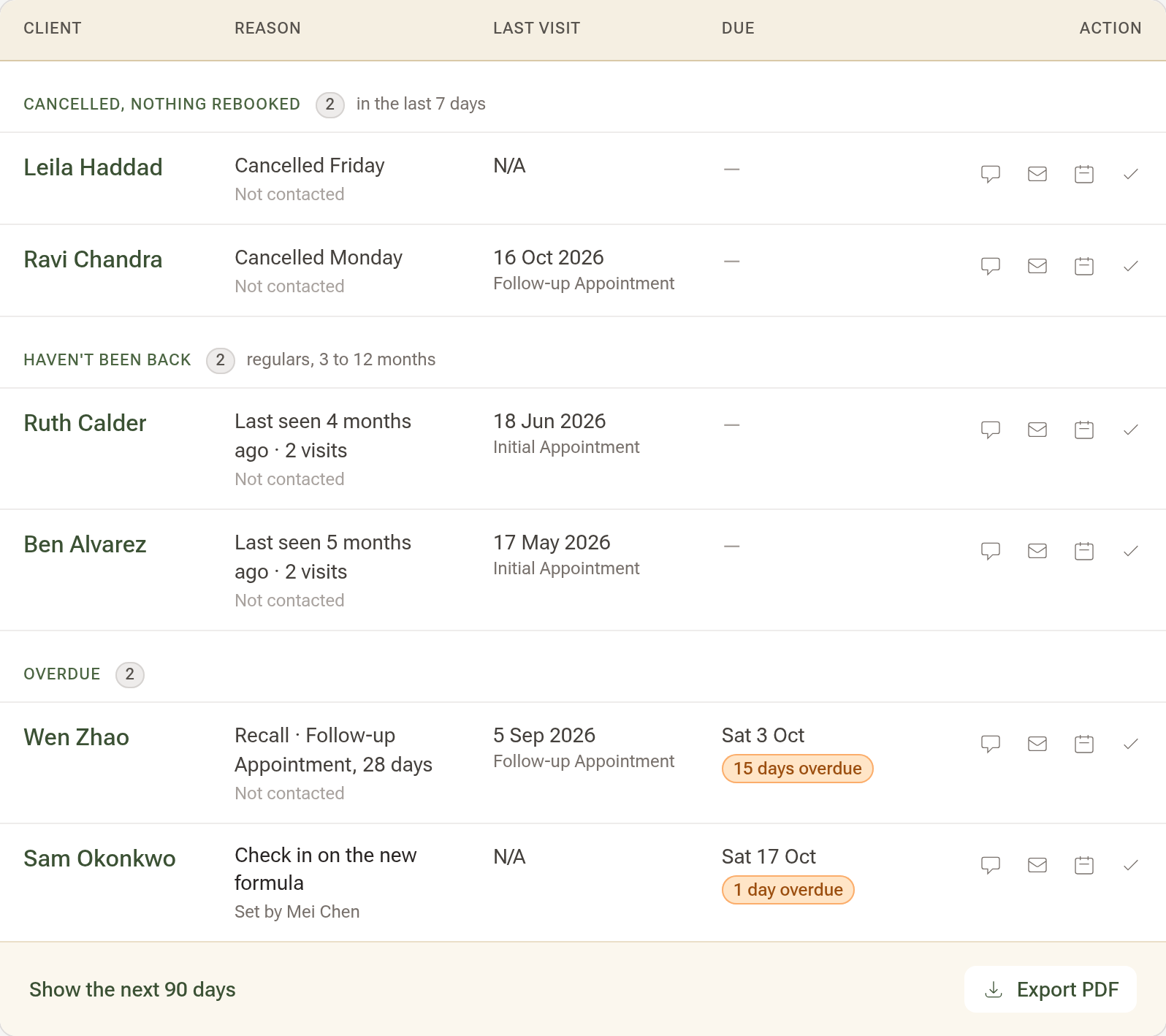
Messages → Recalls & follow-ups lists everyone worth a message, soonest first: someone who cancelled this week and hasn't rebooked, a regular you haven't seen for a few months, anyone due for recall, and the follow-ups you've set. Each row ends with one press to text, email or book them in, and a tick for when you've reached them some other way.
Step 1: Open Recalls & follow-ups
Click "Messages" in the sidebar, then "Recalls & follow-ups". Two bands open the list: Cancelled, nothing rebooked (in the last 7 days) and Haven't been back (regulars last seen 3 to 12 months ago). Recalls and follow-ups follow under Overdue, Today, This week and Later. Owners and admins who also treat patients can switch between Mine and Everyone.
The Hub keeps a Recalls & follow-ups line that says how many people are waiting — click it and you land here.
Step 2: Text, email or book
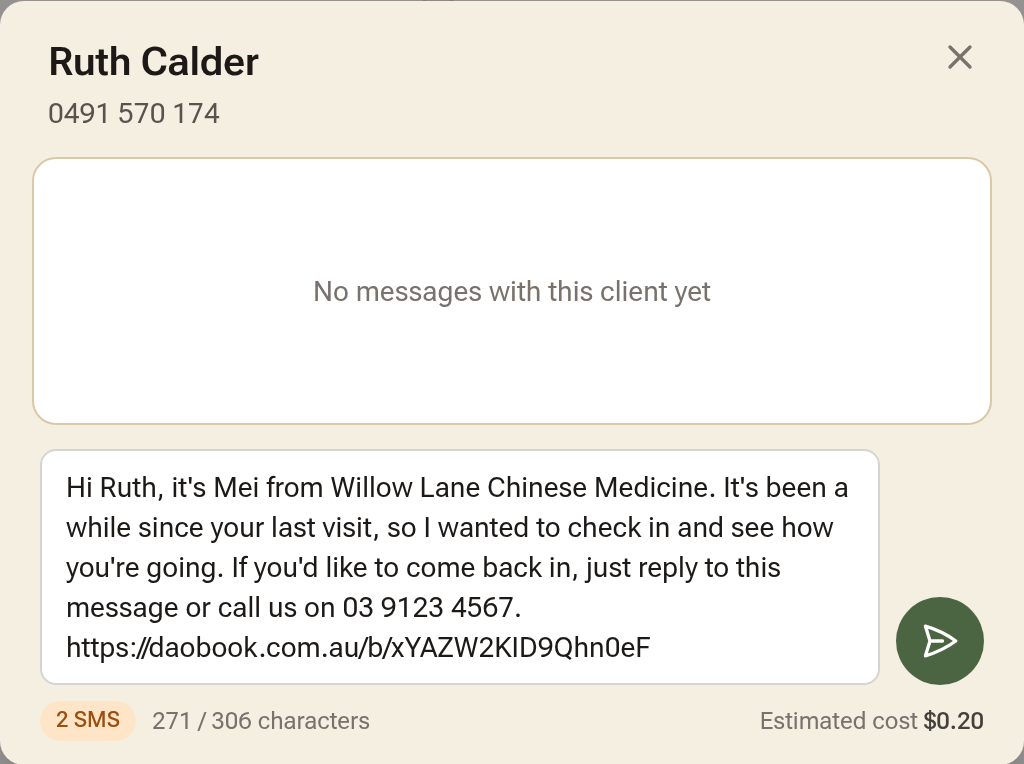
On a row, click the speech bubble to text them. For a recall or someone who hasn't been back, the SMS window opens with your clinic's Reach out text already written — read it, change anything you like, and send. For a cancellation or a follow-up it opens with a greeting ("Hi Grace, it's Mei from Willow Lane Chinese Medicine.") for you to finish. Sending it marks the row contacted.
The envelope opens a letter to them with your "We Miss You — Re-engagement" template chosen, and the calendar icon opens the calendar ready to book them in. A greyed icon means you can't reach them that way — hover over it to see why.
Step 3: Tick them off, or put them off
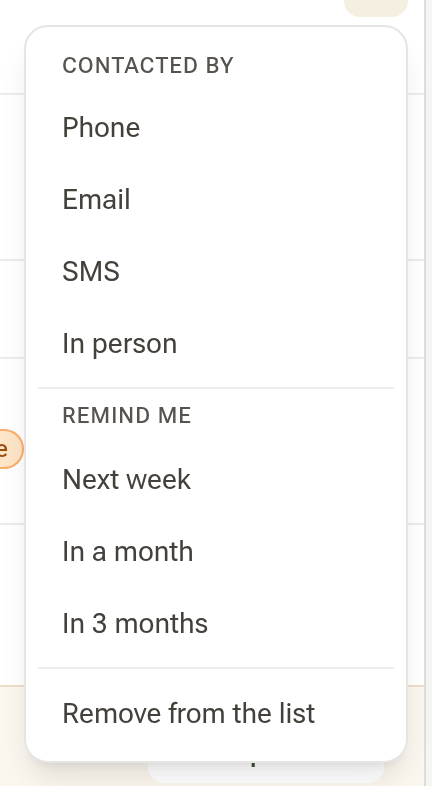
Click the tick on a person's row. Under Contacted by, choose how you reached them — Phone, Email, SMS or In person — and they stay off the list until your re-alert interval passes (Settings → Practice Info → Recalls). Under Remind me, choose Next week, In a month or In 3 months to put them off until then — or sooner, if something new happens, like a cancellation. Remove from the list takes them off until something new would list them again. Either way the row goes quiet and says where they stand, with Undo. On a follow-up, the tick marks it done.
Under the list, one line counts who is off it — "2 contacted in the last 30 days · 1 for later" — and Show lists them, each with Undo.
Step 4: Change the text
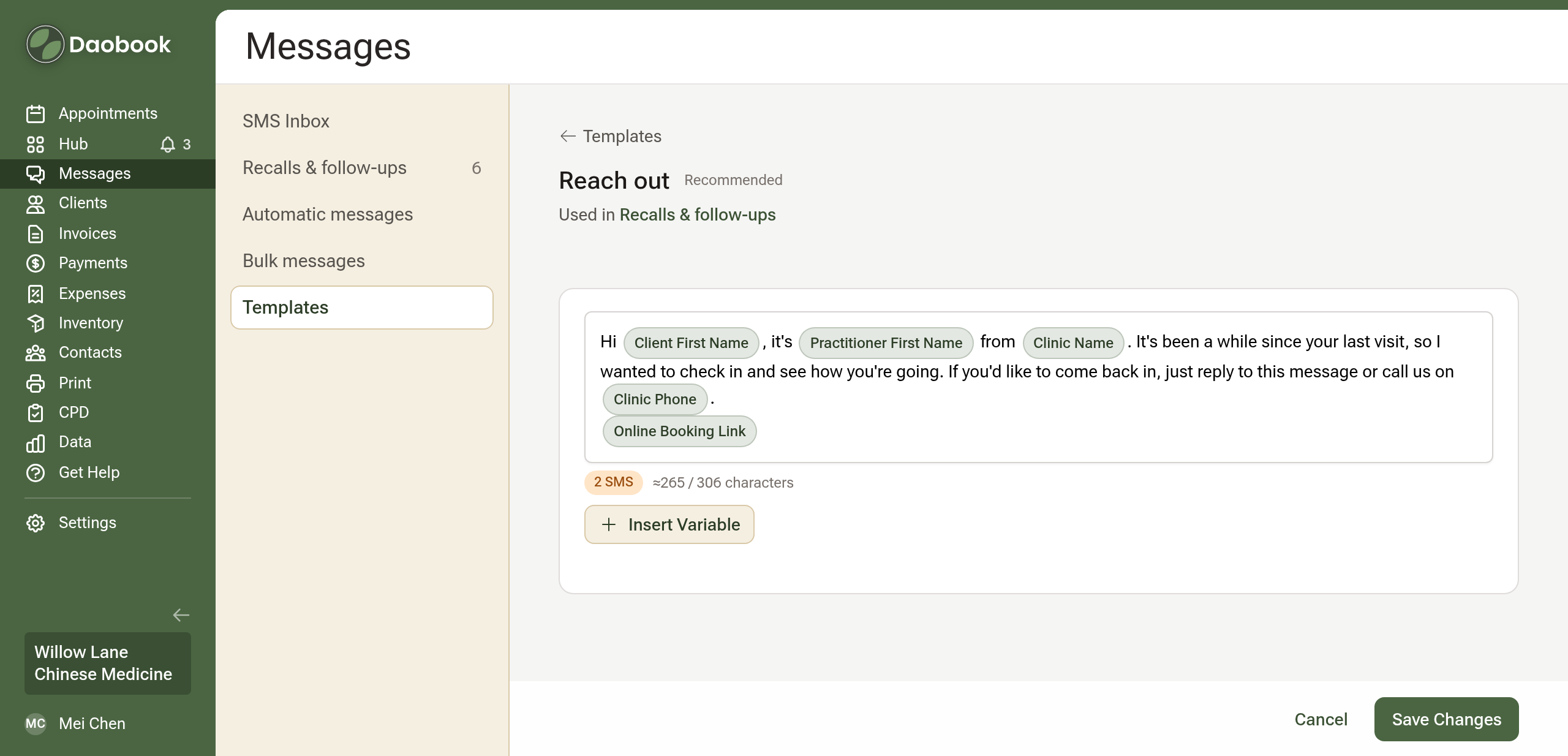
Click Messages in the sidebar, then Templates, and click Edit beside Reach out under Texts (owners and admins; everyone else can read it there). Edit the message, using Insert Variable for the client's first name, your name, the clinic and the online booking link, then click "Save Changes".
Tips:
- Anyone with a future booking is never listed, and a patient status ticked "Leave out of recalls" keeps a client off the list.
- Each person appears once: someone who cancelled is listed under the cancellation, not under their recall as well. A follow-up always has a row of its own.
- A greyed text or email icon means that client can't be reached that way — hover over it to see why. You can still ring them and tick them off as Phone.