
Cases: Following One Condition Across Visits
Group a patient's bookings and visits under one condition, give the course a planned number of sessions so every visit says where it sits, and read the whole course on one page.
Cases: Following One Condition Across Visits
A case groups one patient's visits under a condition, so a course of treatment reads as one story: the bookings still ahead, the visits so far and, if you set one, how far through a planned number of sessions they are. Anyone who books can start and manage a case; the clinical detail stays with the practitioner.
Step 1: Start a case while booking
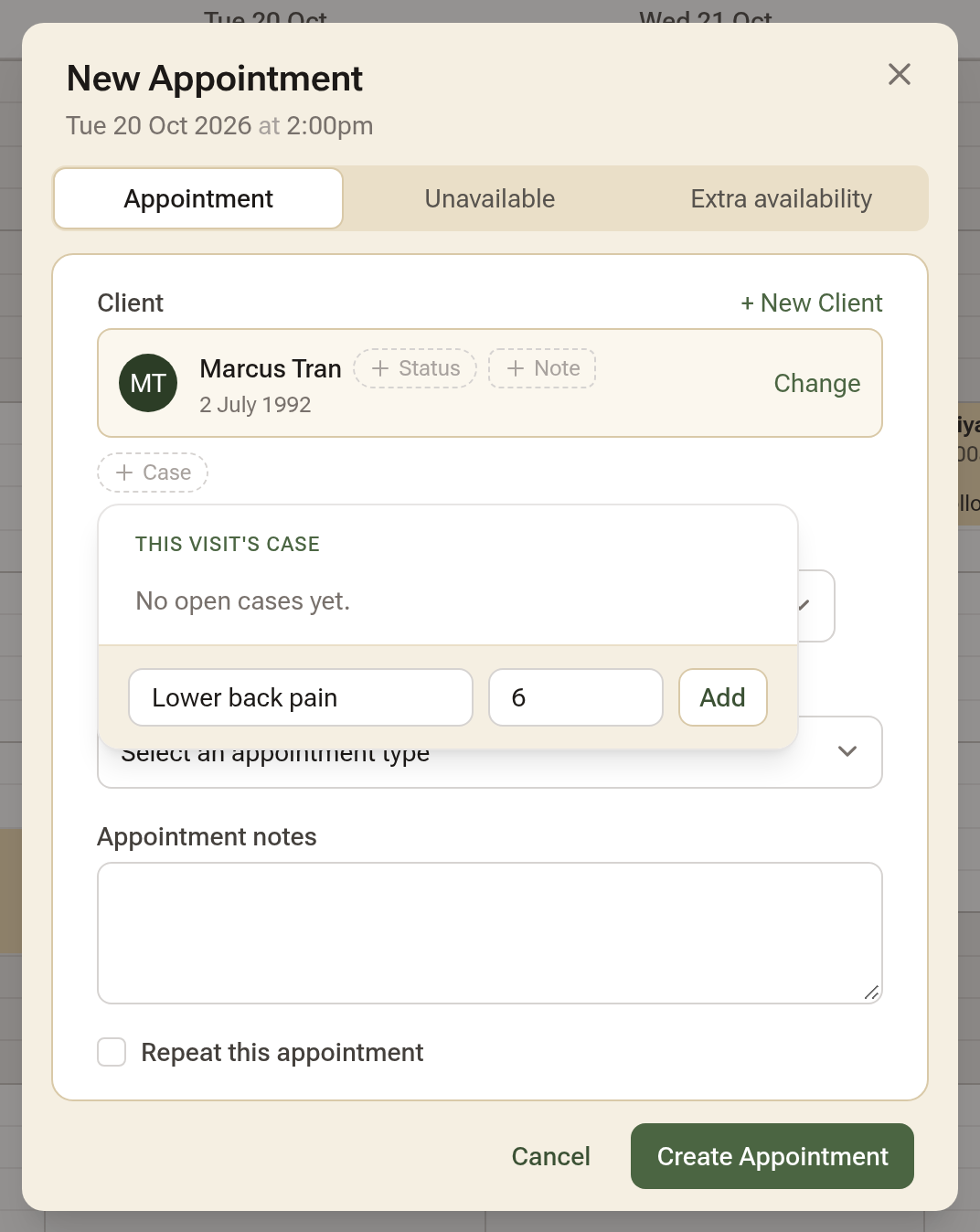
Open the calendar and click a free time to book as usual. Once you've chosen the patient, a small + Case pill appears under their name. Click it to open This visit's case. Type the condition in New case, e.g. Chronic migraine, add a number in Sessions if there's an agreed plan, and click Add. The pill now names the case, and the booking goes into it when you click Create Appointment.
Step 2: The next booking carries it on
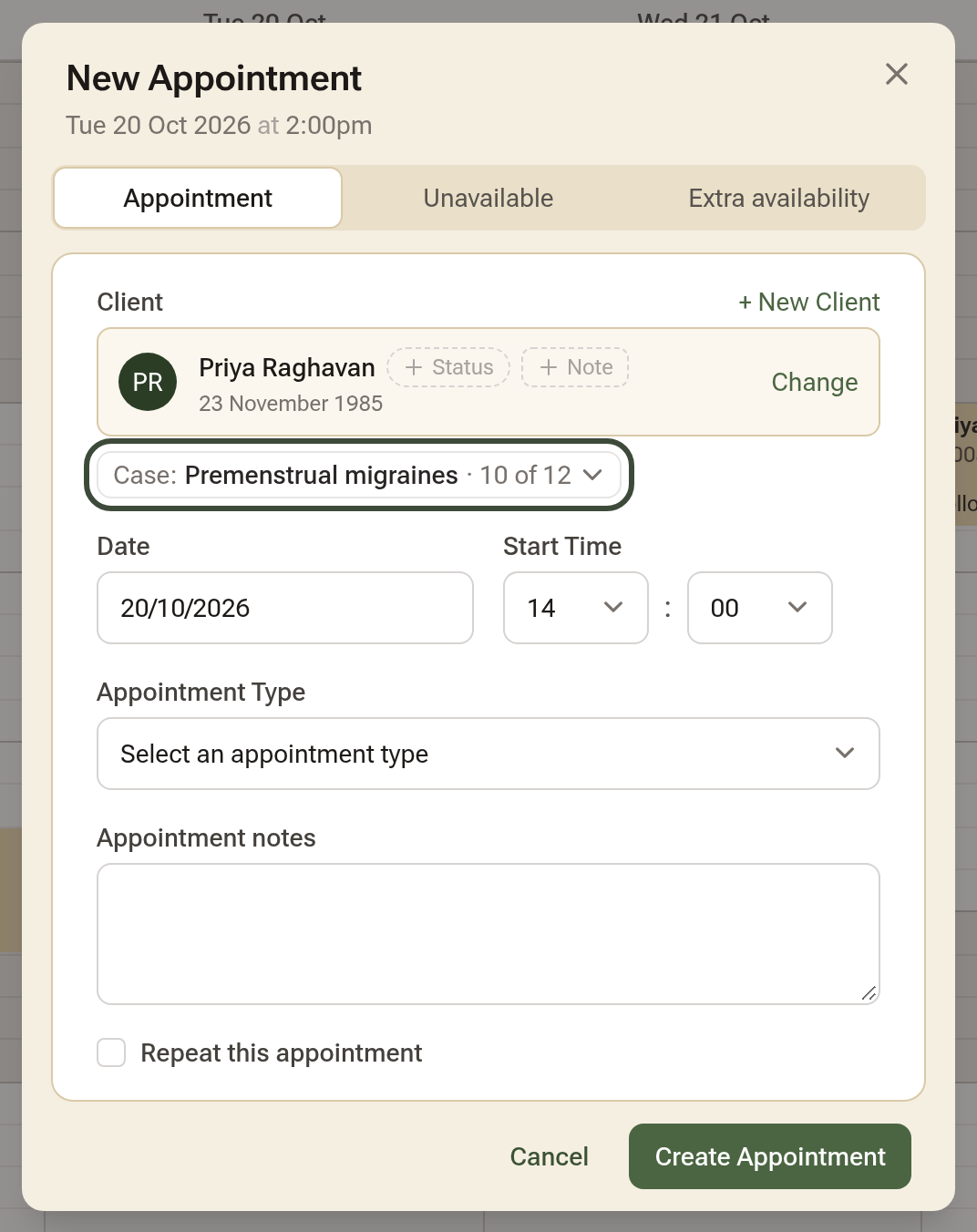
Book the same patient again and their case is already ticked, with where this visit will sit, such as 10 of 12. Untick it if the visit is for something else, or tick a second case if the visit belongs to both.
Step 3: See where a booking sits
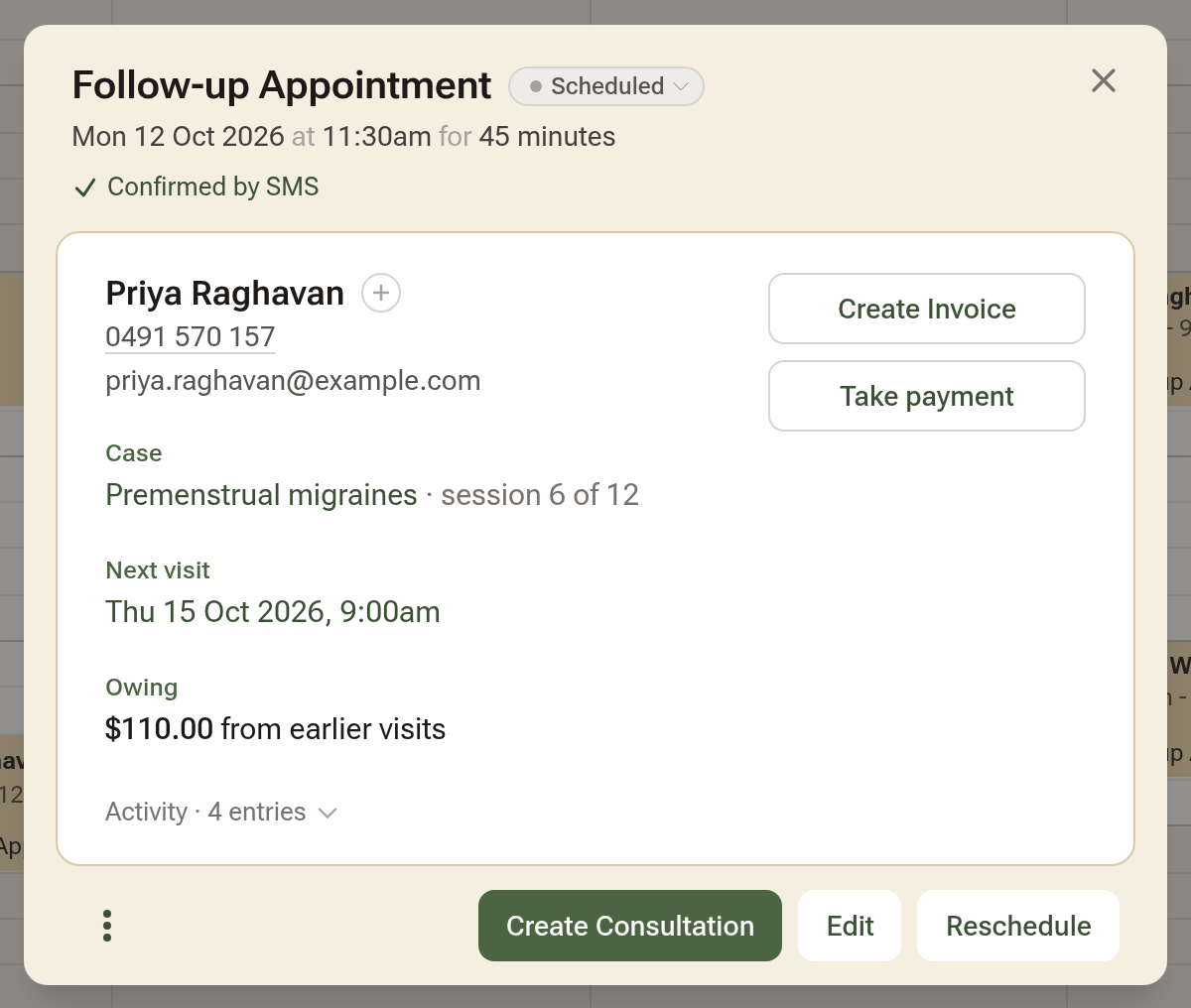
Click a booking on the calendar to open its details. A Case row names the case and the session, such as "Premenstrual migraines · session 6 of 12". The count is deliberately not drawn on the calendar block itself; the details are where to look.
Step 4: The case page
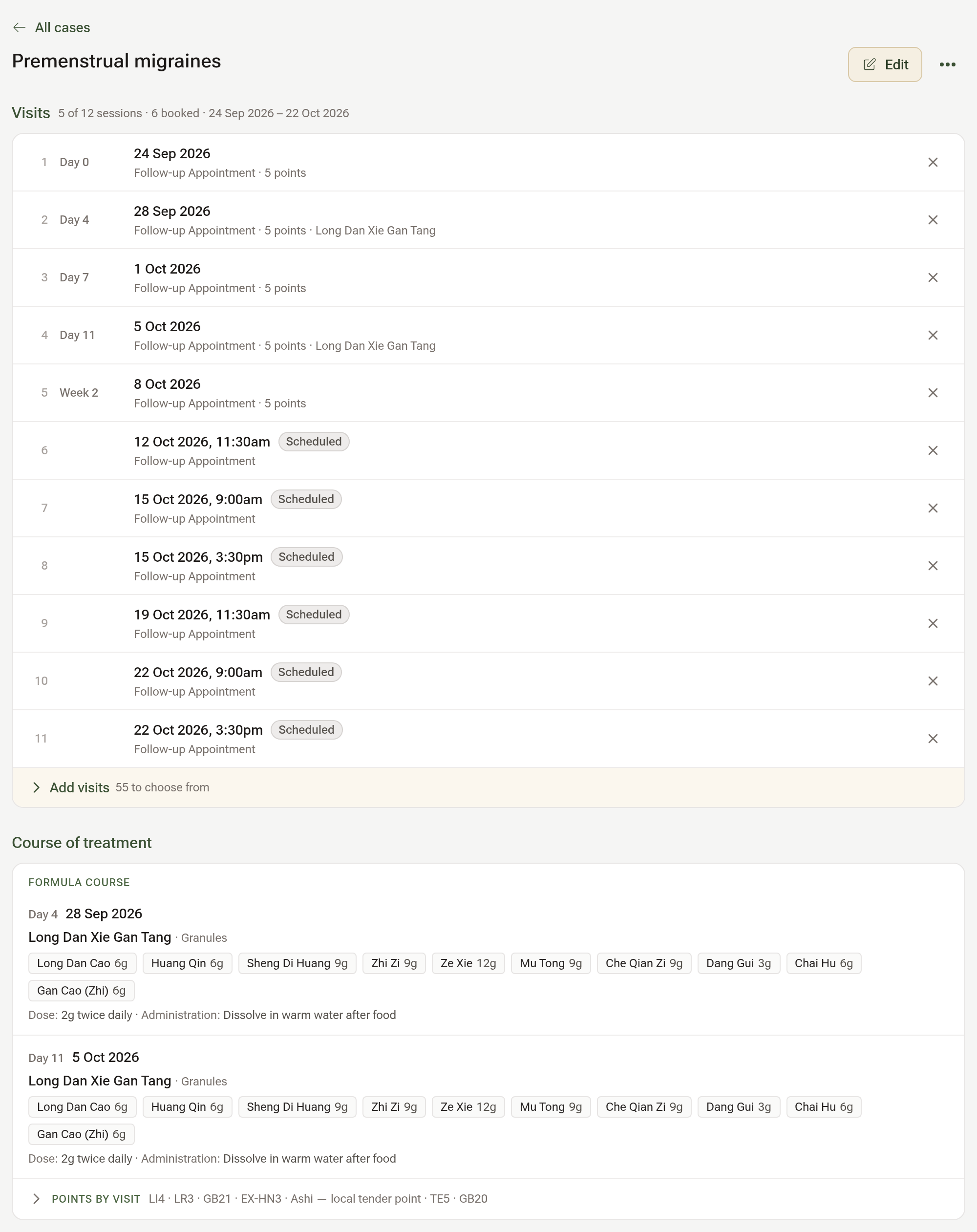
Open the patient's profile and click Cases in the left-hand menu, then the case's name. Visits lists every visit in the case oldest first and numbered; a booking still ahead shows its time and status, and a missed session keeps its place without a number. Add visits at the foot of the panel lists earlier visits and bookings not yet in the case: tick the ones that belong and click Add selected. The × at the end of a row takes a visit out of the case without deleting anything.
Step 5: Edit or close the case
Edit changes the name and Planned sessions. When the course is finished, open the ⋯ menu and click Close case. A closed case stops being carried on to new bookings and sits under Closed cases in the patient's list.
Tips:
- The same Case pill sits on the visit line while you write a consultation note, so a case can be started or changed from there too.
- Planned sessions are a plan, not a limit: nothing stops a booking past the number.