
Connecting an app to your Daobook
Let an app you use, such as an AI assistant, act as you in Daobook within what your role allows, see what it may do, and disconnect it.
Connecting an app to your Daobook
An app you use yourself, such as an AI assistant, can connect to Daobook as you. It does only what your role allows, at your locations, and everything it does is logged as you, through the app. You allow it on a Daobook screen and can disconnect it at any time.
Prerequisites
- Your account owner has accepted the Daobook API terms once, under Settings → Integrations → Developer API (the Accept the API terms button). The screen below tells you whom to ask if not.
Step 1: Start from the app
In the app, choose to connect Daobook. It opens Daobook in your browser. Sign in if you are not already, and confirm your password when asked.
Step 2: Read what it asks for, then allow it
The screen says [App] wants to connect to your Daobook and that it would act as you at your business. Under It will be able to, each thing the app asks for is listed in Daobook's words, with the locations it would apply to; anything your role cannot hold is shown as left out. With several locations, choose All my locations or Only some locations. Click Allow to connect it, or Cancel.
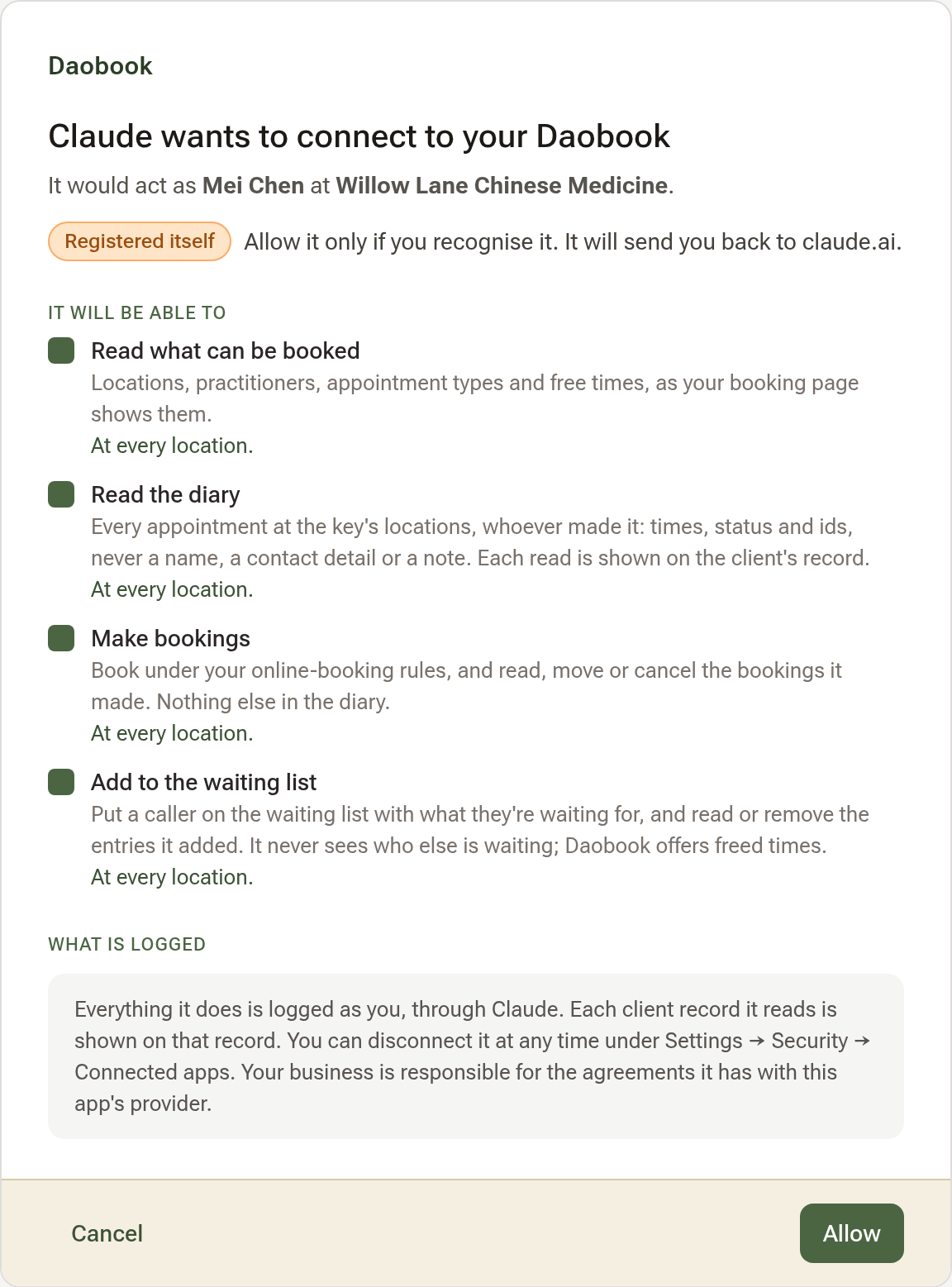
An app that registered itself carries a Registered itself pill and says where it will send you back to. Allow it only if you recognise it.
Step 3: See and disconnect your connected apps
Click your name, then Settings, the Security tab, then Connected apps. Each app you have allowed is listed with what it may do, where, when it was connected and last used. Click Disconnect to cut it off at once; it can ask to connect again.
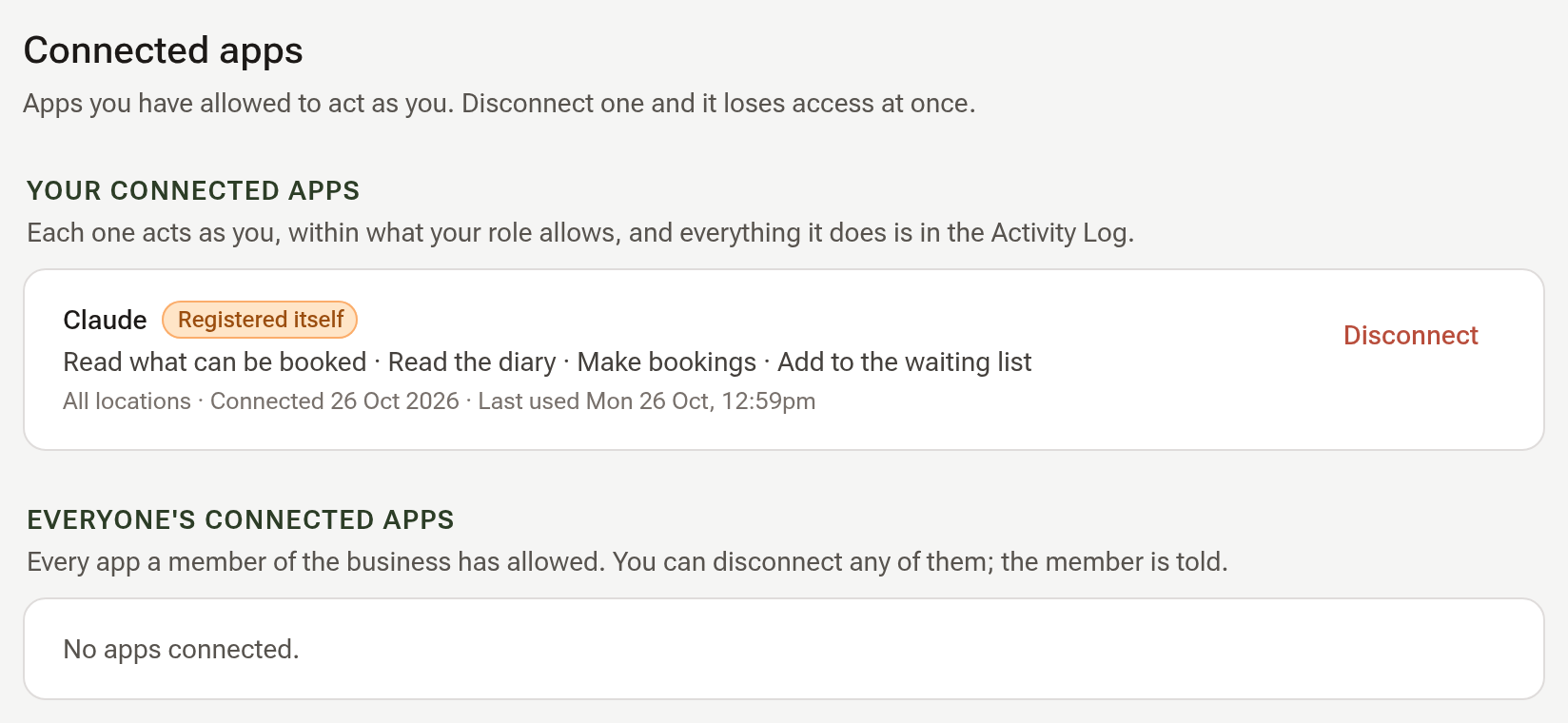
If you are an owner or admin, Everyone's connected apps below lists every app a member of the business has allowed, and you can disconnect any of them. The member is told by email.
Tips:
- Only an owner, admin or receptionist can let an app make bookings or add to the waiting list; a practitioner can let it read the diary and what can be booked.
- Each client record an app reads for you is shown on that client's Who Opened This Record as you, through the app.