
Keeping a Card on File to Pay for Visits
Keep a client's card on file with their agreement, by a secure link or in the clinic, and charge it for their invoices from Record Payment — never automatically.
Keeping a Card on File to Pay for Visits
A client's card on file can pay their invoices, but only once they have agreed to that use. They can agree when they book online, through a secure link you send them, or in the clinic. Nothing is ever charged by itself: you charge the card from the invoice when the visit is done.
You need Square or Stripe connected (see Taking Online Payments with Square or Stripe), and to be able to take payments in the clinic. Card details are held by your gateway, never by Daobook.
Step 1: Choose what the booking page asks
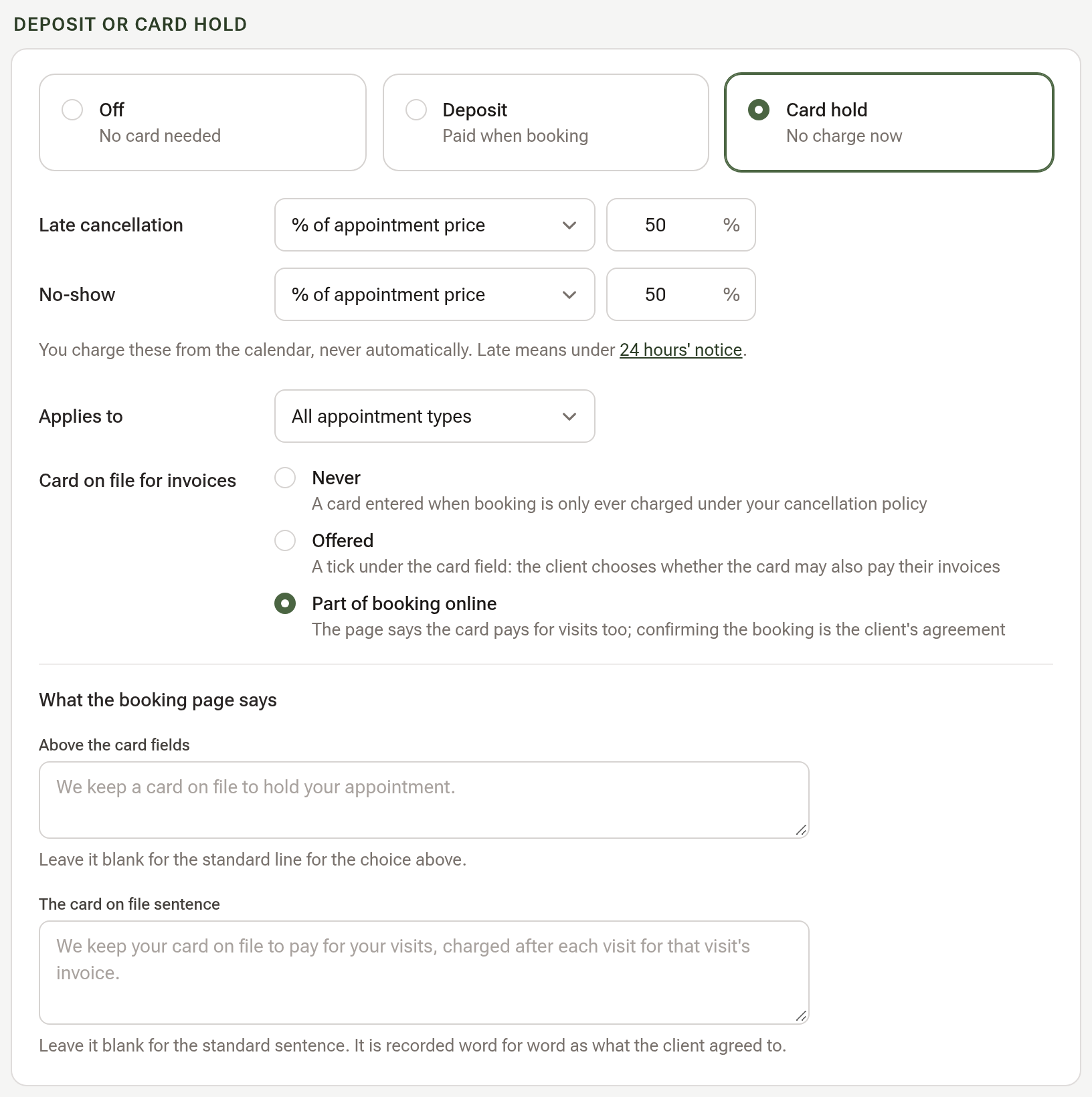
Click Settings in the sidebar, open the Practice Info tab and choose Online Bookings. Under Deposit or Card Hold, with Deposit or Card hold chosen, find Card on file for invoices:
- Never keeps a card entered when booking for your cancellation policy only.
- Offered adds an unticked box under the card field, so the client chooses whether the card may also pay their invoices.
- Part of booking online states on the booking page that the card pays for visits too; confirming the booking is the client's agreement.
With Part of booking online, the block What the booking page says shows The card on file sentence. Leave it blank for the standard sentence or write your own; it is recorded word for word as what the client agreed to. Click Save.
This step only matters for clients who book online. The two ways below work whatever you choose here.
Step 2: Send the client a link
Open the client's profile and choose Payments & Billing. The Payment Method panel offers Send link by email and Send link by SMS.

The client receives a secure Add a card page, enters their card on the gateway's own fields, ticks the agreement and clicks Save card. The link works for seven days and takes one card. The message shows on the client's communications.
Step 3: Or add the card in the clinic
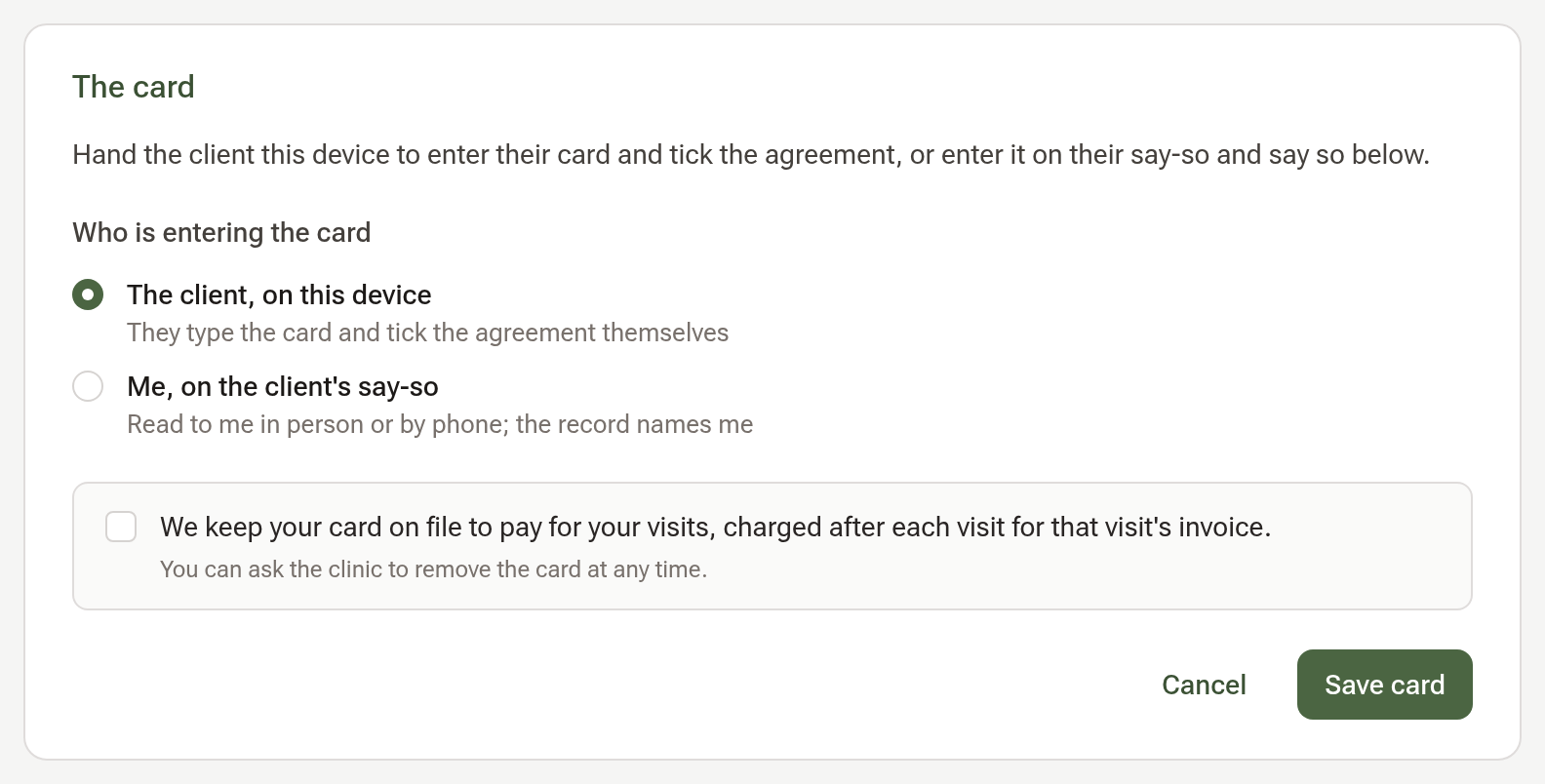
On the same panel, click Add card (it reads Replace card when one is already on file). The Card on file page has the card fields and asks Who is entering the card:
- The client, on this device: hand them the device to type the card and tick the agreement themselves.
- Me, on the client's say-so: the card was read to you in person or by phone, and the record names you.
Tick the agreement and click Save card.
Step 4: Read the Payment Method panel
Once a card is on file, the panel names it and says what it may do: On file since the day it was saved, then May pay invoices since that date and how the client agreed (ticked when booking online, part of booking online, through the link we sent, or agreed in the clinic). A card held for your cancellation policy alone reads Not agreed for paying invoices; send the link or add it again with the agreement. The bin icon removes the card.

Step 5: Charge the card
Open the invoice and click Record Payment. When the client's card may pay invoices, a row Card on file · Visa •••• 4242 sits among the payment methods. Enter the amount, the balance or less, and click Record Payment. The card is charged on the spot through the gateway that holds it, the payment is recorded like any online card payment with a note naming the card, and the receipt goes as usual.
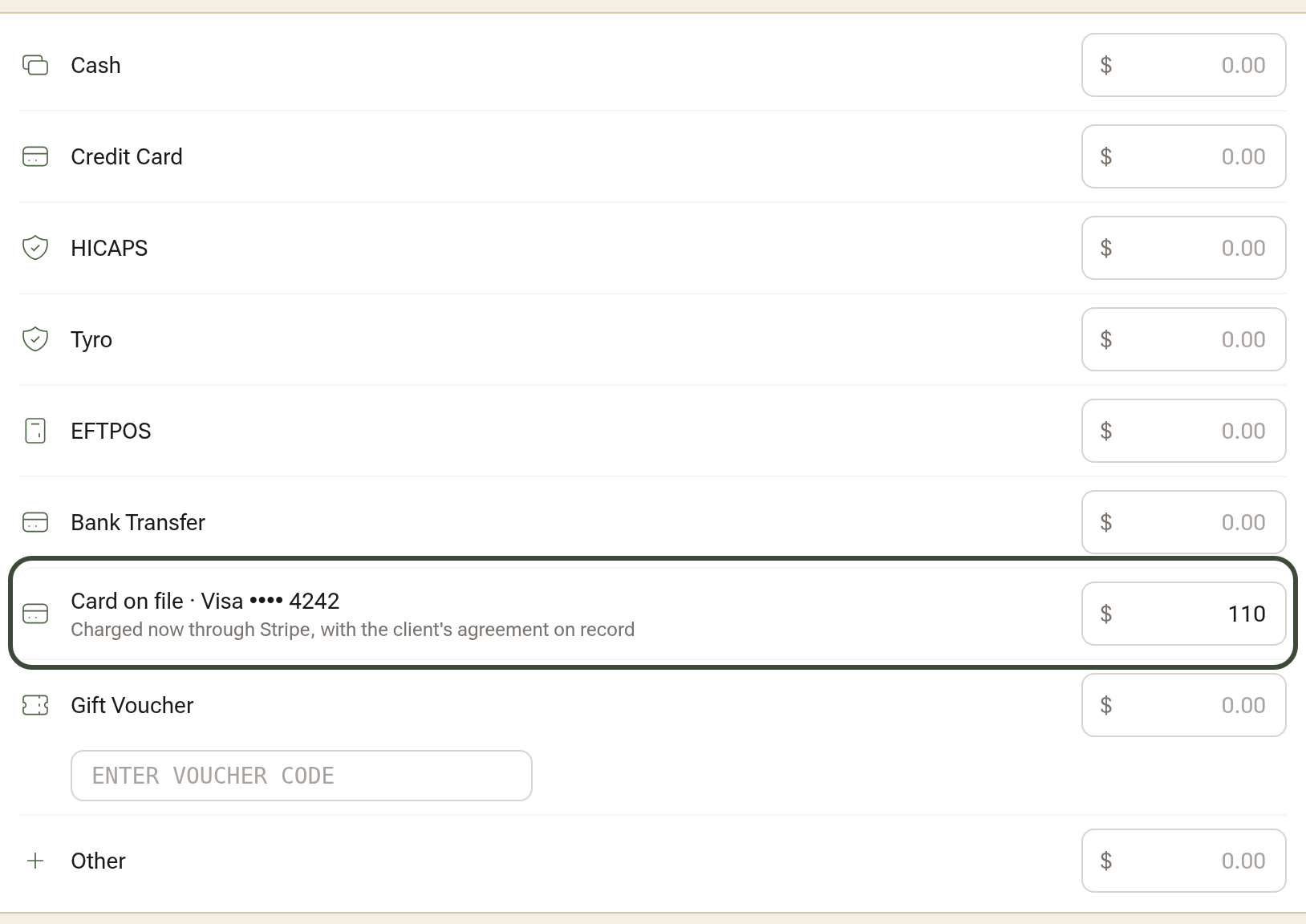
If the gateway declines the card, the invoice stays open and the gateway's message is shown.
Tips:
- A card on file pays one invoice at a time, for its balance or less, and never goes into account credit.
- Switching the booking setting back to Never stops asking new clients; cards already agreed for invoices keep that agreement until removed.
- Refund a card-on-file payment from the payment itself, as for any online card payment.