
Tracking Progress with Measures
Ask clients to rate the same things at each visit, such as pain or sleep, see their numbers line up visit by visit on their case and profile, and send them their progress in a letter.
Tracking Progress with Measures
A measure is one thing you ask a client to rate, such as pain or sleep. Add it to an intake form or a consultation template, and every answer lines up, visit by visit, in a Progress table on the client's case and profile. You can send the client their numbers in a letter too.
Step 1: Open your measures
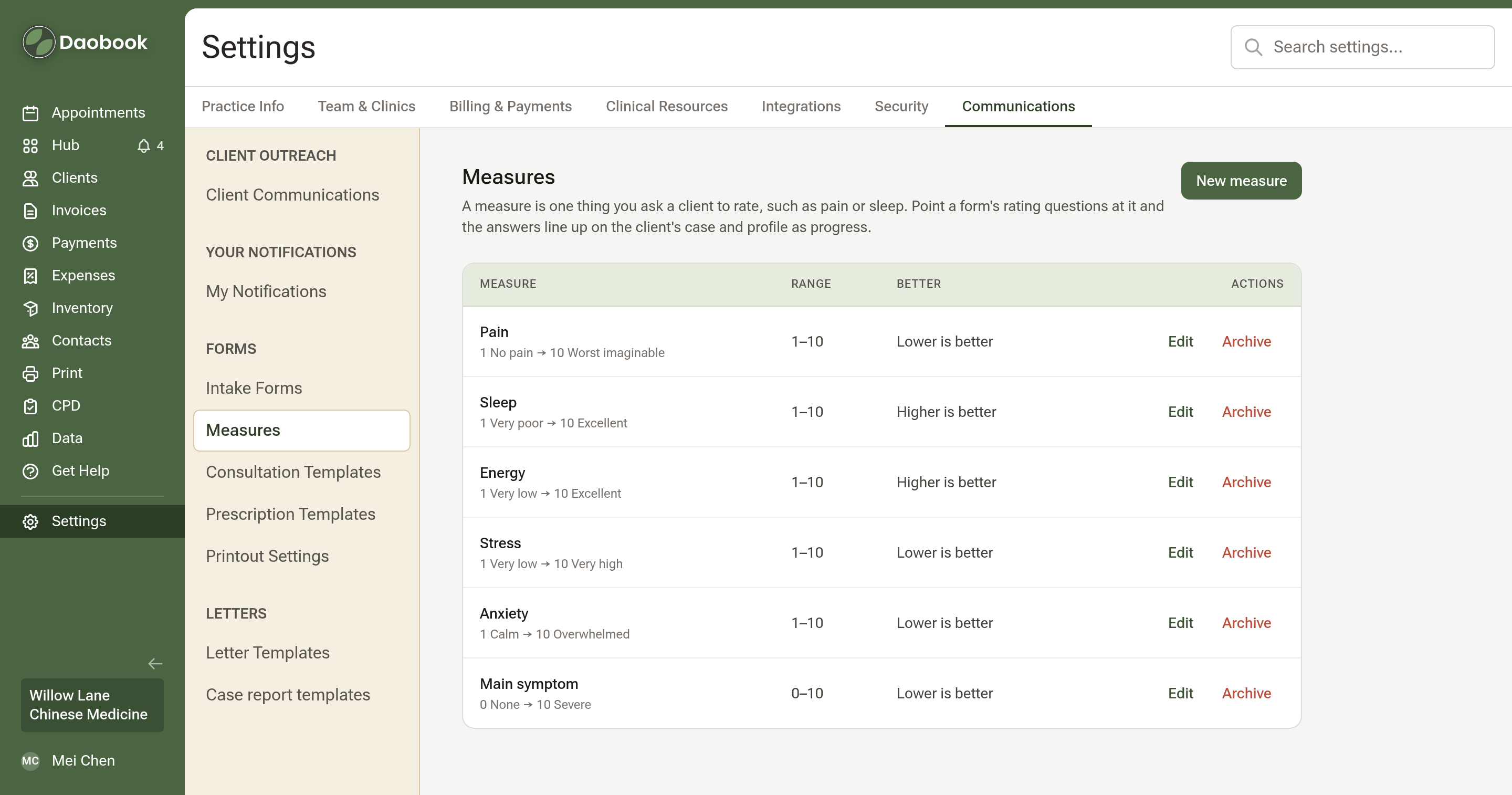
Go to Settings, open the Communications tab and click "Measures" (clinic owners and admins). Every practice starts with five: Pain, Sleep, Energy, Stress and Anxiety. Each has a range and which way is better: less pain is better, more sleep is better.
Step 2: Add one of your own
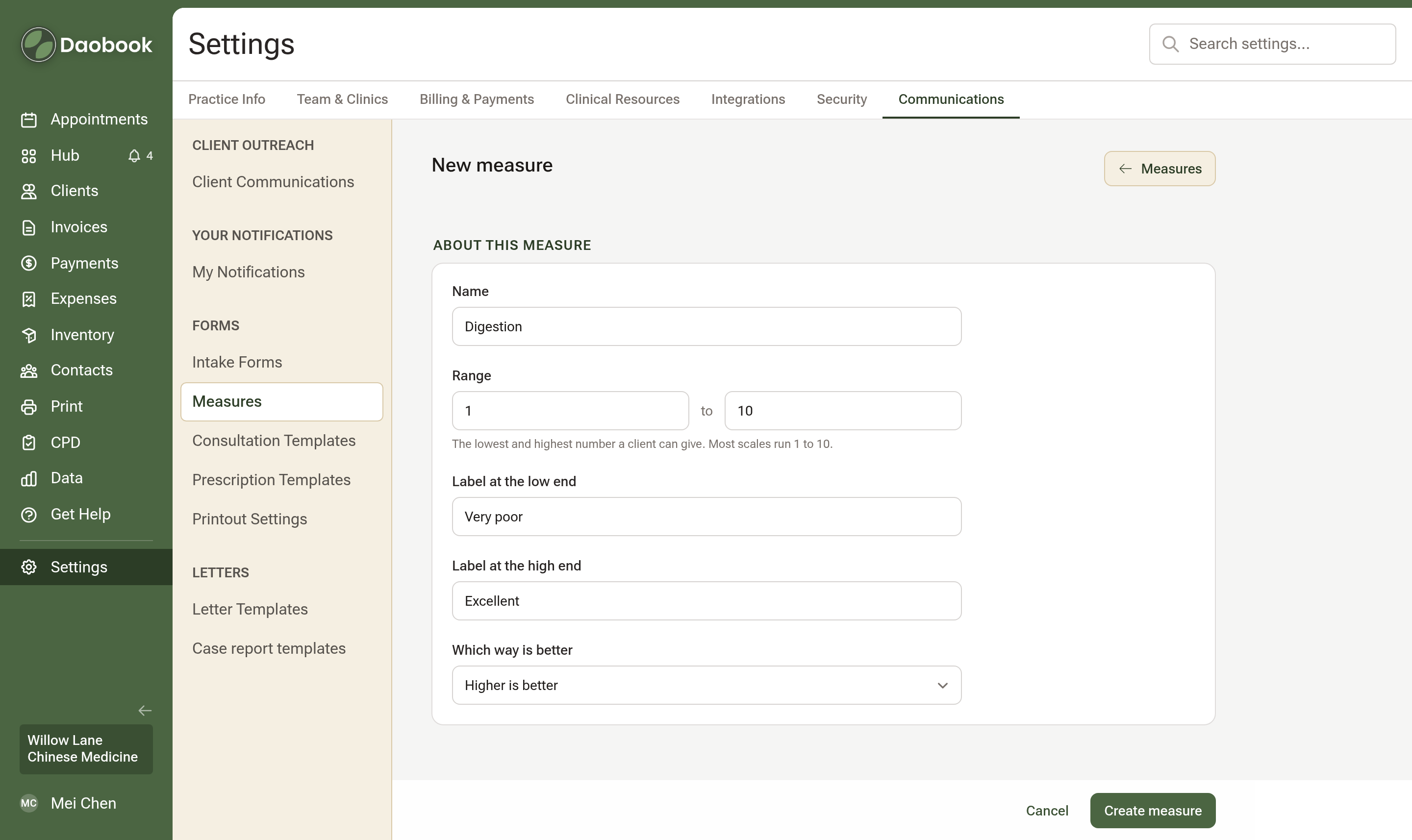
Click "New measure". Give it a Name, a Range and a label for each end, choose Which way is better, and click "Create measure".
Step 3: Add it to an intake form
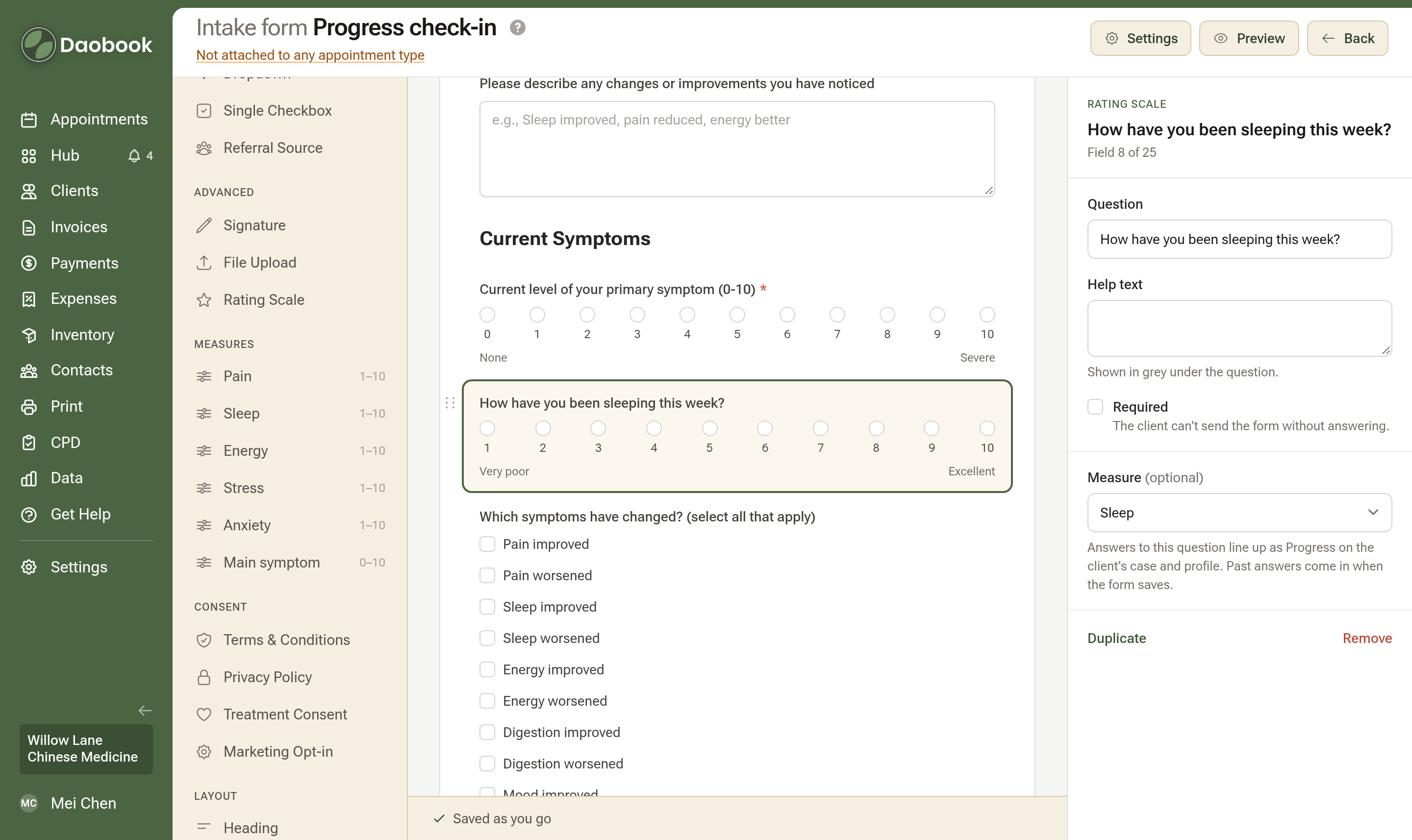
Open a form in the form builder (Settings → Communications → Intake Forms). Under Measures on the left, click a measure. It goes into the form as a rating question, ready to reword.
Already have a rating question? Click it, then choose a measure under Measure on the right. Answers clients have already given come in too.
Step 4: Or rate it in your notes
Open one of your own consultation templates (Customising Your Consultation Templates). Click a measure under Measures on the left, then "Save Template".
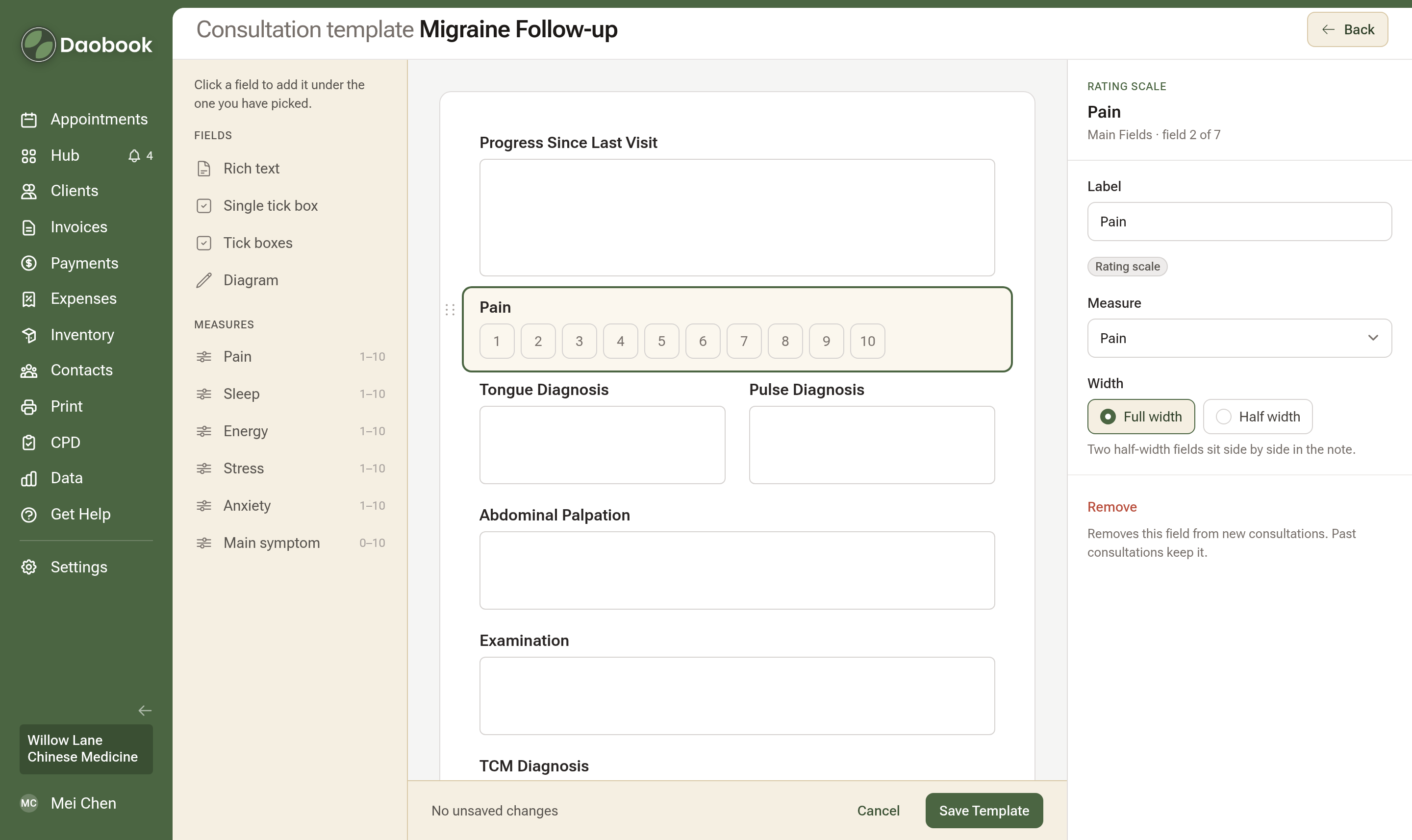
In the note it's a row of numbers. Tap one and it saves with the rest of the note.

Step 5: See Progress on the case
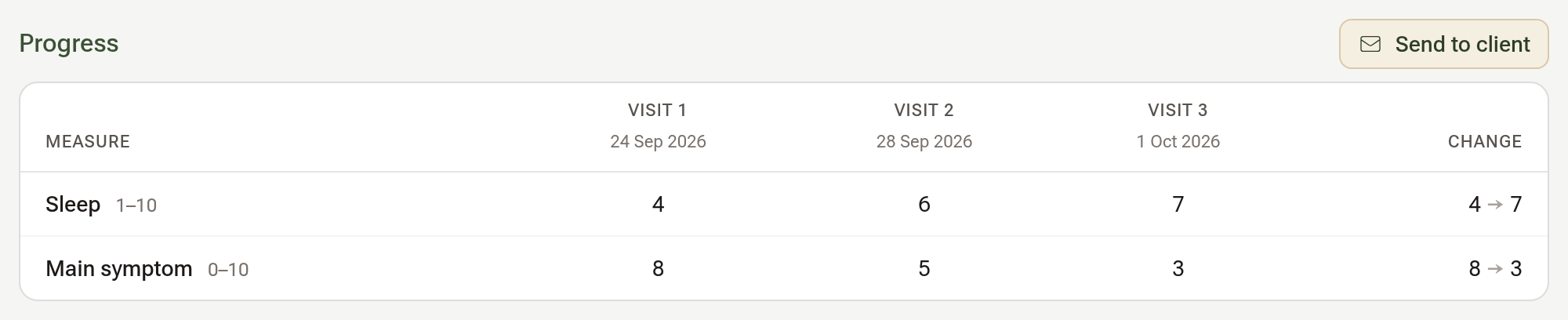
Open the client's profile, click Cases and open the case. Progress has a row for each measure and a column for each visit. Change shows the first answer → the latest.
Step 6: Or on the profile
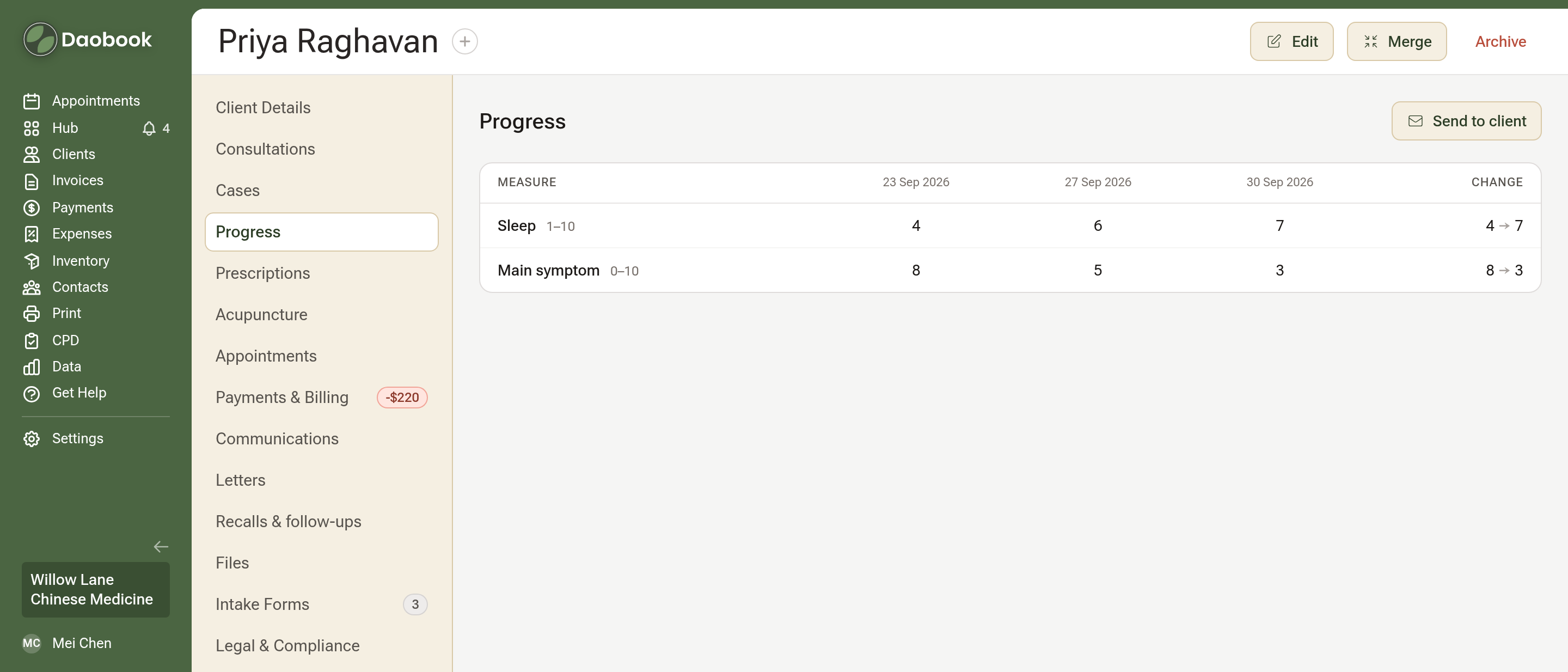
Click Progress in the client's menu. It shows every answer across all their cases, by the day it was given.
Step 7: Send it to the client
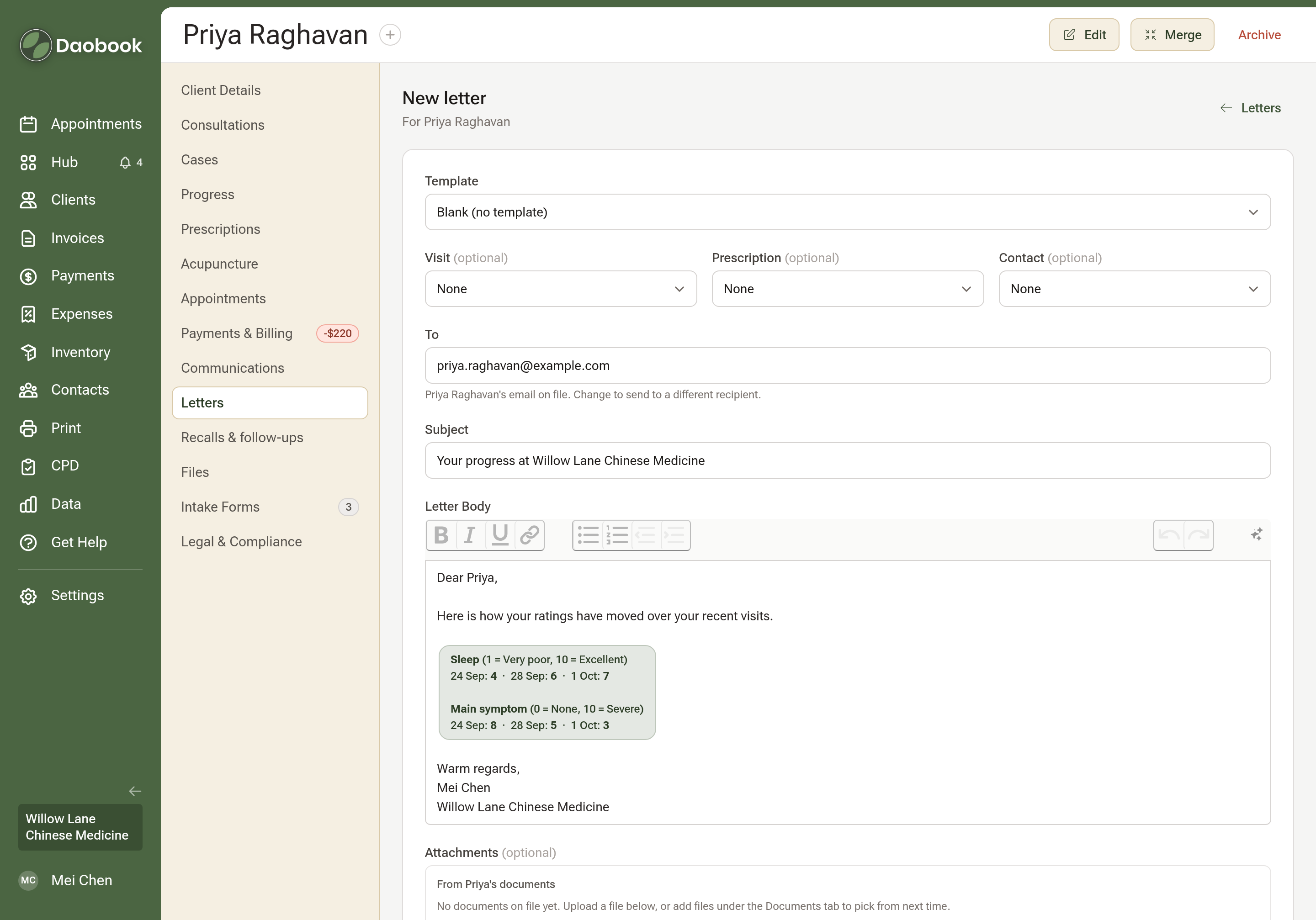
Click "Send to client" beside Progress, on the case or the profile. The letter composer opens with a short letter around the numbers, ready to change.
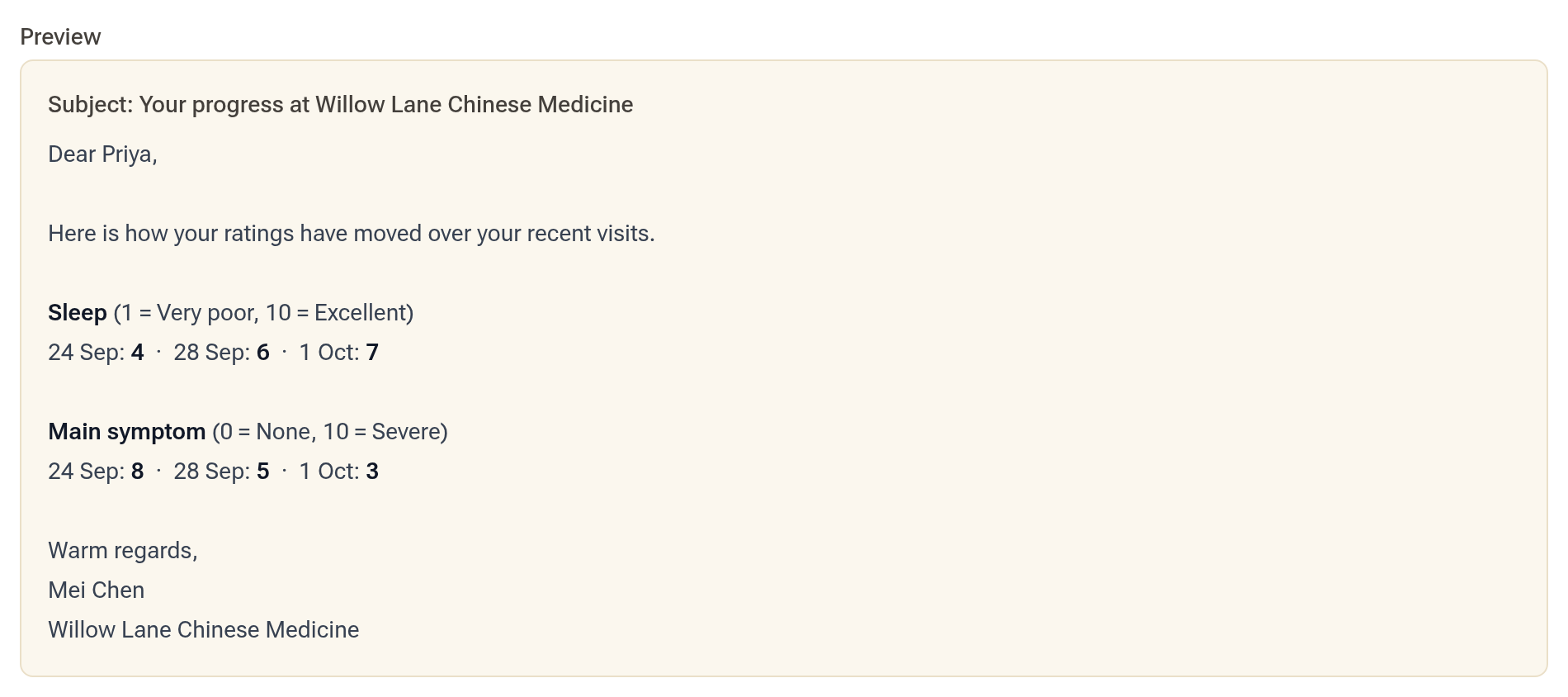
Click "Preview" to see it as the client will, then "Send Email", or "Download PDF" to print it.
Tips:
- To get a number before every visit, attach a short check-in form to your follow-up appointment type (Setting Up Intake Forms, Step 6).
- Forms made from Daobook's templates come with their measures already set, such as Pain, Energy and Stress on the TCM Comprehensive New Patient Intake.
- To put the numbers in a letter template of your own, choose Progress (measures) under Insert Variable in the template editor.