
Connecting HighLevel
Keep your clients in HighLevel (GoHighLevel / LeadConnector) as contacts with engagement fields, so your agency's campaigns and automations run on a current list.
Connecting HighLevel
If your marketing runs in HighLevel — your agency may call it GoHighLevel or LeadConnector — Daobook can keep your clients there as contacts. Each client who has opted in to marketing email or SMS is pushed across with fields like next appointment, last visit and days since visit, so reactivation and rebooking automations in HighLevel run on a list that is always current. Bookings and clinical notes stay in Daobook.
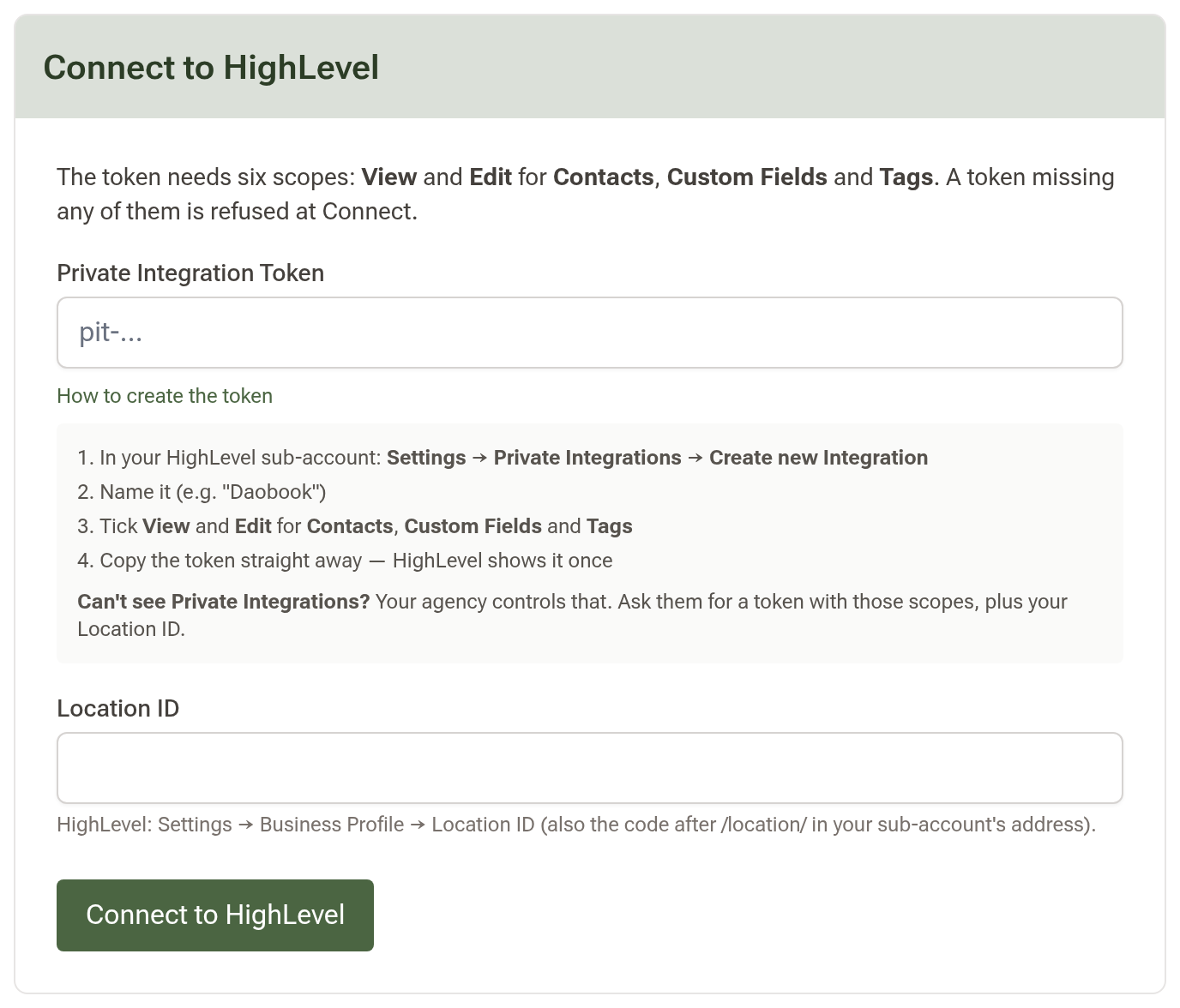
Step 1: Create a Private Integration Token in HighLevel
In your HighLevel sub-account go to Settings → Private Integrations and click Create new Integration. Name it (for example "Daobook") and tick these six scopes: View Contacts, Edit Contacts, View Custom Fields, Edit Custom Fields, View Tags, Edit Tags. Copy the token straight away — HighLevel shows it once.
Can't see Private Integrations? Your agency controls that setting. Ask them for a Private Integration Token with the six scopes above, plus your Location ID.
Step 2: Find your Location ID
Still in HighLevel, open Settings → Business Profile and copy the Location ID. It is also the code in your sub-account's web address after /location/.
Step 3: Connect in Daobook
In Daobook go to Settings, open the Integrations tab and click "HighLevel CRM". Paste the token into "Private Integration Token", the Location ID into "Location ID", and click "Connect to HighLevel".
Daobook checks the token, creates its custom fields in your HighLevel location (all named "Daobook …") and starts syncing your clients in the background. The card turns green and shows the Location ID, how many custom fields are mapped, and when consent was last reconciled.
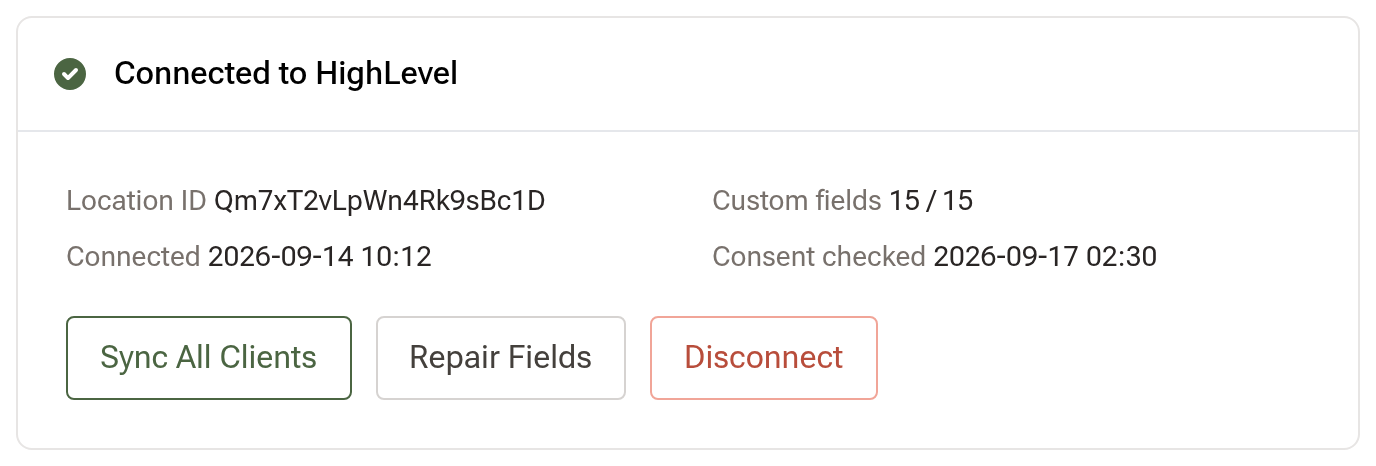
Step 4: Check the result in HighLevel
Open Contacts in HighLevel. Each synced client carries a daobook tag and the "Daobook …" custom fields. Build your workflows on those — a reactivation sequence when Daobook Days Since Visit passes 90, a rebooking nudge when Daobook Last Appointment Outcome is cancelled, a pre-visit series when Daobook Next Appointment is set — and use the daobook tag as the trigger for anything that should only run for clients from Daobook.
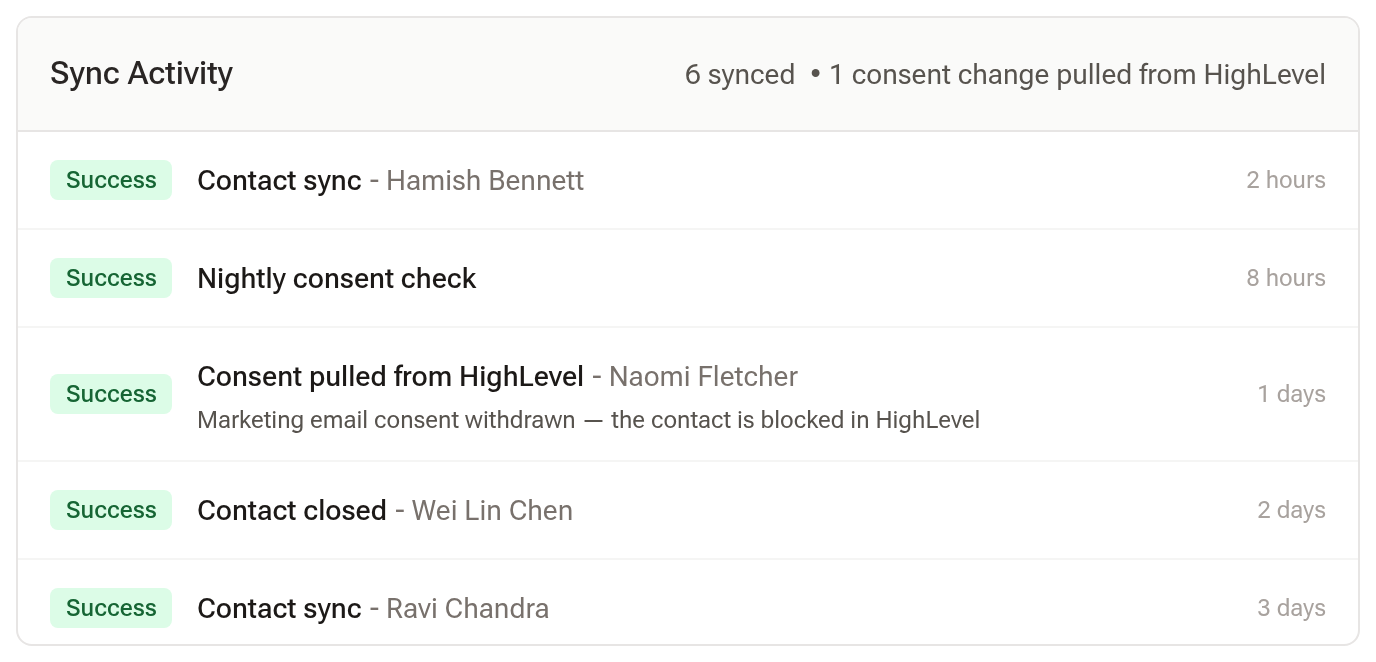
The Sync Activity list under the connected card shows each contact as it syncs, along with any consent changes pulled back from HighLevel.
Tips:
- Consent flows both ways. A client who withdraws consent in Daobook is set to Do Not Disturb for that channel in HighLevel; a client who unsubscribes inside HighLevel has that consent switched off in Daobook within a day. Daobook never re-subscribes anyone and never deletes a contact from HighLevel.
- Daobook syncs to one marketing CRM at a time. If Brevo is connected, disconnect it first.
- If fields stop filling in HighLevel, click "Repair Fields" to recreate any that were deleted there.