Prescription Label Printing
Professional herbal medicine labels, generated as PDFs and printed straight from your browser — no label software required
No Label Software Required
Most label printers ship with their own design software — Brother P-touch Editor, DYMO Label, and so on. Daobook takes a different approach.
Daobook generates the label as a PDF, sized to fit your printer, and prints it via your browser’s standard print dialog (Cmd+P on Mac, Ctrl+P on Windows). No extra software to install, no templates to manage, and no compatibility issues between a label app and your operating system.
The only requirement is that your label printer registers as a system printer so the browser can see it. This is why printer choice matters — and why we have a clear recommendation.
How It Prints
Prescription Created
Formula or product details saved
PDF Label Generated
Sized to your printer, ready to print
Browser Print Dialog
Cmd+P → select printer → done
How It Works
Three steps from setup to printed label
Set Up Your Practice
Your clinic name, address, phone number, and AHPRA registration appear on every label automatically. Set these once in your practice settings.
Create a Prescription
Use the prescription builder to create a formula or product prescription with the in-clinic dispensary (the default). In-clinic prescriptions are automatically available for label printing.
Print Your Label
Go to Print Labels, find the prescription, and hit print. Daobook generates a PDF sized for your printer — 62×100mm for Brother or 59×102mm for DYMO — and your browser sends it straight to the printer.
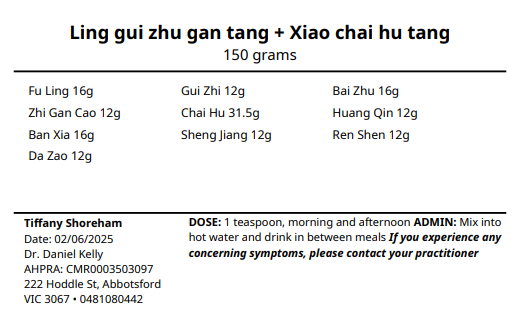
What’s on the Label?
Every label is automatically populated from your prescription and practice details. Nothing to type or template — it’s all pulled from data you’ve already entered.
- Formula or product name
- Full herb ingredient list with quantities
- Client name and prescription date
- Practitioner name and AHPRA registration number
- Clinic name, address, and phone number
- Dosage and administration instructions
- Optional clinic logo
Recommended Printers
Daobook prints via the browser, so your label printer needs to appear as a system printer on your computer. Any thermal label printer that supports the right label size will work.
Brother QL-810W
~$200–220 AUD
WiFi with AirPrint support — on Mac it auto-registers with no driver install. On Windows, install the Brother driver and connect via WiFi or USB.
- WiFi + USB connectivity
- AirPrint on Mac — no driver needed
- Resilient to macOS updates
62×100mm labels · DK-11202 rolls (third-party compatible)
Brother QL-800
~$130–150 AUD
A solid budget option if you don’t need wireless. USB connection only — works well on Windows with the Brother driver. On Mac, requires a manual driver install.
- USB connection
- Reliable on Windows
- Mac requires manual CUPS driver
62×100mm labels · DK-11202 rolls (third-party compatible)
Already Have a DYMO?
Use what you’ve got
If you already have a DYMO LabelWriter set up and working, Daobook supports it. Just make sure you’re using the right label size and have DYMO Connect installed.
- 59×102mm thermal labels
- Requires DYMO Connect software
- 550 series uses DYMO-branded rolls only
59×102mm labels · LW 30256 / 99014 rolls
Printer Setup
Getting your label printer connected takes just a few minutes
Mac
The QL-810W uses AirPrint on Mac — connect it to your WiFi and it auto-registers as a system printer. No driver install needed.
Our step-by-step tutorial walks you through the full setup, including printing your first label.
View Mac setup guideWindows
Install the Brother printer driver, connect via USB or WiFi, and you’re ready to print. Works with any Brother QL model.
Our step-by-step tutorial covers driver installation and printing your first label.
View Windows setup guideReady to Print Professional Labels?
No label software, no templates, no hassle — just professional prescription labels from your browser